

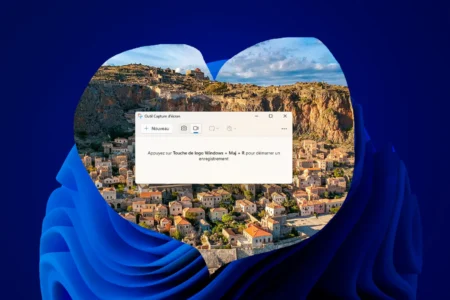
Capturing an image of your screen can be useful in many situations: creating a Windows tutorial, reporting a problem or simply recording information. If you’re using Windows 11 or 10, you have several options for performing this operation. In this article, we explore the most common methods for taking a screenshot without difficulty.
In this article
Using the native Windows screen capture tool
The Screen Capture Tool is a native application included with PCs running Windows 11/10. It lets you capture the whole screen or a specific part of it, annotate captures, save them and even share them. The tool supports several capture modes:
Video capture: record videos of your screen.

Freeform: select a freehand area.

Rectangle: capture a precise rectangular area.

Window: save the contents of a specific window.

Full screen: capture everything displayed on your screen.

How do I use the Screen Capture tool on Windows 11/10?
The Screen Capture Tool is native to Windows 11 and Windows 10, making it easy to capture images or videos of your screen. Here’s a practical guide to making the most of this tool.
Shortcuts for using the Screen Capture tool
Windows + Shift + R: directly launches the video capture tool.
Press Windows + Shift + S: directly launches the image capture tool.
Print screen: captures an image directly on the screen.
The Screen Capture tool from the Start menu
Open the start menu and locate the search bar.
Type Screenshot in the Windows search bar, then open the application.
Choose capture mode (as described above)
Where can I find screenshots saved under Windows 11?
Screenshots recorded under Windows 11, when taken via the keyboard shortcut Windows + Print Screen, are automatically saved in a specific folder. By default, they are located in the following folder:
C:\Users\[your session name]\Pictures\Screenshots\
How to get there :
- Open File Explorer by pressing Windows + E.
- Navigate to This PC > Images > Screenshots.
- If you’ve customized the folder location or if the captures aren’t there, check your save settings or search directly for the file by name (formatted as “Screenshot [n].png”).
Modify default screenshot recording settings
In Windows 11, you can customize the settings for saving screenshots using the Screenshot Tool. Here are the steps for changing the default file location or other associated settings:
1. Access Screen Capture Tool settings
- Open the Screen Capture tool via the Start menu or search bar.
- Click on the options button represented by three dots (…) in the top right-hand corner.
- Select Settings from the drop-down menu (see image below).

2. Modify capture save location
Once in the settings :
- Make sure that the Automatically save original screenshots option is enabled.
- Click on the Modify button to select a new backup location.
- A browser window will open, allowing you to choose the folder in which you want to save your screenshots in the future.
The default location is :
C:\Users\[your session name]\Pictures\Screenshots\ but it can be customized to suit your needs (see image below).

In the settings, you can also :
- Enable or disable automatic copying of changes to the clipboard.
- Add a border to screenshots.
- Manage settings for HDR screenshots.
These options let you adapt the Screen Capture tool to your personal preferences and needs.
We allow some readers to view our articles for free with an ad blocker. However, their number is currently too high for us to keep this access available to everyone.
You can disable your ad blocker to continue reading immediately, subscribe to enjoy all our content without ads, or come back a little later when the pressure has eased.
Access will be restored automatically as soon as the situation allows.