
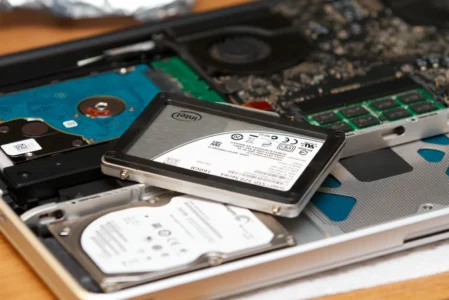
You may have heard of the differences between an HDD and an SSD drive, but do you know which one powers your PC? Rather than taking your computer apart, there are simple solutions to identify your drive type in just a few minutes. This article gives you some easy-to-follow tips for checking whether your PC uses an HDD or SSD, without the need for tools or advanced technical knowledge.
In this article
From the Windows task manager
One of the easiest ways to identify the type of disk storage on your PC is to use Windows Task Manager. In the Performance tab, you can easily view the status of your disk, as well as other information about your computer’s components.
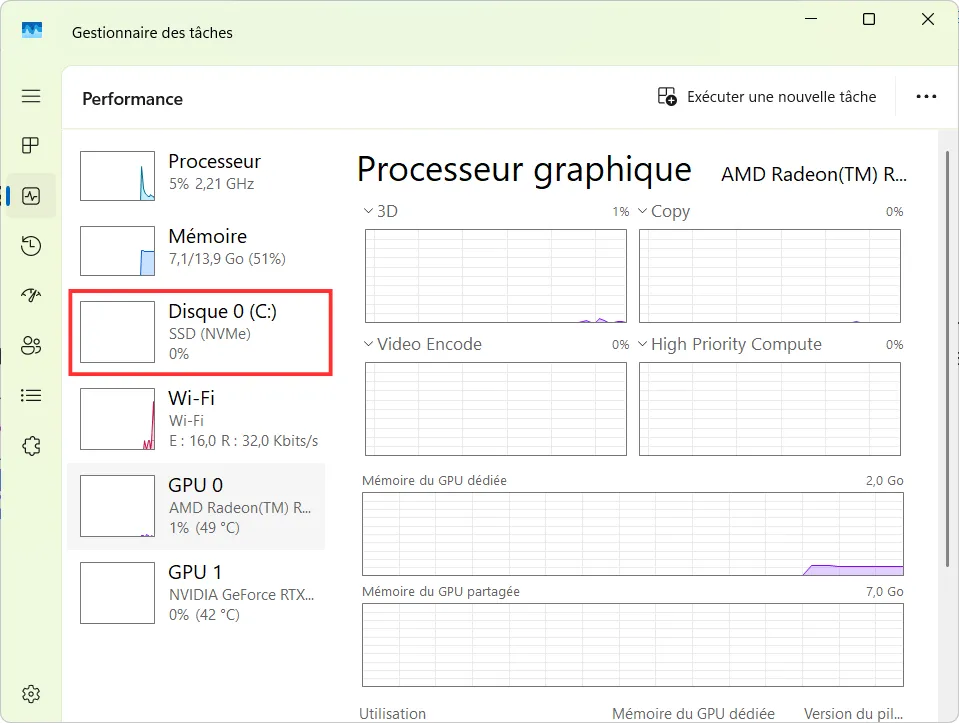
In the image above, you can see the section for Disk 0 (C:), which is clearly identified as an NVMe SSD. This section displays not only the type of disk, but also information on its utilization rate and performance in real time. If you have an SSD or HDD drive, this window will enable you to check it in a matter of seconds without having to open your PC. Here’s how to do it:
- Open the Task Manager by pressing
Ctrl + Shift + Escape. - Go to the Performance tab.
- Look for the Disk 0, Disk 1, etc. section, where you can see the type of disk (SSD or HDD) and further information on its use.
This gives you a quick overview of the state of your disk, and can help you detect any slowness related to the type of storage.
From the Windows disk defragmentation and optimization tool
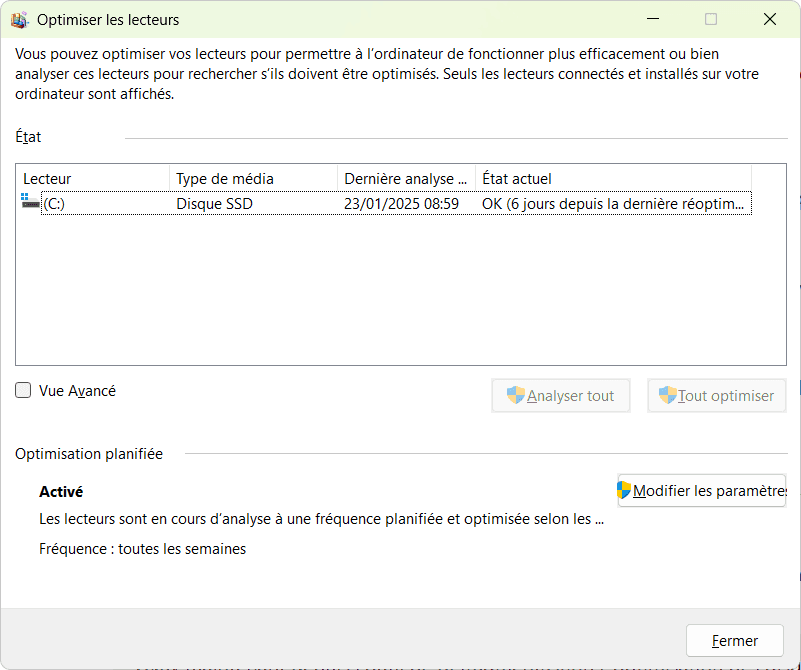
The Windows disk defragmentation and optimization tool is another easy way to identify and manage storage disks on your PC. In the example below, you can see that disk C: is identified as an SSD (Solid State Drive). The tool also shows you the current status of the disk and the last analysis performed.
Here’s how to check the disk type from this tool:
Open the tool by searching for Defragmenter in the Windows Start menu.
In the tool window, you’ll see a list of the disks installed on your PC, with information on their media type. Here, the SSD disk is clearly mentioned.
You’ll also be able to see the current state of the disk and the last time it was optimized, with the option of performing a new analysis or optimizing the disk if necessary.
This tool is particularly useful for checking not only the type of disk, but also its state of health and planning optimizations to guarantee maximum performance.
Don’t let the algorithm decide for you
Add Assistouest to your preferred sources on Google so you can find our guides faster when you search for an IT solution.
From Powershell with the Get-PhysicalDisk command
Another method of identifying your PC’s disk type is to use the Get-PhysicalDisk command in PowerShell. This will give you information on all the physical disks connected to your computer.
Here’s how it works:
Open PowerShell as administrator (right-click on the Start menu, then select Windows PowerShell.
Type the following command and press Enter.
Get-PhysicalDiskYou’ll see a table with information about your disks. In the MediaType column, you’ll find the indication SSD or HDD depending on the type of your disk.
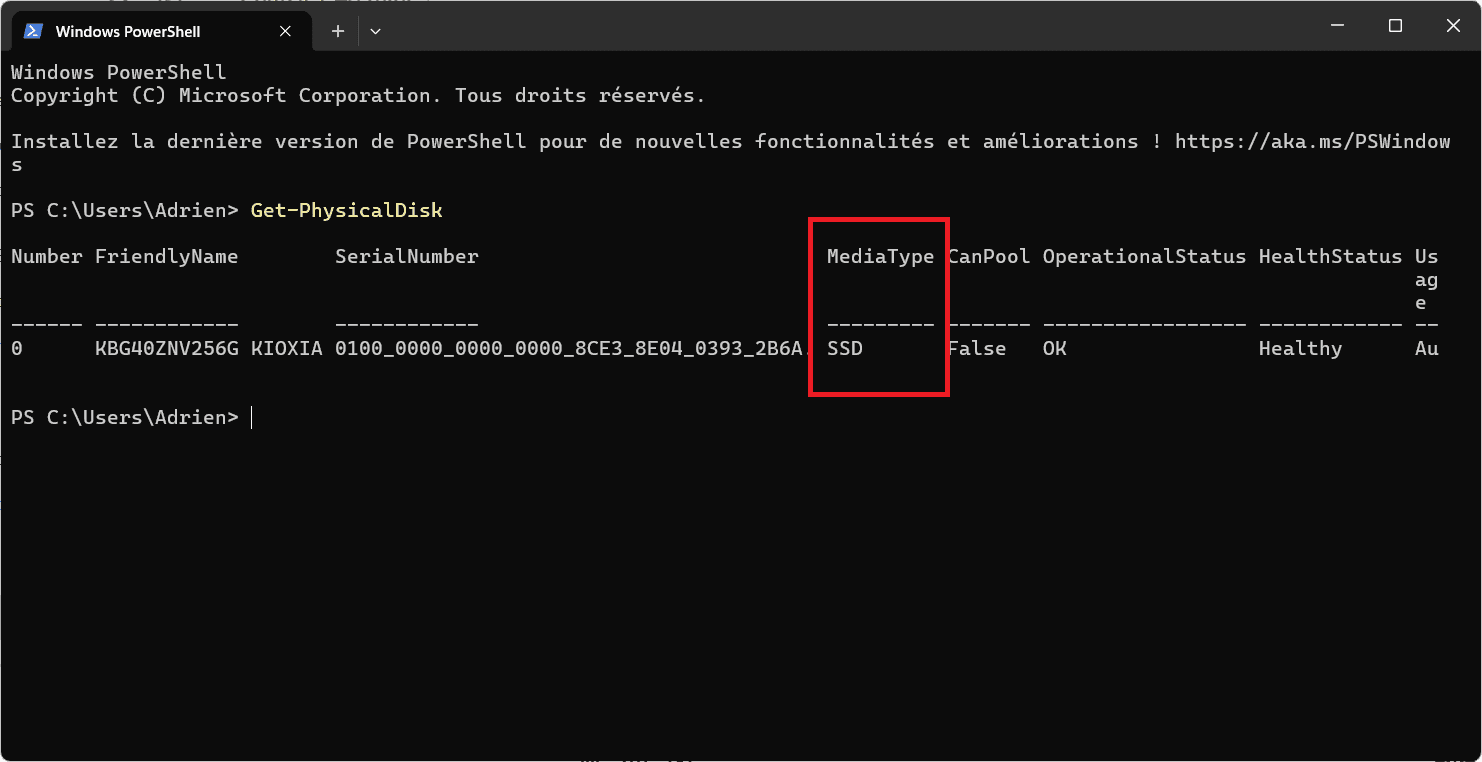
In the image above, you can see that the drive is identified as an SSD in the MediaType column. This allows you to quickly check the type of storage used without having to open your PC.
To find out whether your PC is using an SSD or HDD without opening the case, you can check in Task Manager (Performance tab), use the defragmentation tool (check Media Type) or run the Get-PhysicalDisk command in PowerShell. These methods will quickly give you the information without touching your PC’s components.
Find out more about SSDs: TBW, what is this durability index?
 assistouest.fr
The content will unlock automatically after verification.