
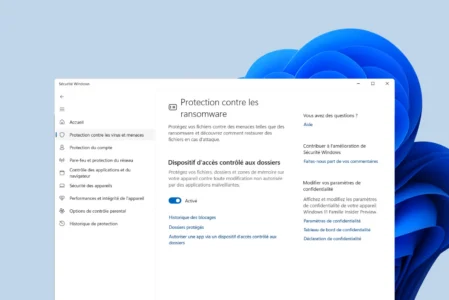
Ransomware attacks are no longer confined to large corporations. Every day, private individuals find their personal files encrypted, with a ransom demand to recover them. Yet Windows 11 natively integrates a powerful yet little-known feature: Microsoft Defender anti-ransomware protection. This guide shows you how to activate it in just a few clicks to strengthen your digital security, free of charge and without third-party software.
In this article
What is ransomware?
Ransomware is a type of malware designed to block access to your files or system until a ransom is paid. Specifically, it encrypts your documents, photos, videos or work files, then displays a message asking you to pay a sum (usually in cryptocurrency) to get them back.
Immediate and often irreversible consequences
It’s simple to operate, but highly effective:
- Your files become unreadable overnight.
- A threatening message: “Your data has been encrypted. Pay within 72 hours or it will be deleted.”
- Payment never guarantees file recovery.
Some ransomware goes even further: it steals your data before encrypting it, and threatens to publish it online if you don’t pay. This is known as double extortion.
Whereas in the past, only large companies or institutions were targeted, attacks have now become massively democratized. Thanks to automated campaigns and known vulnerabilities, hackers now also target private individuals: a simple click on a booby-trapped attachment can be enough. No one is too small to be taken as a digital hostage.
Microsoft Defender: the anti-ransomware protection you should be using
Microsoft Defender, the antivirus integrated into Windows 11, has come a long way in recent years. Long underestimated, it now offers comprehensive, discreet protection perfectly suited to everyday use. With no additional installation or cost, it monitors common threats in real time: viruses, malware, spyware…
Among its advanced features is a “Controlled Folder Access” module designed to block ransomware before it can encrypt your personal files. This option allows you to restrict access to sensitive folders (Documents, Images, Desktop…) and authorize only trusted applications to modify them.
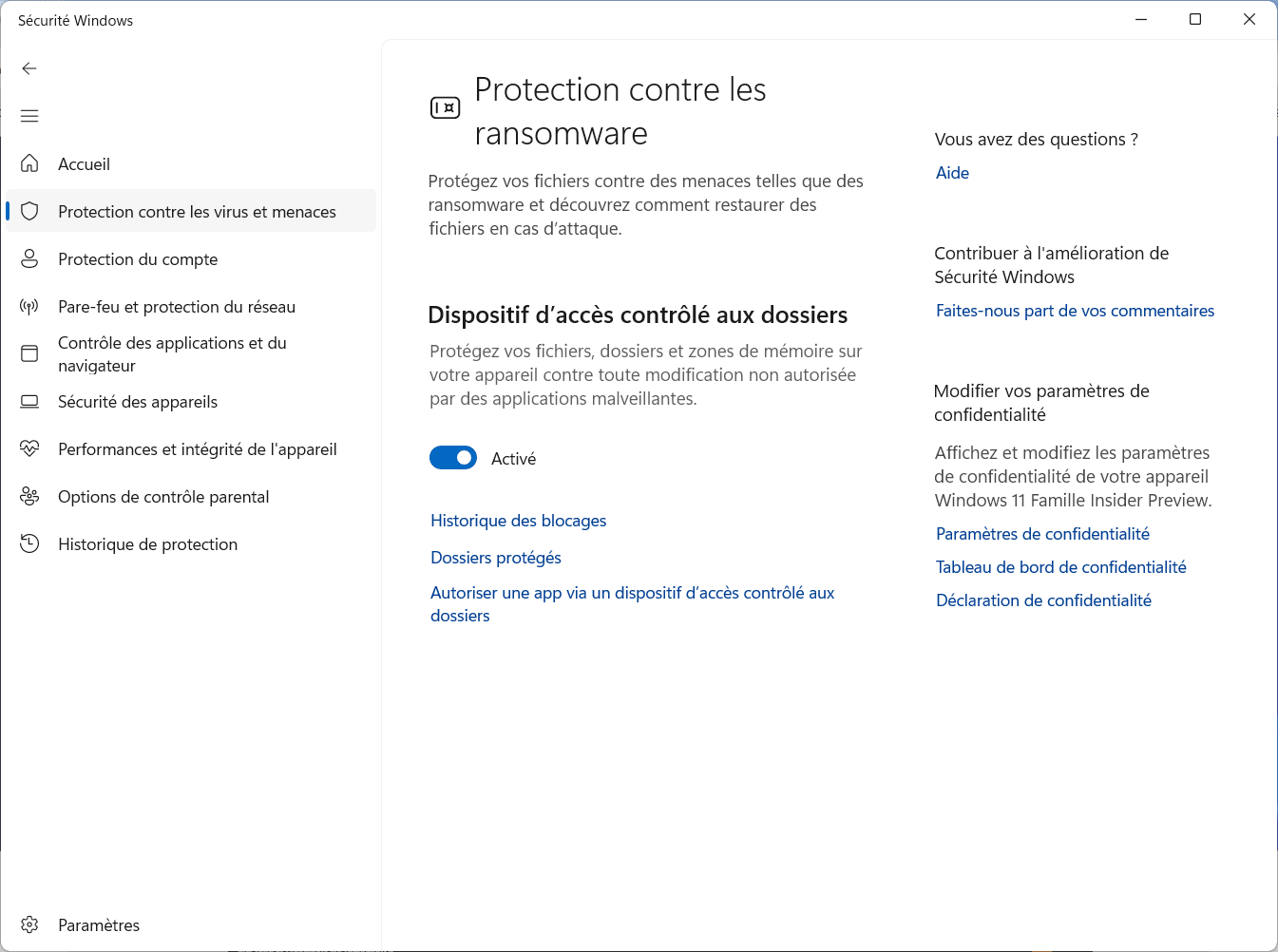
Unlike many third-party antivirus products, Microsoft Defender integrates seamlessly into Windows, without advertising, without over-consuming resources, and without disabling system functions. A few clicks are often all it takes to activate a very high level of security… which is all too often overlooked.
Enable Controlled Folder Access on Windows 11 to block ransomware
To activate Windows 11’s built-in ransomware protection, start by opening the Windows Security application (via the Start menu or Settings). Once in the interface, click on “Protection against viruses and threats”, then scroll down to “Manage ransomware protection”.
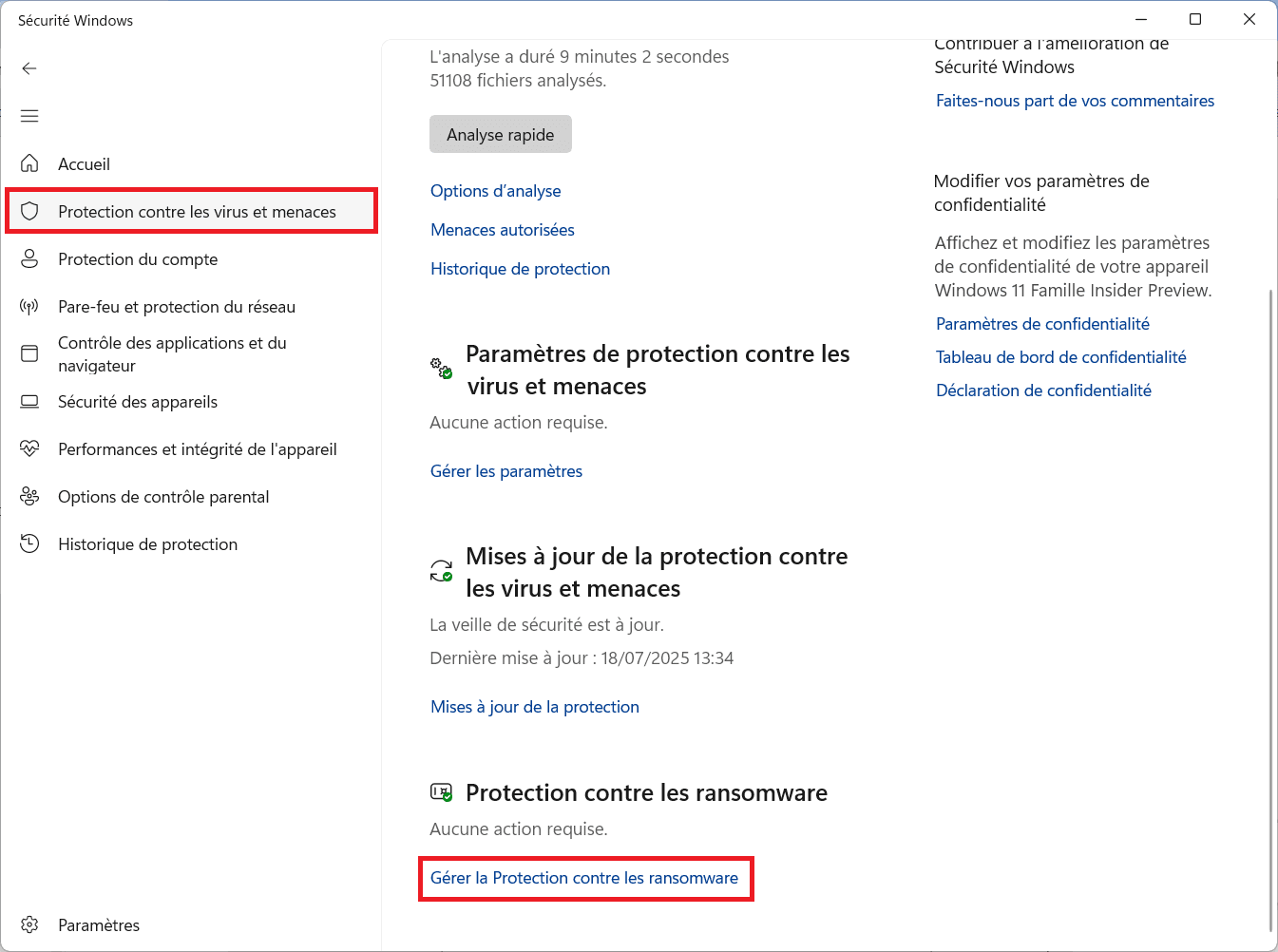
Then activate the “Controlled folder access” option . This feature prevents unauthorized applications from modifying your personal files. By default, Windows automatically protects certain folders, such as Documents and Images, but you can add others to suit your needs.
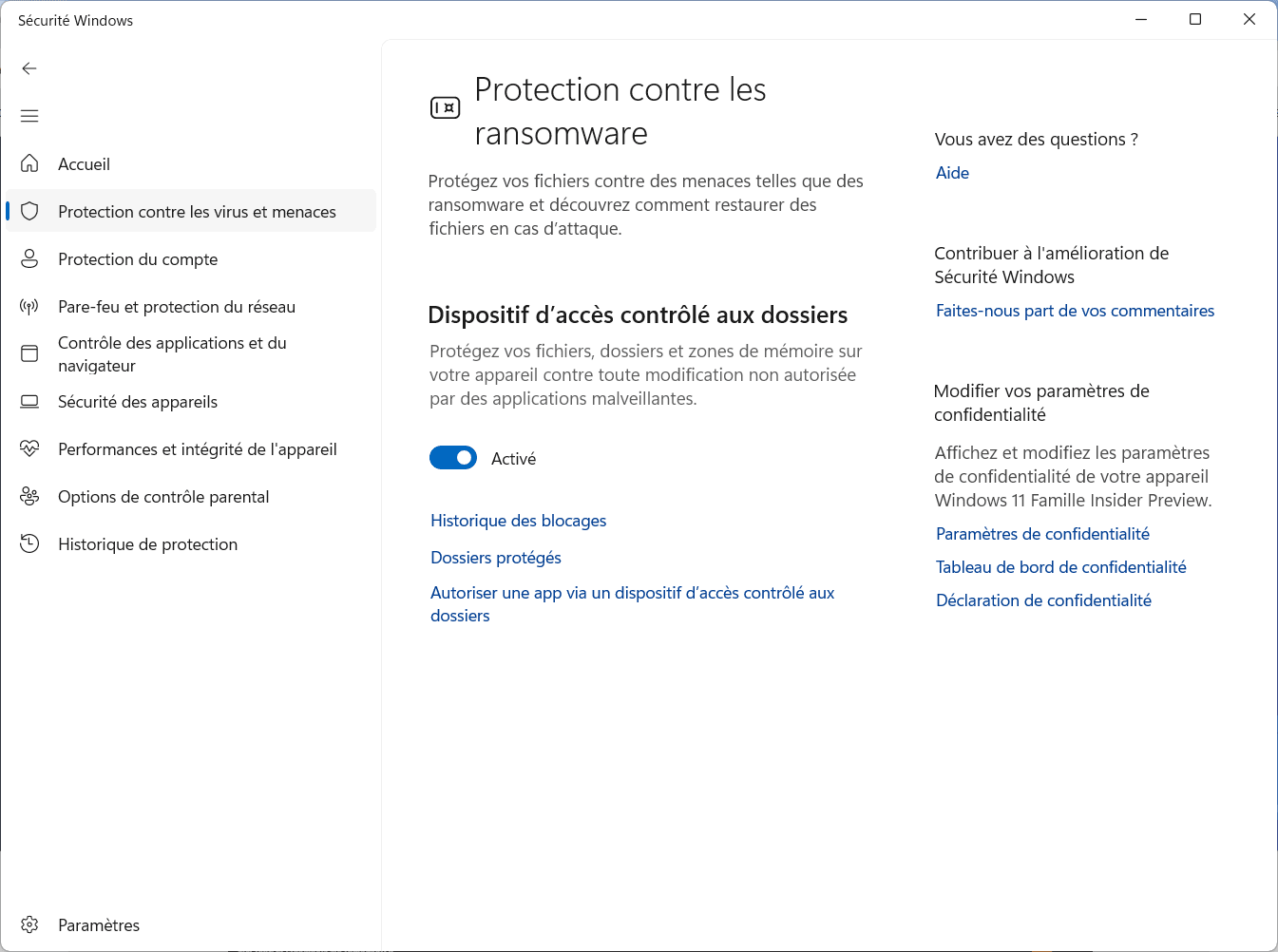
If you use trusted software that needs to access these folders (e.g. a video editor, backup or compression tool), remember to manually add them to the list of authorized applications. This will avoid unnecessary blocking, while maintaining optimum security.
Add a folder to anti-ransomware protection
Windows 11 automatically protects certain sensitive folders such as Documents or Images. But you can strengthen your security by adding other folders manually (e.g. a work folder on another drive or a synchronized local cloud directory).
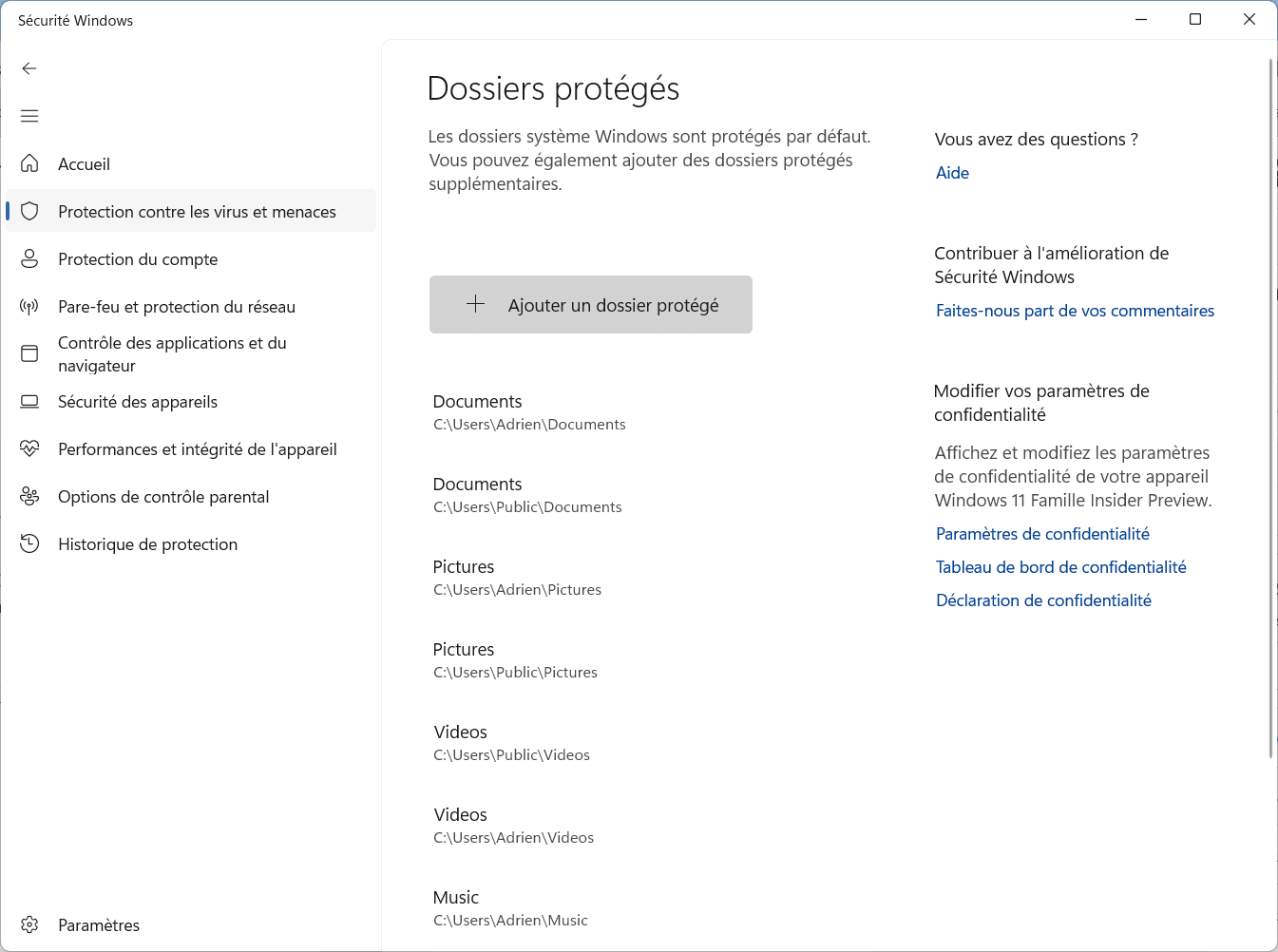
To do this, go to Windows Security > Protection against ransomware > Protected folders, then click on “Add a protected folder”. Select the folder you wish to monitor: only authorized applications will then be able to access it.
View protection history: monitor blocked attempts
Windows 11 records all security actions in a dedicated section called Protection History, accessible from Windows Security. This is where you can check whether applications have attempted to access protected folders.
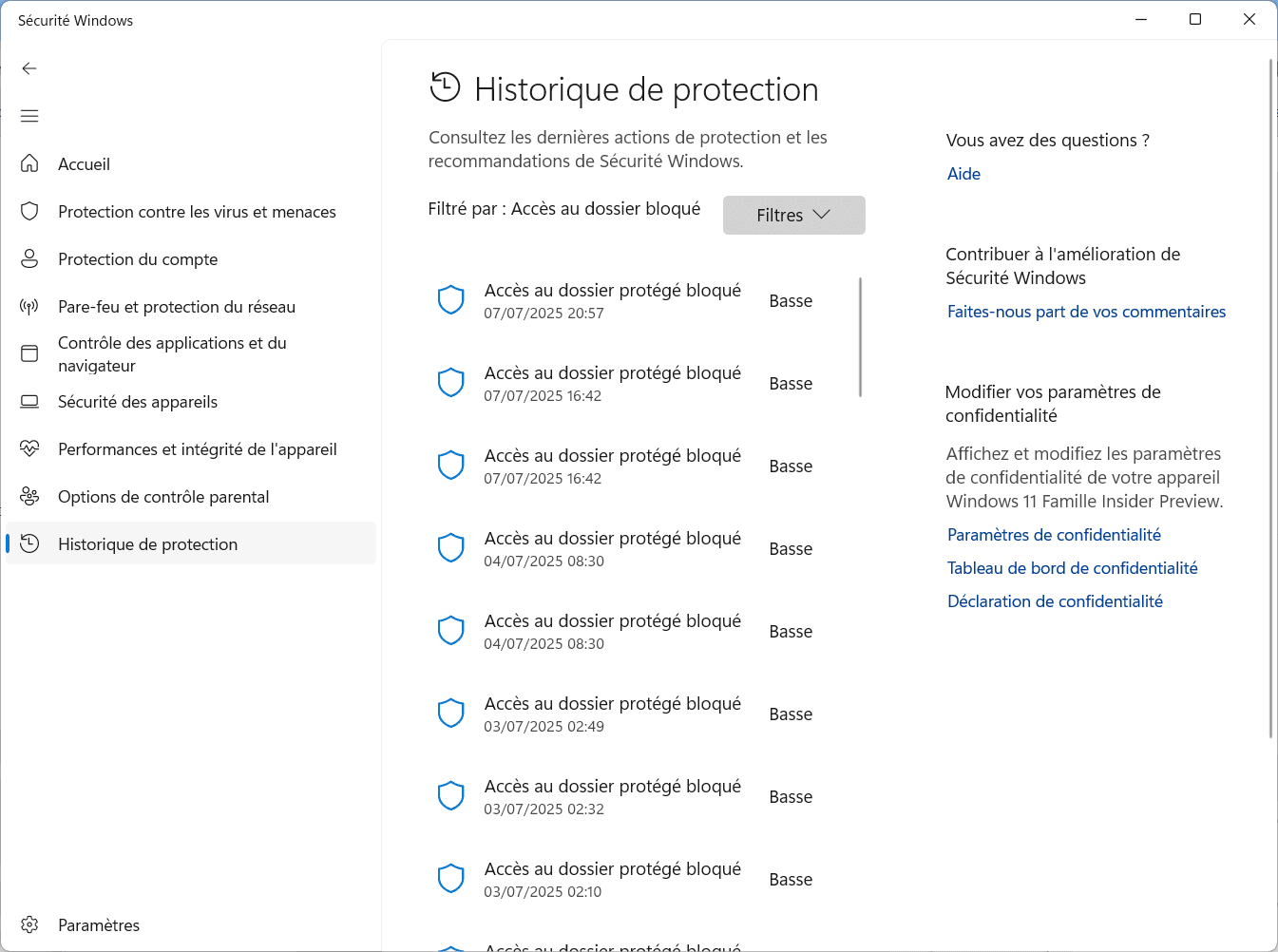
Each line indicates ablocked access attempt to a folder monitored byControlled Folder Access, along with the severity level. These alerts are a sign that protection is working properly, preventing unauthorized programs from modifying your sensitive files.
This history can be used to quickly identify false positives (e.g. a backup software you’re using) or to spot suspicious activity.
We allow some readers to view our articles for free with an ad blocker. However, their number is currently too high for us to keep this access available to everyone.
You can disable your ad blocker to continue reading immediately, subscribe to enjoy all our content without ads, or come back a little later when the pressure has eased.
Access will be restored automatically as soon as the situation allows.