
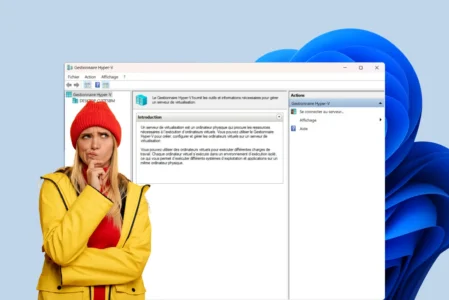
Hyper-V is included with Windows. You enable it from the Windows features panel, configure it through a graphical interface and keep using the same desktop. Most technicians instinctively classify it with type 2 hypervisors such as VirtualBox or VMware Workstation. That is a mistake. As soon as the feature is enabled, Windows is no longer in direct control of the machine.
In this article
How Hyper-V reconfigures the hardware layers
On a PC without Hyper-V, Windows communicates directly with the processor, memory and peripherals through its drivers. This is the traditional architecture, with the hardware at the bottom and the operating system directly above it.
When you enable Hyper-V and restart, this architecture changes. Hyper-V is inserted between the hardware and everything else. Windows no longer talks directly to the processor. It goes through the hypervisor, just like any other virtual machine. The only difference is that Windows receives special privileges to keep providing drivers and managing child VMs. This is called the parent partition (or root partition).
How does Windows work without Hyper-V?
Applications (Chrome, games, Office…)
      │
      ▼
Windows OS  ────────  Ring 0 — direct communication with hardware
      │
      ▼
Physical hardware  (CPU · RAM · Disk · Network)
Windows architecture with Hyper-V enabled
Windows applications
      │
      ▼
Parent partition — Windows OS  ──  Virtual Ring 0 · drivers through VMBus
      │              ┌──────────────────────────┐
      │              │  Child VM 1  (FreeBSD)    │
      │              │  Child VM 2  (pfSense)    │
      │              └──────────────────────────┘
      │  hypercalls
      ▼
Hyper-V  ───────────────────────  Ring −1 (VMX root) — real control
      │  VT-x / AMD-V required
      ▼
Physical hardware  (CPU · RAM · Disk · Network)
Why is Hyper-V a type 1 and not a type 2 hypervisor?
The type 1/type 2 distinction comes down to one question: who controls the hardware at ring 0 or below?
Intel (VT-x) and AMD (AMD-V) processors added a privilege level below the traditional ring 0, known as ring −1 or VMX root mode. Only the hypervisor can run at this level. Guest operating systems, including Windows with its parent-partition privileges, run in a virtual ring 0 emulated by the hypervisor.
Hyper-V runs in ring −1 from boot. VMware ESXi does too. VirtualBox and VMware Workstation do not: they rely on Windows or Linux to access hardware, which makes them type 2 hypervisors.
VMBus: the proprietary channel between Windows and Hyper-V
The parent partition no longer communicates directly with physical hardware. It uses VMBus, a proprietary Microsoft virtual bus connecting the parent partition to child partitions and the hypervisor. When a child VM needs network or disk access, it sends a request through VMBus to the parent partition, which has the real drivers. The parent partition processes the request and returns the data.
This mechanism explains why Hyper-V does not need its own driver for every hardware device. It delegates that work to Windows, whose parent partition knows the hardware. The architecture is hybrid, but the hypervisor retains effective control of the hardware.
Does Hyper-V activate itself under Windows 11?
Many users discover that Hyper-V is running on their machine even though they never enabled it manually. VBS (Virtualization-Based Security) and Credential Guard, two security features enabled by default on Windows 11 Pro and Enterprise, rely on Hyper-V to isolate critical memory areas.
If VBS is active, Hyper-V runs in ring −1 on your machine even when you create no VM. Windows is already a parent partition. This is also why VirtualBox and VMware Workstation lose performance or refuse to start some VMs on these configurations: they cannot access ring 0 because Hyper-V has already taken control of it.
To check whether Hyper-V is active, open an administrator Command Prompt and run:
systeminfo | findstr /i "hyper-v"If the line Hyper-V Requirements: A hypervisor has been detected appears, Hyper-V is already active on your system.
Comparison with ESXi, Proxmox and KVM
VMware ESXi installs on a bare-metal server without a pre-existing operating system. Its management interface is available in a browser from another computer. It is a pure type 1 hypervisor: there is no host operating system, only the hypervisor between the hardware and the VMs.
Proxmox VE is based on Linux (Debian) and KVM. KVM is a Linux kernel module that turns Linux into a type 1 hypervisor, also using VT-x/AMD-V extensions. Proxmox is therefore also type 1, with Linux as its management partition, just as Windows is with Hyper-V.
Hyper-V shares this hybrid architecture with Proxmox/KVM, where the management operating system runs in a privileged partition instead of being absent. The difference between Hyper-V and ESXi is not their type, but their management architecture.
Don’t let the algorithm decide for you
Add Assistouest to your preferred sources on Google so you can find our guides faster when you search for an IT solution.
When should you use Hyper-V instead of an alternative?
Hyper-V is a good choice in Windows-centric environments such as Windows Server, business PCs with Active Directory and hybrid Azure deployments. Native integration avoids installing a dedicated operating system, while the Windows parent partition acts as the management interface.
If you want virtualization on a personal Windows 11 PC without affecting VBS or VirtualBox compatibility, you can disable Hyper-V and VBS from Windows features. Disabling VBS also removes Credential Guard’s memory protections, however, so weigh that trade-off against your use case.
For multi-OS or open-source virtualization on Linux hardware, Proxmox or KVM are more flexible. ESXi remains a reference platform for VMware data centers.
Does disabling Hyper-V improve performance?
Is Hyper-V available on Windows 11 Home?
An error occurred. Please try again in a moment.