
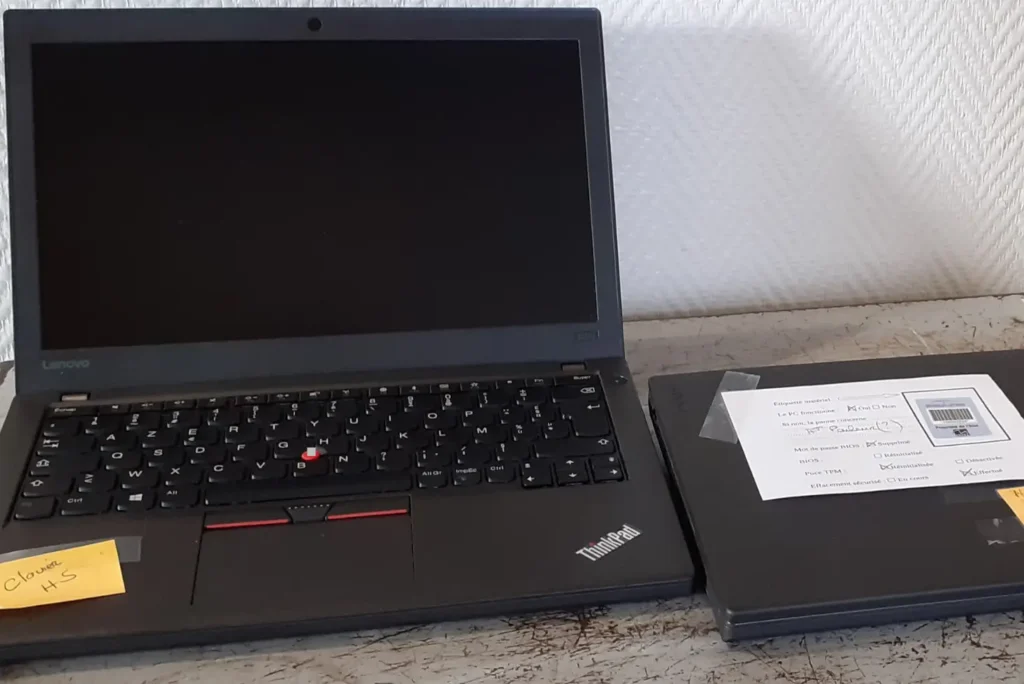
In the event of a breakdown, hardware problem or need for assistance, the first question a technician will often ask is: “What model is your PC? However, this information is not always easy to find when you don’t know. Knowing the exact model number of your computer gives you access to the right spare parts, the right solutions for your model, and the specific maintenance guides offered by the manufacturer. It’s the key to any repair or technical support request.
How can I identify the exact model of my computer? Windows PC
- Check the manufacturer’s label/engraving on the back of the computer
- Find your PC model via Windows settings
- Find your computer model in System information
Check the manufacturer’s label/engraving on the back of the computer
The model of a computer can often be identified directly on its chassis by a label or engraving indicating essential information. This information varies from manufacturer to manufacturer and from model to model, but it generally provides the exact model number of the device.
Location of labels on a laptop :
On a laptop, the label is usually located on the underside of the device. Some models also feature a visible engraving or inscription on the wrist rest or screen frame. In older models with removable batteries, the information can be placed under the battery. Some ultrabooks and professional PCs also feature these references on the edge of the chassis, particularly at the hinge.
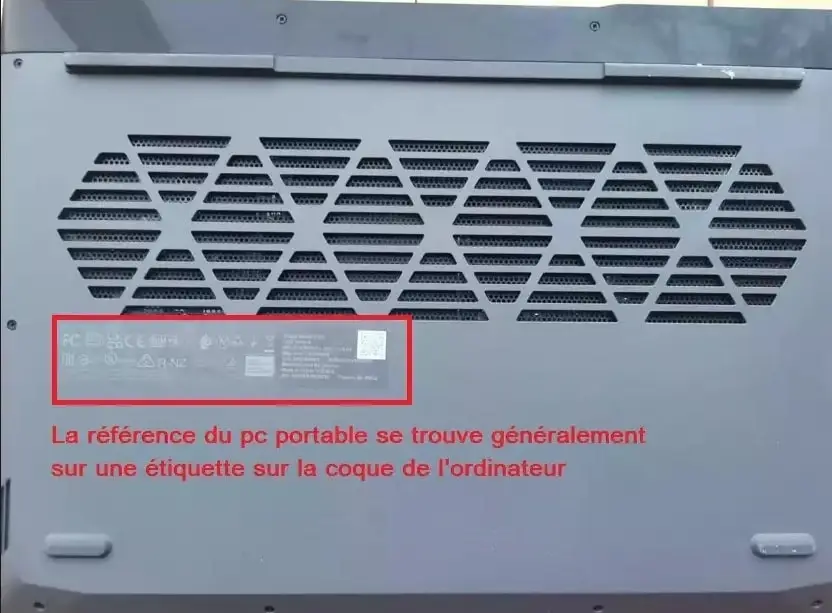
Label location on a desktop PC :
On a fixed PC, the label is often affixed to the rear panel, close to the connection ports. Some manufacturers place it on the side of the case, while others choose the inside, on the inside of the side panel or on the motherboard itself. For some brands, such as Apple, the references are engraved on the underside of the case, or on the rear of the screen in the case of iMacs.

The manufacturer’s label contains several elements to identify:
- Brand: Indicates computer manufacturer (HP, Dell, Lenovo, Asus, etc.).
- Commercial model: Commercial designation of the device range (e.g. ThinkPad T14, Dell XPS 15, HP Pavilion 14).
- Exact model: Complete reference including series and configuration in the form of a set of letters and numbers (e.g. Lenovo ThinkPad T14 Gen 2 20W000H6FR, Dell XPS 15 9520, HP Pavilion 14-dv1000nf).
- Serial Number (S/N) : Unique code identifying a specific unit. It is required for technical support or to activate certain warranties.
- Product Number (SKU, P/N): Reference used by manufacturers to distinguish different configurations of the same model.
⚠️ It’s the exact model that you need to provide to a repairer, not the commercial model, which is inaccurate and prone to errors.
Find your PC model via Windows settings
- Click on the Windows Start menu.
- Select Settings or use the keyboard shortcut
Win + I. - In the left-hand side menu, click on System.
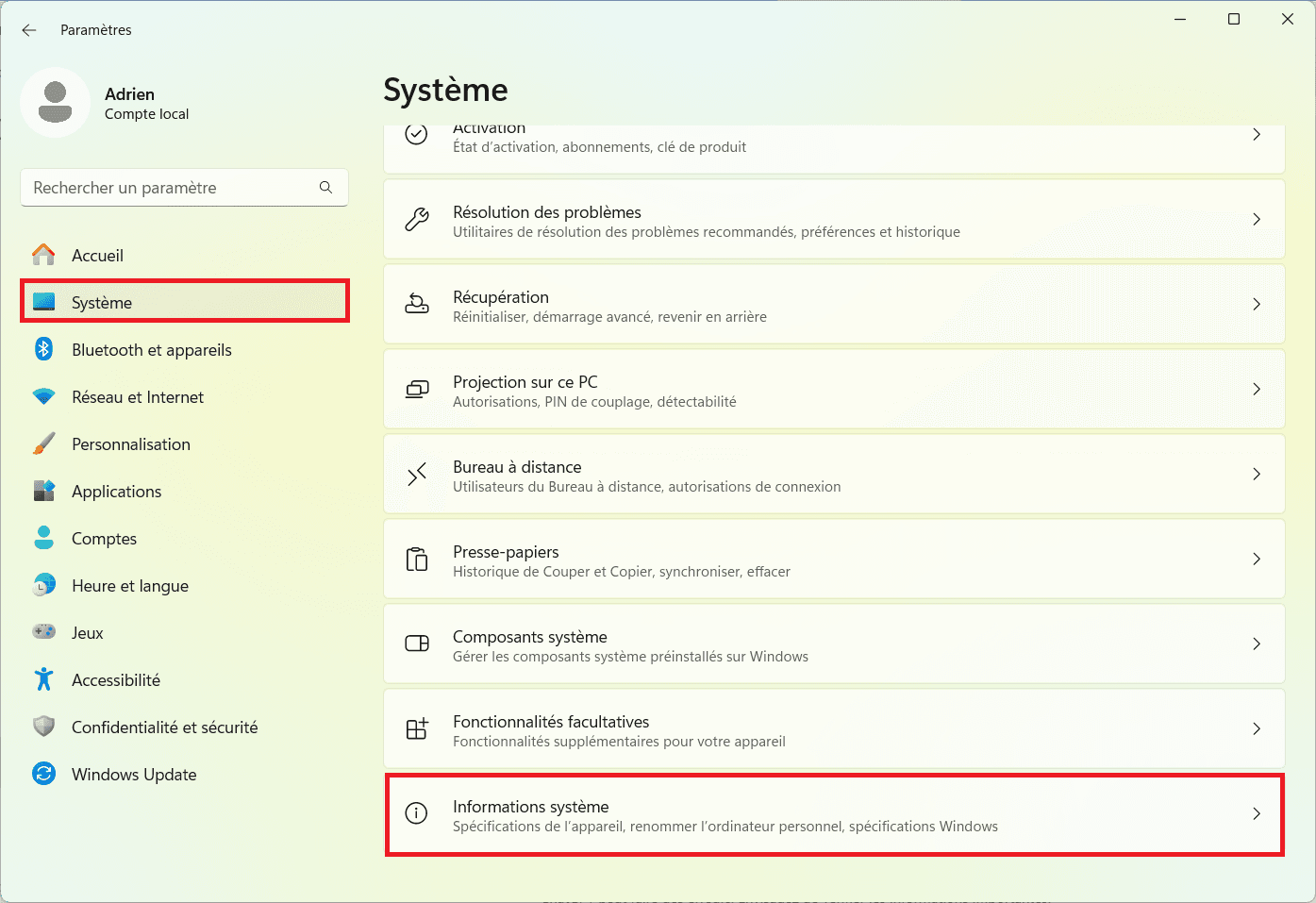
- Scroll down to System information.
- Click this option to open the device specifications window.
- In the upper section, the exact computer model is displayed (e.g. TUF Gaming FX505DV).
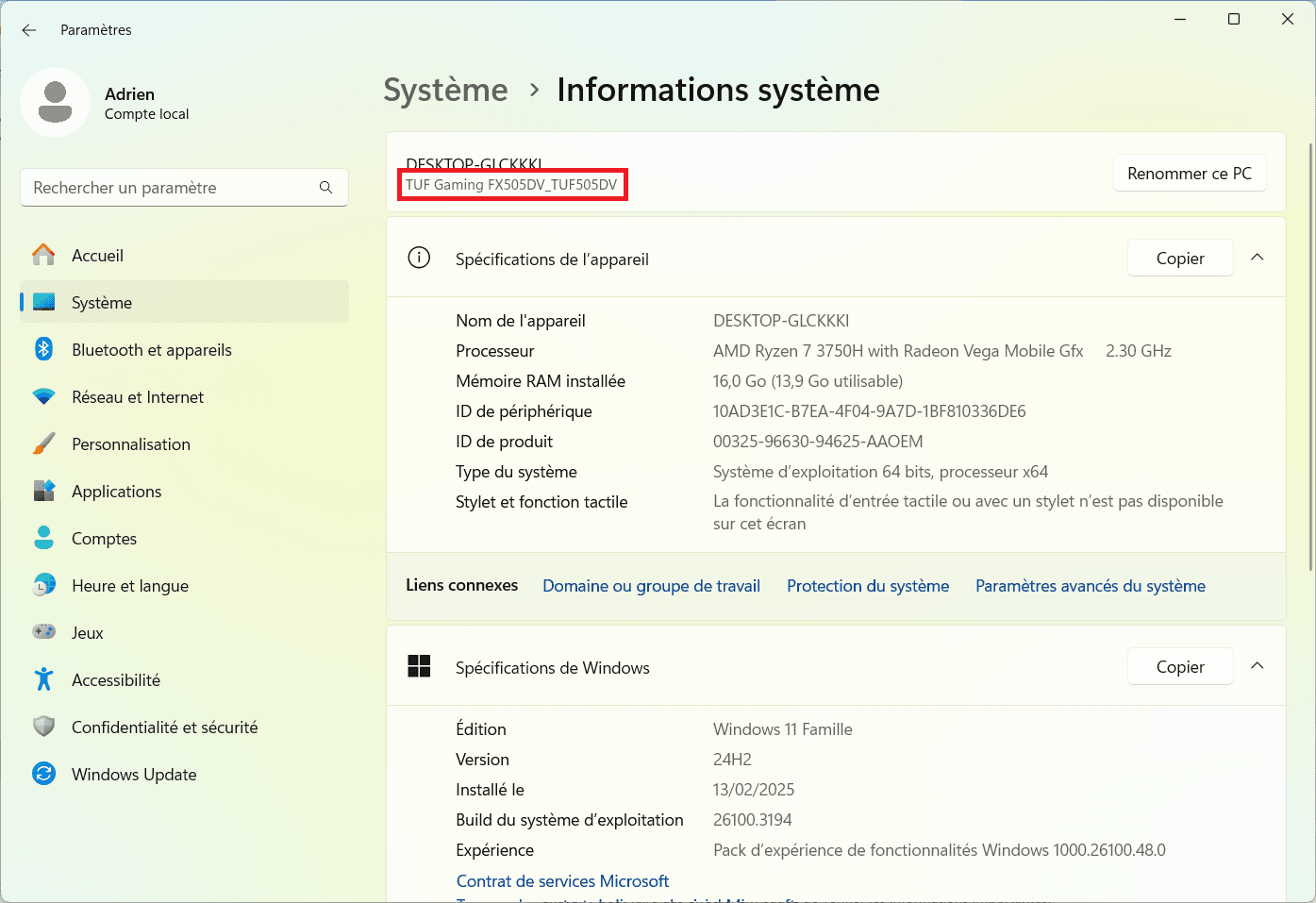
You’ll also find additional information such as the processor, the amount of RAM and the version of Windows installed.
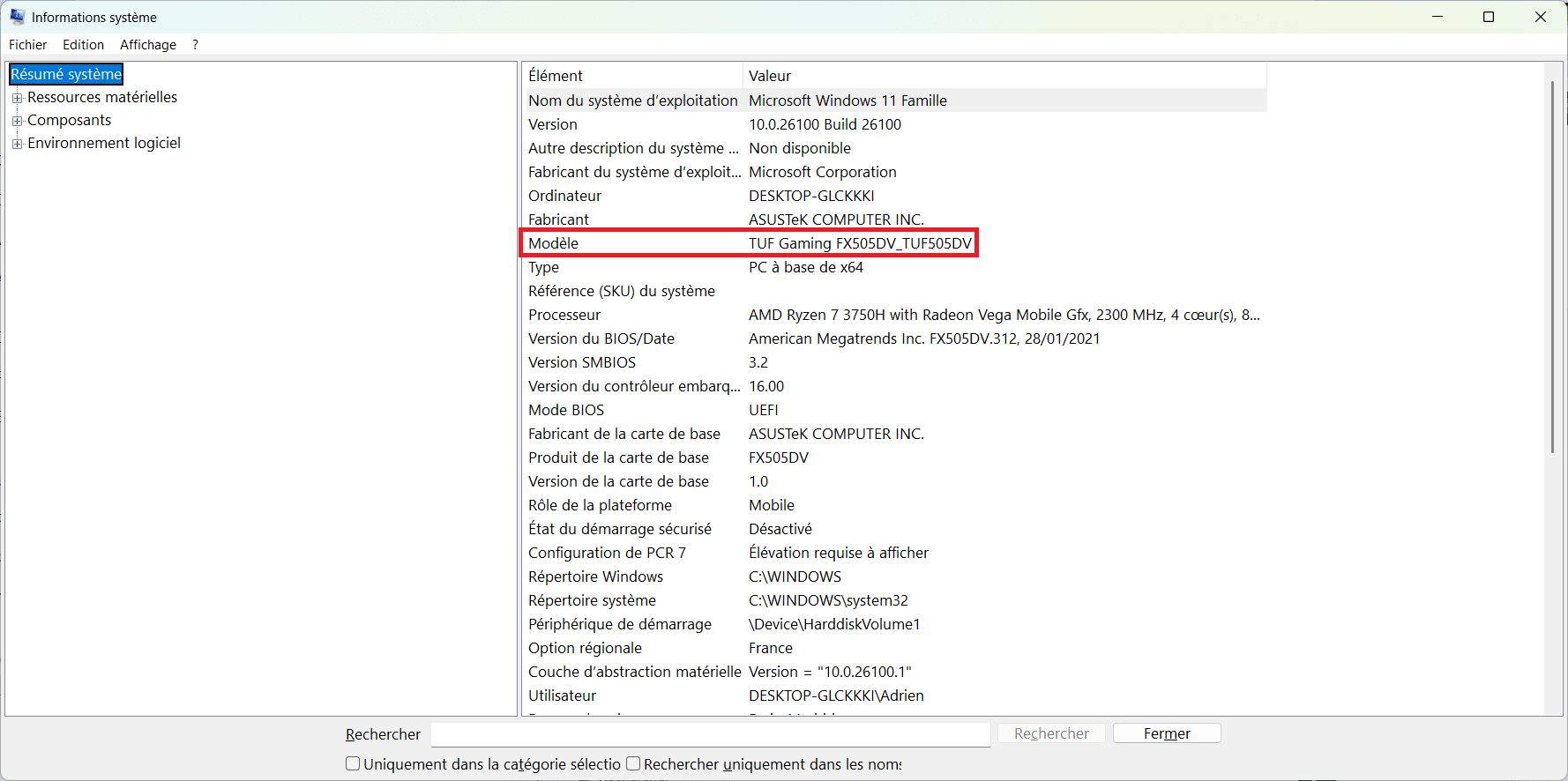
Find your computer model in System information
- Open the Start menu and type System information in the search bar, then click on it in the results.
- A new window opens, displaying a summary of the computer’s specifications.
Did you find this article helpful?
Share it so others can benefit from it.
Learn more about the author
