
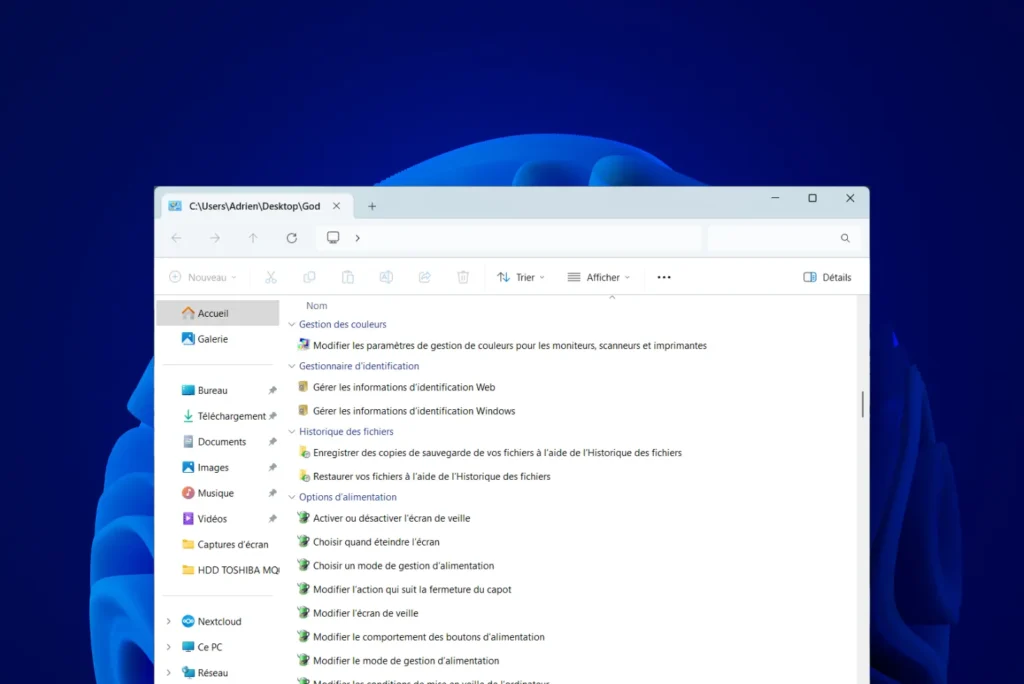
Windows offers a user interface designed to be intuitive, but some settings remain difficult to access. To compensate for this, Microsoft has integrated a little-known feature: God Mode. By activating this mode, you get a shortcut to all administration tools and advanced settings, ideal for optimized configuration. This guide shows you how to activate it.
How do I activate God Mode under Windows 11/10?
- What is God Mode?
- Access all Windows settings from a single hidden folder
- How do I disable God Mode on Windows 11?
What is God Mode?
In video games, God Mode confers total invincibility, enabling players to traverse levels without fear of failure. This notion of ultimate power has inspired a hidden Windows feature commonly referred to as God Mode. While it doesn’t make your system invincible, it does offer near-absolute control over its parameters.

Discreetly introduced by Microsoft, Windows God Mode is a special folder that brings together more than 200 settings and administration tools in a single location. Accessible by simple manipulation, it centralizes system configurations that are usually scattered between the Control Panel and the Settings application.
The appeal of this mode lies in its easy access to advanced functions, such as device management, backup tools, network settings and many other options for optimizing and customizing the operation of the operating system.
Find out how to activate developer space on Windows.
Access all Windows settings from a single hidden folder
Windows offers a little-known feature called God Mode, which centralizes all system settings and tools in a single folder. This shortcut gives quick, simplified access to over 200 options usually scattered between the Control Panel and the Settings application. Here’s how to activate it:
To activate this feature, simply create a folder with a specific name.
- Right-click on an empty area of the Windows desktop.
- Select New, then Folder.
Immediately rename the folder by replacing its name with the following line:
GodMode.{ED7BA470-8E54-465E-825C-99712043E01C}The folder will take on the appearance of the Control Panel icon. When you open it, you’ ll discover an exhaustive list of available tools and settings.
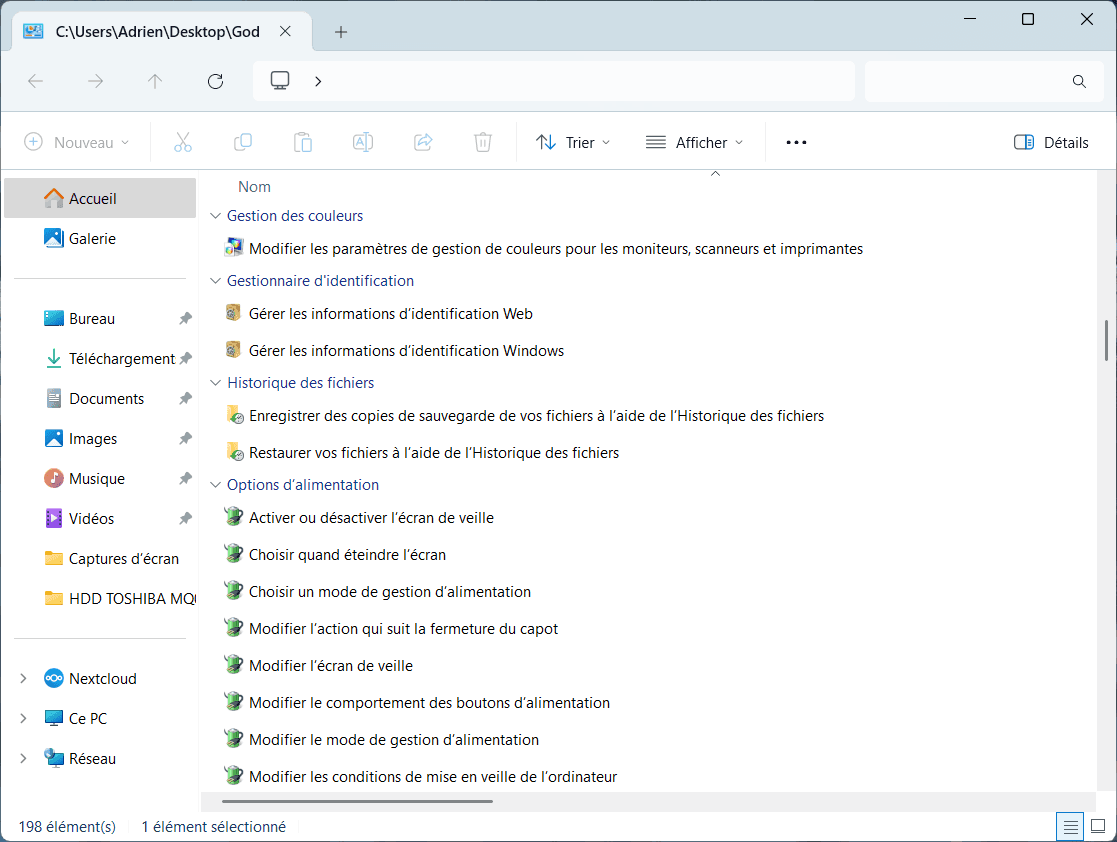
Open this folder by double-clicking on it. You’ll discover an interface listing all system configuration options, organized by category. This will enable you to manage items such as :
- Display and customization parameters
- Networking and sharing tools
- Power and performance management options
- Device and driver settings
- Administration and troubleshooting tools
God Mode works on all versions of Windows from Windows 7 through to Windows 11. As this feature has remained unchanged through the various OS versions, it is highly likely that it will still be compatible with Windows 12 or any future Windows update. As long as Microsoft doesn’t make any major changes to the management of administration tools, God Mode will remain an effective shortcut for quick access to system settings.

Why use God Mode?
God Mode is particularly useful for experienced users, system administrators, or anyone wishing to explore the bowels of Windows without having to navigate through multiple menus. Although this mode does not protect against hardware failure or malware, it does offer unrivalled visibility and access to the system’s internal functions.
So, even if Windows God Mode doesn’t make you invincible like in a video game, it does equip you with a set of invaluable tools to take total control of your environment.
How do I disable God Mode on Windows 11?
God Mode on Windows 11 is not a system feature enabled by default, but rather a simple special folder that provides access to a full list of advanced settings. Consequently, disabling it is as simple as deleting the corresponding folder.
Deleting God Mode does not disable any system functionality. You can recreate it at any time by following the activation procedure.
Did you find this article helpful?
Share it so others can benefit from it.
Learn more about the author
