
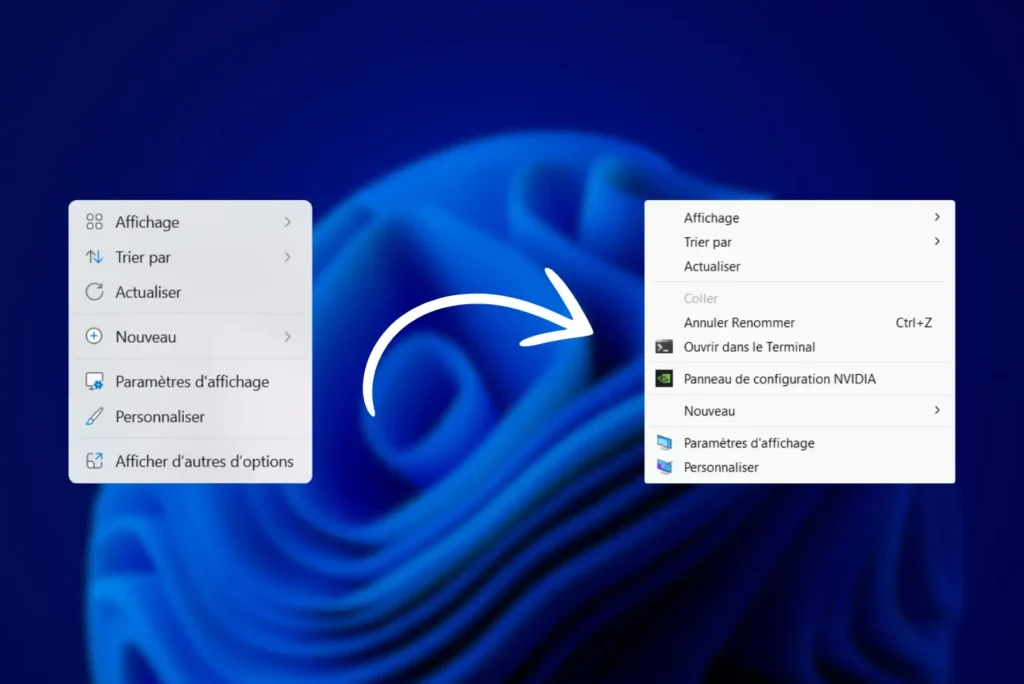
Do you find the new Windows 11 context menu a little impractical? Since the last system update, the right-click menu has been simplified, requiring an additional click to display all options. Fortunately, it’s possible to restore the old display with a simple modification. Here are the steps to restore the classic context menu in File Explorer.
How do I get back the old right-click context menu in Windows 11?
- Why has Microsoft changed the context menu in Windows 11?
- Return to the classic Windows 10 context menu with the Registry Editor
- Our method for restoring the menu you want in just one click
Why has Microsoft changed the context menu in Windows 11?
With Windows 11, Microsoft has introduced a new right-click context menu in File Explorer and on the desktop. The main aim of this change is to improve the ergonomics and execution speed of common actions, while offering a more modern, streamlined interface.
In previous versions of Windows, the context menu was often overloaded with options due to third-party software adding its own entries. This led to longer menus and longer loading times. To remedy these problems, Microsoft has opted for a new, more compact layout, highlighting the most common actions and grouping advanced options under an additional button: Show more options.
This change is part of Microsoft’s drive to unify and modernize the user experience on Windows 11 by reducing menu complexity and optimizing system performance.
Return to the classic Windows 10 context menu with the Registry Editor
PowerShell allows you to make the change in a single command, without having to navigate through Windows settings. This solution is particularly useful for those who want a fast, straightforward method.
- Press Windows + X and select Windows PowerShell (Admin).
- Confirm that you are running as administrator if a user control window appears, and run the following command:
reg add "HKEY_CURRENT_USERSoftwareClassesCLSID{86CA1AA0-34AA-4E8B-A509-50C905BAE2A2}InprocServer32" /f /ve- Type the following command in PowerShell to restart File Explorer and apply the changes:
Stop-Process -Name explorer -Force; Start-Process explorerAfter applying this change, the old Windows 10 context menu will be restored immediately. If you wish to undo this change later, simply delete this same registry key.

Our method for restoring the menu you want in just one click
If you don’t want to use PowerShell or modify the registry manually, you can apply the same modification via a .reg file. The latter automates the process by integrating the necessary values directly into the Windows registry. Simply execute the file and restart Explorer, and the old context menu immediately reappears.
This solution is ideal for users looking for a risk-free approach without the need to type a command. It offers exactly the same results as the PowerShell method, but without requiring access to the command-line interface.
In case of need, a restore file is also available to easily return to the default Windows 11 context menu. So you can test the change without fear, and restore the original settings with a simple double-click.
Did you find this article helpful?
Share it so others can benefit from it.
Learn more about the author
