
Have you lost the administrator password for your Windows PC and are now stuck on the login screen? There are effective solutions for removing the forgotten password and You’ve forgotten the password to your Windows session and now you’re stuck on the home screen? Don’t worry, there are several ways to regain access to your computer without reinstalling everything. Whether your account is local or linked to Microsoft, this step-by-step guide shows you how to delete or reset a lost password using WinPE support. It’s a fast, data-saving method used by many technicians to unlock a locked PC.
Reset a lost or forgotten password on Windows 11
- Identify account type before resetting password
- Windows Login Unlocker for password removal
- Create a WinPE bootable USB key
- Remove a local Windows administrator password with WinPE
- Convert a Microsoft account to a local account
- A complete method for regaining access to Windows
Identify account type before resetting password
Before attempting to reset a forgotten password, it’s essential to know which type of account is being used to log on to Windows. This distinction determines the possible recovery method, as a local account and a Microsoft account do not work in the same way.
| Account type | Password storage | Internet required | Recovery method | Local data stored |
|---|---|---|---|---|
| Local account | SAM file (computer) | No | Password replacement | Yes |
| Microsoft account | Microsoft servers | Yes | Convert to local | Yes |
The Microsoft account is associated with an e-mail address like adrienpiron.malo@outlook.com and enables you to synchronize your data between several Windows devices (settings, OneDrive files, Microsoft Store applications, etc.).
Windows Login Unlocker for password removal
Windows Login Unlocker is a password recovery tool designed to work in a WinPE (Windows Preinstallation Environment) environment. It can be used to delete or reset the password of a local administrator account, as well as a Microsoft account. The tool offers several advanced functions, such as creating a new administrator account, converting a Microsoft account into a local account or unlocking a session without a password.
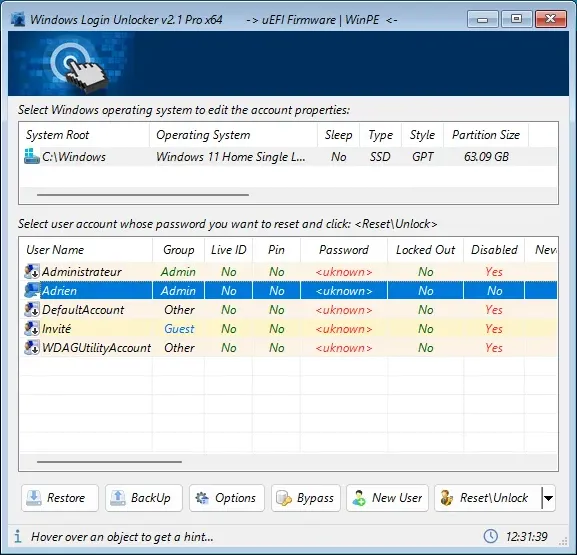
Thanks to an automatic backup procedure for the SAM file (the Windows account database), Windows Login Unlocker limits the risks associated with critical manipulations. Although not officially distributed by Microsoft, it is regularly used in troubleshooting environments to reset a lost password without formatting or losing data.
Create a WinPE bootable USB key
To reset a forgotten Windows password, you’ll need external bootable media. The most practical solution is to create a bootable USB key containing Windows Login Unlocker. This key can be used to launch a rescue environment independent of your system in order to act on user accounts.
This file contains a minimal Windows environment, specially designed for maintenance and account recovery operations.
- Plug a USB stick of at least 8 GB into a working computer, then open the Rufus software.
Once launched, Rufus automatically detects your key. Just make sure it’s selected.
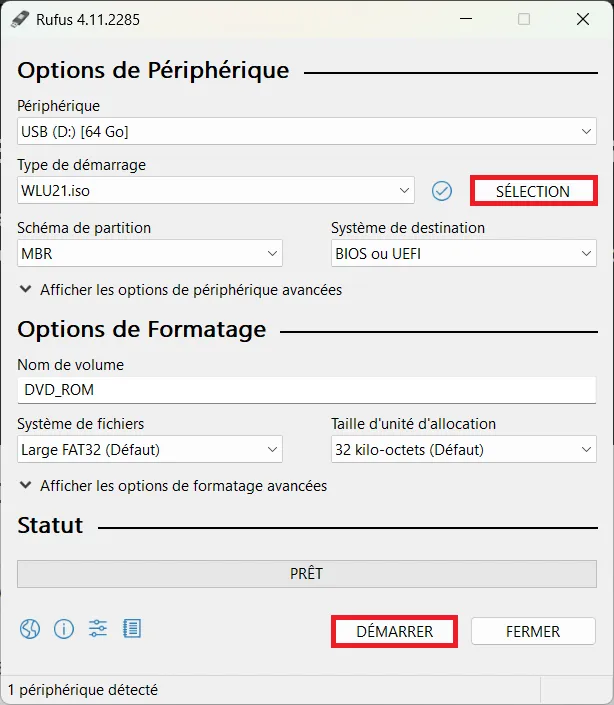
- Click on Select and open the WinPE ISO file you’ve just downloaded.
Rufus will then automatically configure the options according to the file. If necessary, check the following parameters:
Partition diagram:
- GPT if your computer uses UEFI firmware (most recent PCs).
- MBR if your machine is still booting in Legacy BIOS mode.
- Once you’ve checked your settings, click on Start.
Rufus formats the key, copies the necessary files and makes it bootable. The operation takes just a few minutes.
Once the key is ready, insert it into the blocked PC. Restart the device and access the BIOS/UEFI by pressing the key indicated at start-up by brand (ASUS, Dell, HP, Lenovo, etc.). In the boot menu, place your USB key in the first position in the boot sequence, then validate the changes and reboot. The system will then load the WinPE environment containing Windows Login Unlocker v2.1 Pro.
Remove a local Windows administrator password with WinPE
Losing the password to a Windows administrator account can be a real headache. However, with Windows Login Unlocker v2.1, it’s possible to reset or remove this password in just a few clicks, without reinstalling the system or losing your files. Here’s how to do it, step by step, from a WinPE environment.
- Start by inserting the WinPE USB key containing Windows Login Unlocker into the port on the PC concerned, then boot the computer on this medium.
After a few moments, a minimal desktop appears. The Windows Login Unlocker v2.1 Pro interface opens and detects the machine’s configuration. The software identifies the system installed, the type of disk used and all local, disabled or locked user accounts.
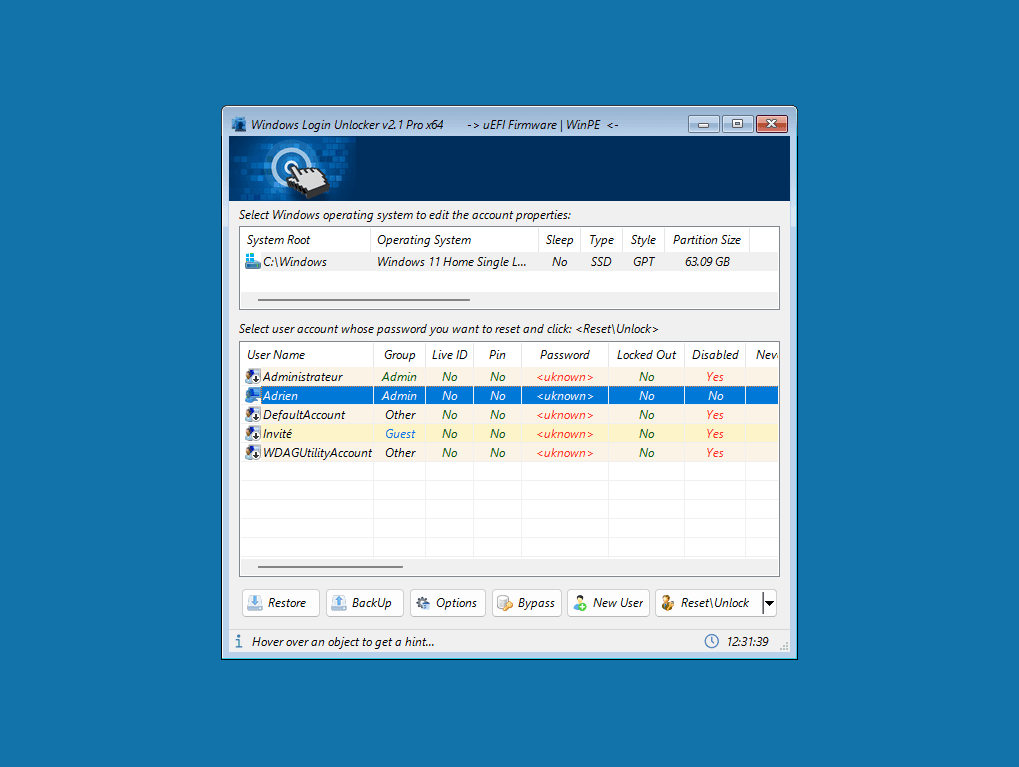
- When the list of users appears, select the administrator account whose password has been lost.
- Take the time to check the account name before you act, to avoid making a mistake on another profile.
- Once the correct user has been selected, click on the Reset or Unlock button in the bottom right-hand corner of the window.
- A confirmation dialog box opens.
Click OK to confirm the operation. The tool then backs up the SAM file containing system security information, before deleting the password for the selected account.
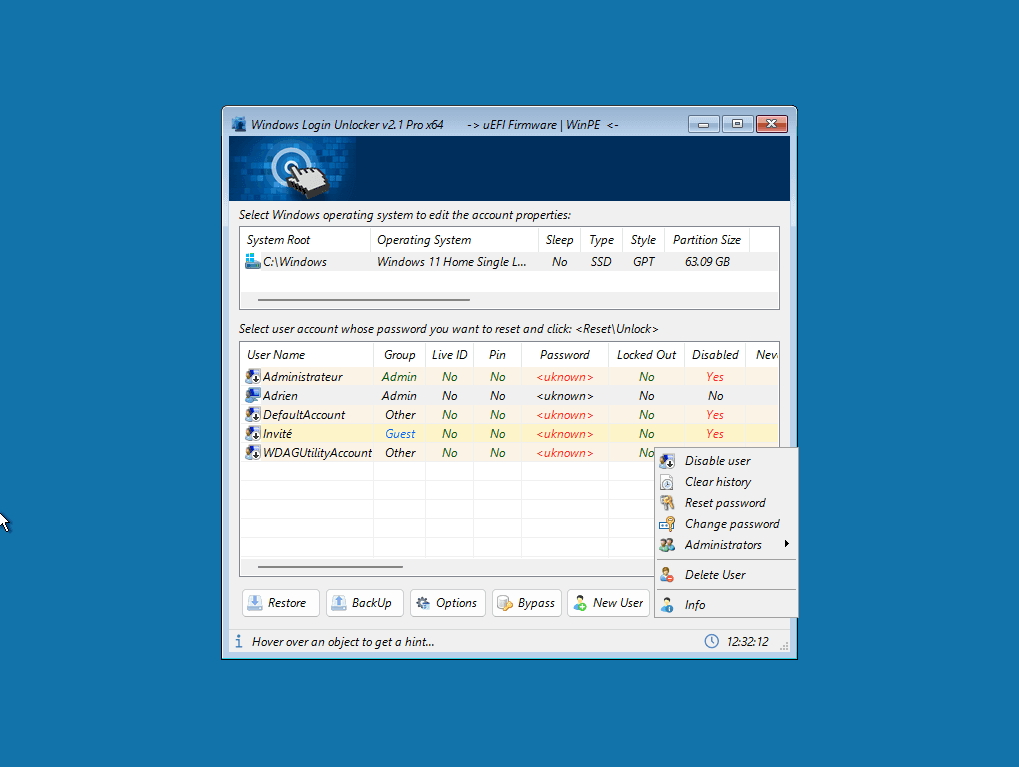
At the end of the procedure, close the software, remove the USB key and restart the computer as normal. The session will now open without a password prompt, and you can access your files and applications as before. You’ll then be able to set a new password in Windows settings to secure access to your account once again.
See also how to create a local account on Windows 11.

Convert a Microsoft account to a local account
When your Windows session is linked to a Microsoft account, recovering a forgotten password becomes more complex than for a local account. Logins are verified remotely by Microsoft servers, which prevents any offline modification. However, it is possible to bypass this constraint by converting the account into a local account from a troubleshooting environment, enabling access to be restored without altering personal files and settings.
In the Windows Login Unlocker v2.1 Pro interface, each user profile is displayed with clear information. The Live ID column indicates whether an account is associated with a Microsoft address such as outlook or hotmail. When this column shows Yes, this means that the profile is managed online and will need to be converted before the password can be removed.
- To launch the conversion, simply select the account identified as Microsoft, then click on Reset or Unlock.
The software automatically detects the account type and displays a confirmation window.
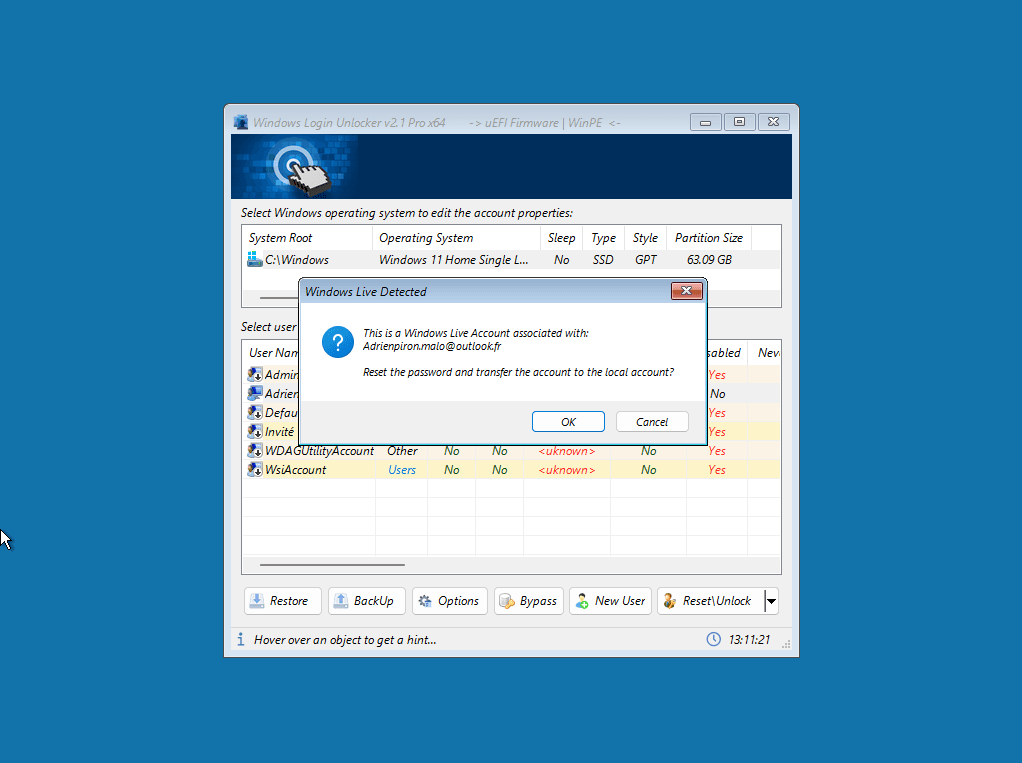
The tool will then execute two actions in a chain:
- Conversion of Microsoft account to local account (with data retention).
- Removal of the associated password, allowing you to access the session without authentication.
Once the conversion is complete, the account retains its username, personal folder and all settings and data. The Live ID column changes to No, confirming that the profile is now managed locally. You can reconnect this account to Microsoft at a later date from Settings > Accounts if you wish to resume OneDrive synchronization and other cloud services.
This method is particularly useful when the machine has no Internet access, or when the online reset procedure fails. It’s a practical and safe way of regaining control of a Windows session while preserving the user’s working environment.
A complete method for regaining access to Windows
Windows Login Unlocker is without doubt the most universal solution for resetting a forgotten local password. It works equally well on Windows 7 and Windows 11. With just a few clicks, you can regain access to your computer without reinstalling or losing data. For Microsoft accounts, the reset can be performed directly from the official Microsoft website.
These tools may only be used on your own computer or with the explicit permission of their owner. Any unauthorized use is against the law. System accounts such as DefaultAccount, Guest or SYSTEM should never be deleted. These internal profiles are necessary for Windows to function properly, and deleting them could cause serious errors and render the system unstable.
Did you find this article helpful?
Share it so others can benefit from it.
Learn more about the author
