

When you need to modify advanced computer settings, such as boot order, Secure Boot activation or deactivation, or hardware component management, you need to enter the BIOS or UEFI. However, each manufacturer uses specific keys to access them.
In this article, we explain how to enter the BIOS/UEFI and list the access keys according to the main laptop and desktop manufacturers.
In this article
What are BIOS and UEFI?
BIOS (Basic Input/Output System) is the firmware used to manage hardware prior to operating system start-up. For several years now, it has been gradually replaced by UEFI (Unified Extensible Firmware Interface), which features a more modern interface, better peripheral management and enhanced security. BIOS/UEFI access is essential for :
- Modify boot order
- Enable or disable hardware components
- Enable virtualization (VT-x, AMD-V)
- Disable or enable Secure Boot
- Perform a hardware diagnosis
On many computers, the Escape (Esc) key brings up a boot menu before the operating system loads. This menu offers several options: access BIOS/UEFI settings or choose a boot device (hard disk, USB key, DVD, etc.).
BIOS/UEFI is accessed by pressing a key immediately after PC power-up, before the Windows logo is displayed. This key varies from manufacturer to manufacturer. Here’s a list of the most common keys by brand.
List of BIOS / UEFI access keys by manufacturer
.table-container { margin: 0 auto; max-width: 100%; } table { width: 100%; border-collapse: collapse; margin-bottom: 20px; } th, td { border: 1px solid #ddd; padding: 8px; text-align: left; } th { background-color: #f2f2f2; } /* Styles for mobile devices and tablets */ @media (max-width: 768px) { .table-container { overflow-x: auto; } table { width: 800px; /* Minimum width to enable horizontal scrolling */ }
| Manufacturer | BIOS/UEFI access | Start Menu access |
|---|---|---|
| Acer | F2 or Delete | Esc, F12 or F9 |
| Apple | N/A (Use Option key at startup) | N/A |
| ASUS | F2 or Delete | F8 or Esc |
| Compaq | F10 | Esc or F9 |
| Dell | F2 | F12 |
| eMachines | Del or Tab | F12 |
| HP | F10, F1 or Esc | Esc or F9 |
| Intel | F10 | Varies by model |
| Lenovo | F1 or F2 | F12, F8 or F10 |
| Microsoft Surface | Volume down or Volume up button | N/A |
| NEC | F2 | F5 |
| Packard Bell | F1 or Suppr | F8 |
| Samsung | F2 | F12 or Esc |
| Sony | F1, F2, F3 or F10 | F11 or Esc |
| Toshiba | F1 or Esc | F12 |
Access to BIOS or UEFI varies from one manufacturer to another, and sometimes even within the same brand, depending on the model of computer or motherboard. There is no universal standard defining a single key for access, which can complicate the procedure.
Rather than modifying the boot order directly in the BIOS, many manufacturers offer a Boot Menu accessible via a specific key (Esc, F8, F9, F10, F12 depending on the brand). This temporary menu allows you to manually select the boot device for a given session without permanently modifying the BIOS parameters. This option is very useful for occasional booting on external media (for example, to repair Windows or launch a Linux Live system).
Add Assistouest to your preferred sources on Google so you can find our guides faster when you search for an IT solution.
BIOS access on Windows 11/10 PCs without dedicated keys, regardless of manufacturer
If your PC boots too quickly, or if the BIOS access key doesn’t work because of Secure Boot, you can access it directly from Windows by following these steps:
- Click on Start
(Win + X) and select Settings. - In the left-hand column, click on System.
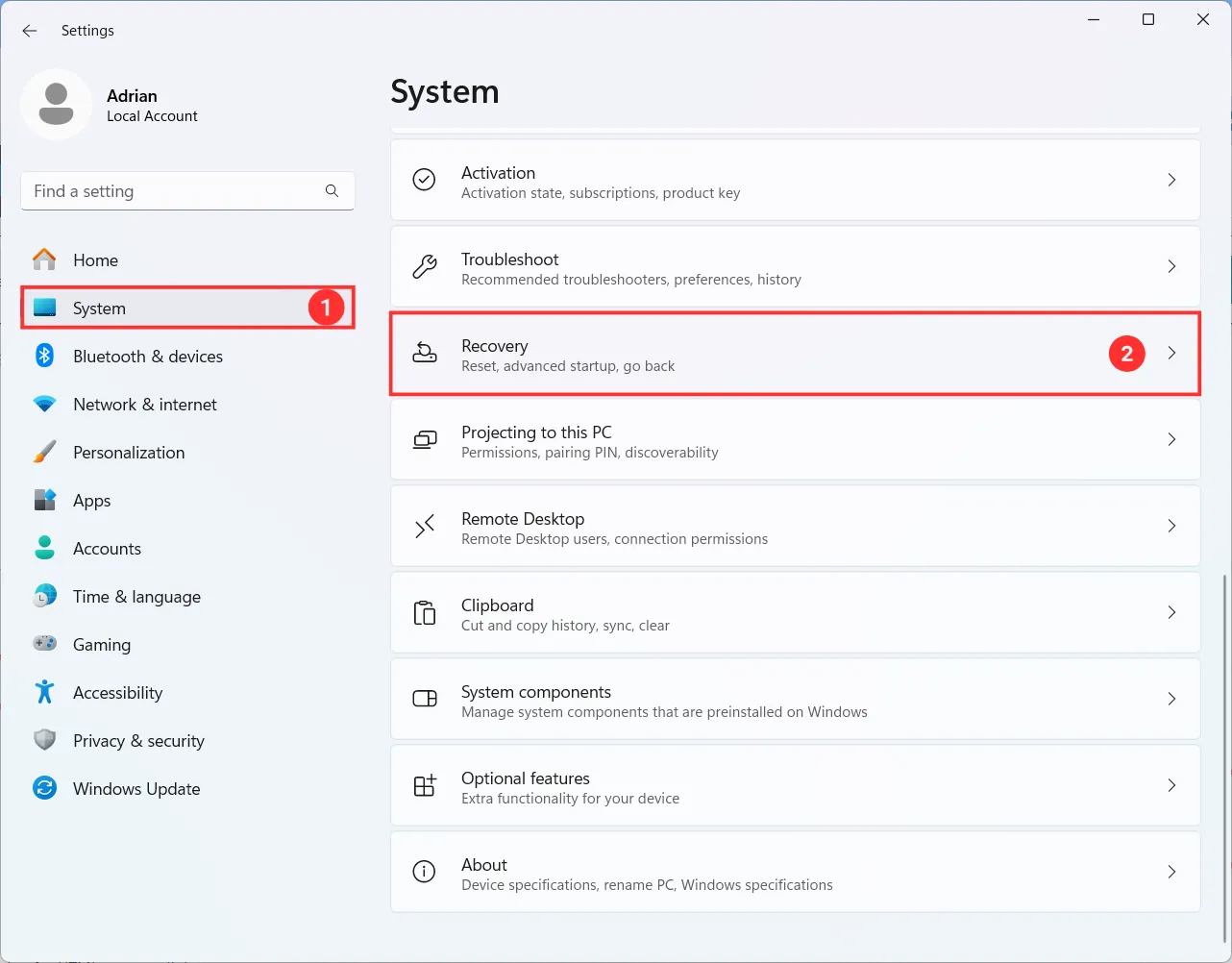
- Scroll down and select Recovery.
- In the Recovery options section, locate the Advanced startup option.
- Click on Restart now.
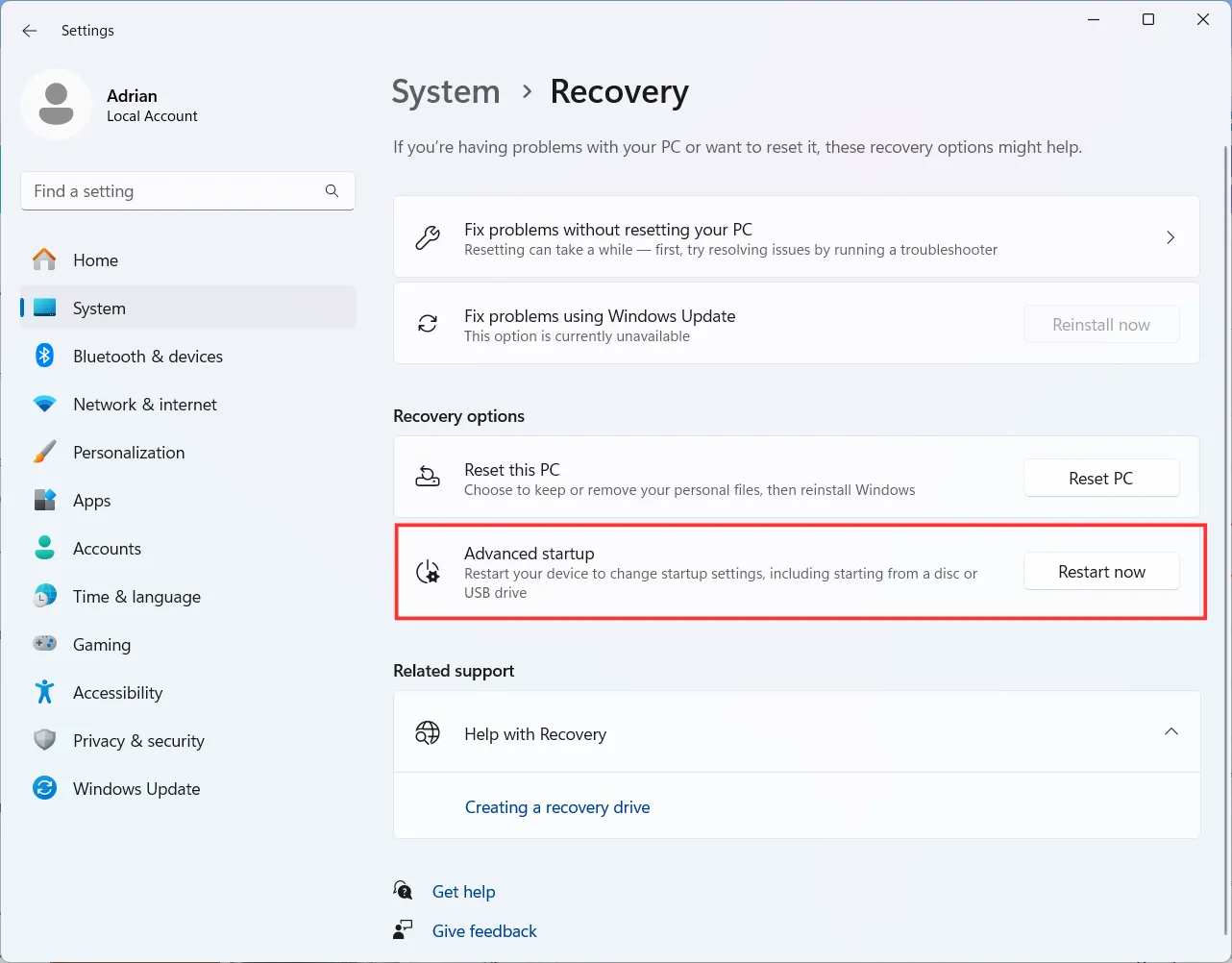
- Your PC will reboot and display a blue screen with several options.
- Click on Troubleshooting.
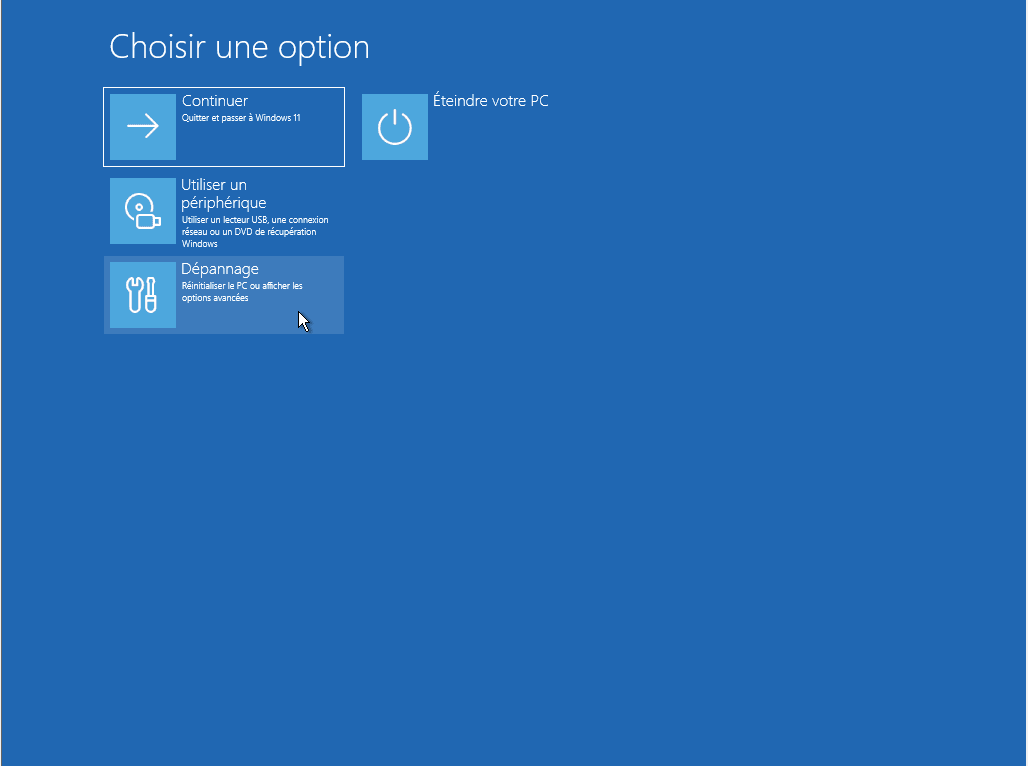
- Select Advanced options.

- Click on UEFI firmware settings, then Restart.

- The computer will restart directly from the BIOS/UEFI.
This method only works if your PC uses UEFI firmware.