
In August 2025, Microsoft is rolling out cumulative update KB5063878 for Windows 11 Version 24H2 (build 26100.4946). This Patch Tuesday brings a host of new features, including new AI options in Settings, a quick system restore tool, interface improvements and security patches. Here’s a complete rundown of the changes you need to know before installing this update.
Windows 11 KB5063878: what’s new in the August 2025 update?
- Major new features in Windows 11 KB5063878
- Windows 11 KB5063878: bugs fixed in August 2025
- How do I install the August 2025 update?
- Update KB5063878: conclusions and recommendations
Major new features in Windows 11 KB5063878
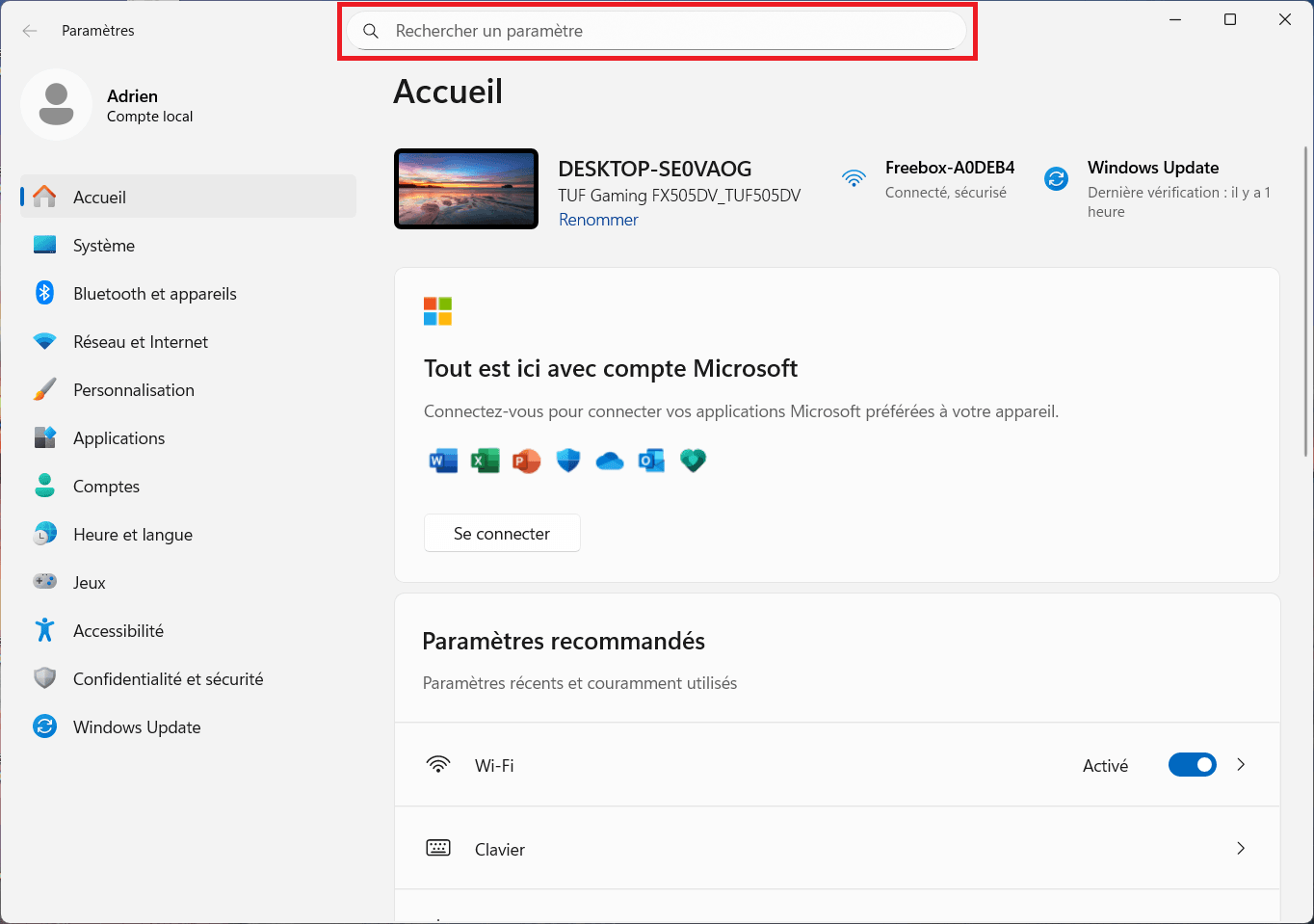
Update KB5063878 introduces a new search bar in the Settings application. More visible and centered, it facilitates access to system options, particularly on Copilot+ PCs where it becomes interactive thanks to AI: the user can enter a natural query and obtain the corresponding settings directly.
In terms of window organization, Snap benefits from minor optimizations to improve resizing and alignment, making multitasking more fluid. Last but not least, the Reading Coach module has been enriched to offer a more pleasant reading experience, better adapted to the needs of each user, particularly in educational or training mode.
Windows 11 KB5063878: Recall and Copilot are added to your settings
This version reinforces the integration of artificial intelligence in Windows 11. Intelligent suggestions make their appearance in Settings, guiding the user to the most relevant settings according to usage.
The Recall function (previously limited to certain markets) is now available in Europe. It keeps a local, searchable history of recent activities (applications, documents, sites visited) without transmitting your data to the Microsoft cloud.
Microsoft is also pushing AI into its office suite. Copilot is now integrated into Word (for Microsoft 365 subscribers), enabling you to write, reformulate or synthesize documents directly from the editor.
Windows 11 KB5063878: Quick Machine Recovery arrives in WinRE
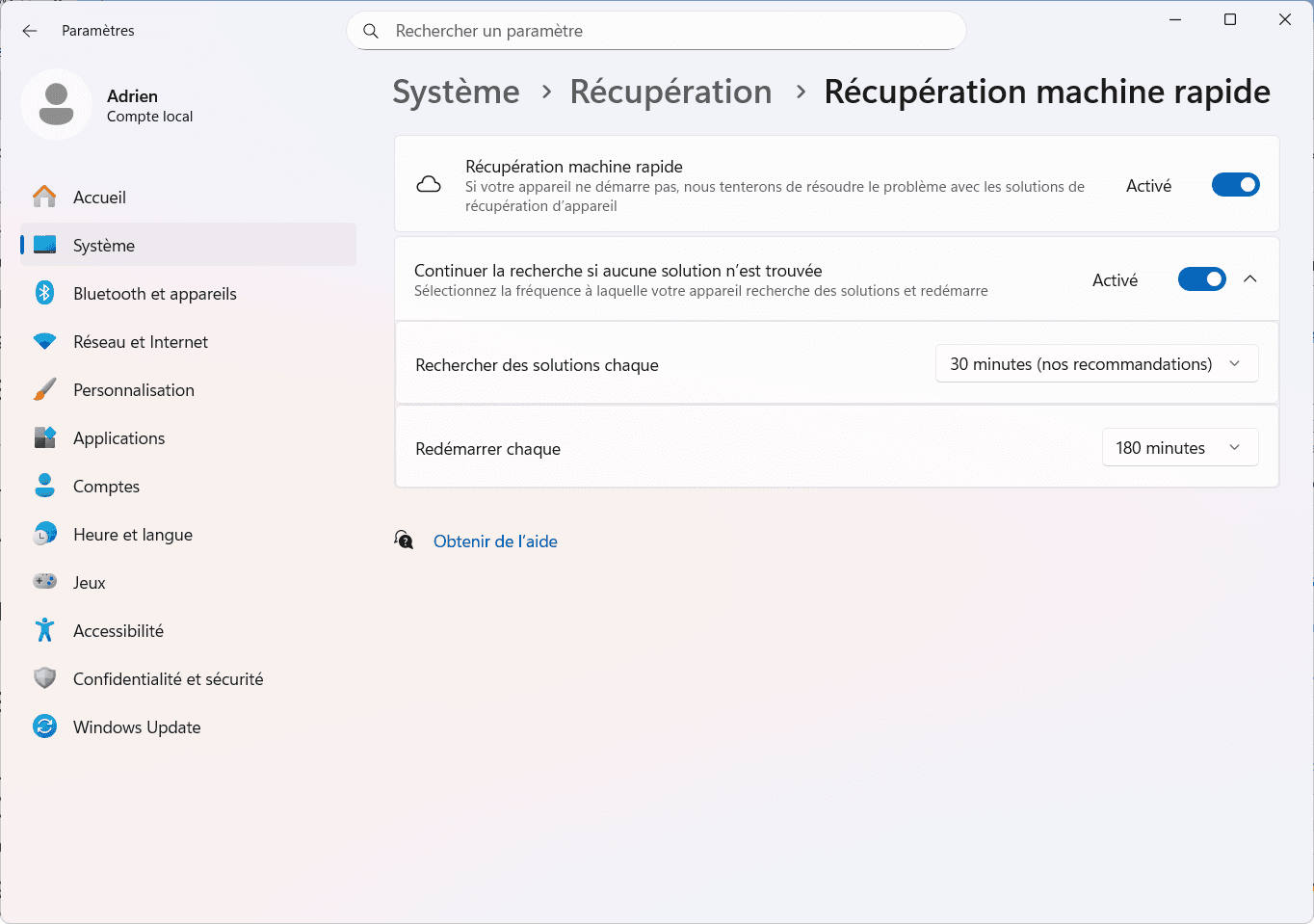
On the security front, the update introduces Quick Machine Recovery, a rapid restoration tool accessible from the Windows Recovery Environment (WinRE). It allows you to reinstall Windows while preserving files and settings, even after a critical crash.
The famous Blue Screen of Death (BSOD ) gives way to the Black Screen of Death. This new, minimalist screen retains essential diagnostic information, while displaying faster to accelerate the generation of error reports.
Update KB5063878: Joystick shortcuts and touch gestures
Gamers now benefit from improved controller shortcuts, making it easier to access the Start menu, PIN code or certain system functions from a controller.
Optimizations for touch PCs deliver improved touch responsiveness, greater precision and smoother animations on hybrid devices and Windows tablets.
Windows 11 KB5063878: bugs fixed in August 2025
Cumulative update KB5063878 also tackles several notorious bugs, as well as the stability and reliability of Windows 11.
In File Explorer, Microsoft has corrected an annoying problem where the Home tab would only display a single folder, even when several items were pinned. This display anomaly is now resolved, guaranteeing full access to all shortcuts and recent files.
On the security front, the LSASS(Local Security Authority Subsystem Service), which manages authentication and user sessions, could cause crashes under certain circumstances. This critical bug, which could force an unexpected system restart, has now been eliminated.
The Settings application has also been made more robust. Crashes occurring when saving Wi-Fi credentials or using the “Do nothing” option when closing the lid have been corrected.
An important patch targets Windows Firewall: unjustified error messages could appear in the Event Viewer. Logging is now back to normal, with reliable information for system administrators.
How do I install the August 2025 update?
Cumulative update KB5063878 for Windows 11 24H2 can be installed in several ways, depending on your preferences and environment.
The simplest method is Windows Update:
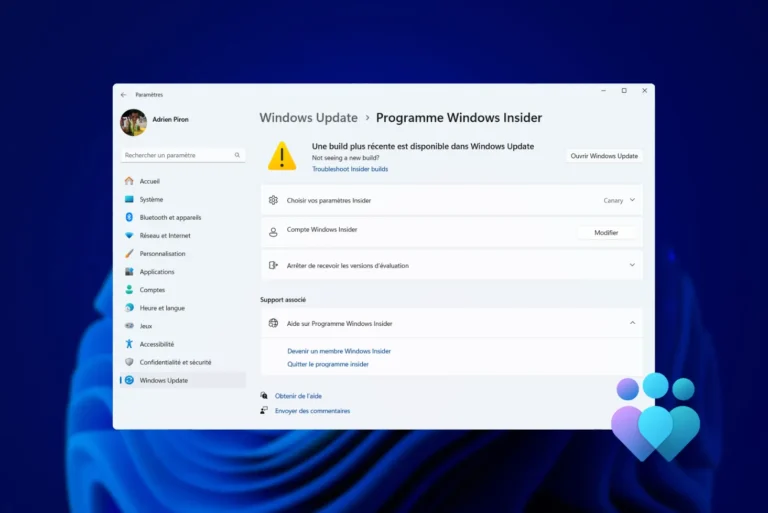
- Open Start → Settings → Windows Update.
- Click on Check for updates.
- If KB5063878 is available, it will download and install automatically.
For those who prefer manual installation or need to update several machines without an Internet connection, the update is also available from the Microsoft Update Catalog. Here you’ll find .msu files for x64 and ARM64 systems, installable via double-click, the standalone WUSA tool, or via DISM and PowerShell for system administrators.
Update KB5063878: conclusions and recommendations
Cumulative update KB5063878 for Windows 11 24H2 marks an important step in the evolution of the system. Between new productivity-oriented features (such as enhanced search in Settings, Copilot integration and the availability of Recall in Europe), ergonomic improvements and optimizations for gaming and touch, it brings real gains in everyday use.
On the technical side, patches targeting File Explorer, the LSASS service, the Settings application and Windows Firewall enhance OS stability and security. The addition of Quick Machine Recovery facilitates rapid recovery of a troubled system.
To take advantage of these advances and benefit from the latest security protections, we recommend installing this update without delay, either via Windows Update or the Microsoft Update Catalog. Minimal preparation (backup, driver update and restore point) is all that’s needed to ensure smooth deployment.
Did you find this article helpful?
Share it so others can benefit from it.
Learn more about the author