
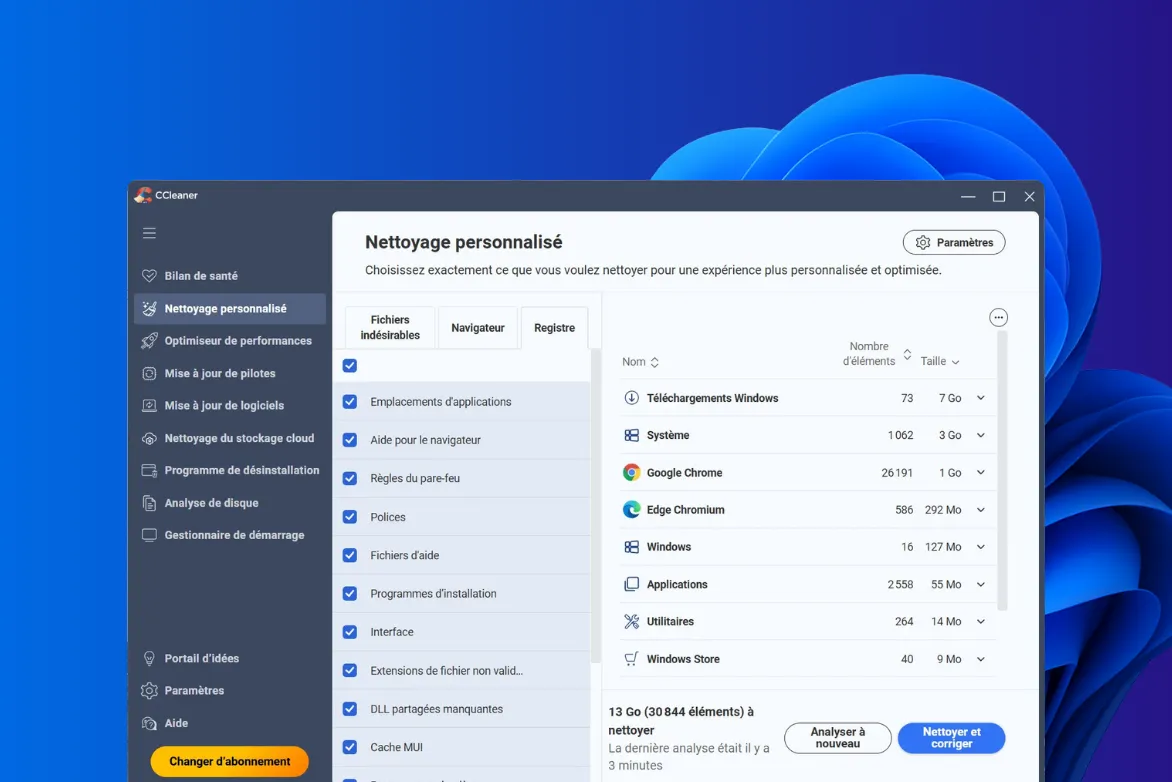
CCleaner was the go-to solution back in 2008. People would install it as soon as their PC started to slow down, just as we used to take aspirin for everything. Except that in 2026, Windows cleans up a good portion of the junk files itself, without downloading anything, without risk, and without adverts. Before installing anything, first check what your system is already doing.
We tested the leading free cleaning software programmes on the same Windows 11 Pro PC to see how much space they actually free up, what they’re hiding, and who each one is best suited for.
In this article
- Start with the built-in tool: Storage Sense and Windows Disk Cleanup
- Our comparative test on the same Windows 11 PC
- 1. CCleaner, the king of cleaning, has put on weight
- 2. Advanced SystemCare, the Swiss Army knife that talks a bit too much
- 3. BleachBit: the secure alternative for those who want control
- 4. Assistools, our in-house tool – free and ad-free
- What are the alternatives to CCleaner in 2026?
- Steer clear of software that promises to fix thousands of registry errors
- Do you really need cleaning software?
- Our recommendation for cleaning your PC
Start with the built-in tool: Storage Sense and Windows Disk Cleanup
Most PC cleaning guides point you straight to CCleaner. Windows 11 comes with Storage Sense as standard, an automatic cleaning tool built into the system settings. On our test PC, Storage Sense freed up 7 GB without installing anything, in just a few clicks.
To access this: Settings → System → Storage → Clean-up recommendations. Here you’ll find old Windows updates, temporary files, unused apps and files synced to the cloud. Tick the boxes next to anything you don’t need, then start the clean-up.
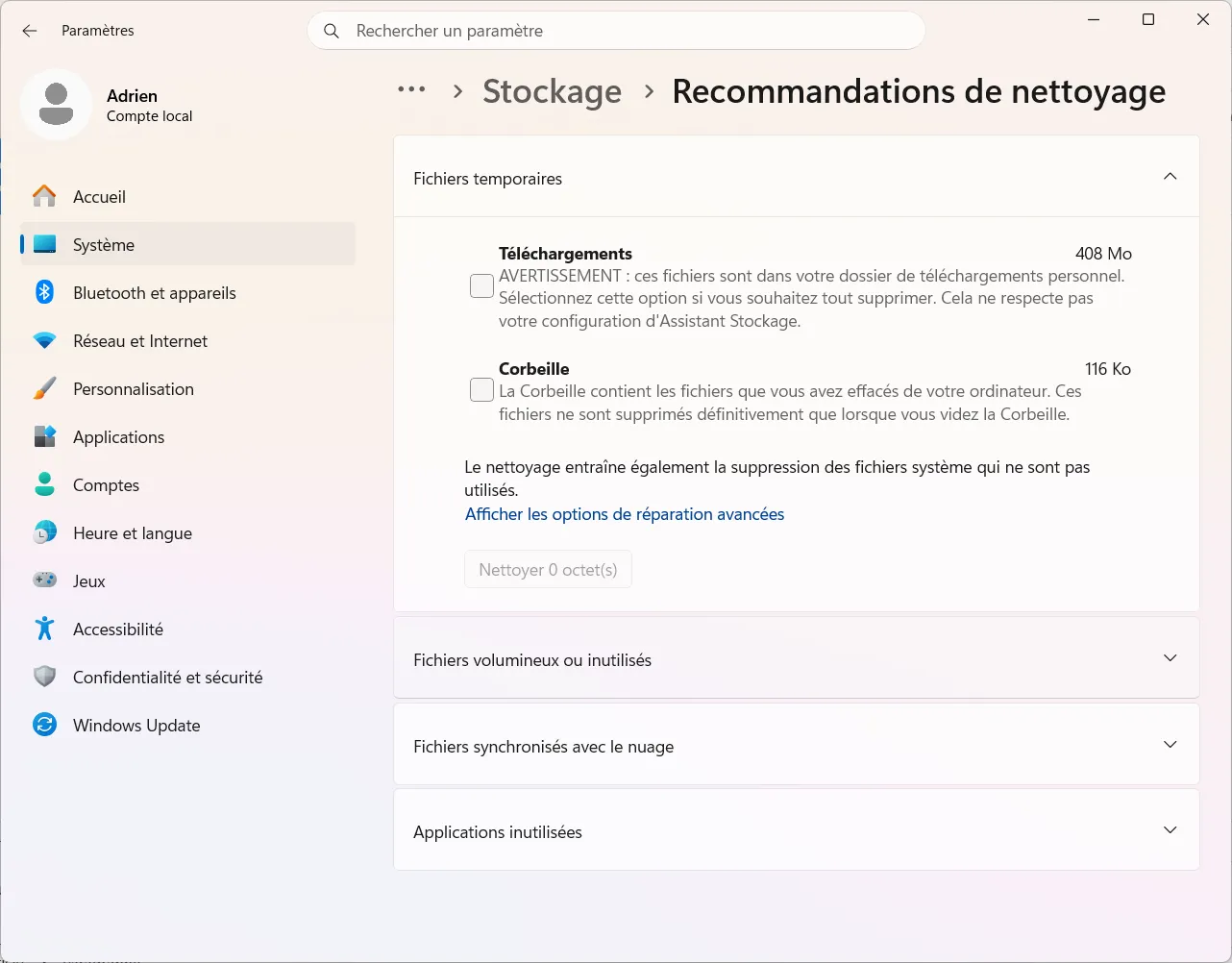
Storage Sense can also be set to run automatically. Enable it so that Windows cleans up regularly without you having to do anything. It’s not particularly exciting, but it’s the safest and quickest option.
 assistouest.fr
If, after performing this standard clean-up, your hard drive is still running out of space or your PC is still running slowly, then it makes sense to use a third-party tool. Not before.
Our comparative test on the same Windows 11 PC
To measure performance objectively, we used the same Windows 11 Pro computer, which had been in daily use for several months without any interim cleaning. The system contained accumulated temporary files, browser caches and old Windows updates.
| Software tested | Free space | Free? | Who is it for |
|---|---|---|---|
| CCleaner Free | 13 GB (≈5 GB excluding downloads) | Yes | General public, everyday use |
| Advanced SystemCare Free | 8.1 GB | Yes (with adverts) | Users looking for an all-in-one solution |
| Storage Sense (native Windows) | 7 GB (≈100 MB excluding downloads) | Yes, built-in | All, first step above all |
| BleachBit | 3.75 GB | Yes, open source | Privacy-conscious users |
| Assistools | Cleaning + comprehensive maintenance | Yes, free | French-speaking Windows users |
| PrivaZer | Not measured | Yes (donation) | Trace removal, privacy |
Test carried out on a Windows 11 Pro PC in fair condition.
CCleaner’s result of 13 GB included around 8 GB of downloaded files left in the Downloads folder. Excluding this folder, the actual space saved drops to around 5 GB, which remains the best result among third-party tools. Storage Sense freed up 7 GB, mostly from old Windows updates.
1. CCleaner, the king of cleaning, has put on weight
CCleaner is the most effective cleaning software in our test, freeing up 13 GB of space. It cleans temporary files, browser caches and orphaned registry entries, and manages startup programmes via a simple interface. All in all, it does the job well.
But CCleaner is no longer the lightweight, unobtrusive piece of software it was in 2010. Since being acquired by Avast, the interface has included adverts, and some versions attempt to install other products if you haven’t deselected the suggested options. It’s not a deal-breaker, but it does require some attention.
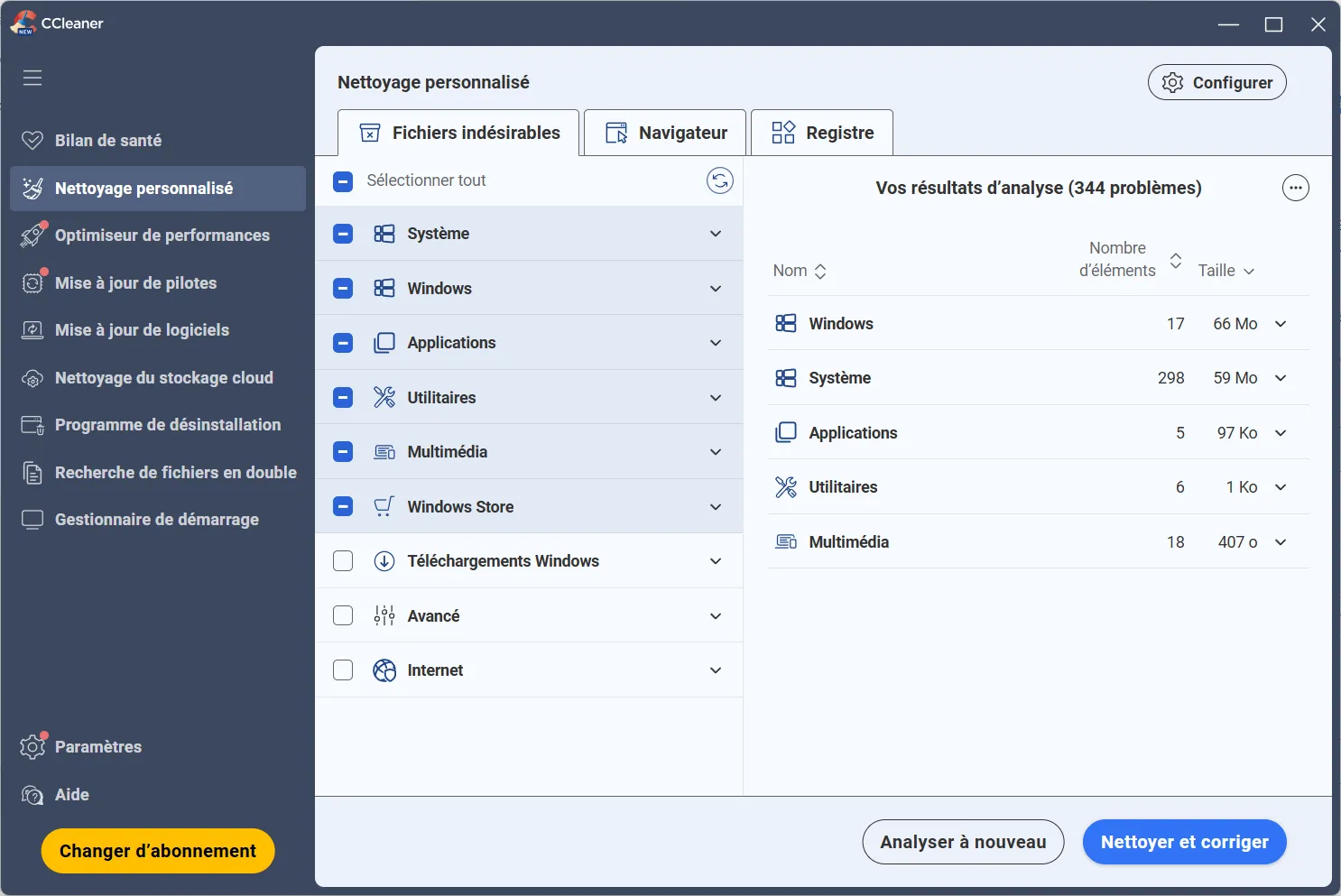
Download the portable version, uncheck all third-party options and disable automatic startup in the settings. If you want to take it a step further, you can add CCEnhancer, a free module that expands the definition database and allows you to detect more temporary files in specific applications.
2. Advanced SystemCare, the Swiss Army knife that talks a bit too much
Advanced SystemCare Free freed up 8.1 GB in our test. It is the software that offers the most features in one place: cleaning, startup management, shortcut repair and browsing protection. With a single click, it scans everything and provides a comprehensive summary.
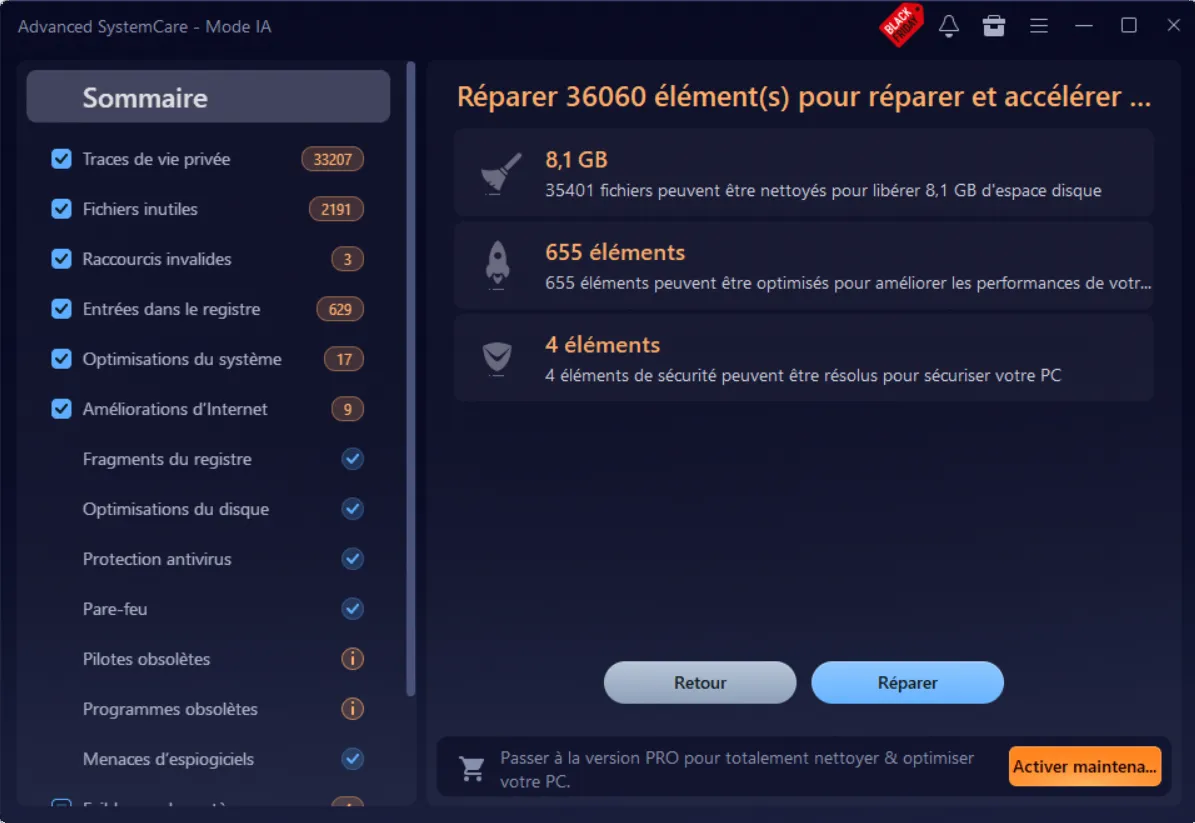
The downside is that the interface is designed to encourage you to buy the paid version. Alerts, badges and optimisation percentages that are impossible to achieve without paying up. These messages don’t affect the performance of the free software, but they do get a bit tiresome in the long run.
If you install it, immediately disable the IObit background service and the automatic startup option. Without these settings, the software constantly uses system resources to monitor the system, which slows down the PC it is supposed to speed up.
3. BleachBit: the secure alternative for those who want control
BleachBit is open source, ad-free and does not collect data. Its source code is available for anyone to view and verify. This is why it is often recommended to users who want to be sure exactly what the software is doing on their PC.
In our test, it freed up 3.75 GB, which is less than CCleaner because it doesn’t touch files in the Downloads folder or certain items that proprietary software cleans up. This isn’t a lack of effectiveness; it’s a matter of caution. BleachBit only deletes what it recognises and is certain of.
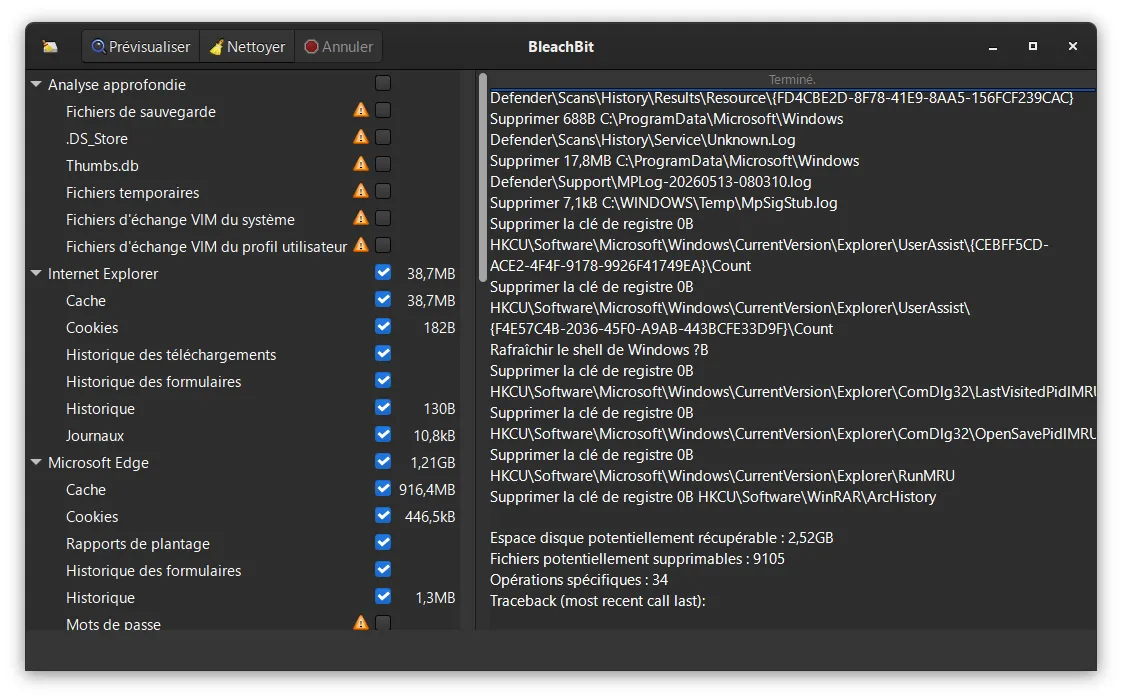
It also features a secure file deletion function, which is useful before selling a PC or giving away a hard drive. Its interface is minimalist; no ratings, no scores, just the categories to clean and a button.
4. Assistools, our in-house tool – free and ad-free
Assistools is the Windows maintenance software we have developed for our technical support work. It combines, in a single click, the cleaning and maintenance tasks we routinely perform on the PCs we repair: clearing temporary files, checking the hard drive, optimising startup, and updating Windows. No adverts, no data collection, no subscription.
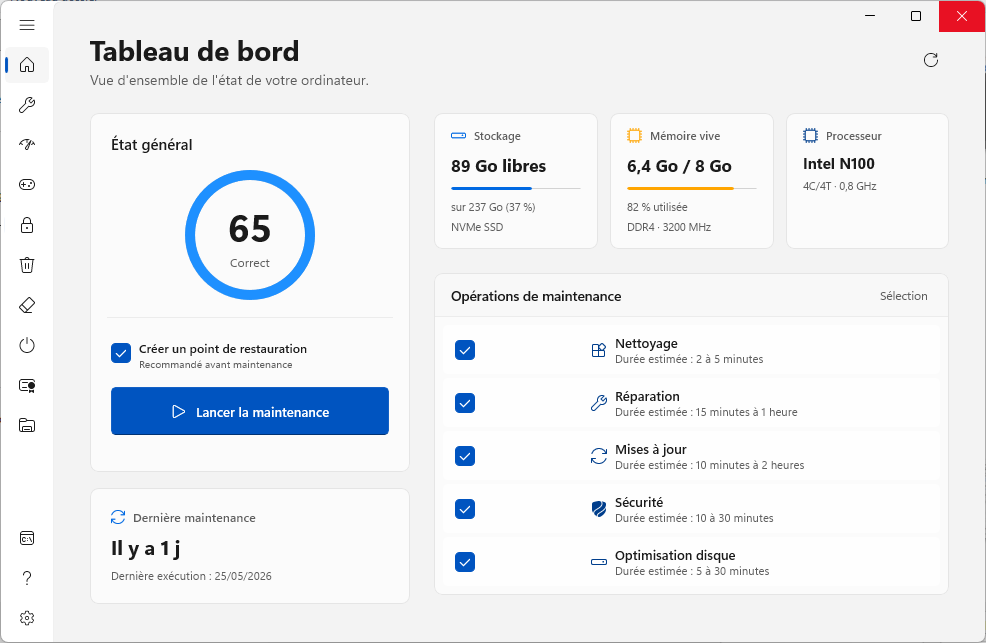
Whereas DISM++ requires you to understand what you’re doing and why, Assistools is designed so that any user can carry out maintenance safely and without risk. We developed it because we couldn’t find a tool that did the basics properly without pushing users towards a paid version.
What are the alternatives to CCleaner in 2026?
CCleaner remains the go-to choice, but it is no longer the only viable option. If you’re looking for an alternative:
- BleachBit if you want open-source software with no adverts and precise control over what gets deleted.
- Assistools is the tool for you if you’re looking for a simple, French-language tool developed by technicians who use it themselves.
- Storage Sense if you just need to free up some space from time to time without installing anything.
- PrivaZer if your priority is to erase traces of your activity before selling a PC.
In any case, avoid software that promises to fix thousands of registry errors. These kinds of warnings are exaggerated, and the suggested fixes have no measurable impact on your PC’s performance.
Steer clear of software that promises to fix thousands of registry errors
Almost all cleaning software has a button to clean the registry. Some claim there are 1,847 errors to fix. The figure is daunting. You click it. And in most cases, nothing visible happens, because these ‘errors’ aren’t really errors at all.
The Windows Registry is an internal database that the system constantly accesses. Over time, orphaned entries accumulate in it when you uninstall software. These entries do not slow down your PC. They do not take up any useful space. They are useless, but not harmful.
Microsoft states this explicitly in its support documentation: it advises against using third-party registry cleaning tools, and points out that improper removal can lead to malfunctions, corrupted drivers, software that no longer starts, and peripherals that stop working. Microsoft adds that it cannot guarantee that problems caused by these tools can be repaired.
If a piece of software tells you there are thousands of errors to fix, ignore that figure. If the warning is the only reason you’re considering buying the premium version, that’s all the more reason not to.
Add Assistouest to your preferred sources on Google so you can find our guides faster when you search for an IT solution.
Do you really need cleaning software?
Not necessarily, and certainly not as much as we think.
We regularly receive PCs in our workshop with three or four cleaning programmes installed at the same time (CCleaner, ASC, and another tool found on a forum), all of which run at start-up and end up conflicting with one another. The PC is slower than before, but no cleaner.
A disk cache isn’t a waste of space; it helps Windows find frequently used files more quickly. Clearing the cache too frequently will temporarily slow the system down rather than speed it up. Clearing it makes sense when the drive is really full or when old temporary files have been building up for months.
If your PC is running slowly, it’s rarely down to temporary files. More often than not, it’s because there are too many programmes running at start-up, a mechanical hard drive that’s almost full, or Windows running on an SSD that’s too small. Our guide to speeding up a slow PC running Windows addresses these causes in turn.
Also be wary of websites or adverts that tell you your PC is full of errors and offer you repair software. It’s almost always a scam or software that installs toolbars and extensions. Start by disabling unnecessary programmes at startup and checking your disk space; this is often more effective.
Our recommendation for cleaning your PC
Start with Storage Sense, always. It’s built-in, reliable and free. If your PC is still running out of space or is slow after that, switch to a third-party tool.
For the general public, CCleaner Free is a good choice, provided you take care during installation. It was the most effective in our test and is familiar to most technicians, which makes support easier if needed.
For those who want open-source software without adverts, try BleachBit. For comprehensive one-click maintenance with no commercial compromises, try Assistools. For experienced users who want to delve deep into the system, DISM via the Command Prompt is the go-to tool.
In any case, only one cleaning programme should be running at a time. Not two, not three.
Once a month for temporary files and the browser cache is enough. Once a quarter for a more thorough clean-up of old Windows updates. Doing it every day is counterproductive. The cache rebuilds itself and the next session is slower.