
Windows allows you to manage storage via its integrated disk management tool, but it doesn’t offer direct functionality for merging two partitions without loss of data. This operation may be necessary when you wish to merge the unused space of one partition with another, particularly after a system reinstallation or a misallocation of disk space. In this article, we’ll look at the methods available for merging partitions under Windows.
In this article
What is a score?
A partition is a logical division of a hard disk or SSD that allows data to be structured and organized independently. Each partition functions as a separate storage unit with its own file system and sometimes even a dedicated operating system. There are several types of partition in storage organization:
- Logical partition: Located inside an extended partition, it functions like a conventional partition and can be formatted with a file system.
- Primary partition: contains a file system and can be used to boot an operating system. A disk can contain up to four primary partitions.
- Extended partition: This serves as a container for other partitions, called logical partitions, enabling you to bypass the limitation of the four primary partitions.
How do I merge two partitions in Windows?
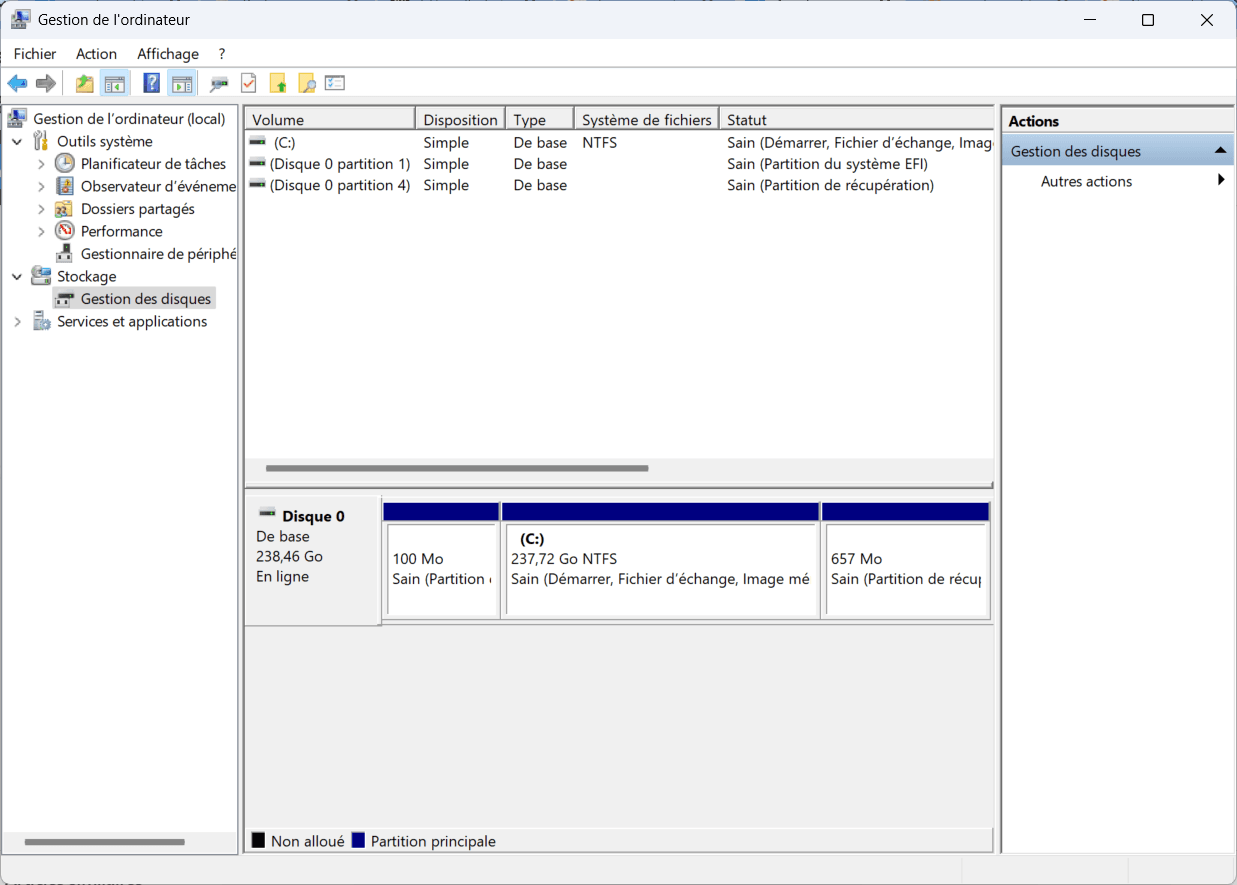
Open the Disk Management tool by right-clicking on the Start menu (Windows logo) and selecting Disk Management. You should see all your partitions and available disk space.
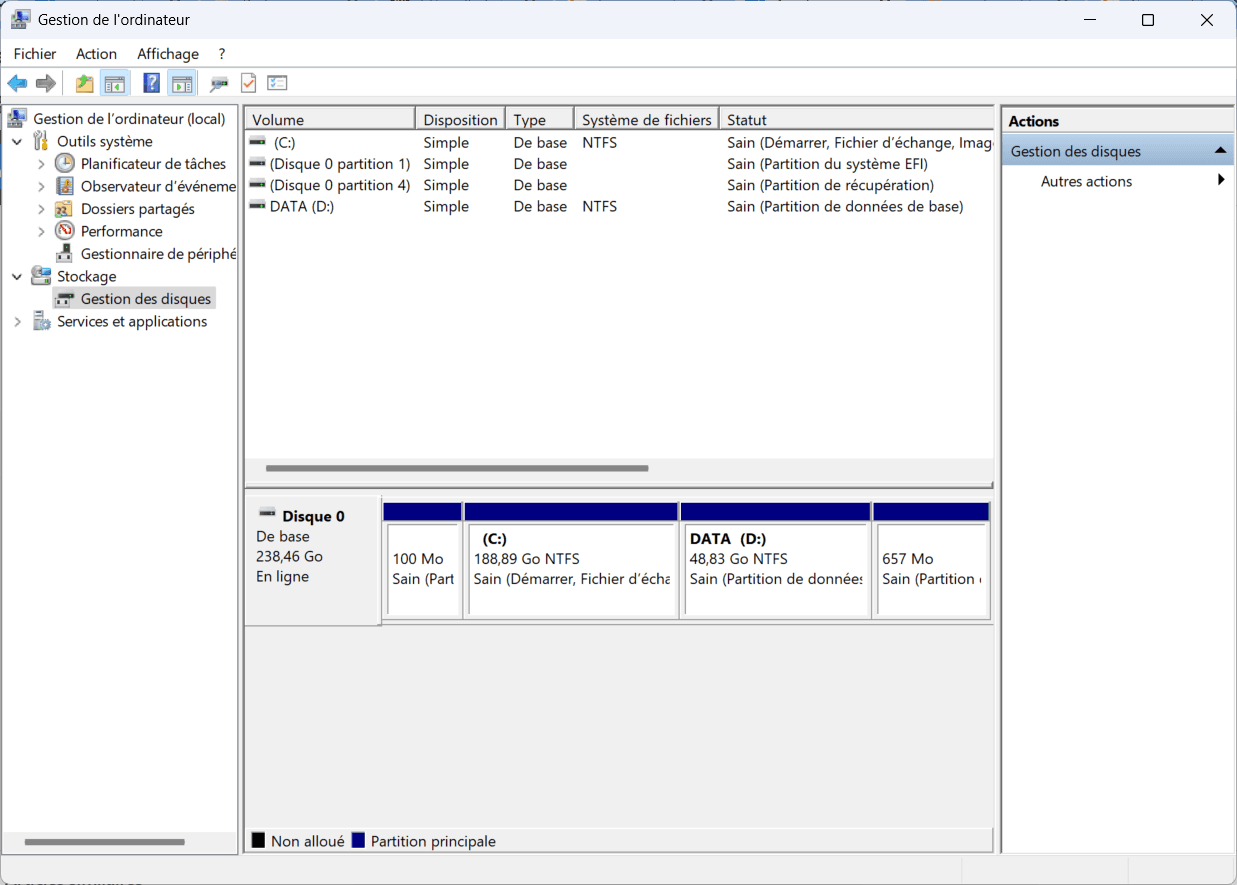
In this example, we have two distinct partitions:
- The main partition C: (System)
- The DATA partition (D:) we wish to merge with C:
To merge these partitions, you must first delete the D: partition to reclaim its space as unallocated storage.
Before deleting partition D: copy all important files to another hard disk, SSD or external storage device. Deleting a partition deletes all its files.
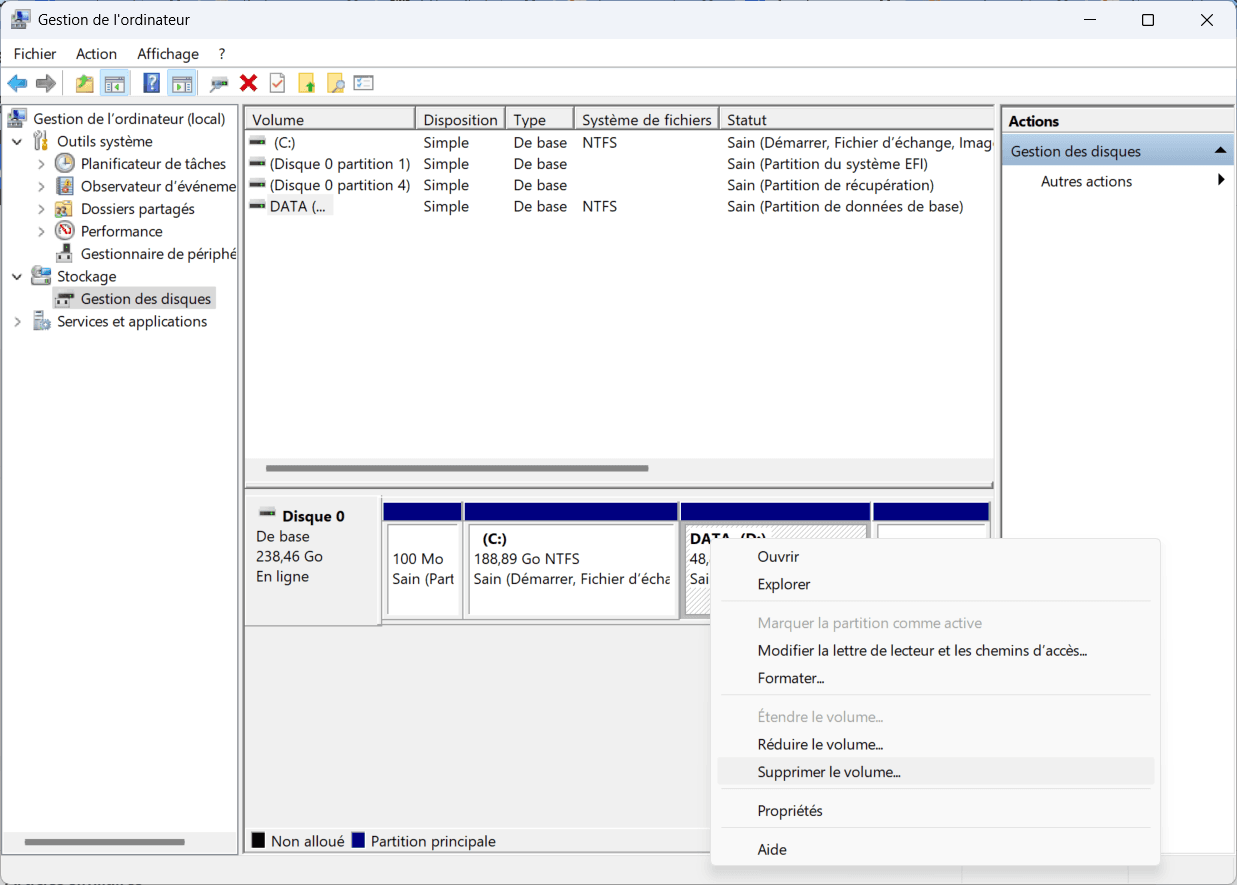
Right-click on the D: partition and select Delete volume.
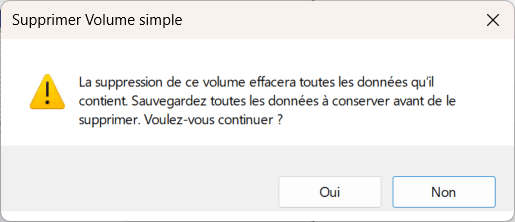
A confirmation dialog box appears, warning that all data will be deleted. Click on Yes.
Once the partition has been deleted, the space becomes unallocated.
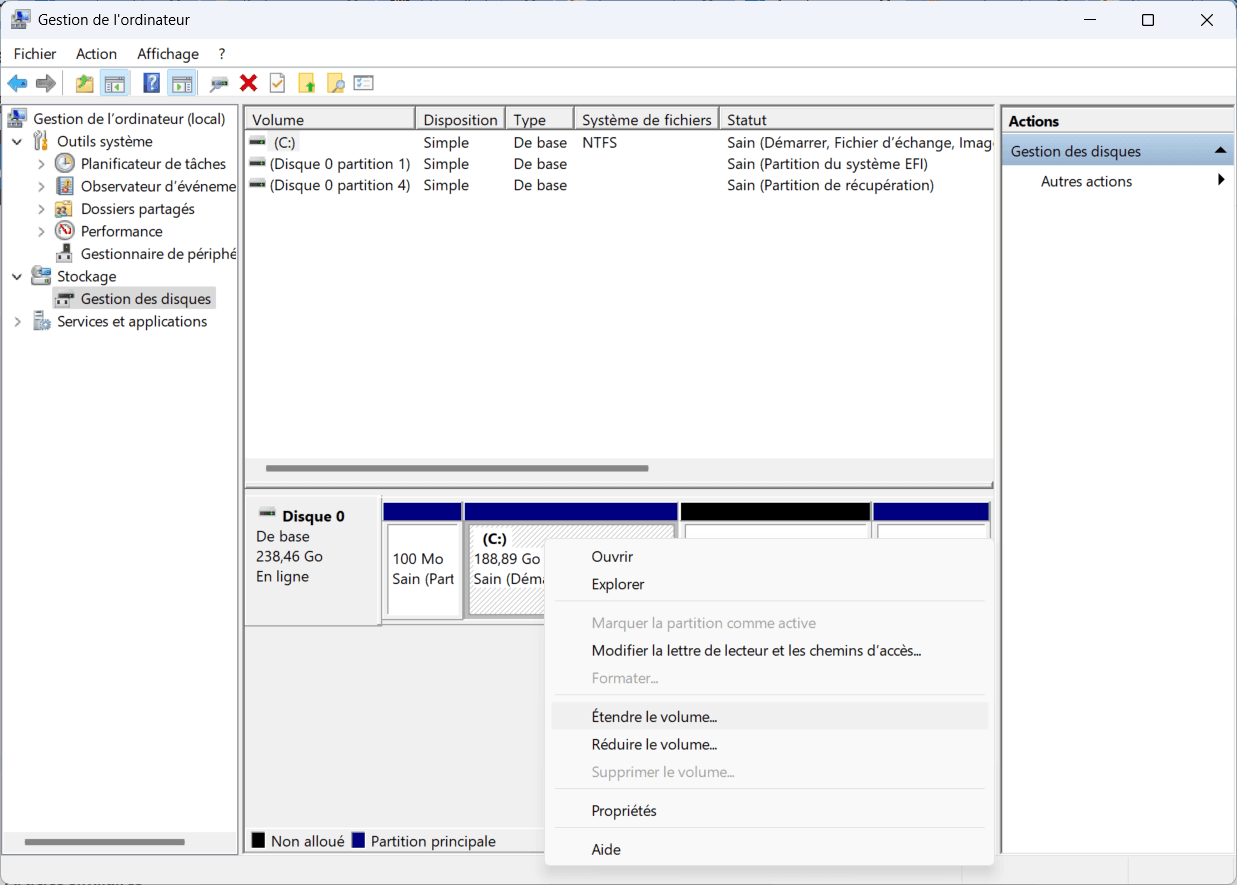
Right-click on the main C: partition and select Extend volume.
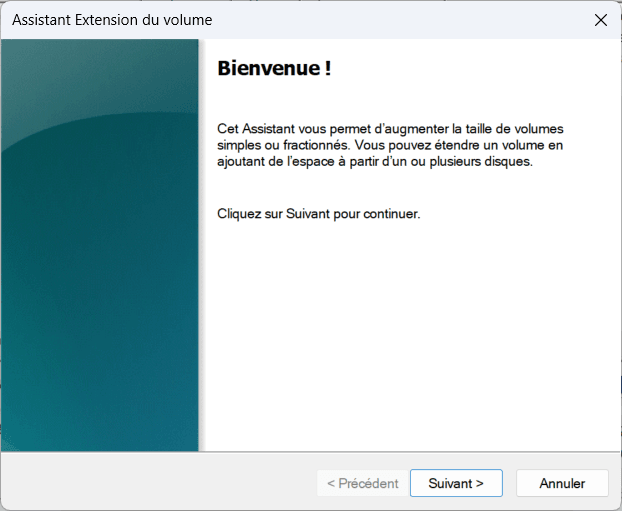
TheVolume Extension Wizard opens. Click on Next.
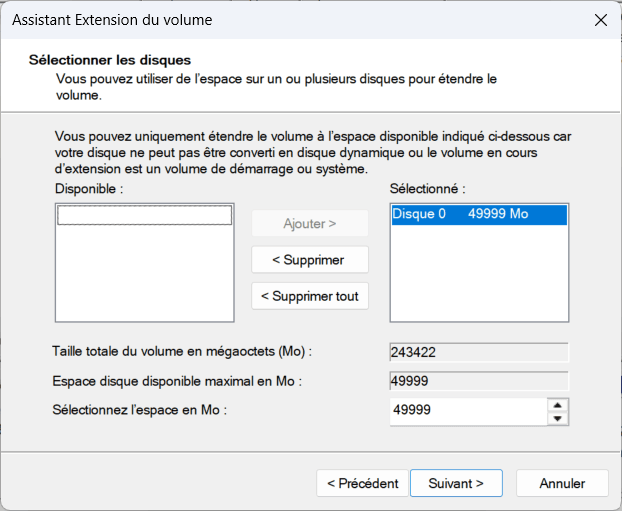
Select the unallocated space (formerly partition D:) and click on Add, then Next.
Check the settings and click on Finish to finalize the operation.
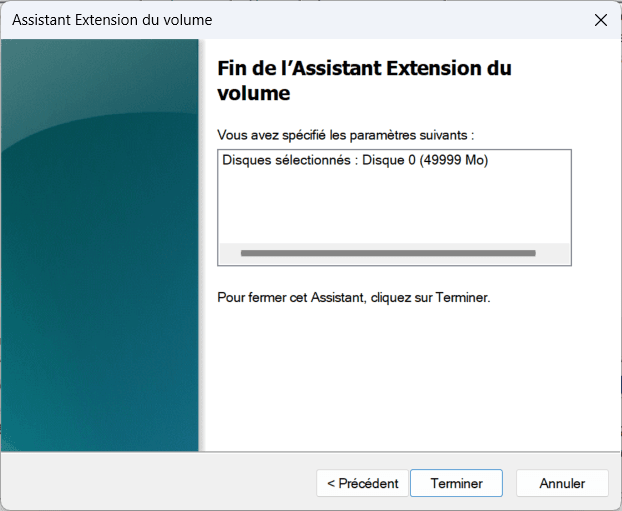
Once the operation has been completed, the C: partition has been extended to include the space of the former D: partition.
We allow some readers to view our articles for free with an ad blocker. However, their number is currently too high for us to keep this access available to everyone.
You can disable your ad blocker to continue reading immediately, subscribe to enjoy all our content without ads, or come back a little later when the pressure has eased.
Access will be restored automatically as soon as the situation allows.