

With the popularization of open source AI models such as Llama 3.2, Mistral, Phi, Gemma, DeepSeek and Qwen 2.5, more and more users are looking to run them locally to gain autonomy and preserve their personal data. Yet installing an AI model on Windows 11 can seem complex, especially for a beginner. This guide offers a simplified method for installing and using these models independently, without the need for advanced programming or machine learning skills.
Artificial intelligence (AI) can be run in two main ways: locally (on your own machine) or in the cloud (via remote servers). Each of these approaches has its advantages and disadvantages, depending on requirements, hardware resources and technical constraints.
In this article
What’s the difference between local and cloud AI?
Local AI runs directly on the user’s computer. Once the model has been downloaded, it can be used without an Internet connection. This solution guarantees total confidentiality, since data remains on the device. It also offers immediate responsiveness, with no latency associated with a remote server. However, it does require suitable hardware(a powerful processor and, ideally, a high-performance graphics card). Some models, such as Llama 3.2, Mistral, Phi, Gemma, DeepSeek or Qwen 2.5, may require several gigabytes of storage space and significant resources to operate optimally.
In contrast, cloud AI relies on remote servers. Users send their queries via the Internet and receive a remotely-generated response. This approach enables access to the most advanced models without local hardware constraints. It’s also simpler to use, as model updates and optimization are managed by the provider. However, it requires a permanent connection and raises issues of confidentiality, as requests may be stored or analyzed. What’s more, its cost can become significant, depending on the intensity of use.
Download and install LM Studio
Start by downloading LM Studio, an open source tool that lets you run language models such as Llama 3.2, Mistral, Phi, Gemma, DeepSeek or Qwen 2.5 locally.
Visit the official LM Studio website and download the Windows version.
Run the installation program.
In the installation wizard, choose the destination folder (C:Program Files by default) and click Install.
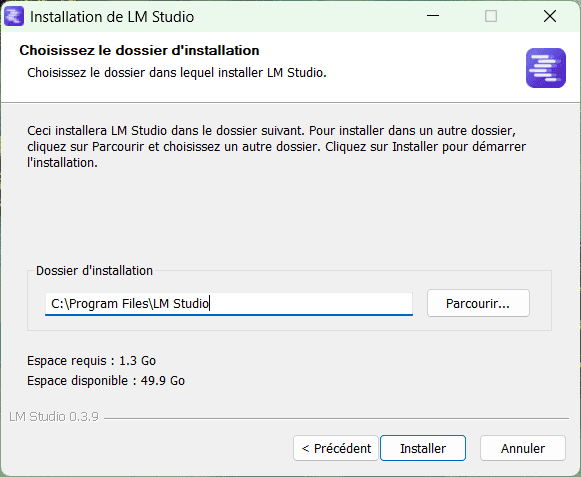
Once installation is complete, open LM Studio.
When LM Studio is first launched, a welcome interface appears. Here you can download an LLM (Large Language Model) and start using it immediately.
By default, LM Studio suggests downloading DeepSeek R1 Distilled (Qwen 7B), a high-performance model optimized for local use.
Click Download to start downloading the template.
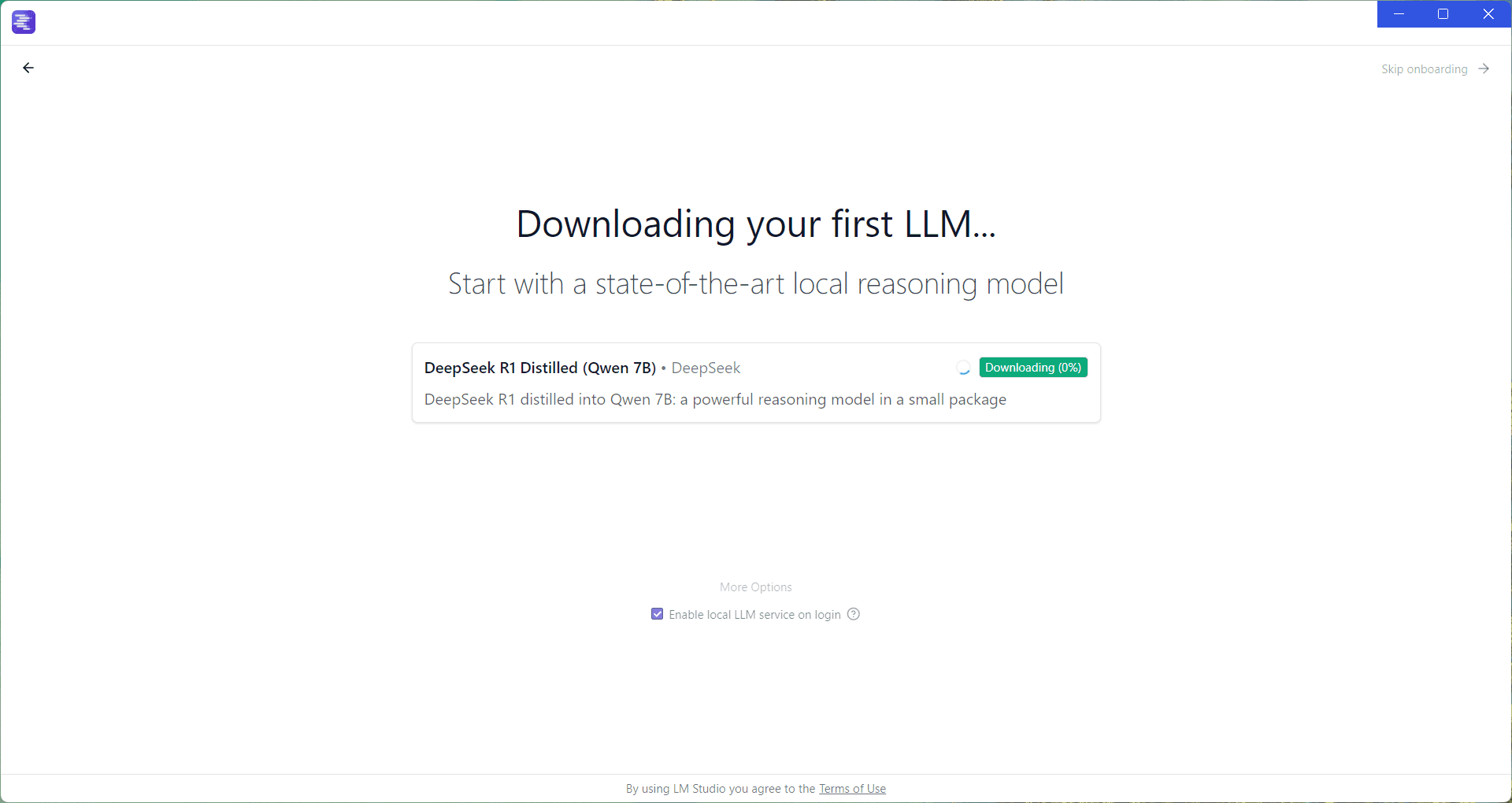
During download, you can explore the application by clicking on Skip onboarding in the top right-hand corner of the screen.
Discover LM Studio’s interface and configure DeepSeek R1
Now that your first model is installed, you need to load it before you can use it.
Click on Select a model to load and choose DeepSeek R1 Distilled (Qwen 7B) or another downloaded model.
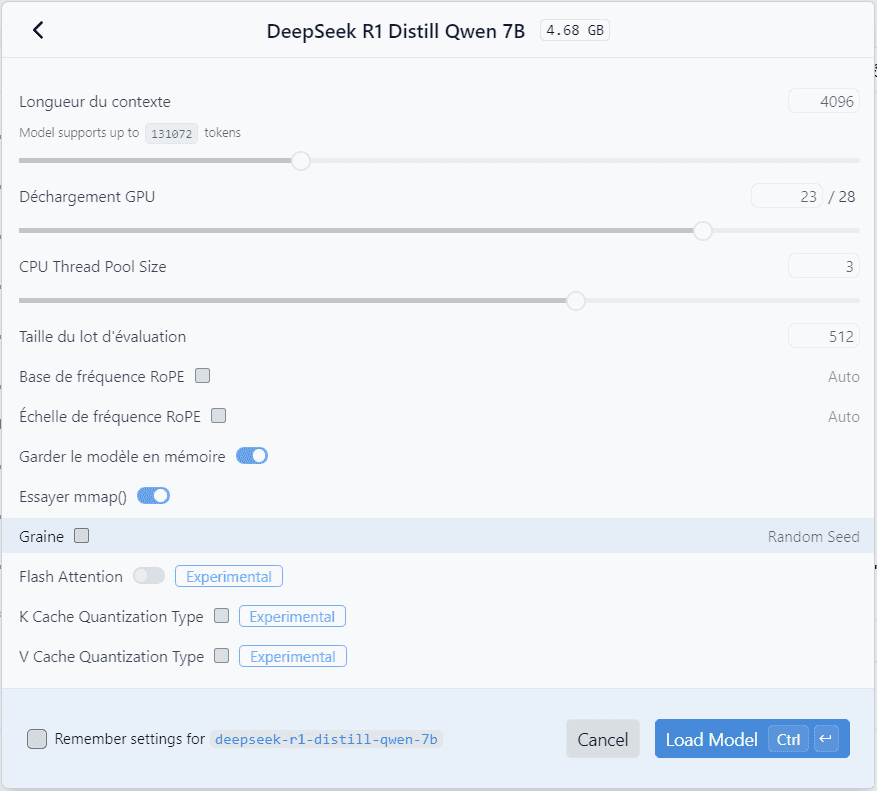
A window opens to configure the model parameters:
- Quantization: adjusts model accuracy to optimize performance.
- Memory allocation: manages RAM and GPU usage.
- Number of threads: to be adjusted according to the processor to improve response speed.
If you’re not sure what you’re doing, don’t touch anything and click Load Model.
Once loaded, the model is ready to use. You can ask questions directly in the chat interface, without needing an Internet connection.
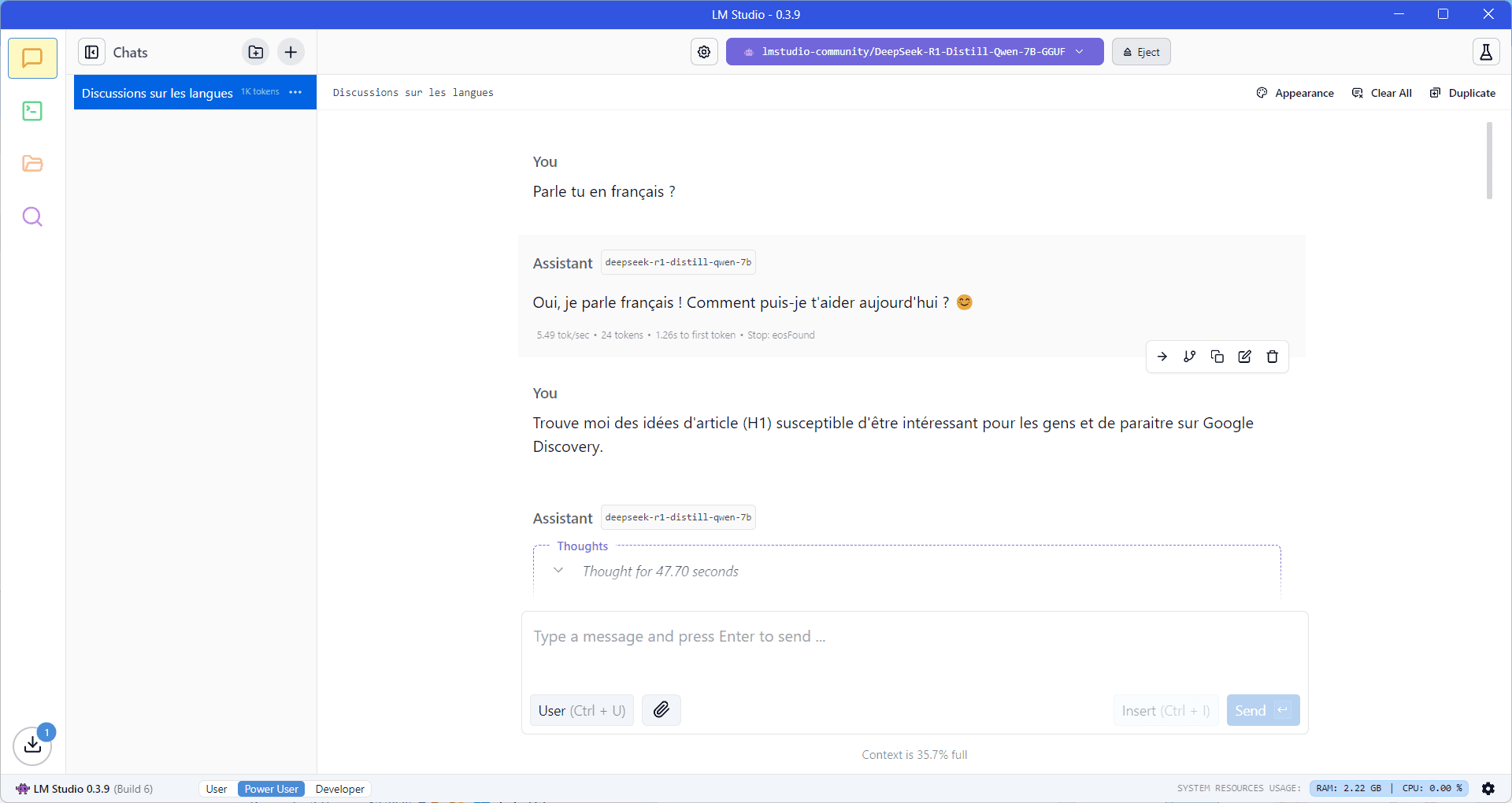
- Type your request in the input field at the bottom of the screen.
- Responses can be generated more or less quickly, depending on the power of your machine.
- An indicator at bottom right shows the system resources used by LM Studio (CPU, RAM, GPU).
Thanks to LM Studio, it’s now easy to run an LLM locally on Windows 11, without relying on an Internet connection or a cloud service. In just a few steps, you can install, configure and interact with models such as DeepSeek, Llama 3.2, Mistral or Qwen 2.5, while guaranteeing the confidentiality of your data.
We allow some readers to view our articles for free with an ad blocker. However, their number is currently too high for us to keep this access available to everyone.
You can disable your ad blocker to continue reading immediately, subscribe to enjoy all our content without ads, or come back a little later when the pressure has eased.
Access will be restored automatically as soon as the situation allows.