
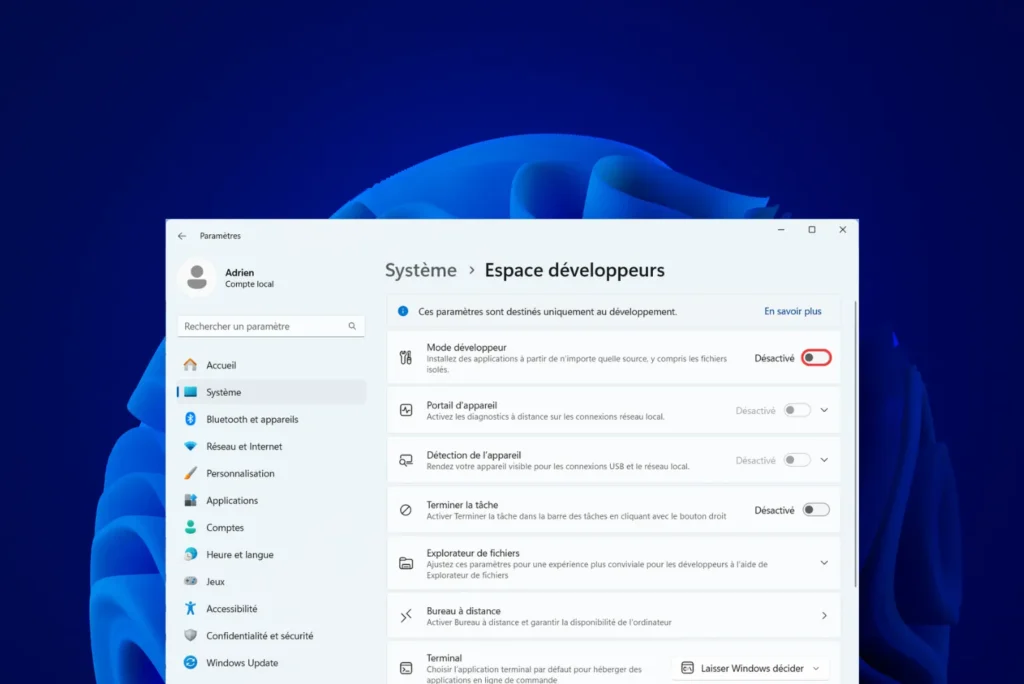
If you’re looking to activate Developer Mode on Windows 11, you already know that it allows you to bypass certain system restrictions. But in concrete terms, what changes does this entail? As well as enabling the installation of non-Microsoft Store applications, it modifies certain security settings and unlocks advanced tools for development and debugging. Here’s the procedure to follow and the implications of this activation.
How do I activate Developer Mode on Windows 11?
What is Windows Developer Mode?
Windows Developer Mode is a feature built into Windows operating systems to facilitate the work of developers and advanced users. When activated, it modifies several system parameters to lift certain security restrictions and authorize actions normally restricted in a standard environment.
Installing non-Microsoft Store applications
By default, Windows blocks the installation of unsigned applications or applications from unofficial sources. Activating Developer Mode lets you run UWP (Universal Windows Platform) applications without going through the Microsoft Store, which is particularly useful for testing software under development.
Access to advanced debugging options
Developer mode unlocks various diagnostic and debugging tools built into Windows. It allows you to use the Windows Debugger, activate the advanced diagnostic mode and obtain detailed logs to identify and correct any problems in the code.
Authorization of unsigned PowerShell scripts
For security reasons, Windows prevents the execution of unsigned PowerShell scripts. With Developer Mode enabled, it becomes possible to execute these scripts without restriction.
While convenient, enabling developer mode alters certain system security settings. By allowing the installation of unverified applications and the unrestricted execution of scripts, it becomes easier for advanced users to customize their environment, but also more risky if malware is installed unintentionally.
Activating developer mode in Windows 11
Click on the Start menu and select Settings (or use the keyboard shortcut Win + I).
In the left-hand pane, click on System.
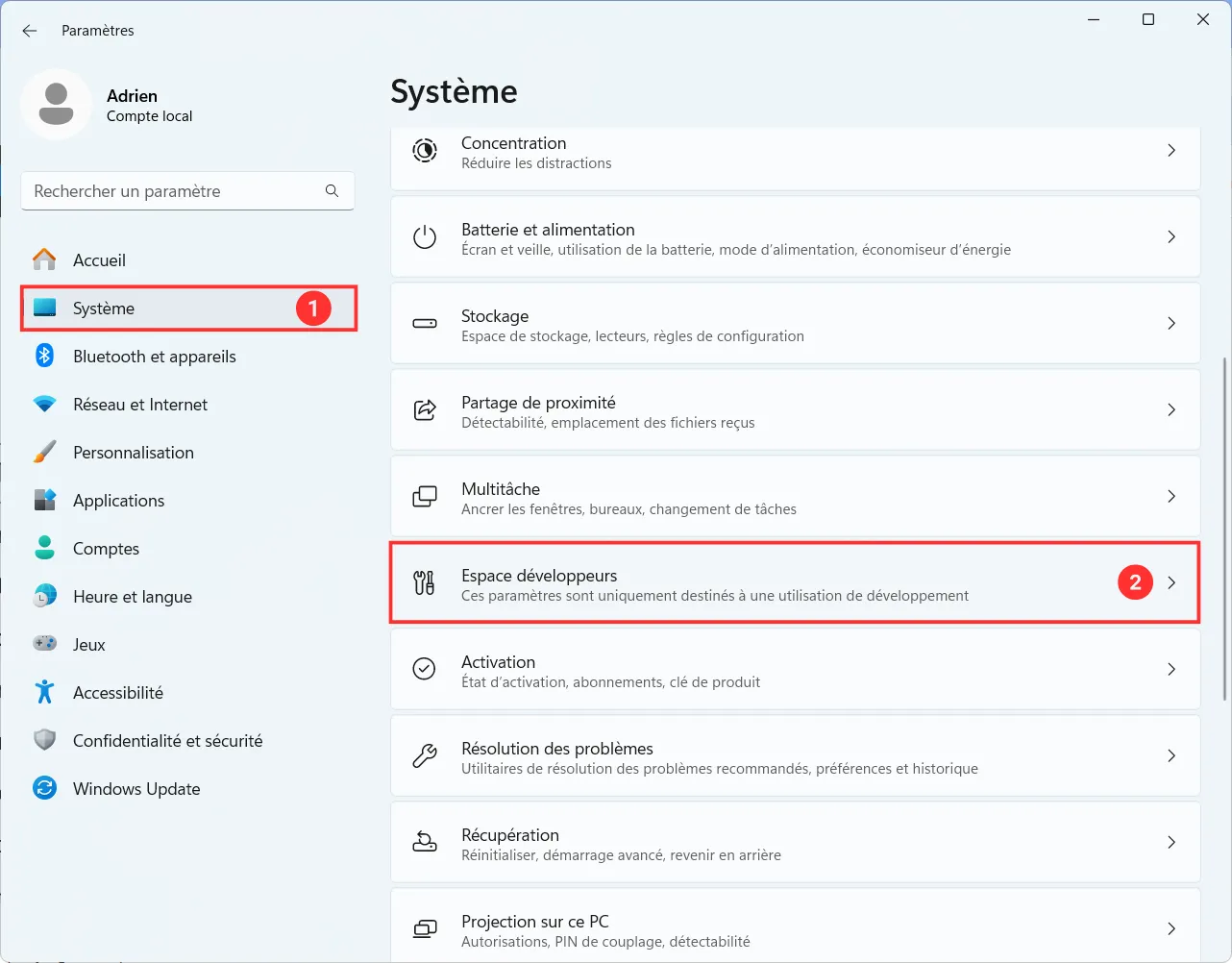
Scroll down and select Developer Space.
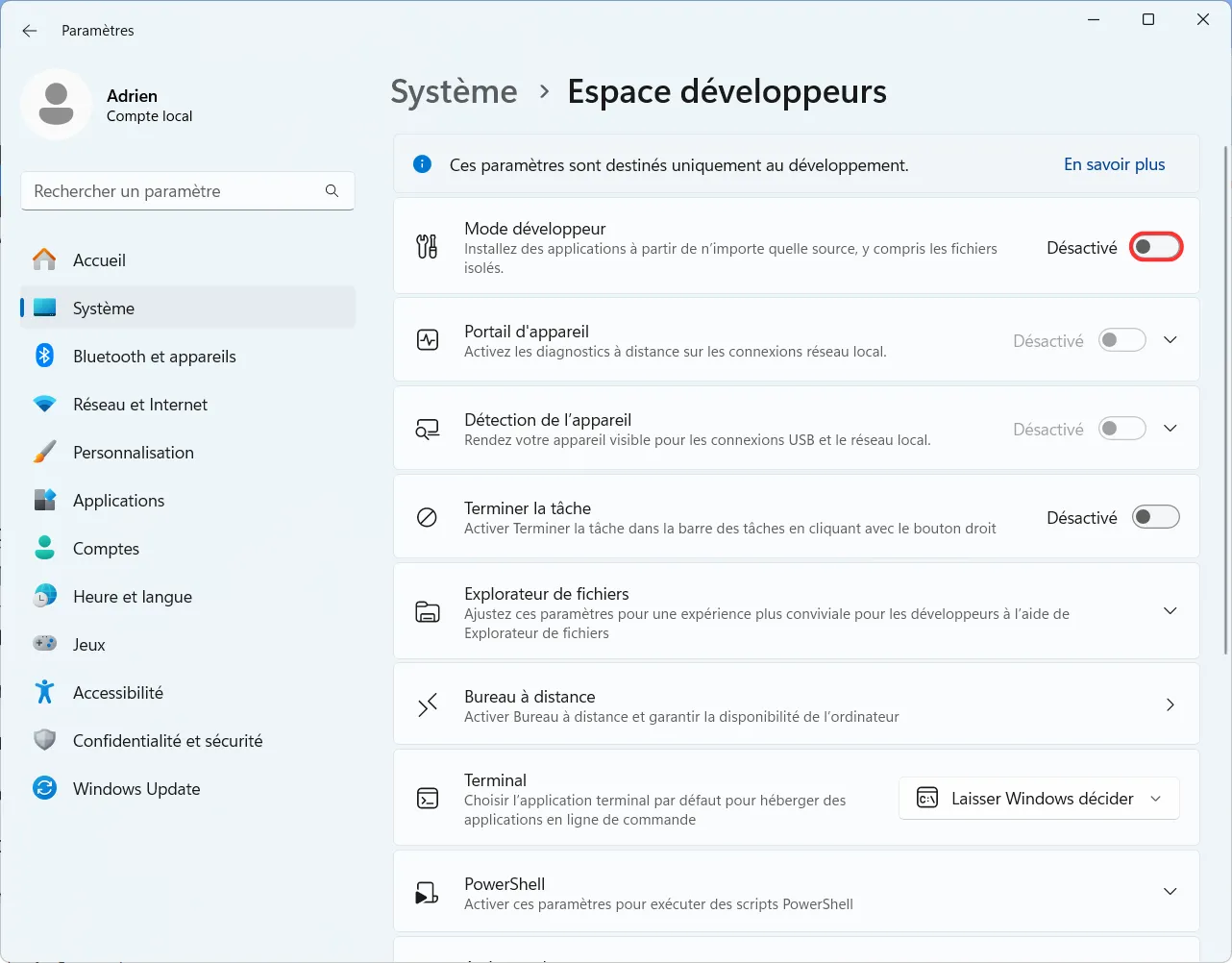
In the Developer mode section, toggle the switch to On.
A warning window appears, indicating that this option modifies certain system security parameters.
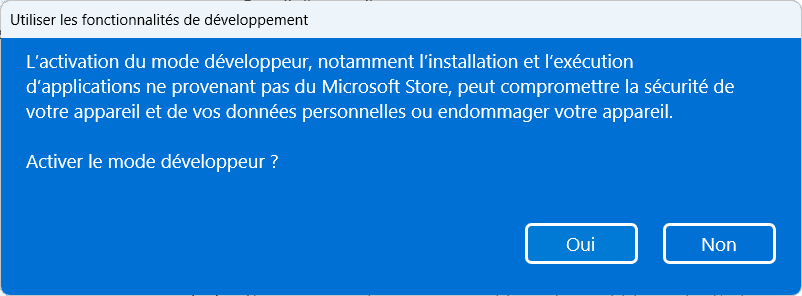
Click Yes to confirm activation.
Windows will apply the changes immediately and may download certain components if necessary.
See also how to activate GodMode on Windows.
Disable developer mode if necessary
If you no longer require developer mode, we recommend that you deactivate it to enhance system security. To do this, go back to Settings > System > Developer Area and deactivate the Developer mode option.
Activating Developer Mode in Windows 11 modifies certain security parameters. It allows the installation of unsigned applications, unrestricted execution of PowerShell scripts and access to advanced tools such as the Device Portal. This can put the system at risk if malicious applications are installed. It is recommended to activate it only if necessary, and to remain vigilant about the sources of software used.
Did you find this article helpful?
Share it so others can benefit from it.
Learn more about the author
