
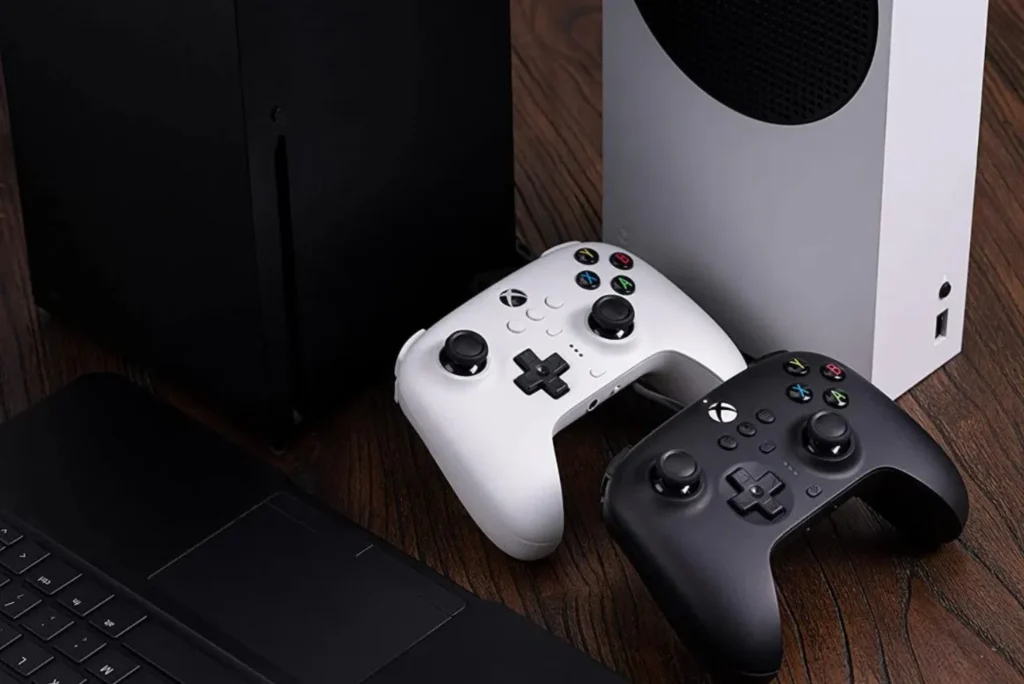
Connecting an Xbox controller to a PC may seem straightforward, but not all methods are created equal. Some models require a wired connection, others can be paired via Bluetooth, and there’s even an official wireless adapter for a better experience. Here’s a complete guide to help you make the right choice.
How do I connect an Xbox controller to my PC?
- Connecting an Xbox controller to a PC with a USB cable
- Connect your Xbox controller via Bluetooth
- Connecting an Xbox controller via the Official Xbox Wireless Adapter
Connecting an Xbox controller to a PC with a USB cable
Using a USB cable to connect an Xbox controller is the simplest and most reliable way to avoid wireless connection or battery problems, here’s how to connect it :
- Connect the cable to a USB port on your PC.
- USB-A to USB-C for Xbox Series controllers (new models).
- USB-A to micro-USB for Xbox One controllers (older models).
- Connect the other end to the joystick port (on top).
Windows automatically detects the controller and installs the necessary drivers.
A message may appear at the bottom right of the screen indicating that the device is ready for use.
No additional configuration is required: once connected, the controller is immediately functional.
Connect your Xbox controller via Bluetooth
- Open Windows Settings (Win + I).
- Go to the Bluetooth and devices section.
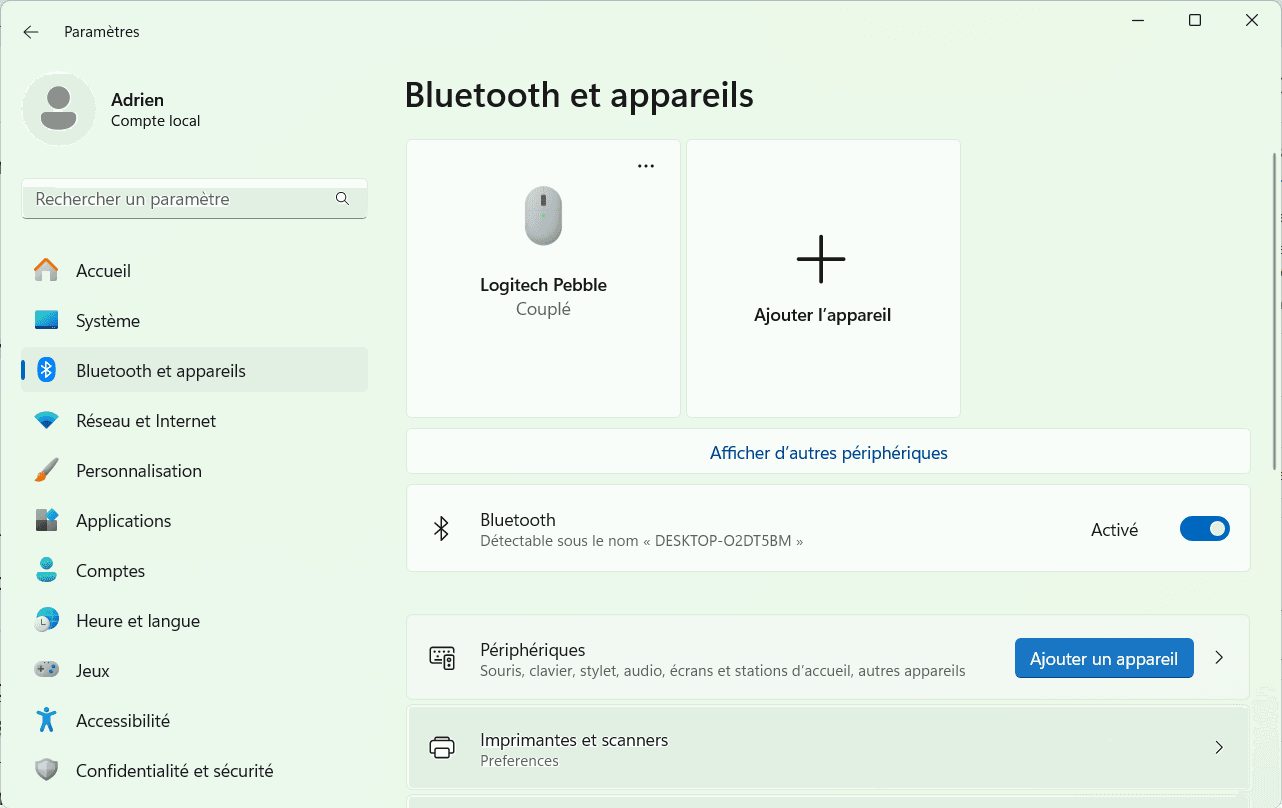
Make sure Bluetooth is enabled (as shown in the screenshot above).
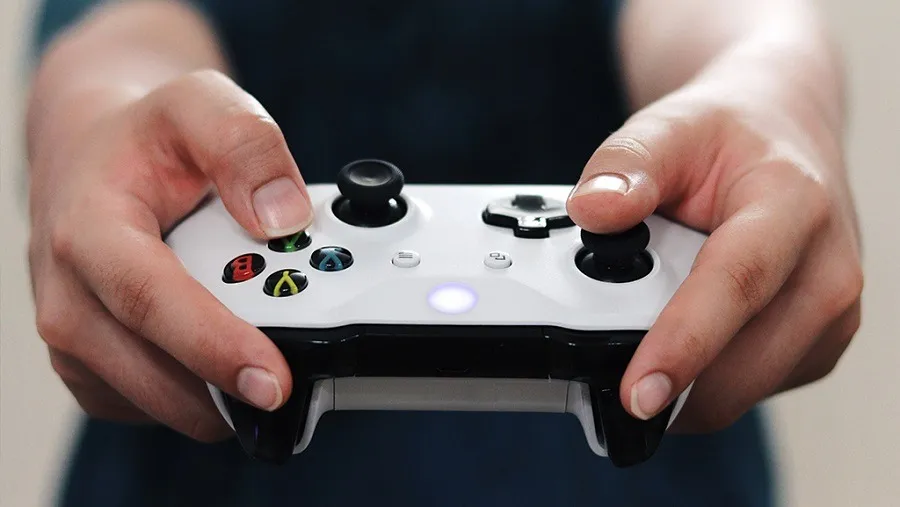
- Switch on the Xbox controller by pressing the Xbox button until it lights up.
- Press and hold the Pairing button (the small button on top of the controller) until the Xbox button flashes rapidly. This means the controller is in Bluetooth pairing mode.
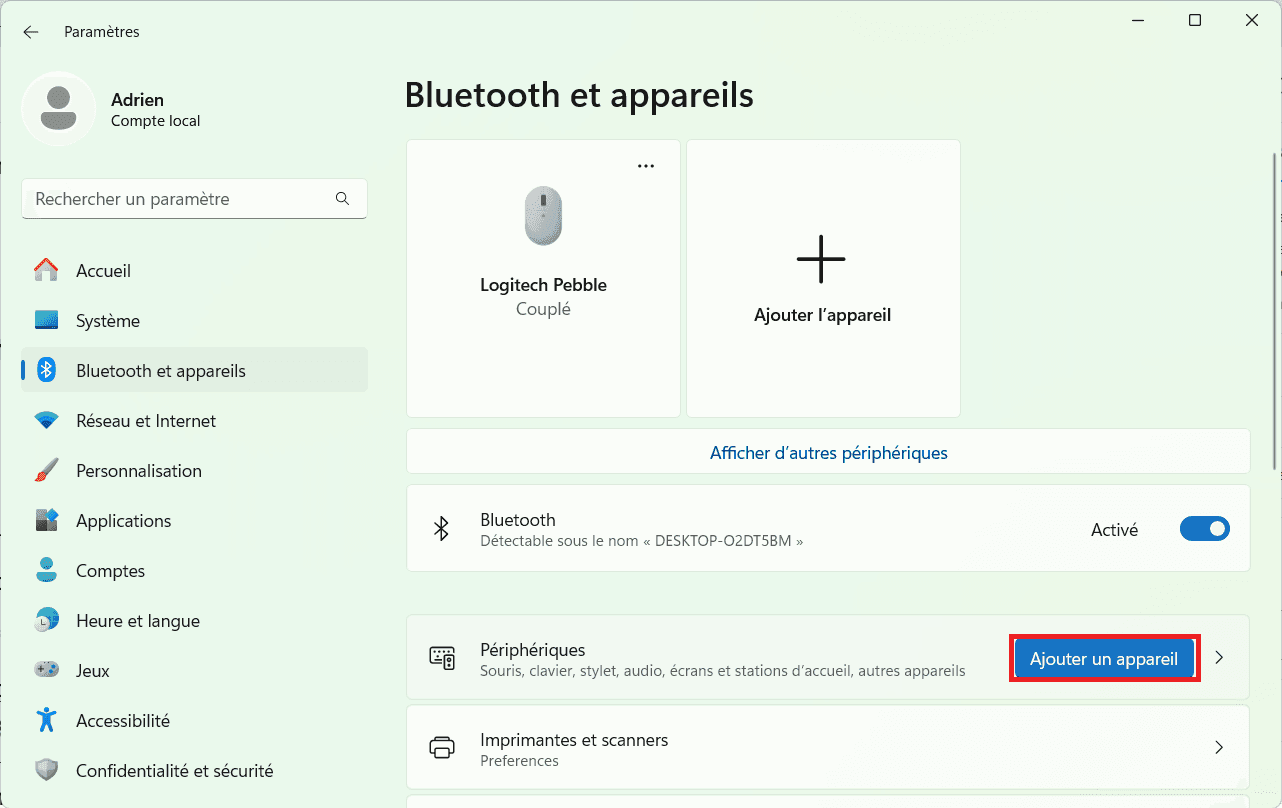
- In Windows Settings > Bluetooth and devices, click on Add a device.
- Select Bluetooth to connect your Xbox controller.
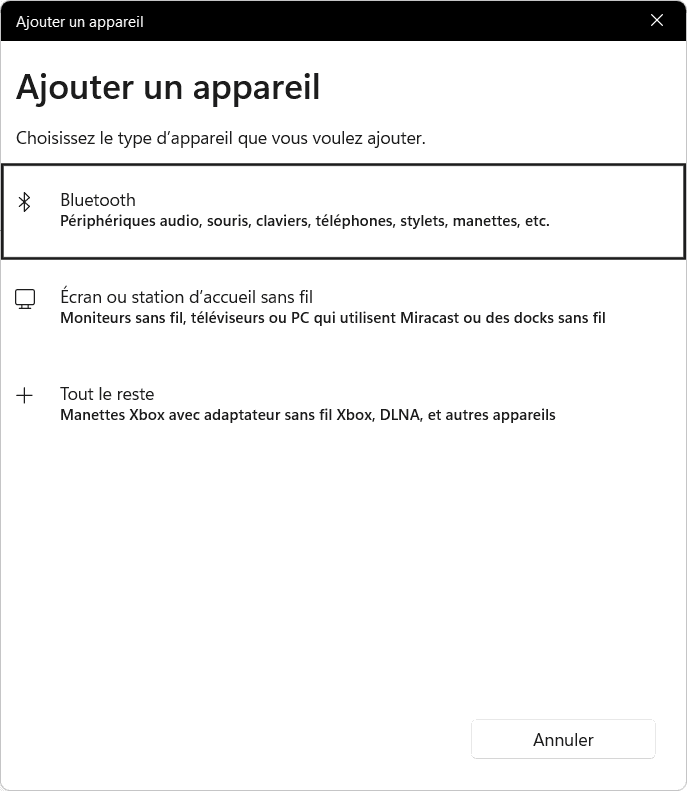
- Select Xbox Wireless Controller when your PC detects it.
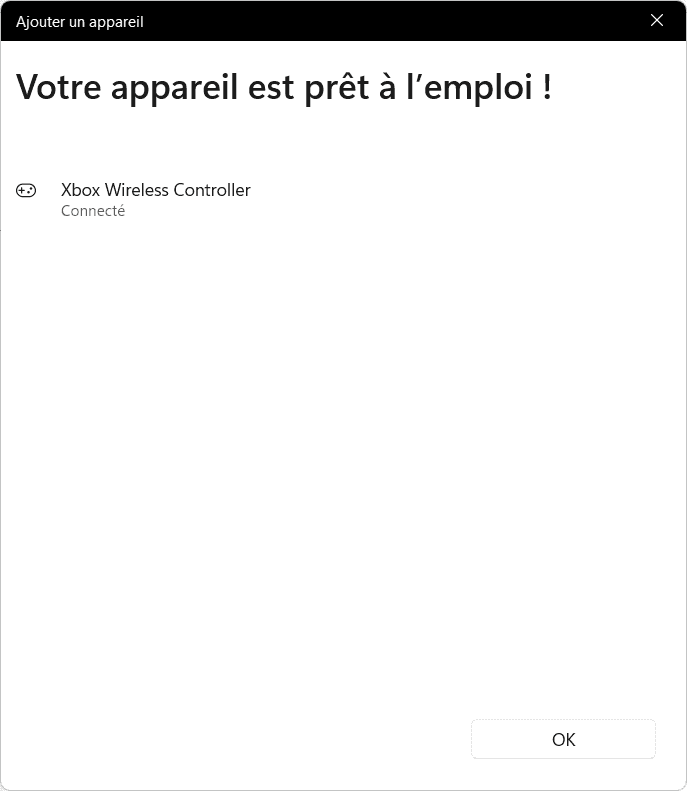
Your controller is now ready for use.
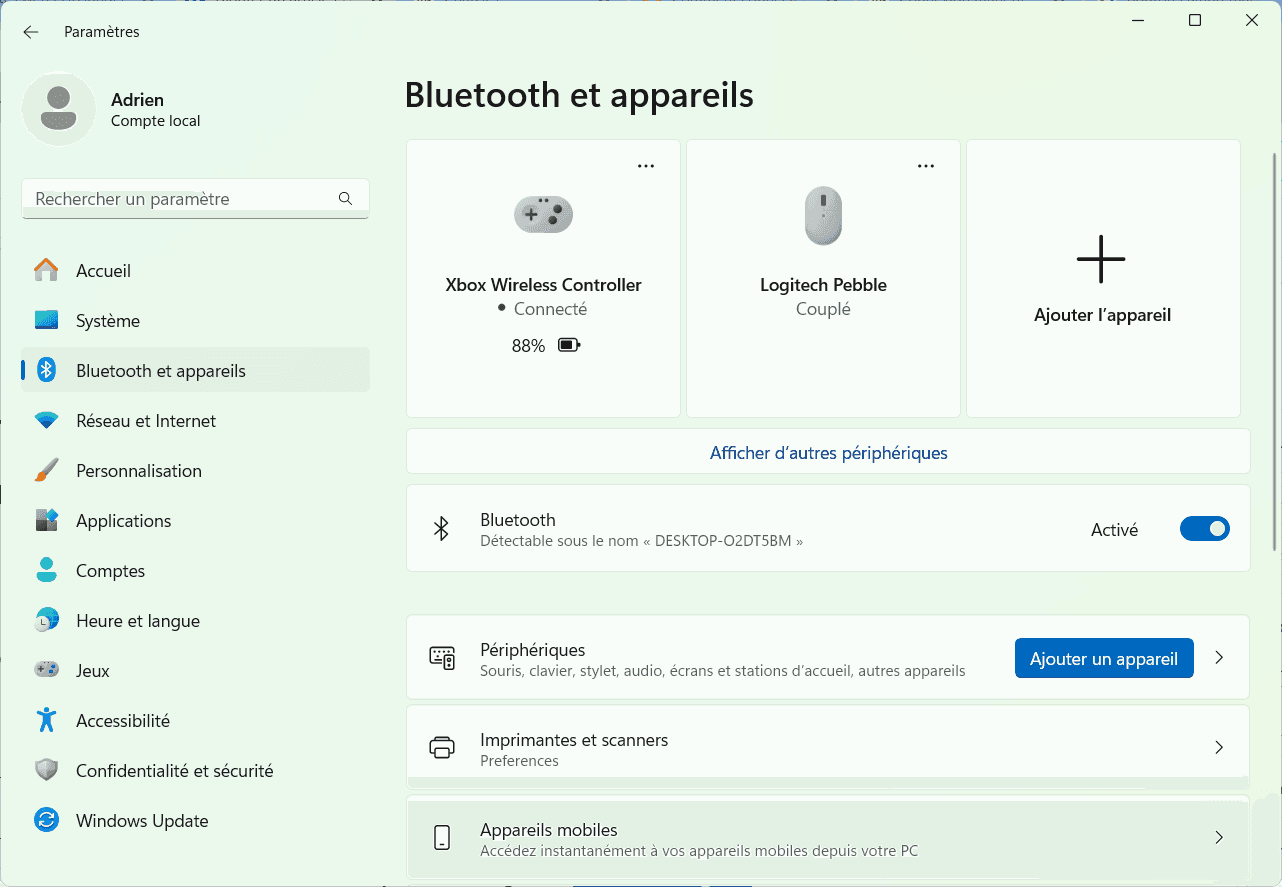
Once successfully connected, the controller appears in the list of Bluetooth devices with a battery indication (as shown in the screenshot).
Press the Xbox button to open the Game Bar. If it doesn’t open, use the keyboard shortcut Win + G.
Try navigating between widgets to check if the joystick is working.
Discover our selection of the best controllers for PC gaming.
Connecting an Xbox controller via the Official Xbox Wireless Adapter
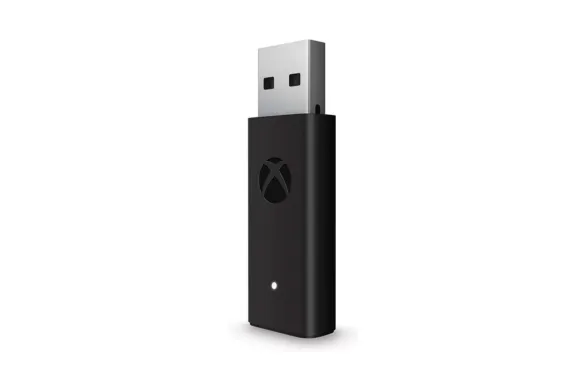
The Xbox Wireless Adapter for Windows connects an Xbox controller with an ultra-stable, latency-free connection, while supporting sound and voice chat directly via the controller (if a headset is connected). It’s the best alternative to Bluetooth for gamers looking for the ultimate PC experience.
Editor's Verdict :
Dites adieu aux latences et aux déconnexions : cet adaptateur sans fil officiel libère tout le potentiel de votre manette Xbox sur PC. Une installation instantanée pour un confort de jeu inégalé.
Highlights :
Drawbacks :
Buy at the Best Price on Amazon
- Insert the Xbox Wireless Adapter into an available USB port on your PC.
Windows automatically detects the adapter and installs the necessary drivers.
If this is the first time, a message may appear indicating that the device is being configured.
- Switch on the controller by pressing the Xbox button (the Xbox logo should light up).
- Press the controller’s Pairing button (located on top, near the USB port) until the Xbox logo starts flashing rapidly.
Wait a few seconds, the connection is established automatically when the light on the Xbox button remains steady.
Did you find this article helpful?
Share it so others can benefit from it.
Learn more about the author
