

On Linux environments, the sudo command is part of everyday life for advanced users. It allows you to instantly execute a task with elevated privileges without interrupting the current session. Until recently, Windows offered no comparable alternative, forcing users to manually relaunch a console in administrator mode. This era is coming to an end, thanks to Sudo for Windows, a new official feature that modernizes privilege management and finally brings the two worlds closer together.
Sudo on Windows: Linux-style rights elevation
- Elevation tokens and user rights management
- Enabling Sudo on Windows 11
- Elevation control and compliance with UAC policies
Elevation tokens and user rights management
In the Linux world, the sudo command enables an authorized user to execute an instruction with root privileges while remaining in the same session. This temporary elevation of rights is based on a control system that distinguishes between ordinary actions and sensitive operations. Thanks to this mechanism, the user doesn’t need to open a new session or log back in under a different account, making administration more flexible. In the background, Linux manages privileges through authentication tokens and policies defined in the sudoers file, so that only authorized commands can benefit from this elevation.
For a long time, Windows offered no direct equivalent to this mechanism. The system is based on a security model that assigns each user two distinct authorization levels, a standard token used by default and an administrator token reserved for critical actions. When a task requires elevated rights, UAC (User Account Control) intervenes to request manual validation. This architecture prevents an already-running process from modifying its own authorization level, thus preventing any unauthorized elevation. A non-administrator session cannot suddenly become an administrator without a process restart.
Enabling Sudo on Windows 11
Microsoft has integrated the Sudo command directly into Windows 11 to enable high-level command execution from a standard terminal. To activate it, simply go to Advanced System Settings.
- Open the Windows Settings menu, then select System in the left-hand sidebar.
- Then scroll down to the Advanced section, where you’ll find features designed for developers and experienced users.
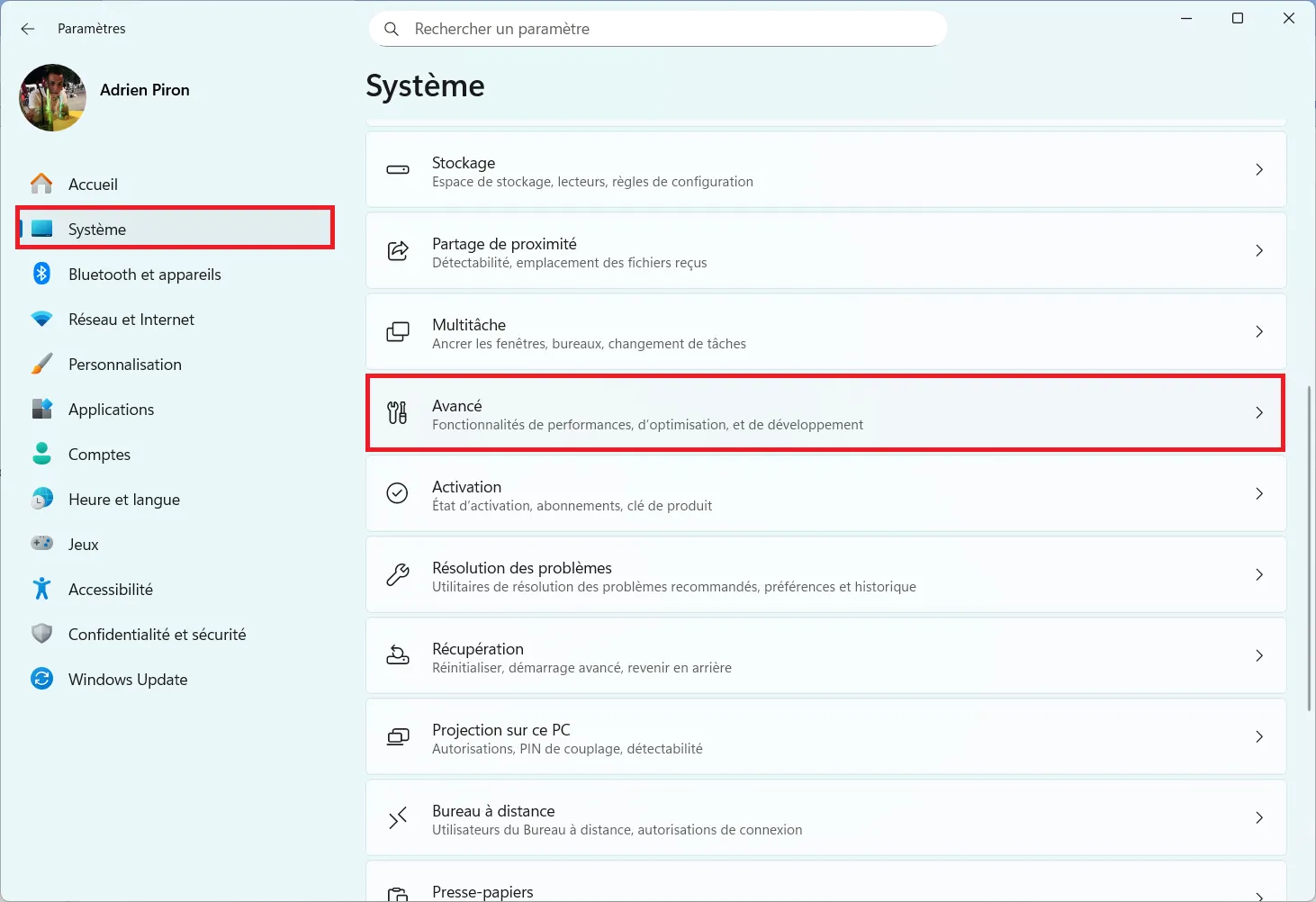
- In the System > Advanced page, scroll to the Terminal category.
- You will then find an option entitled Enable sudo. Activate the corresponding switch to enable the use of the sudo command from the command prompt or PowerShell.
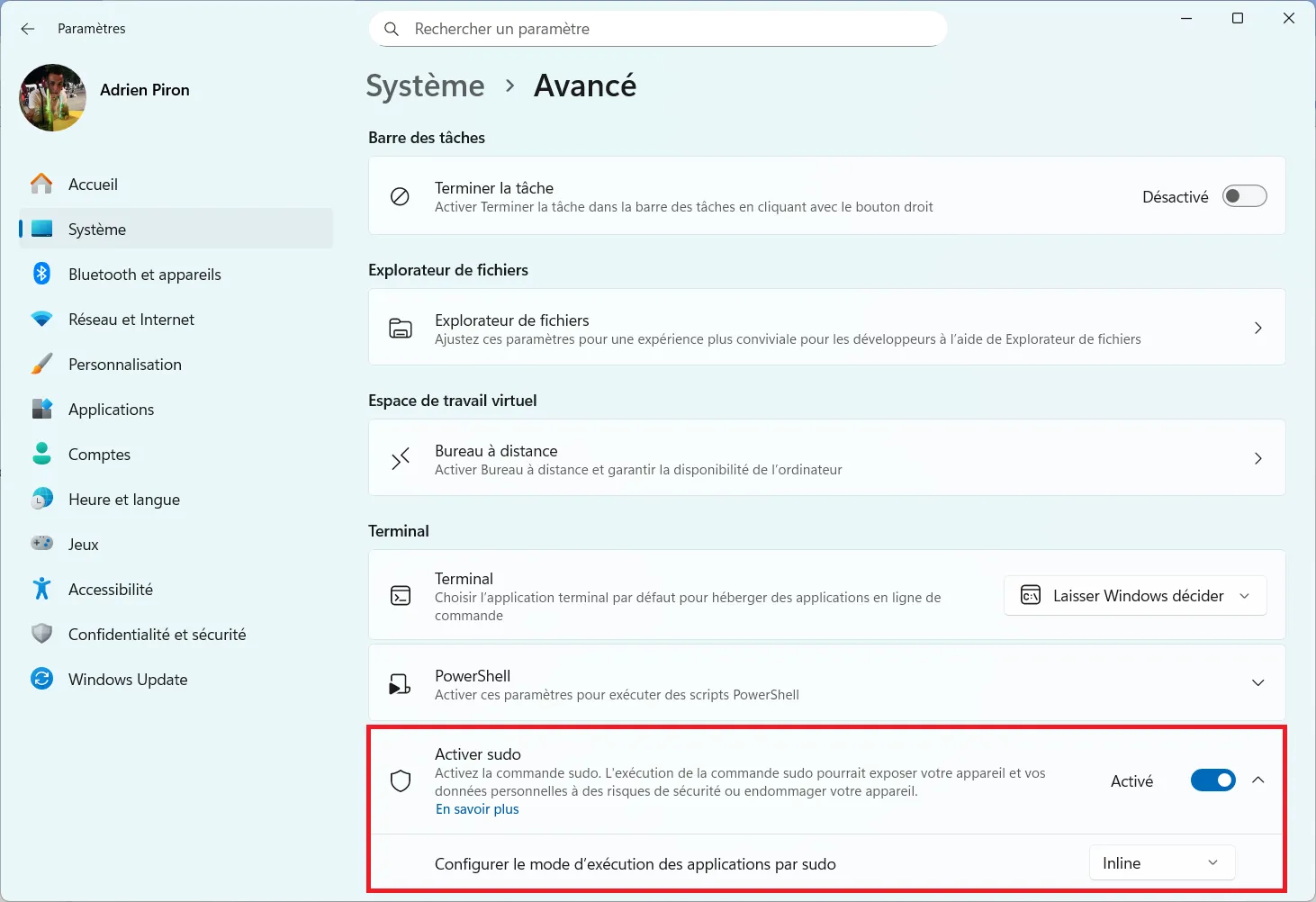
Just below it, Windows offers a drop-down menu for setting the sudo application execution mode.
Three modes are available:
- Inline (integrated mode), which executes the command in the same terminal window
- New window, opening a separate administrator session
- Disabled input that blocks user interaction at runtime
- To reproduce classic Linux behavior, choose Inline.
Once the option is enabled, you can use the sudo command directly in the Windows terminal, for example :
sudo sfc /scannow
Traditionally, this command, which checks the integrity of system files, had to be run from a console open in administrator mode. If run from a standard session, Windows would display an error message indicating that the user must have administrator privileges.
In the first run, sfc /scannow fails and displays a warning message because the command requires an administrator session.
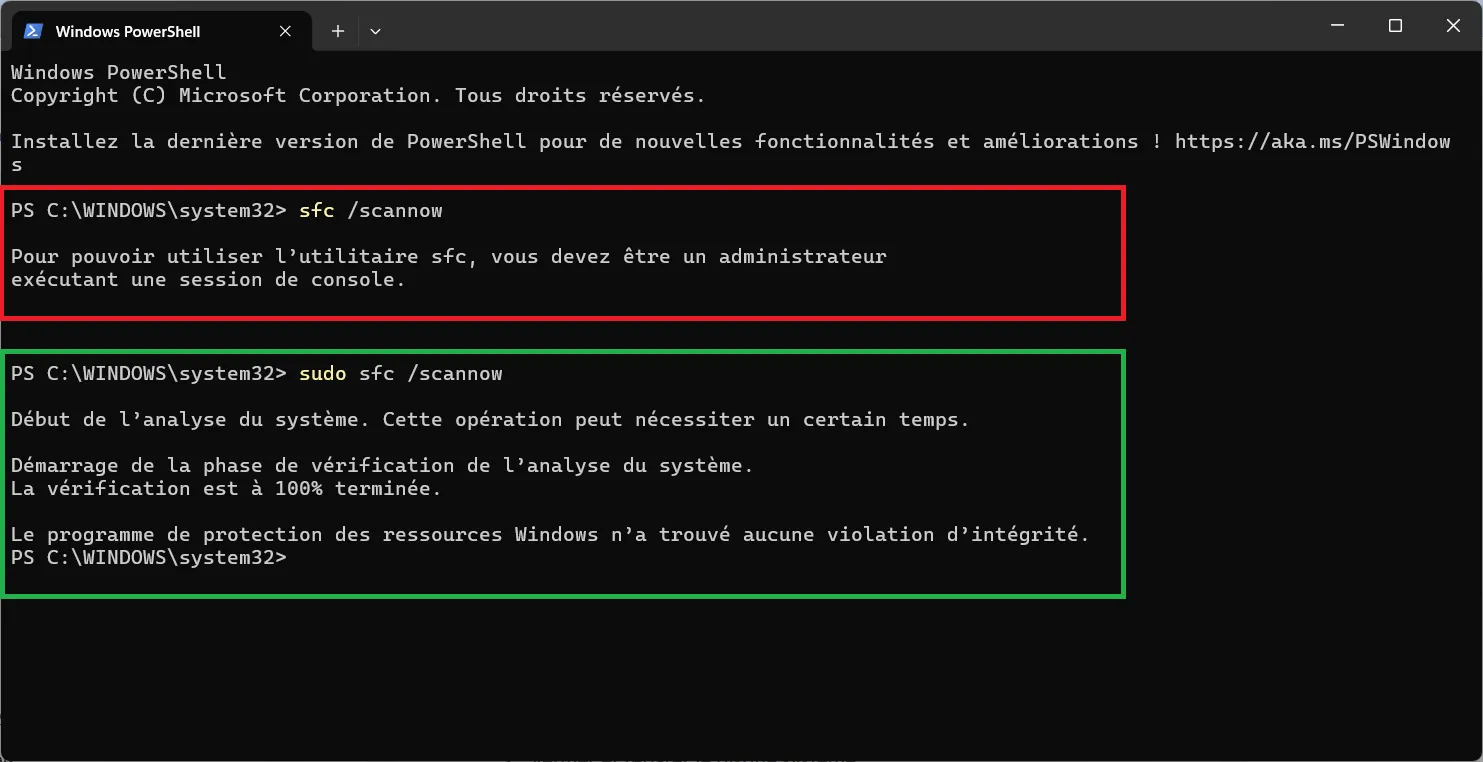
In the second, the same command, preceded by sudo, launches immediately, starts the verification phase and reaches 100% without error.

Elevation control and compliance with UAC policies
Elevation of privileges remains strictly controlled by User Account Control (UAC ), which always requires validation before executing a sensitive command. This safeguard prevents silent elevations and protects against unauthorized scripting. It may be tempting to disable UAC to automate certain tasks, but this choice weakens the security of the entire system. It’s better to design scripts to run in a controlled environment, rather than bypassing the software protections built into Windows.
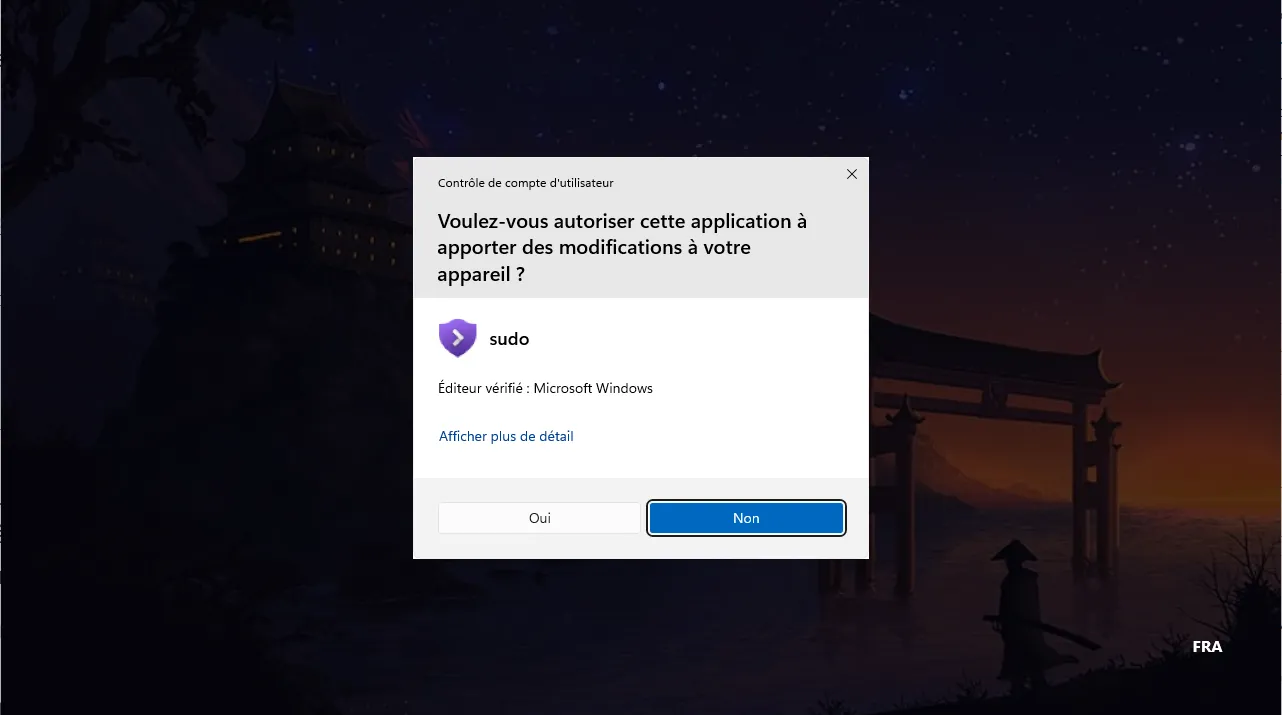
Unlike Linux, where sudo relies on a temporary password, Microsoft’s implementation relies on the user’s security token. No session is memorized, and no permission is retained beyond the current command. Each elevation is therefore one-off and isolated.
This approach is stricter, but also more consistent with Windows architecture. By using it in accordance with best practices, sudo becomes a tool for administrators and developers who want to combine efficiency and system protection.
Did you find this article helpful?
Share it so others can benefit from it.
Learn more about the author

Sources et ressources
- Microsoft Learn - Sudo pour Windows