
You’ve probably already been the target of an online advertisement. Big companies like Meta, Google and Microsoft monitor your online activities to build up a profile of your behavior, including your preferences, hobbies and professional activity. To counter this marketing tracking and protect your privacy on the Internet, an effective solution is to install an ad blocker on your web browser. In this article, I present uBlock Origin, an extension that refuses to participate in acceptable ad programs and blocks all ads by default.
uBlock Origin: Setting Up an Ad Blocker for PC Web Browsers
- uBlock Origin: the extension that refuses to participate in acceptable ad programs
- uBlock Origin targeted by online advertising giants
- uBlock Origin improves web page loading
- How do I install uBlock Origin on my web browser?
uBlock Origin: the extension that refuses to participate in acceptable ad programs
uBlock Origin was launched in 2014 by Raymond Hill, a developer passionate about protecting online privacy. The extension quickly gained popularity thanks to its efficiency and ability to block a wide range of unwanted content without slowing down the browser.
Many ad blockers, such as AdBlock Plus, have adopted an “acceptable ads” program. This program allows certain ads to pass through the filter in exchange for payments from advertisers. The idea is to enable less intrusive advertising while financially supporting content creators.
uBlock Origin has taken an unexpected turn. Raymond Hill refused to accept payments from advertisers to let their ads through. The aim was to maintain a truly ad-free experience, without compromise. This uncompromising stance put uBlock Origin in direct conflict with the online advertising giants.
uBlock Origin targeted by online advertising giants
The success of uBlock Origin has not been without its difficulties. There has been direct and indirect pressure from the big advertising companies. There have been attempts to have the extension removed from browser stores, misinformation campaigns and efforts to create technical barriers making ad blockers less effective.
Google has proposed changes in Chrome’s Manifest V3, an update to its extensions framework that could have limited the effectiveness of ad blockers like uBlock Origin. Many critics saw this as an attempt to make life harder for ad blocker developers.
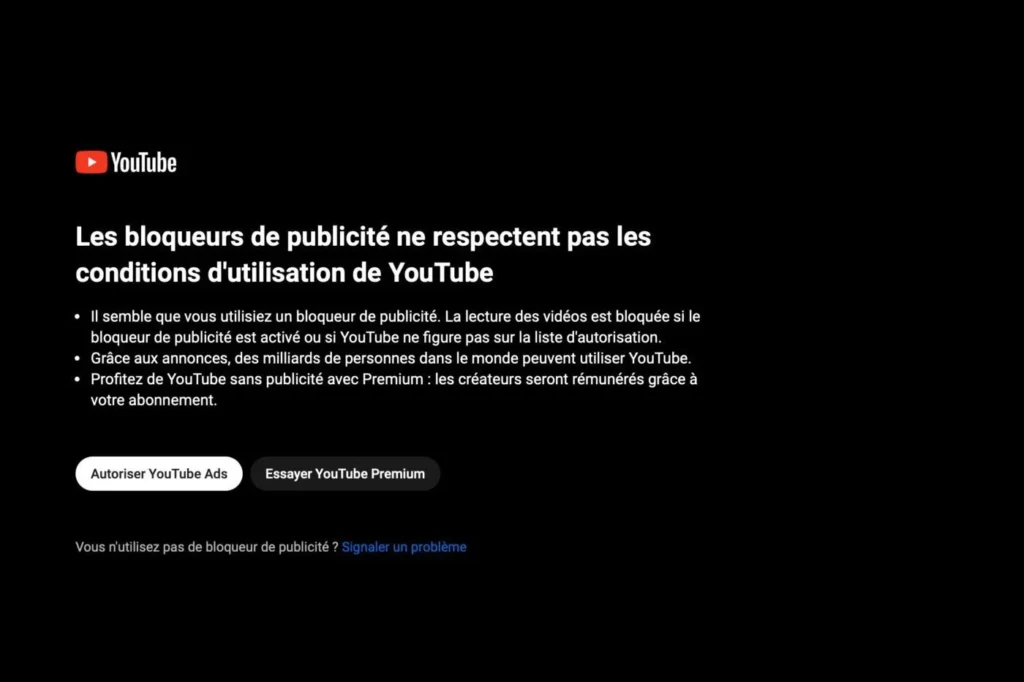
Google also blocked users of ad blockers on YouTube, displaying messages asking them to disable their blockers to continue accessing videos. This action intensified the conflict between Google and online privacy advocates.
uBlock Origin remains one of the best options for those seeking to block all ads without exception, offering faster, safer and more private browsing. Its history is a testament to resistance to commercial pressures and the defense of user privacy.
uBlock Origin improves web page loading
Using an ad blocker like uBlock Origin or Adguard can offer significant benefits in terms of reducing resource usage and improving web page loading speed.
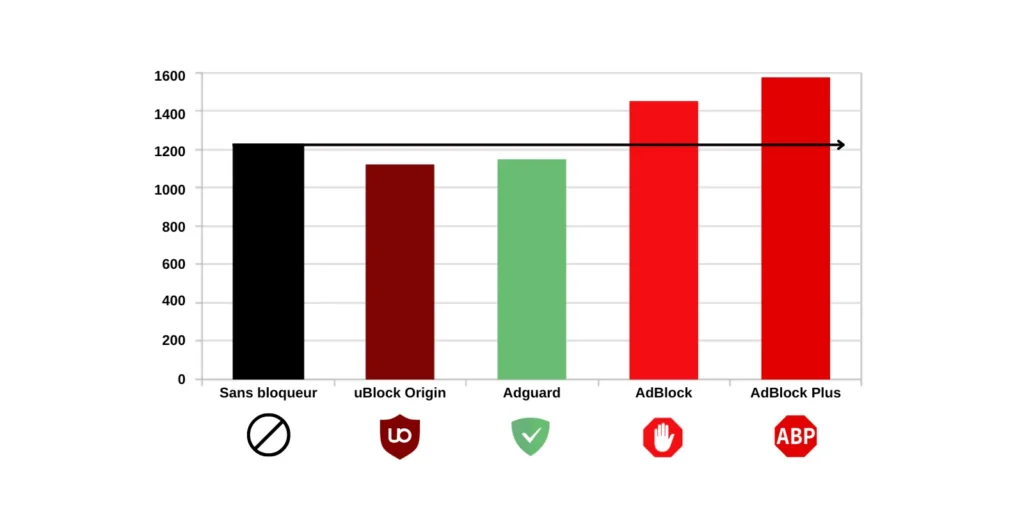
On the other hand, some blockers like AdBlock and AdBlock Plus can have the opposite effect, increasing memory usage and potentially slowing down the browser.
How do I install uBlock Origin on my web browser?
uBlock Origin is a browser extension that helps you filter and block annoying ads. It’s free and always up to date, thanks to its regularly updated filter lists.

uBlock Origin is a browser extension designed to filter and block intrusive ads. The solution is free and benefits from regular updates thanks to its constantly updated filter lists.
What sets uBlock Origin apart is that it’s completely free. You won’t have to spend a cent to take advantage of its advanced features.
As well as making your browsing more enjoyable by removing annoying ads, uBlock Origin also helps to improve your browsing security by blocking potentially malicious elements.
Did you find this article helpful?
Share it so others can benefit from it.
Learn more about the author