

Microsoft Edge is the default browser in Windows 11, but it’s not necessarily the one you want to use every day. Yet changing this setting may seem less intuitive than before. This guide shows you how to change the default browser in a few simple steps, so you can surf the web with the application of your choice.
In this article
Add Assistouest to your preferred sources on Google so you can find our guides faster when you search for an IT solution.
Replacing the default web browser on Windows 11
Windows 11 uses Microsoft Edge as the default browser. However, if you prefer an alternative such as Google Chrome, Mozilla Firefox, or another browser, it is possible to change this setting. This guide will show you how in just a few simple steps.
Click on the Start button or press the Windows key.
Select Settings or use the Windows shortcut + I to open the system settings directly.
In the Settings window, click on Applications in the left-hand menu.
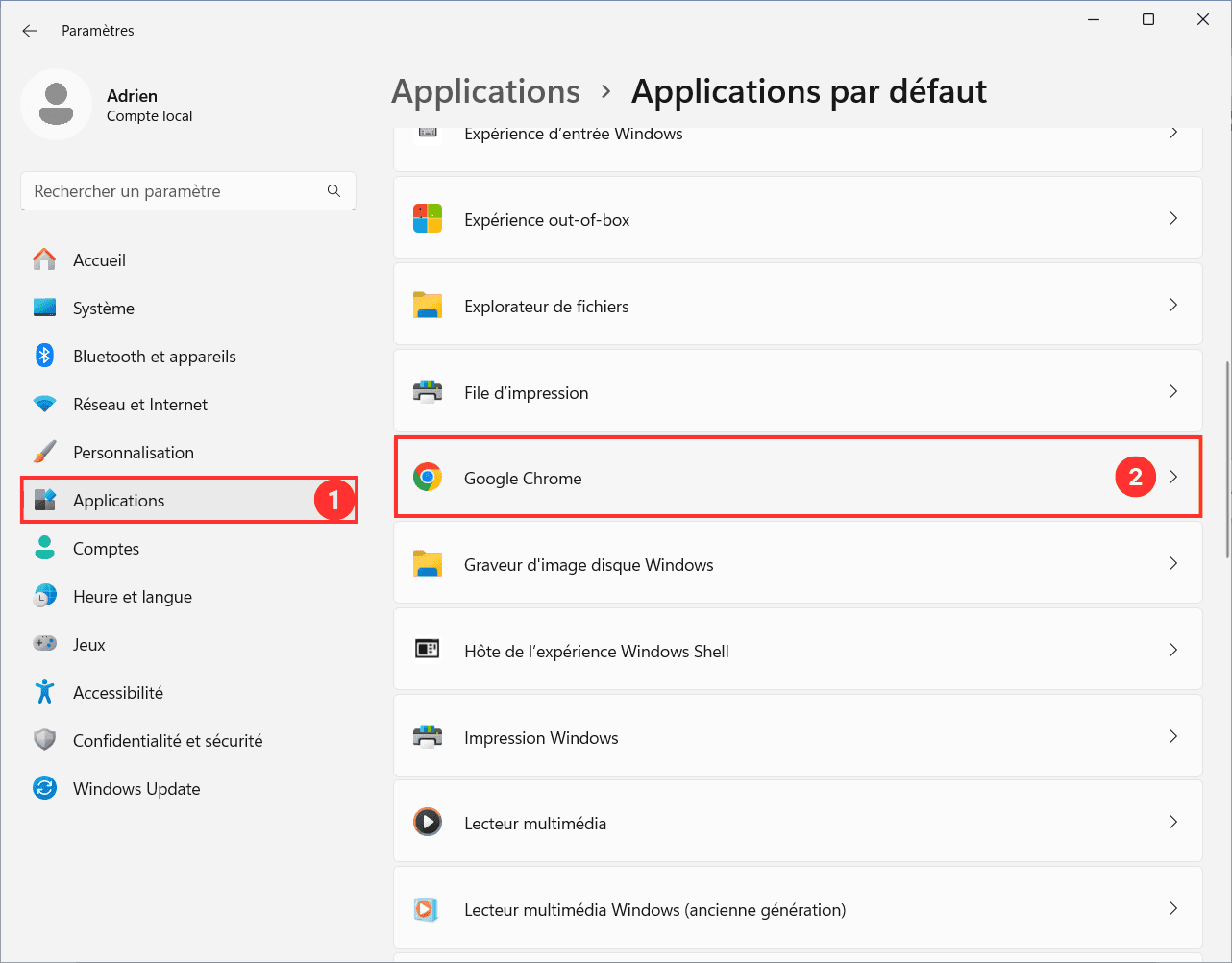
Locate the HTTP and HTTPS protocols in the list and click below to define a new default web browser.
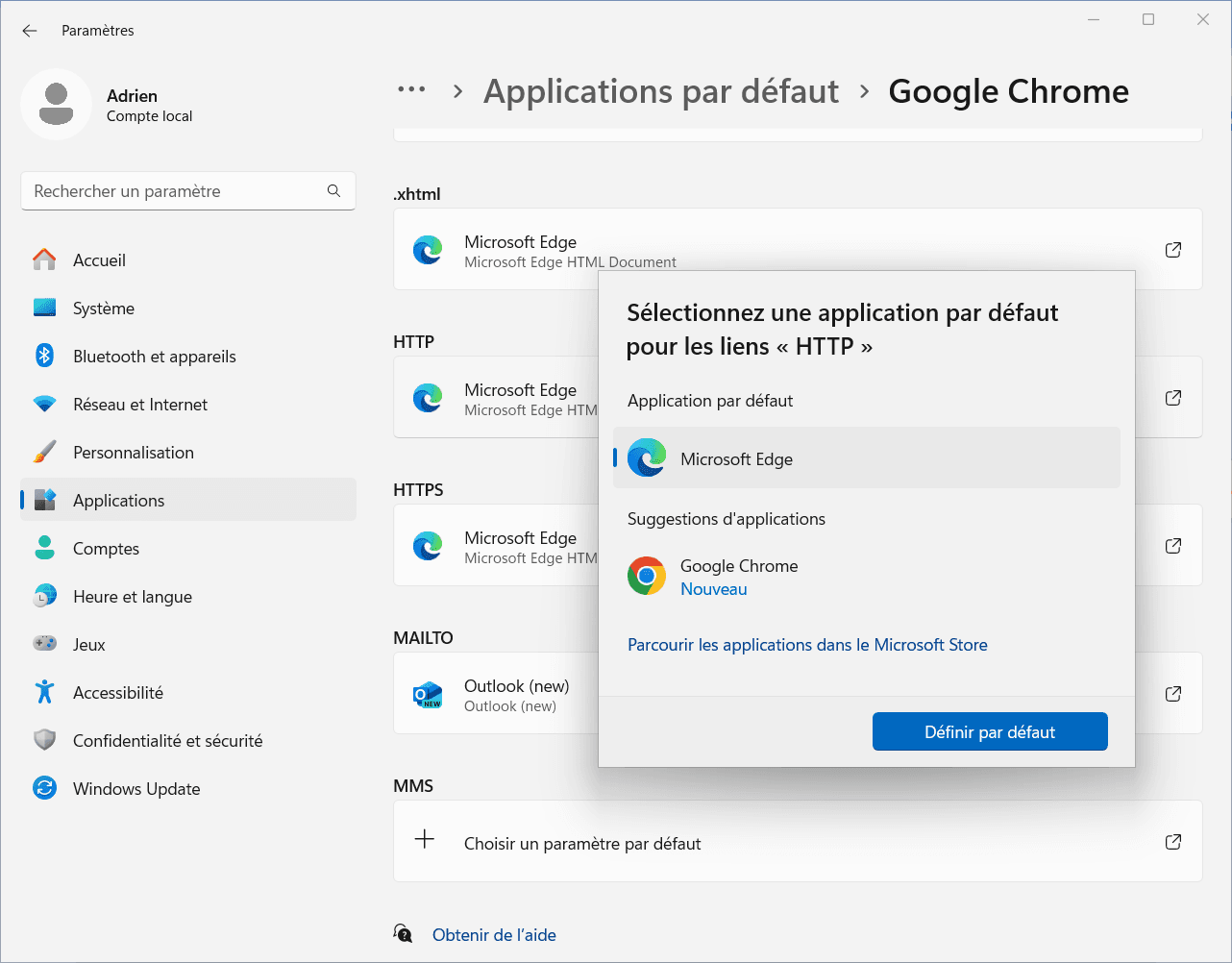
In the window that opens, select your new browser (e.g. Google Chrome), then click on Set as default.
This action will automatically modify HTTP and HTTPS, so there’s no need to repeat the operation for HTTPS.
Find out how to replace your default search engine.
Windows 11 uses Microsoft Edge as the default browser because it is developed and optimized by Microsoft to provide better integration with the operating system for features such as Bing, Microsoft 365, and Windows Search.