
Your users are getting round installation restrictions using portable applications. UAC doesn’t block them. A portable application doesn’t install; it simply runs. AppLocker addresses this by checking not what the programme requests, but where it is running from and who signed it.
In this article
Why the UAC alone is not enough
User Account Control (UAC) blocks actions that require administrator rights: writing to C:Program Files, modifying the registry, and installing services. A portable application does none of these things. It extracts itself to %APPDATA% or the user’s Documents folder and runs without triggering any UAC prompts.
From Windows’ point of view, it is a programme running with standard user rights. Legitimate. AppLocker takes a different approach. It does not look at what the programme requests, but rather where it is running from and who signed it.
How AppLocker works
AppLocker applies rules to four types of files: executables (.exe, .com), scripts (.ps1, .bat, .vbs), Windows installers (.msi, .msp) and DLLs. For each type, you define what is permitted. Anything that is not explicitly allowed is blocked.
The rules are based on three criteria. The file path (C:Program Files* is permitted, %APPDATA%* is not). The publisher, via the digital signature. The file hash, to allow a specific executable file regardless of its location.
The combination of path and editor covers the vast majority of cases. The hash is used for specific cases: an unsigned internal tool, or an executable provided by a partner.
Configuring AppLocker: the steps
1. Open the Group Policy Editor
Press Win + R, type gpedit.msc and press Enter. Navigate to Computer Configuration > Windows Settings > Security Settings > Application Control Policies > AppLocker.
2. Enable the Application Identity service
AppLocker will not work if the Application Identity service is stopped. Open services.msc, locate Application Identity, set it to start automatically, and start the service. Without this service, all AppLocker rules are silently ignored.
3. Generate the default rules
Before creating your custom rules, generate the default rules for executables (right-click on Executable Rules > Create Default Rules). These rules allow access to C:Windows* and C:Program Files* for all users, and to everything for administrators. Without them, Windows itself will no longer start.
4. Block execution from user directories
Create a deny rule on the following paths for the ‘Everyone’ group (admins remain covered by their global authorisation rule):
| Path to block | Reason |
|---|---|
%APPDATA%* | Main target for malware and adware |
%LOCALAPPDATA%* | Used by certain installers without permissions |
%TEMP%* | Executables extracted on the fly |
%USERPROFILE%Downloads* | Direct downloads |
%USERPROFILE%Desktop* | Portables placed on the desktop |
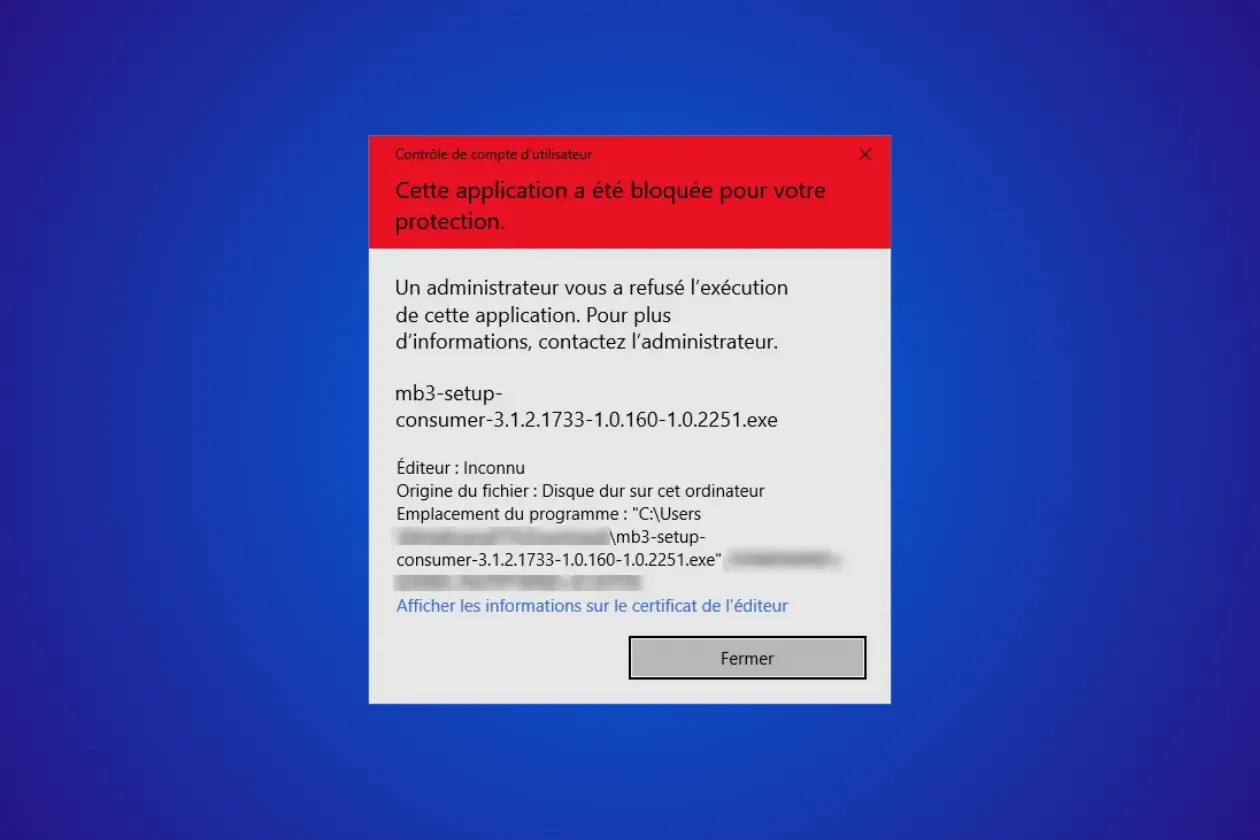
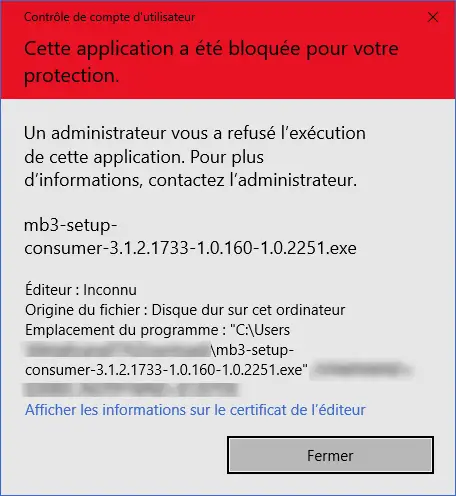
An executable file placed in one of these directories is blocked before it even launches. The user sees the message ‘This app has been blocked for your protection’.
Add Assistouest to your preferred sources on Google so you can find our guides faster when you search for an IT solution.
Limitations of AppLocker you should be aware of
AppLocker does not cover interpreted scripts unless you also configure script rules. A .py or .jar file launched via the system interpreter (Python, Java) can bypass the exe rules if the interpreter itself is in an authorised directory. This should be covered by script rules from the first week of deployment.
Path rules can be bypassed if a user has write access to an authorised directory. This is rare on a properly configured network, but on some older computers where the C:Program Files directory was writable by standard users, the path rule becomes ineffective. Linking the path to the editor eliminates this risk.
AppLocker is not available on Windows 11 Home. In mixed environments, WDAC (Windows Defender Application Control) is the alternative; it is more complex to configure but is available on all editions.
<!– wp:assistouest/callout {“calloutType”:”note”,”title”:”Are you an employee rather than an IT administrator?”,”content”:”If you’re looking to use software without admin rights (rather than blocking it), check out our guide on how to install an app without administrator rights in Windows 11.”} /–>