Have you just installed Windows 11 and already noticed that your system is cluttered with unnecessary preinstalled applications? This bloatware can slow down your computer and take up unnecessary space. In this article, I’ll show you how to uninstall this bloatware in a single command and reinstall it if necessary using PowerShell.
Uninstalling preinstalled applications on Windows 11/10 – Bloatware
- What is bloatware?
- Uninstall bloatware manually
- Remove preinstalled applications on Windows 11 with PowerShell
- What bloatware is preinstalled on Windows 11?
- How do I reinstall all critical applications under Windows 11?
Important information
- Windows comes with applications you’ll probably never use.
- You can disable some of these applications manually or using PowerShell.
- System-critical applications can be reinstalled using PowerShell.
What is bloatware?
Bloatware is software pre-installed on a device (computer, smartphone, tablet, etc.) that is often useless to the user or adds little value in relation to real needs. The term comes from the English words bloat and software, suggesting that it weighs down the system by needlessly occupying resources (storage space, RAM, processor).
- Pre-installation: Usually installed by the manufacturer or operator before the user receives the device.
- Difficult to uninstall: Some bloatware cannot be easily removed without advanced manipulation.
- Resource consumption: They can consume system resources (RAM, CPU) even when not actively used.
- Advertising in disguise: Some bloatware is trialware or sponsored applications.
Uninstall bloatware manually
Use the keyboard shortcut Win + I to open the settings directly.
Click on Applications in the left-hand menu.
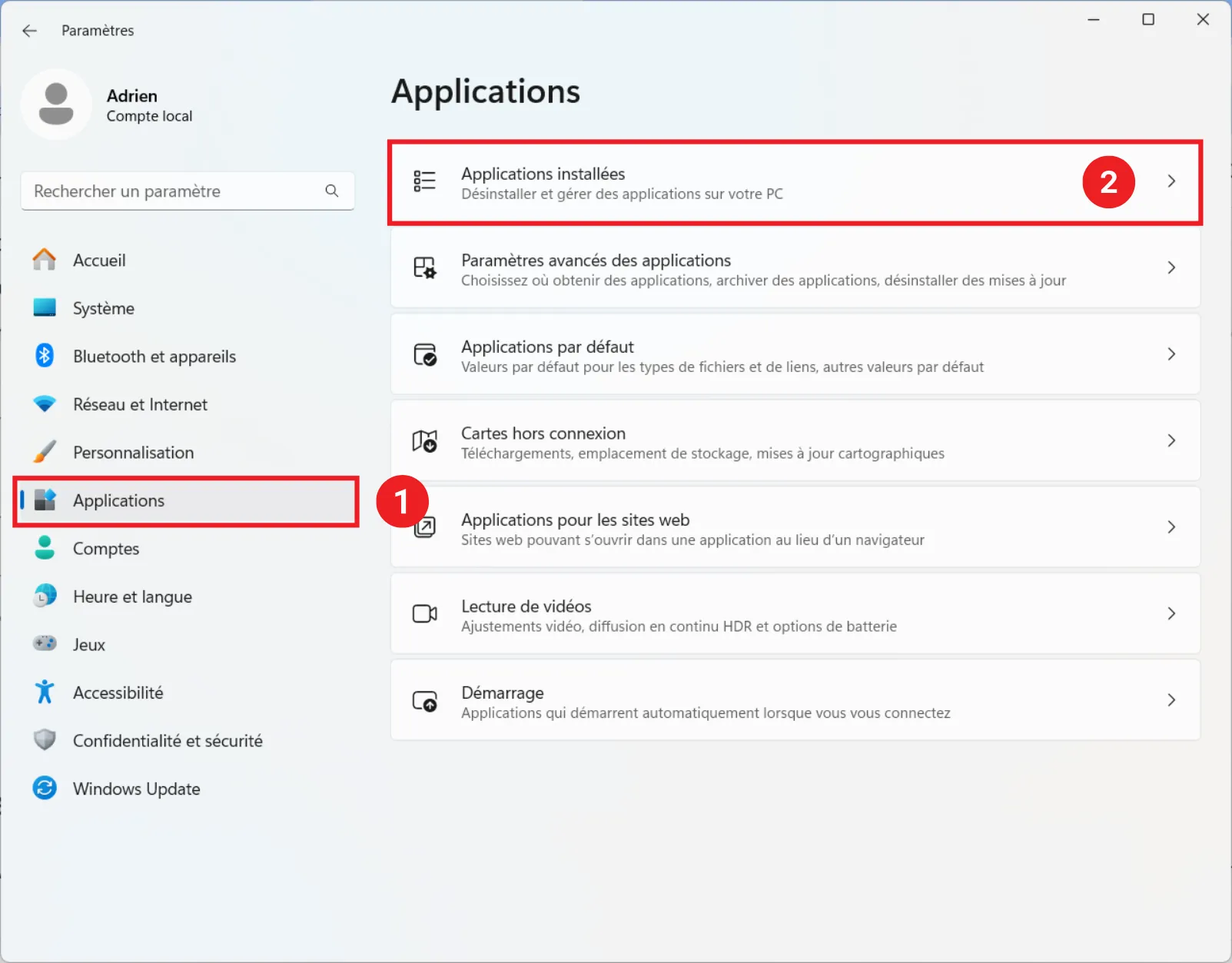
Then select Installed applications.
To uninstall an application, click on the three dots (“…” icon) to the right of its name, then select Uninstall.
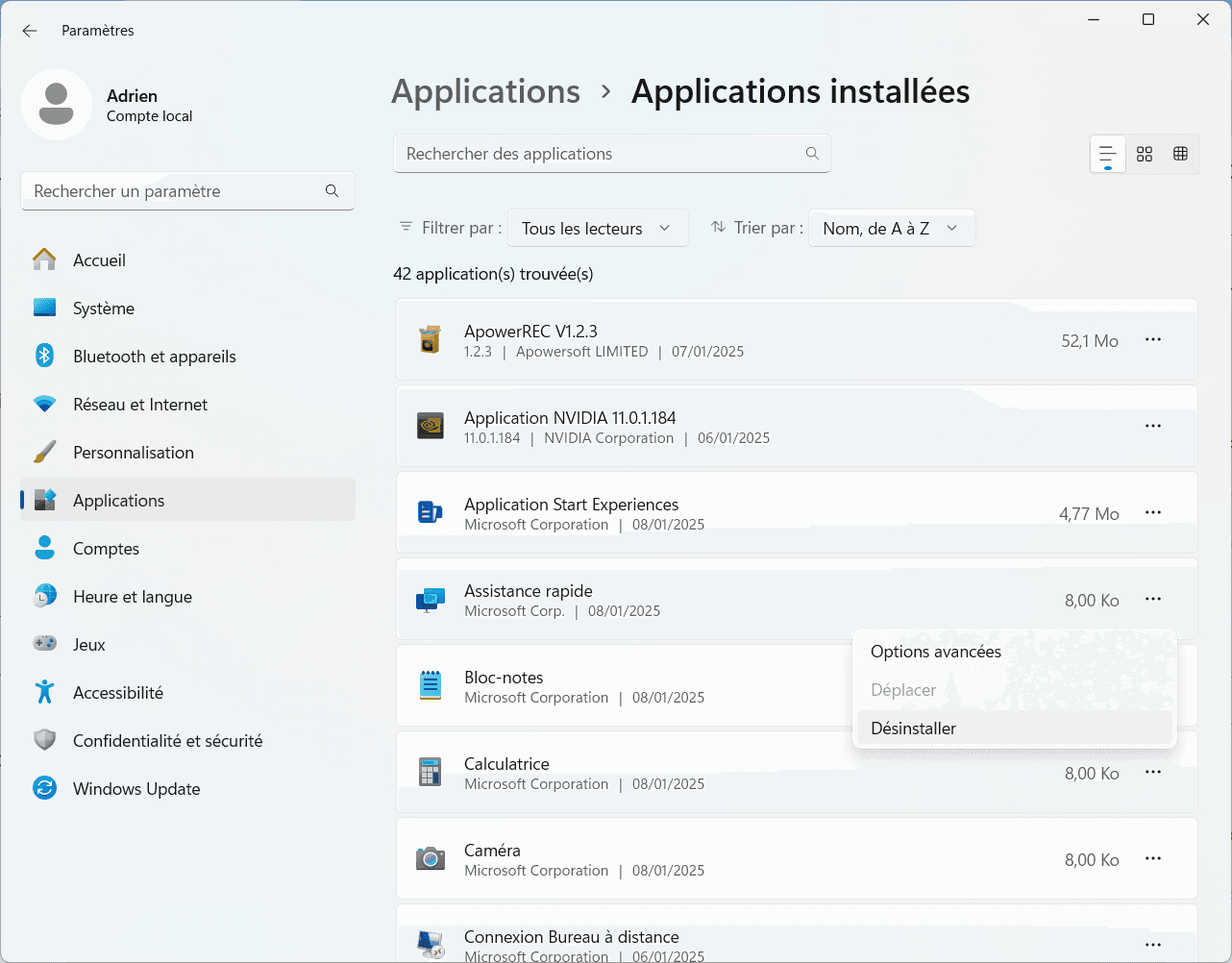
⚠️ Caution: Some applications built into Windows 11 cannot be uninstalled using this method.
To take things a step further, use PowerShell to uninstall unnecessary applications and free up even more resources. 👇
Remove preinstalled applications on Windows 11 with PowerShell
To further optimize your system, you can use PowerShell to remove pre-installed applications (bloatware) that you don’t use. This method is ideal for removing applications that cannot be uninstalled via settings.
⚠️ Caution: Do not remove system-critical applications to avoid operational problems.
Start by opening PowerShell in administrator mode.
Use the following command to display installed applications:
Get-AppxPackage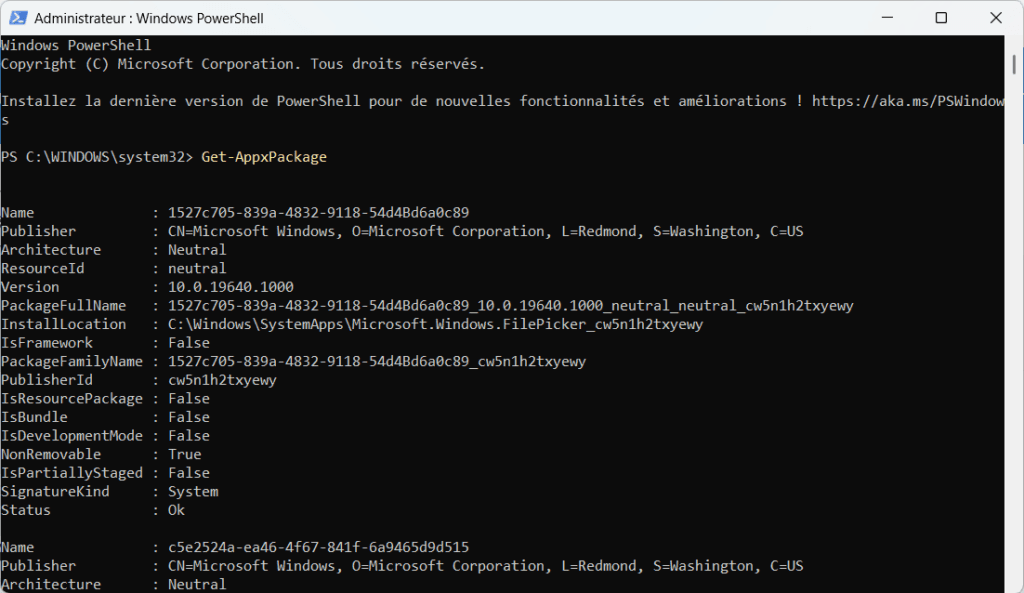
Once the application has been identified, use this command to delete it:
Get-AppxPackage *ApplicationName* | Remove-AppxPackageList of PowerShell commands for uninstalling UPW applications one by one.
/* General table style */ table.bloatware-table { width: 100%; border-collapse: collapse; font-family: Arial, sans-serif; } table.bloatware-table th, table.bloatware-table td { padding: 12px; border: 1px solid #dddddd; text-align: left; } table.bloatware-table th { background-color: #f2f2f2; } /* Horizontal scrollbar only on small screens */ @media (max-width: 600px) { .table-container { overflow-x: auto; } }| APPLICATIONS | ORDER |
|---|---|
| Xbox | Get-AppxPackage *xboxapp* | Remove-AppxPackage |
| Microsoft Store | Get-AppxPackage *windowsstore* | Remove-AppxPackage |
| Teams | Get-AppxPackage *MicrosoftTeams* | Remove-AppxPackage |
| OneDrive | Get-AppxPackage *Microsoft.OneDriveSync* | Remove-AppxPackage |
| Skype | Get-AppxPackage *skypeapp* | Remove-AppxPackage |
| Photos | Get-AppxPackage *photos* | Remove-AppxPackage |
| OneNote | Get-AppxPackage *onenote* | Remove-AppxPackage |
| Calculator | Get-AppxPackage *windowscalculator* | Remove-AppxPackage |
| Calendar and Mail | Get-AppxPackage *windowscommunicationsapps* | Remove-AppxPackage |
| Alarms and Clock | Get-AppxPackage *windowsalarms* | Remove-AppxPackage |
| Voice recorder | Get-AppxPackage *soundrecorder* | Remove-AppxPackage |
| Movies & TV series | Get-AppxPackage *zunevideo* | Remove-AppxPackage |
| Groove Music | Get-AppxPackage *zunemusic* | Remove-AppxPackage |
| Games | Get-AppxPackage *Microsoft.GamingApp* | Remove-AppxPackage |
| Finance | Get-AppxPackage *bingfinance* | Remove-AppxPackage |
| Weather | Get-AppxPackage *bingweather* | Remove-AppxPackage |
| Contacts | Get-AppxPackage *people* | Remove-AppxPackage |
| 3D Builder | Get-AppxPackage *3dbuilder* | Remove-AppxPackage |
| Get Office | Get-AppxPackage *officehub* | Remove-AppxPackage |
| Virtual reality | Get-AppxPackage *Microsoft.MixedReality.Portal* | Remove-AppxPackage |
| Scanners | Get-AppxPackage *Microsoft.WindowsScan* | Remove-AppxPackage |
| 3D viewers | Get-AppxPackage *Microsoft.Microsoft3DViewer* | Remove-AppxPackage |
| Your phone | Get-AppxPackage Microsoft.YourPhone -AllUsers | Remove-AppxPackage |
| Paint | Get-AppxPackage *Microsoft.Paint* | Remove-AppxPackage |
| Think Silly | Get-AppxPackage *Microsoft.MicrosoftStickyNotes* | Remove-AppxPackage |
| Screen capture tools | Get-AppxPackage *Microsoft.ScreenSketch* | Remove-AppxPackage |
| Notepad | Get-AppxPackage *Microsoft.Notepad* | Remove-AppxPackage |
| 3D printing | Get-AppxPackage *Microsoft.Print3D* | Remove-AppxPackage |
| Hub and comments | Get-AppxPackage *Microsoft.WindowsFeedbackHub* | Remove-AppxPackage |
| Get help | Get-AppxPackage *Microsoft.GetHelp* | Remove-AppxPackage |
| Phone Companion | Get-AppxPackage *windowsphone* | Remove-AppxPackage |
What bloatware is preinstalled on Windows 11?
@media (max-width: 768px) { .table-responsive { overflow-x: auto; } } .bloatware-table { width: 100%; border-collapse: collapse; } .bloatware-table td { border: 1px solid #ddd; padding: 8px; text-align: left; } ..bloatware-table tr:nth-child(even) { background-color: #f9f9f9; } .bloatware-table tr:hover { background-color: #f1f1f1; } .bloatware-table td { word-wrap: break-word; } .bloatware-title { text-align: center; font-size: 1.5em; margin-bottom: 10px; font-weight: bold; }| CandyCrush | CandyCrushSoda | 3DBuilder | Asphalt8 |
| FarmVille 2 Country Escape | Shazam | ActiproSoftware | |
| Bio Enrollment | App connector | Microsoft Pense Bêtes | Microsoft Office Hub |
| Microsoft Solitaire Collection | CyberLink MediaSuite Essentials | DrawboardPDF | Duolingo |
| EclipseManager | MSN Money | MSN Sports | MSN Travel |
| MSN Weather | Food And Drink | Health And Fitness | Microsoft News |
| Contact support | Windows Feedback | Windows communications apps | Windows Reading List |
| Windows Camera | iHeartRadio | King apps | March of Empires |
| Messaging | Microsoft Edge | OneConnect | OneNote |
| Office Sway | Outlook | Pandora | People |
| PicsArt-PhotoStudio | Phototastic Collage | Power Automate | Royal Revolt 2 |
| Sound Recorder | Skype for Desktop | Network speed test | |
| TuneInRadio | Your Phone | Xbox | Xbox Game Bar |
| Xbox Live | Zune Music | Zune Video | NYT Crossword |
| Get started | Copilot |
Find out how to disable unnecessary services in Windows 11.
How do I reinstall all critical applications under Windows 11?
If, after uninstallation, you wish to reinstall all the preinstalled applications, here is the reverse command:
Get-AppxPackage -AllUsers | Foreach {Add-AppxPackage -DisableDevelopmentMode -Register "$($_.InstallLocation)AppxManifest.xml"}Did you find this article helpful?
Share it so others can benefit from it.
Learn more about the author