

Taking screenshots has become an everyday gesture: to illustrate a bug, create a tutorial, send visual proof… Windows offers a built-in tool, but it remains limited in the face of modern needs. Fortunately, free alternatives such as ShareX, PicPick and Greenshot take editing, sharing and automation to a whole new level. In this article, we present the best screen capture software for Windows in 2026.
In this article
- ShareX: the most complete screen capture software on Windows
- PicPick: an all-in-one tool for capturing and editing your screen
- Greenshot: the capture software that does the job without slowing you down
- Lightshot: a quick and easy screen capture tool
- Snipping Tool: Windows’ built-in screen capture tool
- Choosing the right screen capture software for the way you work
ShareX: the most complete screen capture software on Windows
ShareX is an open source screen capture software well known for its rich functionality and great flexibility. It can capture still images as well as videos, animated GIFs or even scrolling content on a web page. Users can select a window, a custom region or the entire screen. Thanks to its modular interface, ShareX is suitable for beginners and advanced users alike.
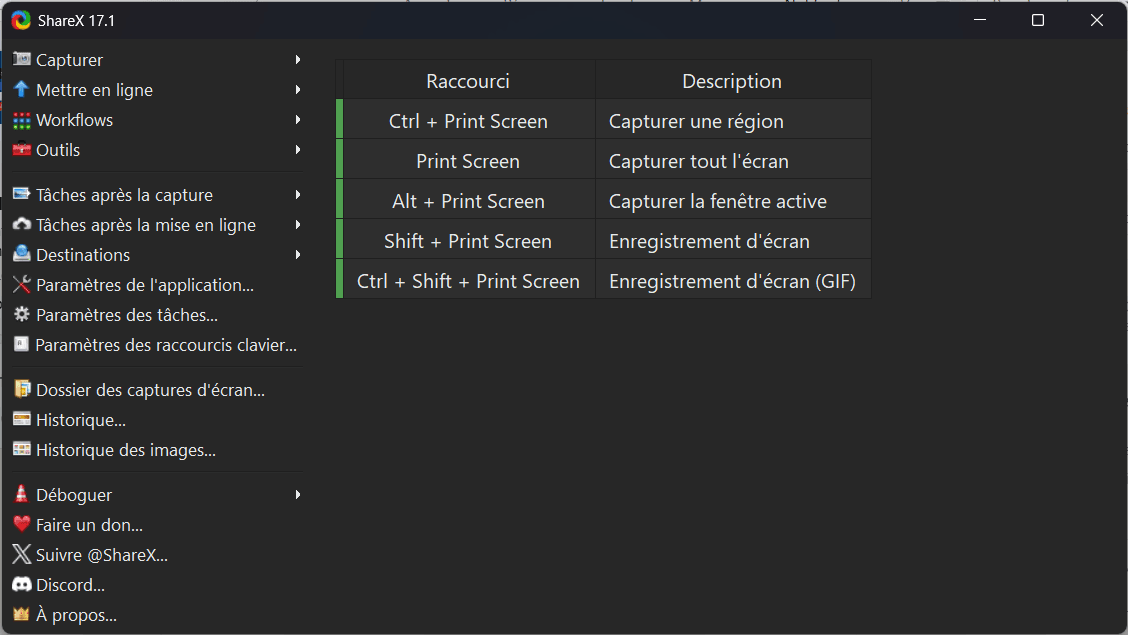
What sets ShareX apart is its automation capabilities. Each capture can be followed by a sequence of customized actions: adding a watermark, resizing, sending to an FTP server. Complete workflows can be set up to speed up repetitive tasks in professional settings or for content production.
ShareX is totally free, with no advertising or watermarks. It’s a mature, regularly-updated community project that competes unashamedly with commercial solutions. For demanding users looking for a complete, customizable tool, ShareX is undoubtedly one of the best choices available on Windows.
PicPick: an all-in-one tool for capturing and editing your screen
PicPick is an all-in-one screen capture software designed for both individual and professional users. Free for personal use, it features a combination of simple yet powerful tools: screen capture, integrated image editor, color picker, on-screen ruler, protractor and more.
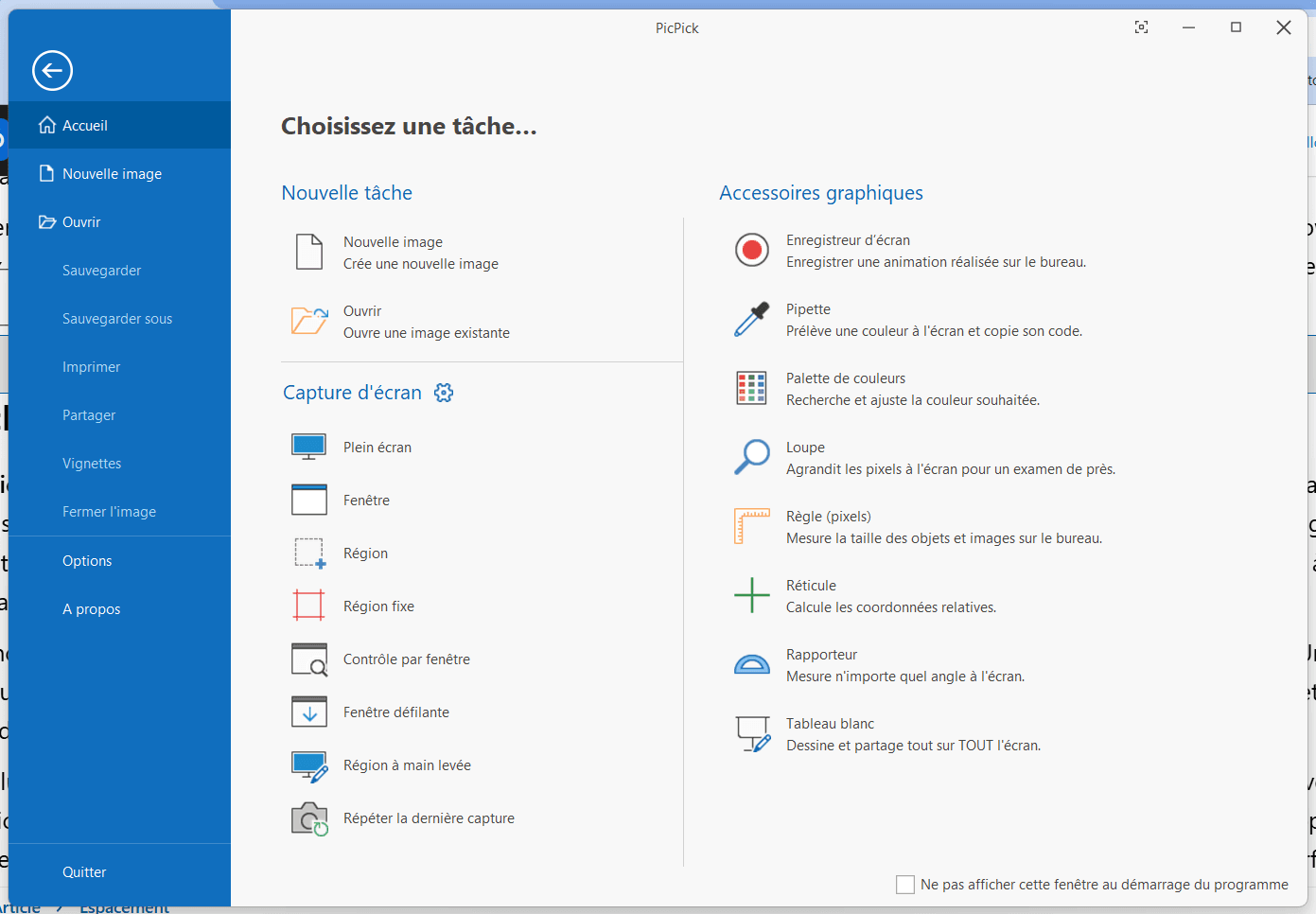
The capture module makes it easy to select a region, window, full screen or scrolling content. Once captured, it automatically opens in the integrated editor, offering advanced functions such as arrows, annotations, effects, cropping and highlighting.
In addition to its graphical capabilities, PicPick allows files to be saved automatically, and sent via FTP, e-mail or to cloud services. Its rich functionality makes it an excellent solution for content creators, trainers or developers who want a versatile, easy-to-use tool.
Greenshot: the capture software that does the job without slowing you down
Greenshot is a free, open-source screen capture software compatible with Windows, allowing you to capture a selected area, an active window or the entire screen with a single click. Once installed, it runs discreetly in the background and is activated via customizable keyboard shortcuts without slowing down the system.
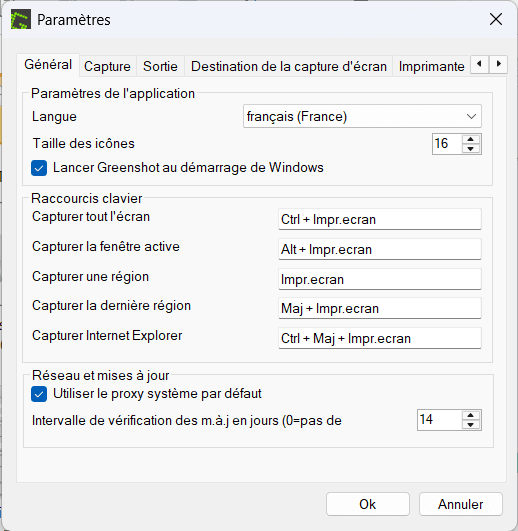
Greenshot integrates a basic image editor, but it’s enough to annotate captures: arrows, text boxes, highlighting or even blurring of sensitive information are all accessible with a few clicks. The image can then be saved locally, copied to the clipboard or sent directly by e-mail or to services such as Imgur. These options save considerable time in professional settings.
Lightweight, quick to learn and ad-free, Greenshot is an excellent alternative to native Windows tools for those looking for a little more control without the hassle of a gas factory. It is particularly appreciated in office environments or by users who need a discreet, functional tool for everyday use.
Lightshot: a quick and easy screen capture tool
Lightshot is a free, ultra-simple and fast screen capture software designed for users who want to get straight to the point. Available for Windows and Mac, it lets you instantly capture an area of the screen via the Print Screen shortcut, then edit and share the visual in a matter of seconds.
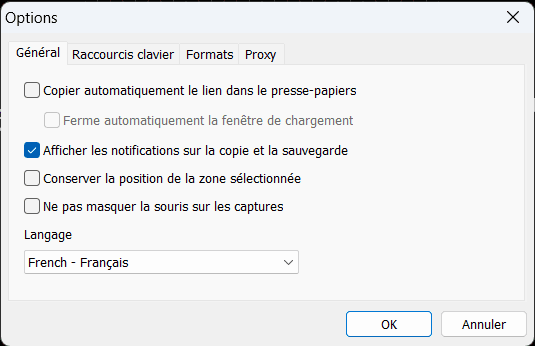
Once the capture has been made, Lightshot offers a number of annotation tools (arrows, text, highlighting) to visually illustrate the image. The user can then save the capture locally or upload it directly via a unique URL. This instantaneous sharing is particularly useful for collaboration, technical support or rapid publication on social networks.
Lightweight and unobtrusive, Lightshot is perfect for those who want an easy-to-use screen capture solution without sacrificing the essentials. Although not as complete as other tools, it remains an excellent choice for everyday use.
Snipping Tool: Windows’ built-in screen capture tool
The Screen Capture tool is a native feature of Windows 10 and 11, accessible via the keyboard shortcut Windows + Shift + S. It lets you quickly capture a portion of the screen, an active window or the entire screen. Once captured, the image is automatically copied to the clipboard and can be annotated using a small built-in editor. Its ease of use makes it an ideal tool for occasional, basic needs.
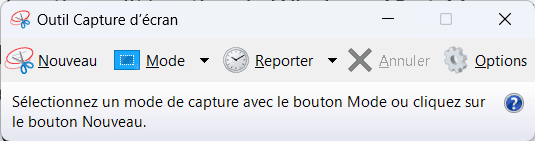
Although limited in advanced features, this tool is sufficient for most users who simply want to illustrate a problem, share a visual or store a piece of information. It requires no installation, contains no advertising and is lightweight. For more complex capture tasks (video, scrolling, automation), other alternatives will be more suitable, but for quick capture, Snipping Tool is an everyday must-have.
 assistouest.fr
Don’t let the algorithm decide for you
Add Assistouest to your preferred sources on Google so you can find our guides faster when you search for an IT solution.
Choosing the right screen capture software for the way you work
All the tools presented in this article fulfill their role effectively, each with its own strengths. There is no single best software, but rather solutions adapted to different uses and user profiles.
If you’re looking for simplicity and speed, Lightshot or theWindows capture tool will do the trick. For more regular use with annotation functions, Greenshot represents an excellent compromise between lightness and efficiency. Those needing customization, automation or video capture can turn to ShareX, while PicPick will appeal to users looking for a versatile graphics tool for both capture and light retouching.
In 2026, the options are numerous, but if you know your needs (one-off captures, pro workflow, visual content, etc.), you’ll easily find the tool that will save you time on a daily basis.
The content will unlock automatically after verification.