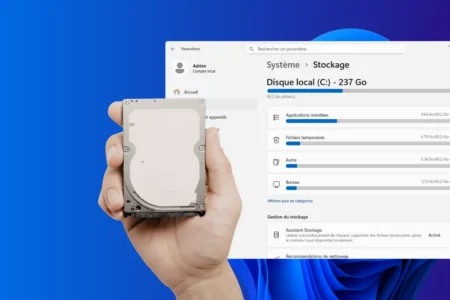

Is your PC slowing down? Do you keep seeing low disk space warnings without knowing where your gigabytes have gone? Photos, videos, apps and temporary files can fill up a drive faster than you expect. Fortunately, tools can show you what is using the most space. Here is how to scan a Windows drive and find the largest folders.
In this article
Why does disk space fill up so quickly?
You may wonder why a drive that seemed huge when you first got your PC is now almost full. This is a common problem on many Windows computers.
Over time, lots of small things gradually eat into your available space:
- Temporary files created by Windows and your apps.
- Windows updates and system restore points.
- Old downloads left in the Downloads folder.
- Photos, videos and documents that accumulate without being sorted.
- Games and apps that keep getting larger.
Large files can be hard to spot because they are scattered through nested folders or hidden by default. Your drive fills up before you realize it.
TreeSize: a visual disk space analyzer for Windows
TreeSize is a Windows program that quickly shows how much space is being used on your hard drive. It scans drives, folders and subfolders, then displays the size of each item in a tree view so you can spot the files or folders taking up the most room. TreeSize is available as the free TreeSize Free edition and the paid TreeSize Professional edition. Its clear interface works for beginners and experienced users alike.
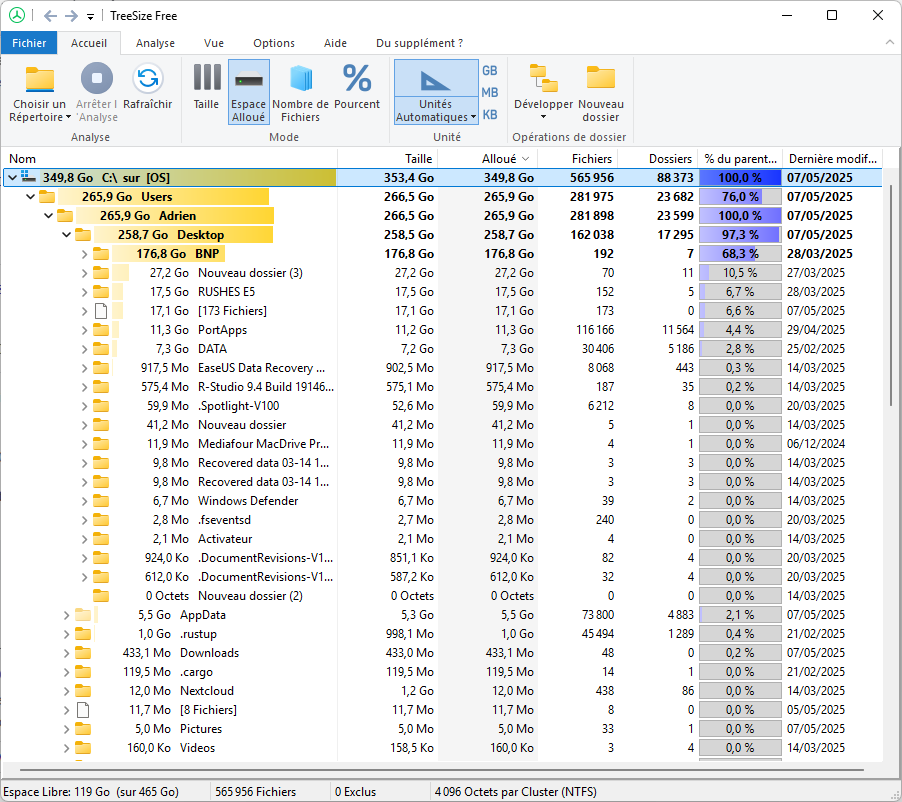
Unlike File Explorer, TreeSize provides detailed reports and advanced filters, can scan network drives, and can even display NTFS permissions. It is a useful way to free up disk space in Windows, manage storage and keep better track of your data at home or at work.
Download and install TreeSize Free
- Go to the official TreeSize website and download the program.
- When the download is complete, open the file to start the installation.
- The setup wizard asks whether to add icons to the desktop or context menu (right-click). You can keep the default boxes checked, then click Next and Install.
- When setup is complete, click Finish to launch TreeSize.
TreeSize needs administrator rights to scan every folder, including system-protected ones. If it was not started with those rights, it will show an “access denied” message and offer to restart as an administrator.
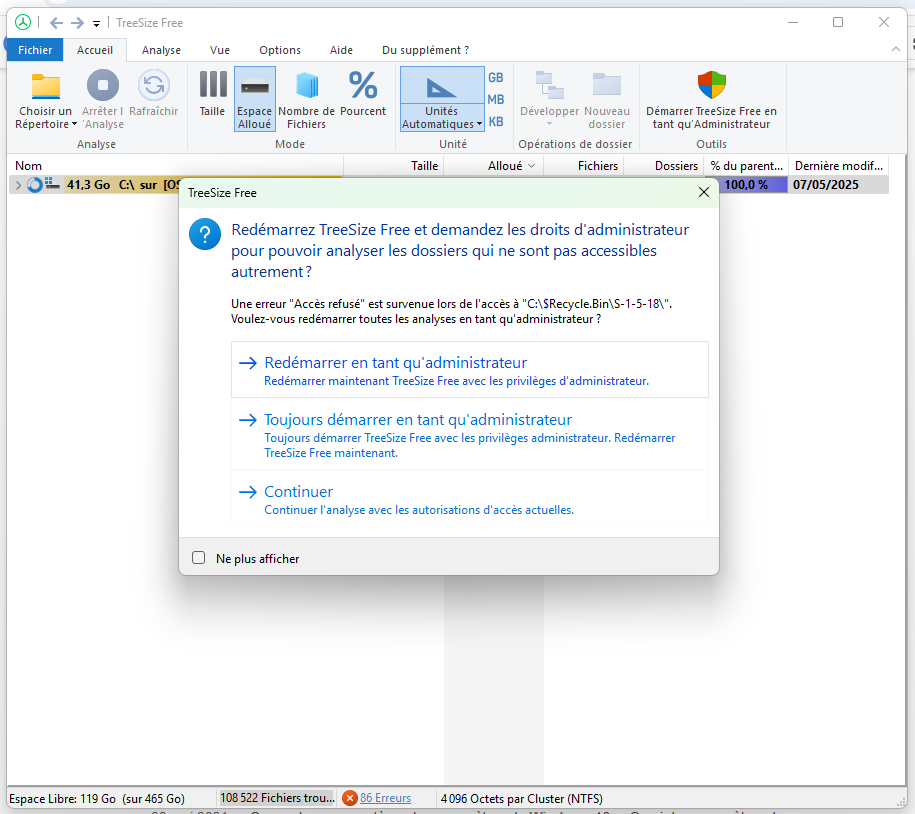
- Simply click Restart as administrator.
Scan your drive: understand and clean up storage
TreeSize starts scanning your main drive as soon as you open it.
When the scan is complete, folders appear in descending order by size. The largest ones are at the top. Click the arrows to explore subfolders and see in more detail what is taking up space.
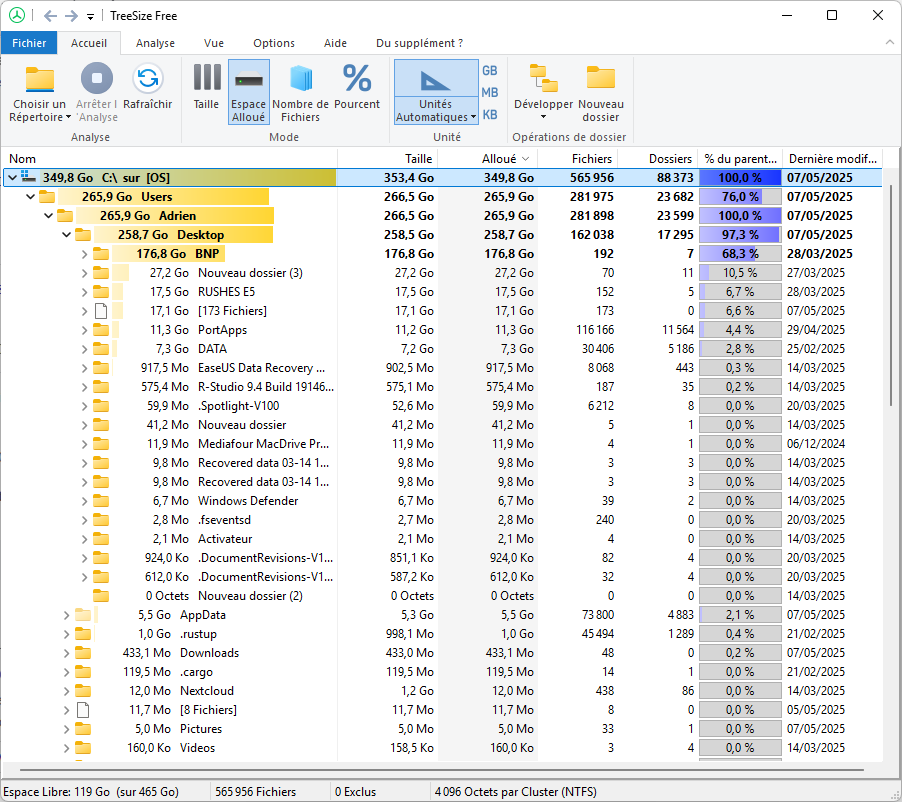
This tree view makes it easy to find large files that are taking up space on your drive.
TreeSize now shows you where the largest files and folders are. To clean up, open File Explorer, browse to those folders and delete anything you no longer need. Be careful not to remove essential system files. If needed, move large files such as videos and archives to an external hard drive instead.
We allow some readers to view our articles for free with an ad blocker. However, their number is currently too high for us to keep this access available to everyone.
You can disable your ad blocker to continue reading immediately, subscribe to enjoy all our content without ads, or come back a little later when the pressure has eased.
Access will be restored automatically as soon as the situation allows.