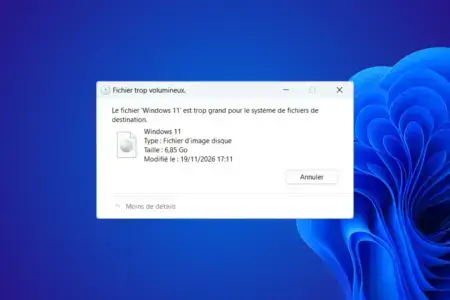
You’re trying to copy a 5 GB video to a USB drive with 50 GB of free space, but Windows displays a message saying the file is too large for the destination file system. Even so, the drive has plenty of room for the video.
This happens because FAT32 limits the size of each individual file. To get around that limit, format the USB drive as exFAT or use NTFS, both of which support much larger files.
In this article
FAT32 limits file size even when your USB drive has plenty of free space
A USB drive has a storage capacity, but it also uses a file system that determines how data is stored. FAT32 is an older format still found on many USB drives because it works with computers, TVs and other devices.
Its main drawback is that it cannot store a single file that reaches 4 GiB, or about 4.29 GB. This limit is independent of how much free space is available on the drive.
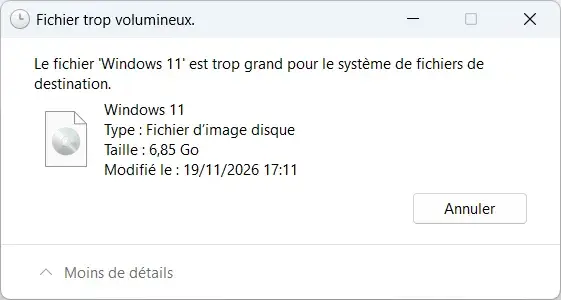
For example, you can copy ten 2 GB videos to a 64 GB USB drive formatted as FAT32. But a single 5 GB video will be rejected, even if the drive is empty. This is also why some Windows ISO files and large archives cannot be copied to this type of drive.
To find out whether this limit is causing the error, check which file system your USB drive is using.
How to check whether your USB drive is formatted as FAT32
Connect the USB drive to your computer, then open File Explorer with the Windows + E keyboard shortcut. Go to This PC, right-click the USB drive and select Properties.
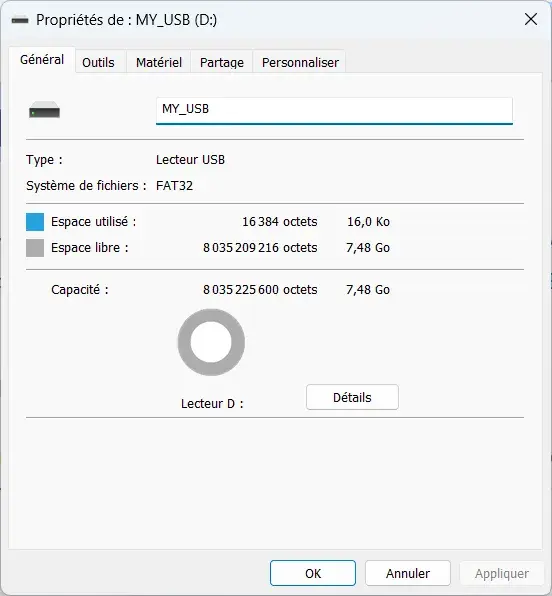
On the General tab, look for File system. Windows shows whether the drive uses FAT32, exFAT or NTFS.
If the drive uses FAT32, you have found the reason Windows blocks files larger than its size limit. You can choose another file system to copy your videos and other large files.
Which file system should you use for a USB drive?
Windows supports several file systems, but they do not all work the same way. FAT32 can be useful with older devices, while exFAT and NTFS support files that are many gigabytes in size.
| Format | 5 GB file | Compatibility |
|---|---|---|
| FAT32 | Blocked | Very broad, including older hardware |
| exFAT | Supported | Windows, macOS, Linux and many newer devices |
| NTFS | Supported | Mainly Windows |
For a USB drive used with several computers, exFAT is often the best balance of compatibility and support for large files. Windows and macOS can read and write to exFAT without extra software. Linux also supports it, making it a practical way to move files between computers.
NTFS is also useful if you only use the USB drive with Windows. If you want to connect it to a Mac, exFAT is usually a better choice because macOS does not natively write to NTFS volumes.
Before changing the format of a drive intended for one of these devices, check which file systems it supports. For more details, see our guide to file systems compatible with Windows, macOS, Linux and Android.
How to format a USB drive as exFAT for large files
To remove the FAT32 file-size limit, you can reformat the USB drive as exFAT in Windows. You do not need extra software because Windows already includes the tools for this.
Formatting erases the data on your USB drive. Before you begin, copy your documents, photos and other files to your computer or another storage device. Make sure the backup is accessible. If files have already disappeared or become inaccessible, consider data recovery before formatting the drive.
After backing up your files, open File Explorer and go to This PC. Right-click the USB drive and select Format.
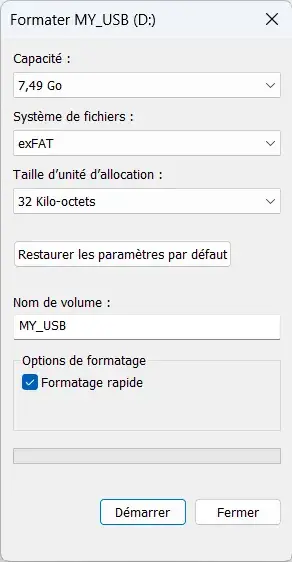
In the Format window, select exFAT from the File system menu. Keep the allocation unit size suggested by Windows and leave Quick Format enabled. Select Start, then confirm that you want to erase the data.
When formatting is complete, the USB drive uses exFAT. Copy the file that caused the error again and check that the transfer finishes successfully.
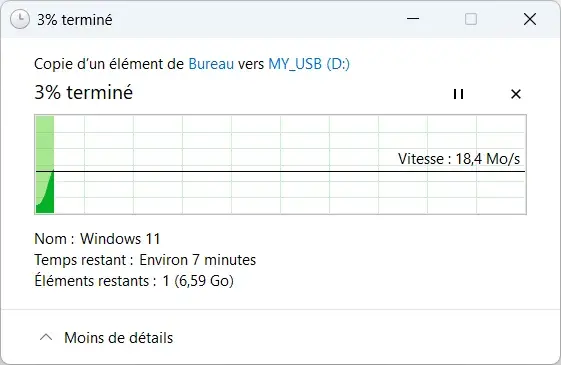
If you want to keep the data already on the USB drive instead of formatting it, Windows also offers a way to convert it to NTFS.
Convert a FAT32 USB drive to NTFS without formatting
Windows can convert a FAT32 volume to NTFS without formatting it, which is useful when you want to keep the files on the drive. Back up important data first: a problem during conversion can still result in data loss, and the change cannot be reversed without formatting the drive.
Check the USB drive letter in File Explorer, then open Windows Terminal or Command Prompt as an administrator. Replace E: with the letter assigned to your USB drive and run this command:
convert E: /fs:ntfsThe conversion is designed to leave existing files and folders in place. A volume converted to NTFS cannot be changed back to FAT32 without formatting it, which erases its data. If you need compatibility with a TV, car stereo or Mac, exFAT is usually the more suitable option.
We allow some readers to view our articles for free with an ad blocker. However, their number is currently too high for us to keep this access available to everyone.
You can disable your ad blocker to continue reading immediately, subscribe to enjoy all our content without ads, or come back a little later when the pressure has eased.
Access will be restored automatically as soon as the situation allows.