

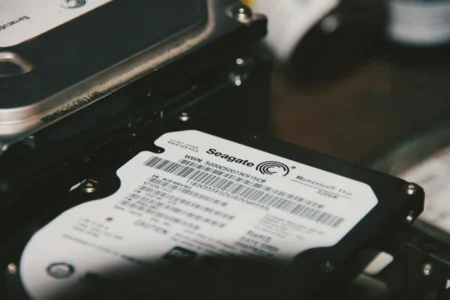
Not sure whether you need a SATA-to-USB cable, an enclosure or a cloning dock to read an old internal hard drive or SSD? It depends on the drive’s connector and size, as well as what you want to do with it. A basic adapter may be enough to retrieve a few files, while other options let you reuse the drive or clone it to a new one.
Adapters for connecting a drive over USB
|
SATA-to-USB cable (2.5-inch)
|
NVMe and SATA cloning station
|
SATA cloning station (2.5/3.5-inch)
|
|---|---|---|

|

|

|
|
SATA-to-USB cable for 2.5-inch HDDs and SSDs USB up to 10 Gbps with UASP Powered through the USB port |
Standalone cloning between an M.2 NVMe SSD and a SATA drive Supports 2.5- and 3.5-inch SATA drives Mains power and USB-C up to 10 Gbps |
Standalone cloning between two SATA drives Supports 2.5- and 3.5-inch HDDs and SSDs Mains power and USB 3.0 up to 5 Gbps |
| 19,13 € | 88,69 € | 39,99 € |
Do you want to retrieve files from a SATA drive?
Most recent internal drives use SATA. Laptops generally use 2.5-inch drives. This size includes both older mechanical HDDs and the SATA SSDs that gradually replaced them. They use the same connector and can be powered directly from a computer’s USB port.
So, if you want to browse an old drive, recover documents or make an occasional transfer, a 2.5-inch SATA-to-USB cable is usually enough. You can access the drive from your computer without an enclosure or a separate power supply.
Highlights :
Drawbacks :
On Amazon right now:
A simpler cable can also work for this type of drive when you only need to access the data or transfer a few files. The right choice mainly depends on how often you will use it and how much data you plan to move.
3.5-inch drives need an external power supply
3.5-inch HDDs use more power than their smaller 2.5-inch counterparts and generally need a 12-volt supply. With a basic SATA-to-USB cable powered only by the computer, the adapter may be detected—and Windows may even play its usual connection sound—without the drive spinning up properly or making your files accessible. An underpowered drive may also try to spin, click or disconnect.
To read a 3.5-inch HDD, use an adapter with its own power supply. This is also the more versatile option if you regularly work with drives from both laptops and desktop PCs.

Highlights :
Drawbacks :
On Amazon right now:
The same power requirement applies when cloning two drives. A dock needs to power both the source drive and the destination drive at the same time, which is why standalone cloning docks for 2.5- and 3.5-inch drives come with a mains power supply.
Have you recovered an M.2 SATA or NVMe SSD?
M.2 SSDs look like small sticks. M.2 describes their physical form factor; SATA and NVMe describe how the SSD communicates with the computer. Two M.2 SSDs can therefore look almost identical while using different interfaces.
An M.2 SATA SSD is limited by the SATA interface, whereas an M.2 NVMe SSD uses PCIe and can reach much higher speeds. This matters when choosing an enclosure: some models support SATA only, others NVMe only, and some support both.

Highlights :
Drawbacks :
On Amazon right now:
If you simply want to retrieve files from an M.2 SSD without having to check the interface every time, choose an enclosure that supports both technologies.
Do you want to clone an NVMe SSD to a SATA drive?
If you are replacing an old SATA HDD or SSD with an NVMe SSD, a dock that accepts both types of drive can handle many common migrations. It copies data directly between an M.2 NVMe SSD and a 2.5- or 3.5-inch SATA drive, without using a computer.
Highlights :
Drawbacks :
On Amazon right now:
Copying can also work in the other direction, for example to temporarily back up an NVMe SSD to a SATA drive. With 2.5- and 3.5-inch SATA drives on one side and NVMe on the other, this type of dock covers most drive-replacement needs on modern computers.
Still, check the exact type of M.2 SSD before starting a clone. A dock with an M.2 NVMe slot does not necessarily support M.2 SATA SSDs. The destination drive must also be large enough, and its contents will be erased during cloning.
Do you want to reuse the drive as external storage?
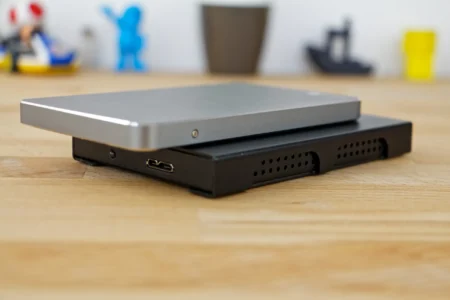
If you have replaced an internal HDD or SSD that still works, you can turn it into external storage rather than leaving it unused. An enclosure is a better fit than a bare cable when you plan to connect the drive regularly: it holds the drive in place and protects its connectors while you handle it.
A 2.5-inch SATA drive can be powered over USB. A 3.5-inch HDD, on the other hand, needs an external power supply. If you expect to reuse different types of drive, choose an enclosure that supports both sizes.
 assistouest.fr
Once installed in its enclosure, the drive can store backups, move large files or keep data you do not need to access all the time. If the hard drive does not appear in File Explorer, first check whether it has a drive letter and whether Windows can see its partitions before formatting it.
A cloning dock for copying data without a PC
If you are replacing an HDD with an SSD or want to make a complete copy of a drive, a cloning dock can do the job without installing software or keeping a computer running throughout the process. Put the drive containing your data in the source slot and the new drive in the destination slot; the dock then copies the data on its own.
Unlike a simple file copy, cloning reproduces the drive’s contents along with its partitions. This can prepare a new drive before you install it in your computer. It is useful when replacing an older drive or copying several drives without tying up a PC each time.
Highlights :
Drawbacks :
A dock with its own power supply is also preferable for this job, as it must keep both drives powered throughout the copy.
Before starting, make sure you know which drive contains your data and which one will receive it. The destination drive will be overwritten and must have enough capacity for the source drive’s contents. Reversing the source and destination can erase the data you meant to keep.
Have you recovered an old IDE or PATA drive?
A very old PC may use a drive that is not SATA at all. Computers from the 1990s and early 2000s commonly used IDE drives, also known as PATA. Their connector is much wider and has a row of pins, so they cannot be connected with a standard SATA-to-USB adapter.
Desktop IDE drives generally use a 40-pin connector and a separate power connection. 2.5-inch laptop models often use 44 pins, including pins for power. If you regularly recover drives from older computers, an adapter that handles several formats is more useful than a cable designed for just one type.

Highlights :
Drawbacks :
On Amazon right now:
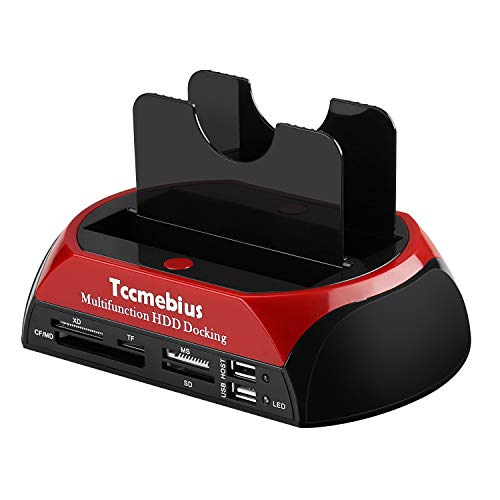
A handy dock for several older drives
If you need to read several older drives, a dock that supports IDE and SATA saves you from constantly switching adapters. You can connect an old IDE drive and then a newer SATA drive using the same device, which is useful when recovering data from several generations of PC.
Highlights :
Drawbacks :
On Amazon right now:
IDE drives have a small jumper that selects their operating mode. On older PCs, it set a drive as master or slave when two drives shared the same ribbon cable.
With a USB adapter, an incorrect jumper setting can prevent the drive from being detected. If nothing appears after you connect it, check the diagram on the drive’s label before moving the jumper.
Do not format a drive you are trying to recover
If the drive still contains important files, first try to read it without changing its partitions. If Windows asks you to initialize or format it, decline until you have checked what is on the drive.