Even with a good antivirus, some malware slips through the cracks. Adware, unwanted programs or discreet Trojans sometimes install themselves undetected. Malwarebytes is designed to target these often overlooked threats with unparalleled precision. In this article, we’ll take you step-by-step through the process of cleaning your Windows PC with Malwarebytes and getting you back to a secure environment.
Malwarebytes: free malware removal software for Windows PCs
- Viruses, spyware, adware, PUPs: the threats targeted by Malwarebytes
- Tutorial: Cleaning an infected PC with Malwarebytes
Viruses, spyware, adware, PUPs: the threats targeted by Malwarebytes
The term malware refers to all forms of malicious software: viruses, adware, spyware, Trojans and so on. Malwarebytes targets these hybrid forms of threat, which are often ignored by traditional antivirus software:
- Virus: malicious program capable of replicating itself by infecting other files or processes.
- Spyware: spyware that monitors your activities, captures your keystrokes or collects personal data without your knowledge.
- Adware: programs that display unwanted advertisements, often integrated into the browser or system.
- PUP (Potentially Unwanted Program): installs in parallel with legitimate software, modifies your search engine, displays false alerts or slows down your system.
These threats fly under the radar of standard antivirus programs, as they are not always classified as dangerous. Their behavior is deemed tolerable or legally borderline, especially when the user has (inadvertently) accepted their installation. Malwarebytes scrutinizes suspicious behavior rather than relying solely on known signatures, enabling it to detect and remove overlooked infections.
Tutorial: Cleaning an infected PC with Malwarebytes
When a PC starts to slow down, display unusual ads or behave strangely, there’s a good chance it’s infected with malware. To regain control without formatting or losing your data, one of the most effective tools is Malwarebytes. Free of charge and renowned for its ability to detect threats often ignored by conventional antivirus programs, it can clean up a system in just a few clicks. Follow this tutorial to eliminate even the most stubborn threats from your Windows PC.
Download Malwarebytes from the official website
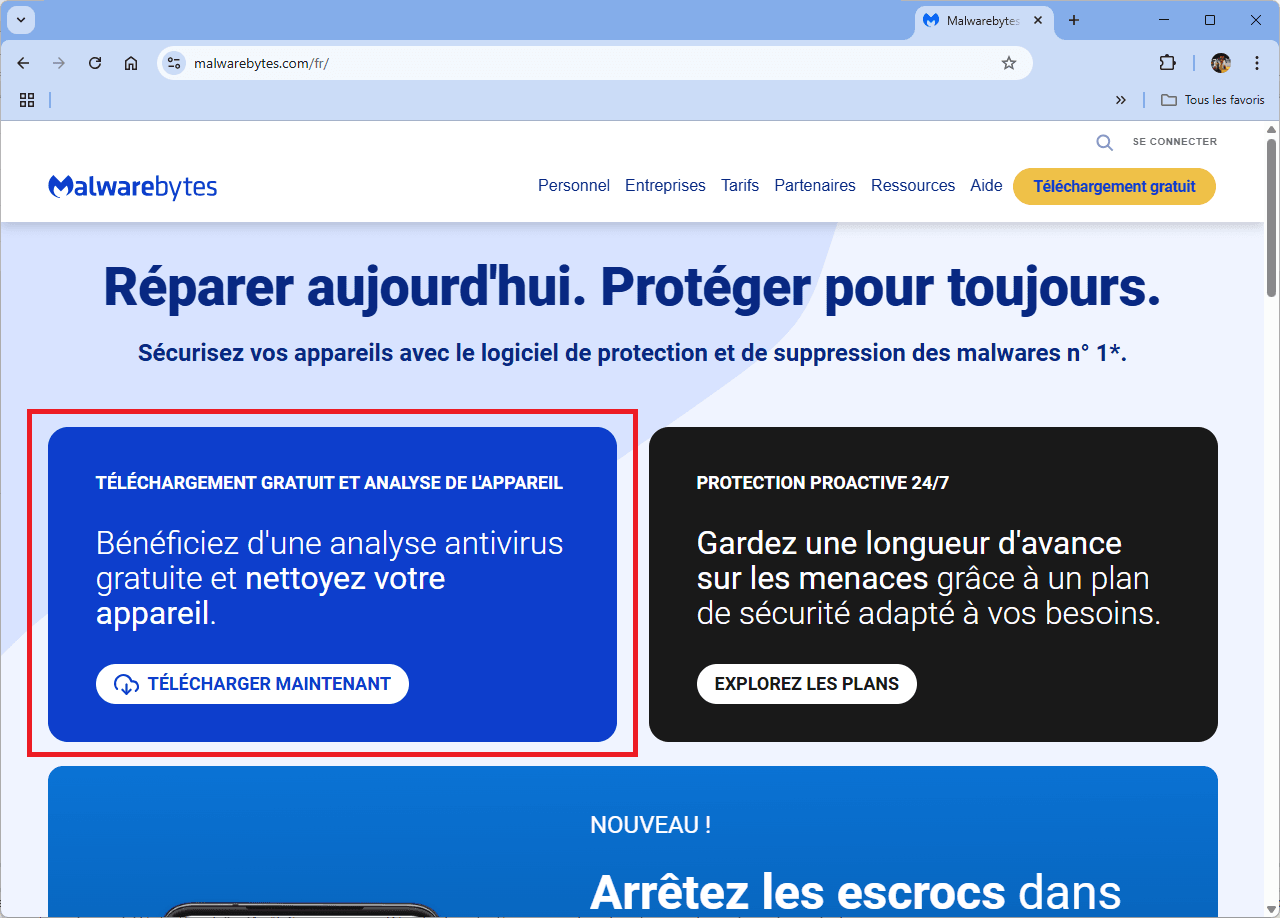
Start by visiting the official Malwarebytes website and downloading the latest version of the software. The software is free for spot scanning and compatible with Windows, macOS, Android, iOS and even ChromeOS. Make sure you always download from the official site to avoid modified or booby-trapped versions.
Install Malwarebytes on your Windows PC
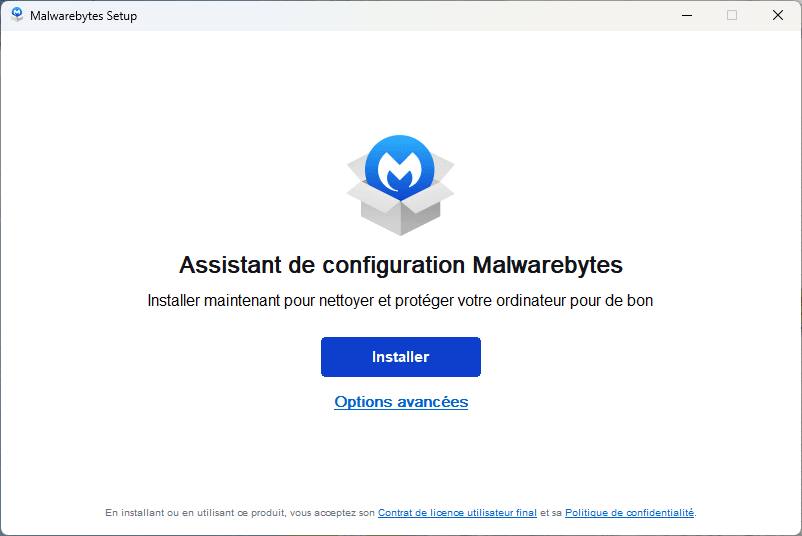
Once you’ve downloaded the installation file, open it to start Malwarebytes configuration. Click Install for quick, automatic installation. Advanced users can access the Advanced Options, but in most cases this step is not necessary for standard cleaning.
Malwarebytes then asks you to select the type of use. Select Personal if you’re installing the software for yourself or your household, then click Next. This choice optimizes the protection settings for home use.
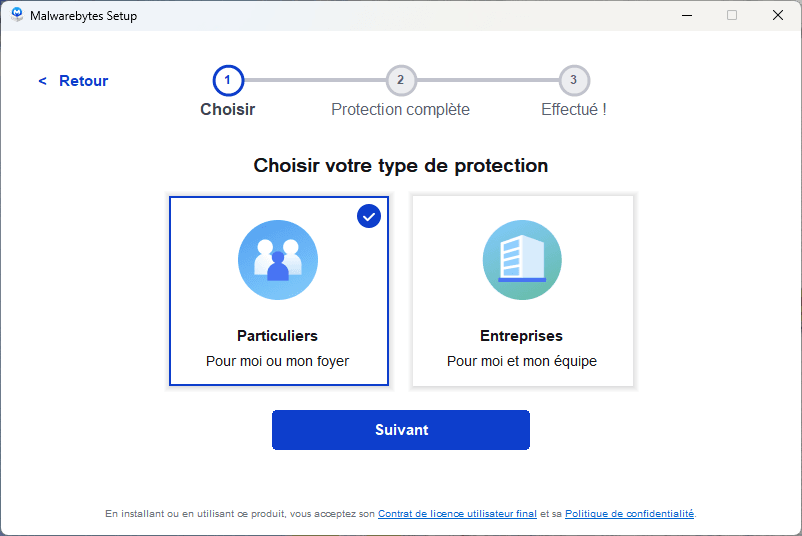
Before finalizing, the wizard suggests you add Browser Guard, a security extension designed to block ads, phishing and online trackers. You can choose to activate it immediately, or click on Skip this step if you’d rather just scan your system.
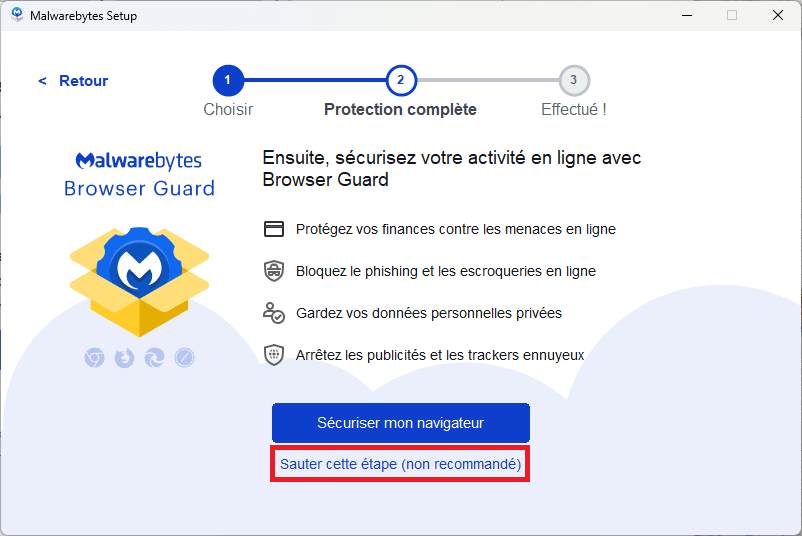
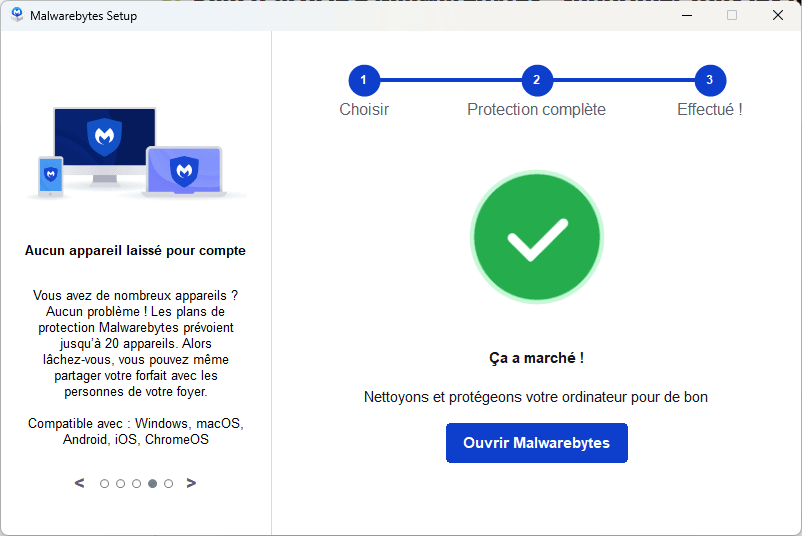
Installation continues automatically. In just a few seconds, the software is ready for use. Once installation is complete, click on Open Malwarebytes to access the main interface and start cleaning your PC.
Run a full scan with Malwarebytes on Windows 11
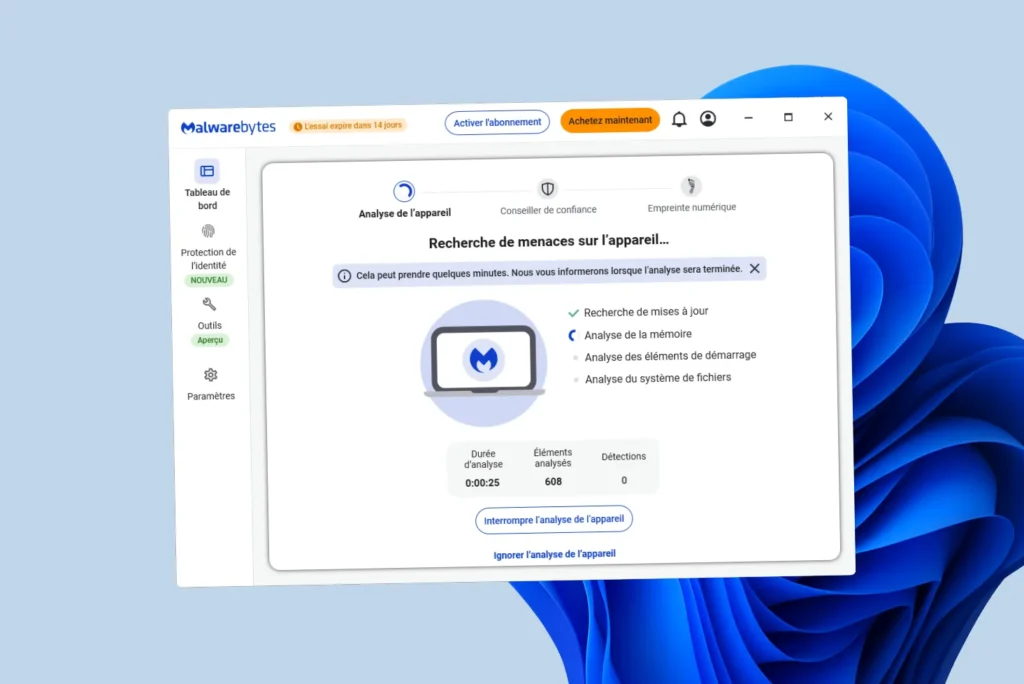
On the dashboard, click on Start full scan. This scan will inspect memory, system files, start-up programs and critical locations where malware is hiding. This step is essential for detecting active threats.
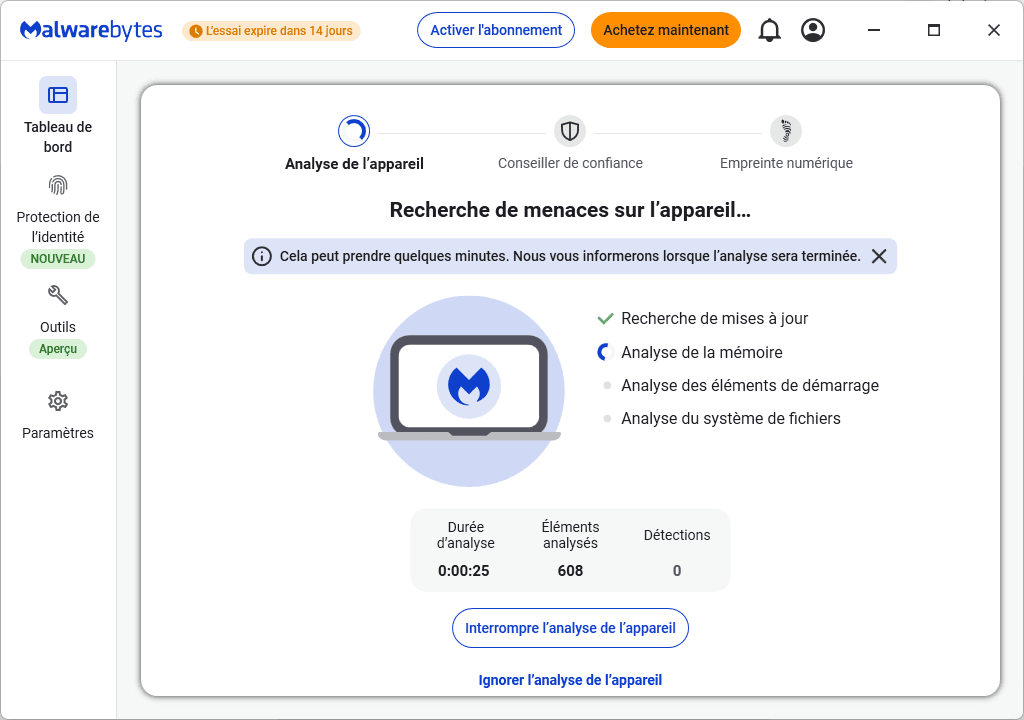
During the scan, Malwarebytes displays the progress of the scan in real time: duration, number of files analyzed and potential detections. If a threat is identified, you can choose to delete or quarantine it at the end.
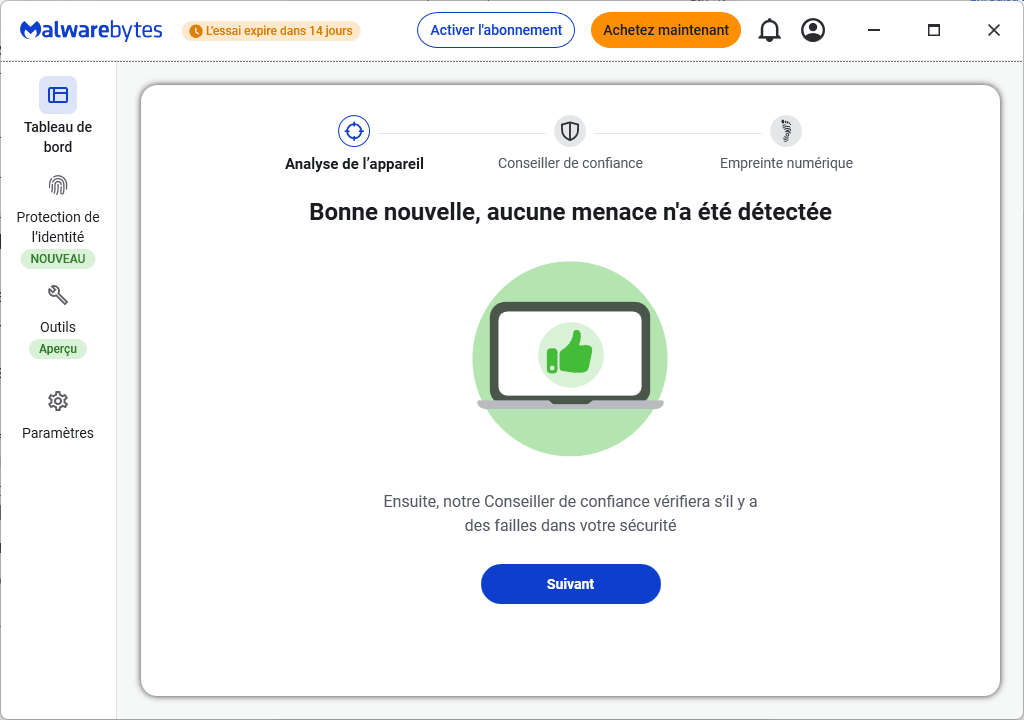
In our example, no threats were detected. If your PC really is infected, the results will indicate precisely which files or programs are malicious, along with recommendations for neutralizing them.
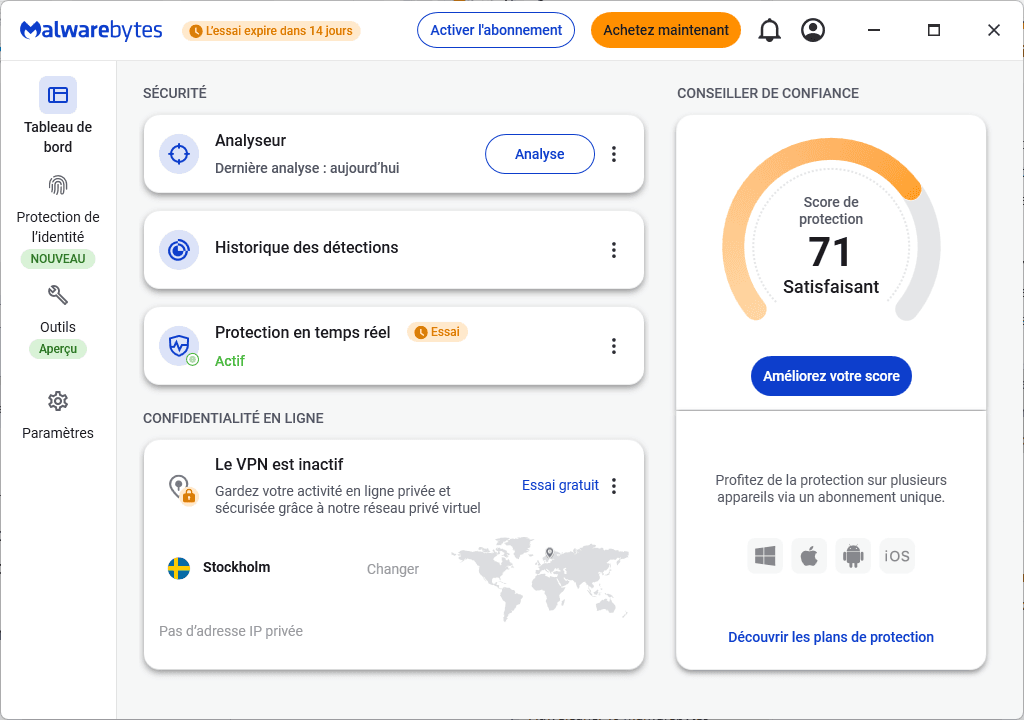
The free version of Malwarebytes allows you to perform manual scans on demand. For continuous real-time protection, you can activate the 14-day free trial of the Premium version. This blocks threats before they have a chance to act.
Discover the best software for removing viruses and malware from your Windows PC.
Did you find this article helpful?
Share it so others can benefit from it.
Learn more about the author