
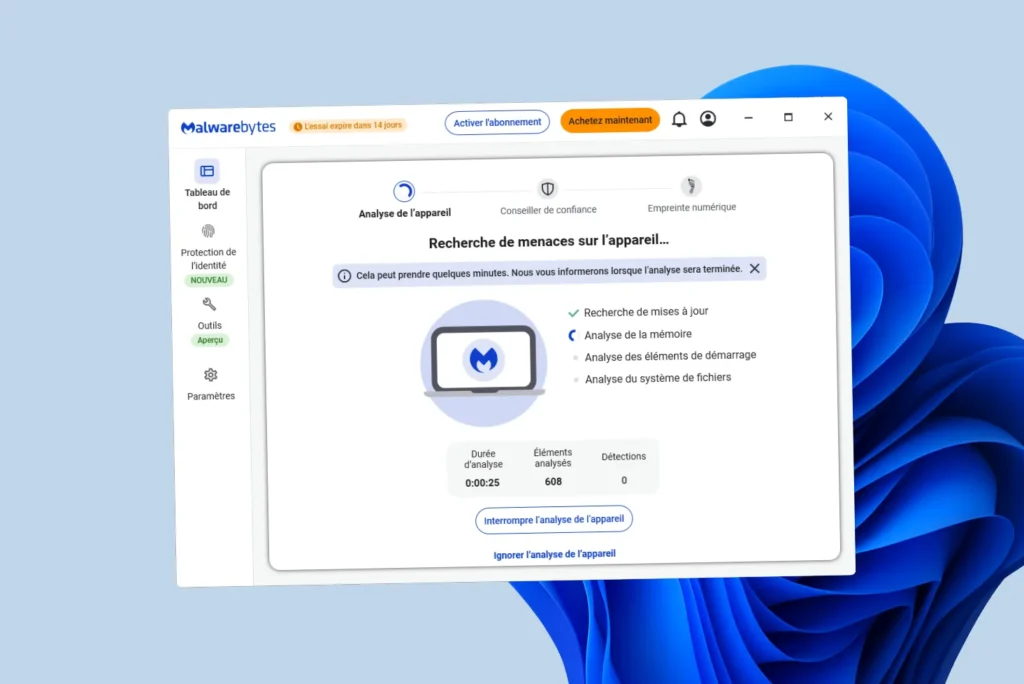
Your PC is running slowly, adverts are popping up where they shouldn’t be, and your browser is redirecting you to unfamiliar pages. These are the classic signs of malware that has been installed without you realising it. Malwarebytes Free is the tool that technicians open first in such cases.
One thing to note before you start: the free version scans and removes malware. This is the most common misunderstanding – many people believe you have to pay to remove what the scan finds. You don’t. Removal is 100% free. The only thing you pay for is real-time protection – that is, the permanent shield that blocks threats before they can take hold. To clean up a PC that’s already infected, the Free version does the job very well.
In this article
- What threats does Malwarebytes detect?
- Tutorial on how to clean a PC infected with Malwarebytes Free
- Step 1: Download Malwarebytes from the official website
- Step 2: Install Malwarebytes on your PC
- Step 3: Run a full scan
- Step 4: Review the results and remove any threats
- Is the free version enough to clean your PC?
- What should I do if the PC is still slow after cleaning it?
What threats does Malwarebytes detect?
Malwarebytes doesn’t look for the same things as a traditional antivirus programme. An antivirus programme compares your files against a list of known signatures. Malwarebytes analyses behaviour, which enables it to detect types of malware that antivirus programmes regularly miss.
Adware programmes inject adverts into your browser or display pop-ups. They are not always classified as dangerous by antivirus software, because they operate in a legal grey area: they are installed with your consent, but this is set out in the small print of free software.
PUPs (Potentially Unwanted Programs) are installed alongside legitimate software. They change your default search engine, add a toolbar, display fake security alerts or slow down Windows startup. Malwarebytes detects and removes them.
Spyware silently collects your data, including keystrokes, screenshots and browsing history. Trojans masquerade as legitimate programmes. Malwarebytes targets all of these.

 assistouest.fr
Tutorial on how to clean a PC infected with Malwarebytes Free
Here are the full steps, complete with screenshots. The clean-up usually takes between 5 and 15 minutes, depending on the condition of the PC.
Step 1: Download Malwarebytes from the official website
Go to malwarebytes.com and download the free version. Always use the official website, as modified versions or versions bundled with other software are circulating on third-party sites.
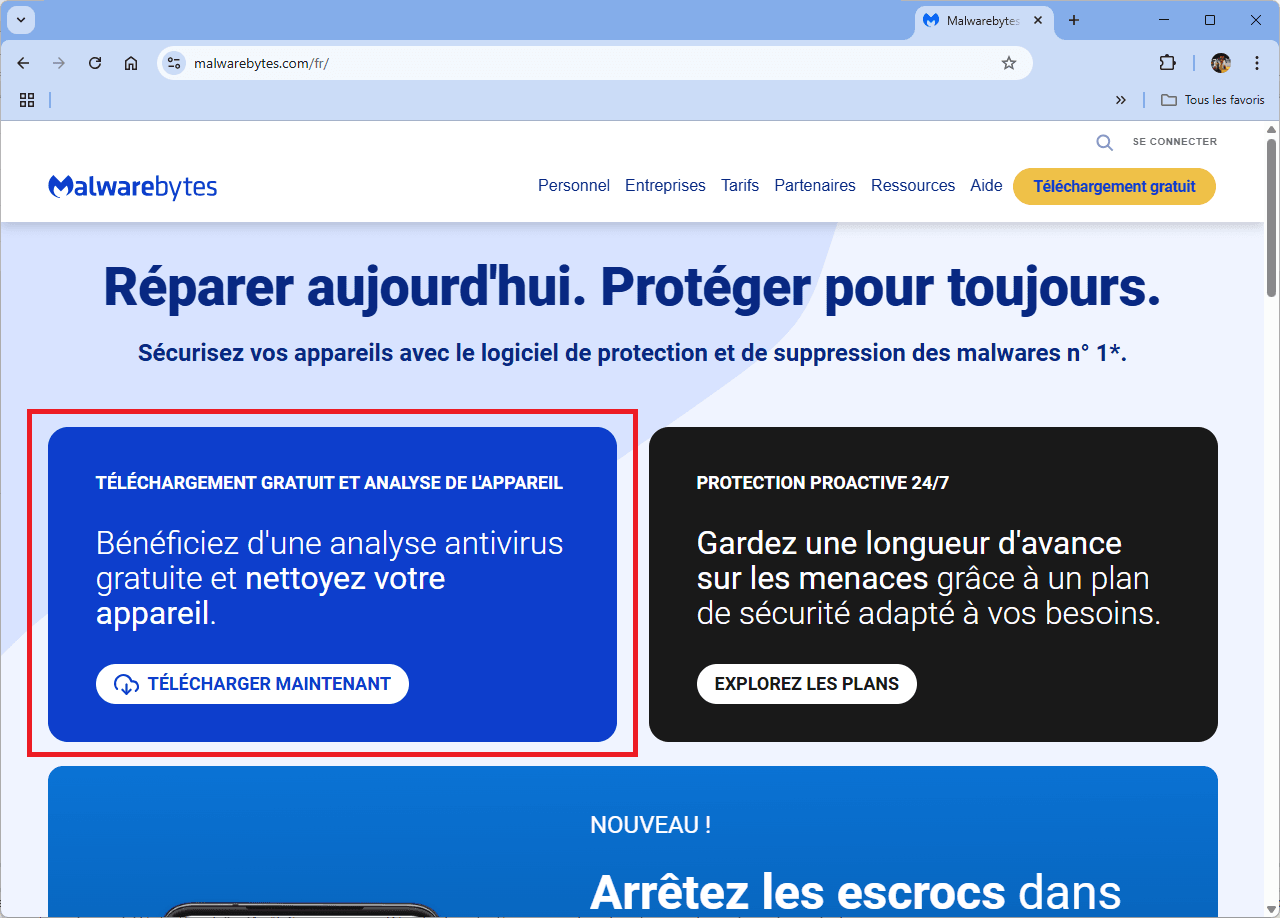
The file is called MBSetup.exe. Once downloaded, run it.
Step 2: Install Malwarebytes on your PC
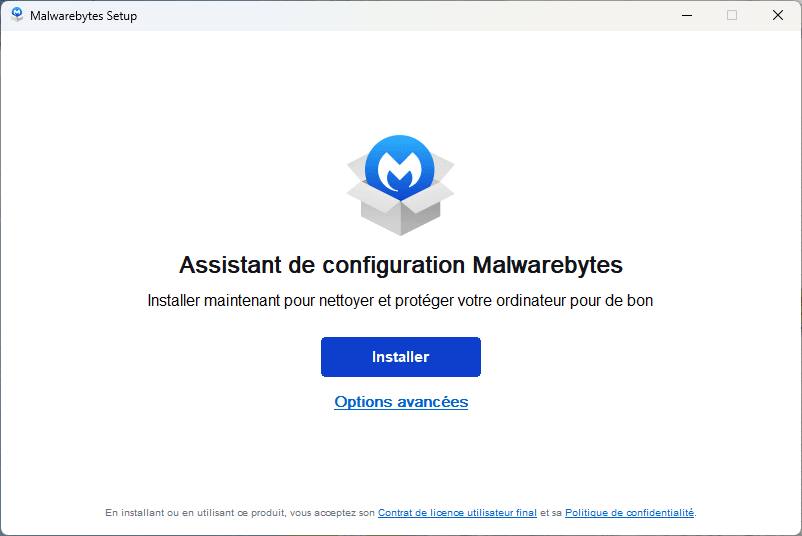
Installation is quick and automatic. Click Install. There are no complicated options to choose from for a standard clean.
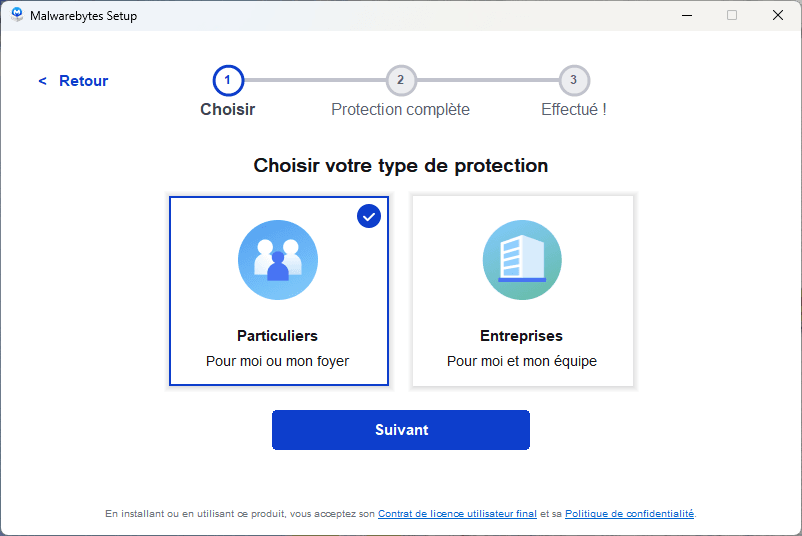
You will be asked to select the type of use. Select ‘Private’ if you are installing the system for yourself or your household.
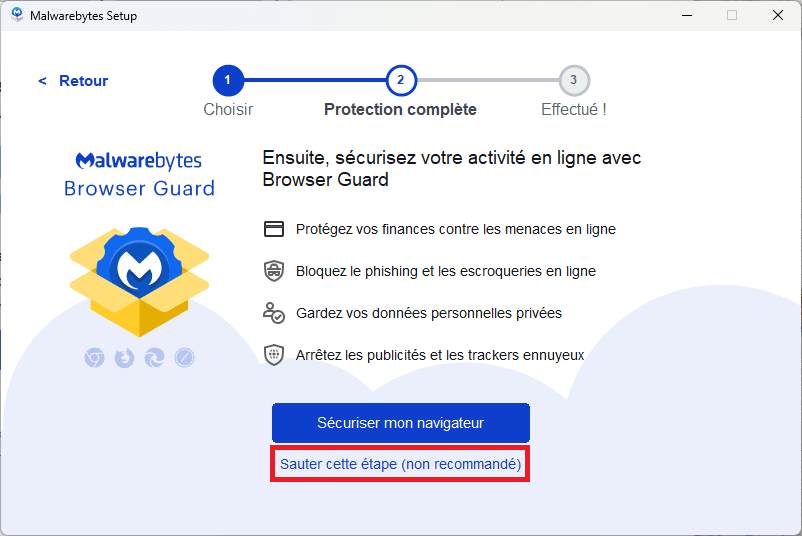
Before finishing, the wizard will ask if you’d like to install Browser Guard, a free extension that blocks adverts, phishing attempts and trackers in your browser. It works on Chrome, Firefox and Edge. You can enable it now or skip this step; it won’t affect the clean-up process.
Step 3: Run a full scan
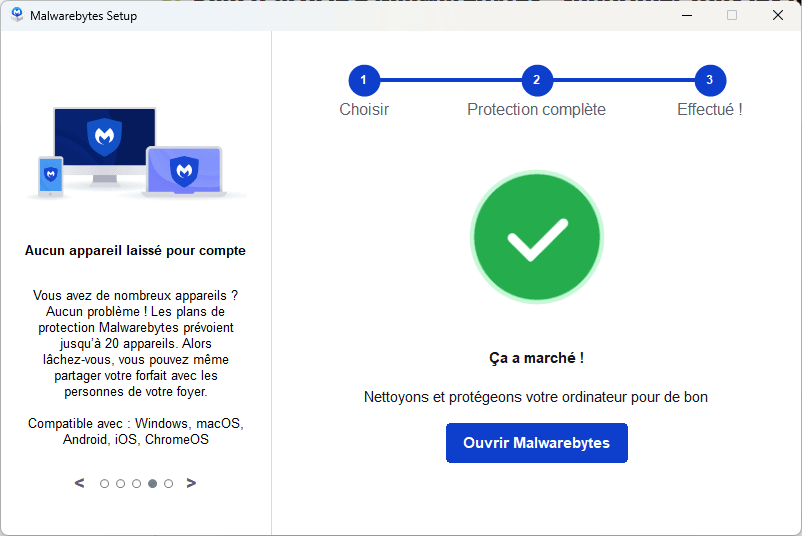
Once installed, Malwarebytes opens to its dashboard. Click Run a Full Scan. This scan checks the memory, system files, startup programmes and critical locations where malware usually hides.
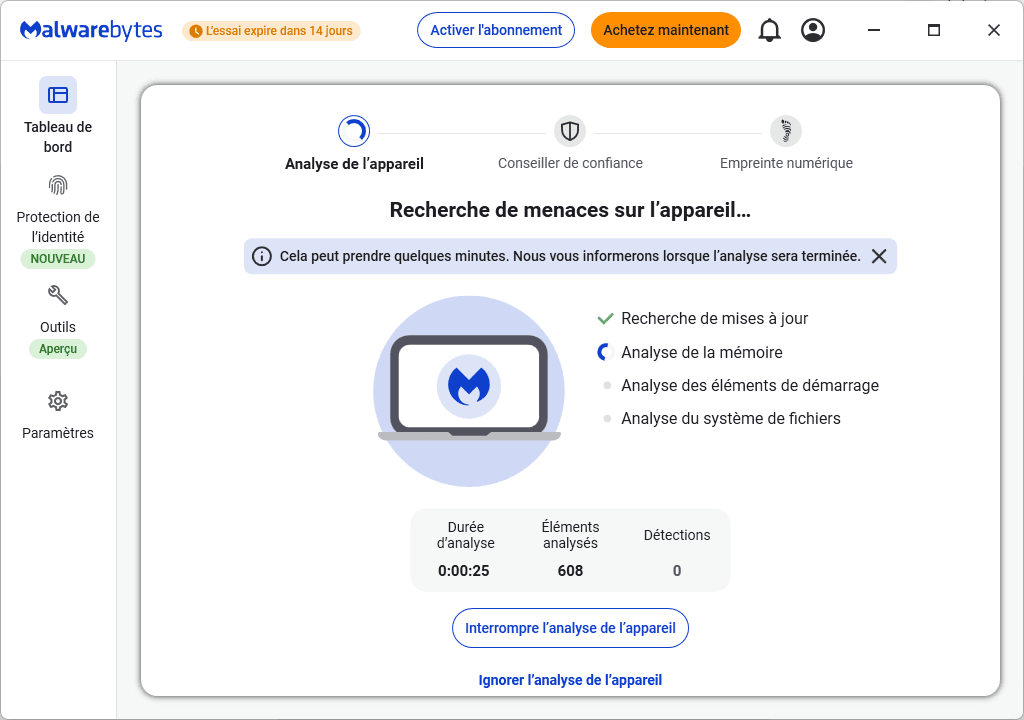
During the scan, Malwarebytes displays the number of files scanned and any potential threats in real time. You can continue to use your PC whilst this is happening, but it will be slightly slower. On a standard PC with a large number of files, a full scan takes between 10 and 20 minutes.
Step 4: Review the results and remove any threats
Once the scan is complete, Malwarebytes displays the detected threats along with their risk level. If any items are found, select them all and click Quarantine. Quarantining isolates the files without permanently deleting them, in case you encounter a problem after cleaning (which is rare). You can permanently delete them from the Quarantine section once everything is working normally.
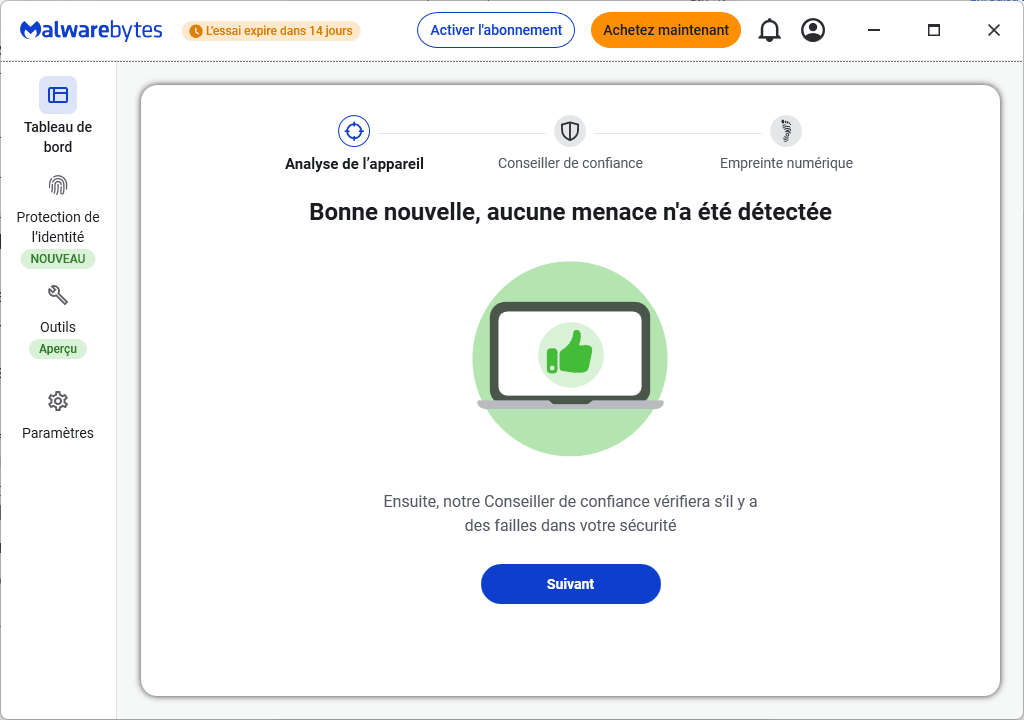
If no threats are detected, that’s good news, but it doesn’t necessarily mean the PC is completely clean; some malware running in memory requires a restart in Safe Mode to be detected.
Add Assistouest to your preferred sources on Google so you can find our guides faster when you search for an IT solution.
Is the free version enough to clean your PC?
The free version allows you to scan and clean on demand. It does not run in the background when you are not using it. It is a disinfection tool, not a permanent antivirus programme.
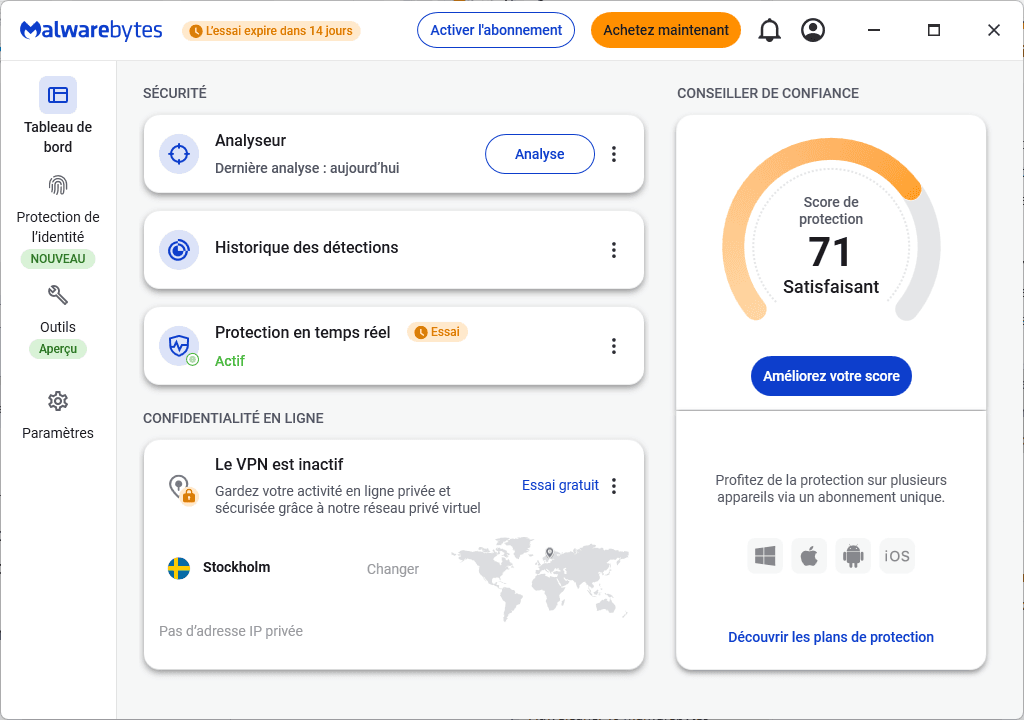
The Premium version activates four real-time protection layers: web protection (which blocks malicious URLs before they load), protection against malware and potentially unwanted programmes (which scans files on arrival), anti-ransomware protection, and exploit detection. It either replaces or complements Defender, depending on your setup.
For the vast majority of home users, Malwarebytes Free + Defender is the recommended setup. Defender handles day-to-day protection. Malwarebytes acts as a second line of defence when something suspicious is detected.
If you’re looking for a free, comprehensive antivirus solution, our comparison of the best free antivirus programmes details the top options and what Defender is really worth in 2026.
What should I do if the PC is still slow after cleaning it?
Malwarebytes has removed the threats, but the PC is still behaving strangely or remains slow. It happens. Malware sometimes leaves traces that aren’t malicious files in the strict sense (surviving browser extensions, parasitic startup entries, modified settings that haven’t been reset).
Check your browser extensions. Chrome, Firefox and Edge all have a page dedicated to installed extensions. Remove anything you don’t recognise or that you didn’t install yourself.
Check the startup programmes. Some adware persists as a service or startup programme. Open Task Manager (Ctrl+Shift+Esc) → Startup tab, and disable anything you don’t recognise. Our guide to disabling unnecessary startup programmes explains how to do this.
For stubborn adware, AdwCleaner is the complementary tool to use. It is free, requires no installation (it is a simple executable file), and was developed by the same team as Malwarebytes. It specifically targets toolbars, unwanted extensions and parasitic programmes that Malwarebytes may sometimes miss.