
Is your PC very slow to start up, are your applications crashing all the time, or are you unable to install Windows updates? This little freeware automatically corrects these problems at the click of a button. It analyzes your system, repairs errors and restores your computer’s performance without the need for manual intervention.
In this article
Why does Windows have these problems?
Windows is a complex operating system which, over time, accumulates various unnecessary files and system errors. Each use generates temporary files, logs and caches that are not always deleted correctly. Added to this are registry errors, corrupted files and faulty system services, which can lead to slowdowns, crashes and other malfunctions.
Software conflicts are another frequent cause of problems. Installing several programs that modify the same system parameters or use common resources can lead to instabilities. What’s more, some Windows updates fail to install correctly or create incompatibilities with existing drivers and software, resulting in critical errors or loss of performance.
The cumulative effect of these problems is to significantly slow down the computer, increasing start-up times, causing frequent crashes and making certain tasks impossible to perform. If these malfunctions are not corrected, the system can become unstable to the point of requiring a complete reinstallation of Windows, a time-consuming and time-consuming solution.
Unnecessary files, software conflicts, blocked updates
When a Windows PC encounters recurring problems, a system reset is often seen as a radical solution. However, this process is time-consuming and restrictive, as it often involves deleting applications and personal files, necessitating prior backups. What’s more, reinstalling software and reconfiguring the system takes time, making it an impractical option for users looking for a quick fix.
Calling in the services of an IT specialist is another alternative that can prove costly, especially if the problem is related to common software errors. In many cases, Windows malfunctions can be corrected without outside intervention, making a high-cost service unnecessary. What’s more, the intervention time may leave the user without a computer for several days, and is not always feasible.
Many paid-for software packages promise to optimize and repair Windows, but their effectiveness is not always guaranteed. Some offer features that can be accessed free of charge by other means, while others may even exacerbate problems by modifying sensitive system settings. Investing in this type of solution is therefore not always justified, especially as there is free software available to diagnose and correct Windows errors without risk.
Assistools: One-click Windows error diagnosis and correction software
Assistools is a freeware program designed above all for beginners, providing a simple, automatic one-click solution for diagnosing and repairing Windows errors. Thanks to its intuitive interface and fully automated processes, it enables even non-technical users to solve common system problems, such as corrupted files, slowdowns or blocked updates. Using DISM and SFC commands, it restores Windows stability without the need for complex manual intervention.
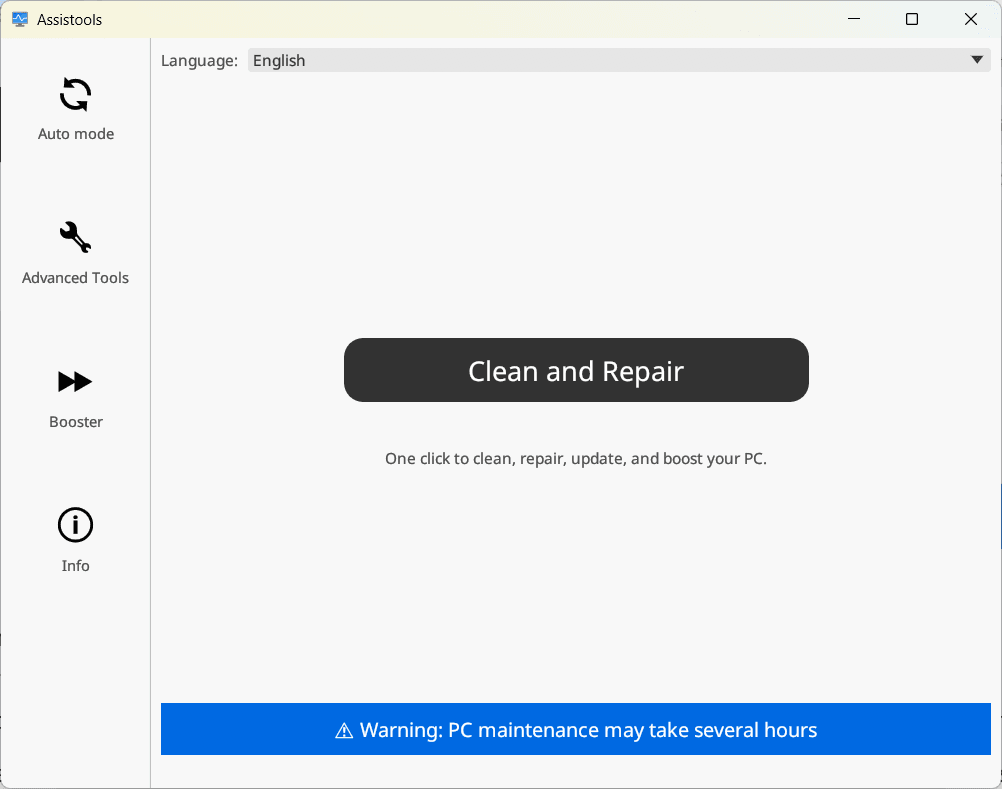
Designed to facilitate computer maintenance, Assistools also includes cleaning and optimization tools. It deletes unnecessary temporary files, frees up disk space and adjusts system settings to improve PC responsiveness. A security scan function is also included, allowing you to run a check with Windows Defender or Avast One to detect and eliminate potential threats and enjoy a safer environment.
Compatible with Windows 7, 8, 10 and 11, Assistools is available in a portable version and requires no complicated configuration. Its aim is to offer an affordable alternative to paid solutions or costly technical interventions.
A healthy, error-free Windows image
A healthy Windows image is essential to ensure the stability and performance of your computer. When a system file is corrupted or missing, Windows can experience errors, slowdowns or even crashes. To avoid these problems, the system has built-in tools to check its integrity by connecting to Microsoft servers to compare the original files with those present on your computer.
The DISM (Deployment Image Servicing and Management) tool is one of the most effective ways of ensuring the integrity of Windows. By executing the appropriate command, this utility analyzes the system image and contacts Microsoft’s servers directly to download and restore damaged files if necessary. Combined with SFC (System File Checker), which scans and repairs critical Windows files, this process automatically corrects errors that could affect the smooth running of the operating system.
Thanks to these verification and repair mechanisms, Windows can regain a clean, error-free structure, improved stability and optimal performance. Regular execution of these tools helps prevent problems from accumulating, and avoids more extensive repairs or a complete reinstallation of the system.
Configuring virtual memory for a faster PC
Virtual memory is an extension of random access memory (RAM) that enables Windows to temporarily store data on the SSD hard disk when RAM is saturated. The wrong setting can lead to slowdowns, errors or excessive disk usage, and affect your PC’s overall performance. By correctly adjusting the size of virtual memory, you can improve system speed and avoid crashes (especially on computers with little RAM).
To simplify this configuration, Assistools includes a virtual memory optimization module. This free software analyzes system requirements and applies settings according to the amount of RAM installed on your computer, rather than letting Windows manage this space automatically.
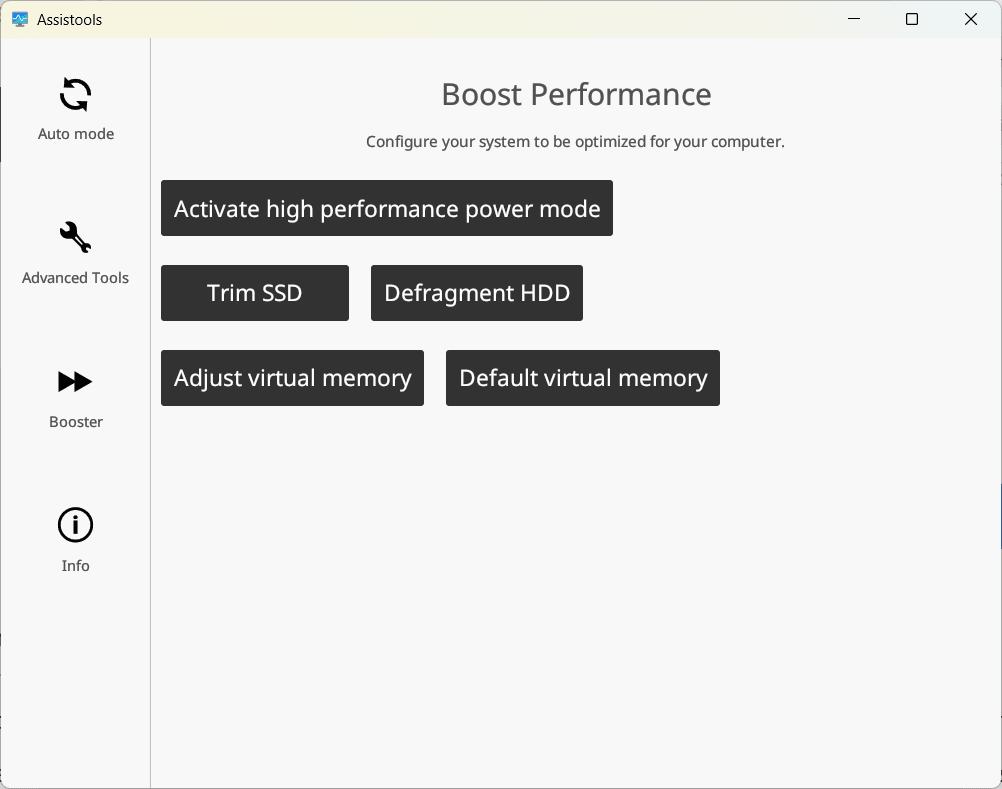
Thanks to this optimization, the computer gains in responsiveness and avoids slowdowns linked to inappropriate use of virtual memory. This feature, combined with the other repair and maintenance tools offered by Assistools, enables Windows to be kept in good condition without the need for complex technical intervention. In just a few clicks, the system is repaired and optimized for smoother, more stable everyday use.
We allow some readers to view our articles for free with an ad blocker. However, their number is currently too high for us to keep this access available to everyone.
You can disable your ad blocker to continue reading immediately, subscribe to enjoy all our content without ads, or come back a little later when the pressure has eased.
Access will be restored automatically as soon as the situation allows.