Losing important files is always frustrating, but there are fortunately solutions for every situation. For an accidental deletion, a formatted SD card or an inaccessible drive, PhotoRec is free, has no quota and is accessible to as many people as possible through QPhotoRec. For more complex cases involving RAID, NAS or network configurations, R-Studio offers far more advanced analysis and reconstruction features.
If your computer no longer starts and you first need to remove its drive, also read our guide on recovering data from an old computer that no longer works.
You have just formatted your SD card by mistake. Your holiday photos have disappeared and you are urgently searching Google for a paid utility.
In this article
- 1. PhotoRec, the free software for recovering your files
- 2. R-Studio, advanced recovery for complex cases
- 3. EaseUS Data Recovery: a good alternative, despite its 2 GB free limit
- 4. Disk Drill for recovering data on Mac or Windows
- 5. Puran File Recovery: a free alternative to paid software
- 6. Recuva: simple software for recovering deleted files
- 7. iCare Data Recovery Free: limited to 1 GB
- 8. Windows File Recovery: Microsoft’s free tool
1. PhotoRec, the free software for recovering your files
Its austere interface looks like a computer screen from the 1990s. It can put new users off, but do not let that stop you. You do not need a beautiful design; you need to recover your files intact.
PhotoRec is free file recovery software for restoring lost data from SD cards, hard drives, USB flash drives and external drives, even when they are damaged or reformatted. It is part of the suite developed by CGSecurity, which also created TestDisk.
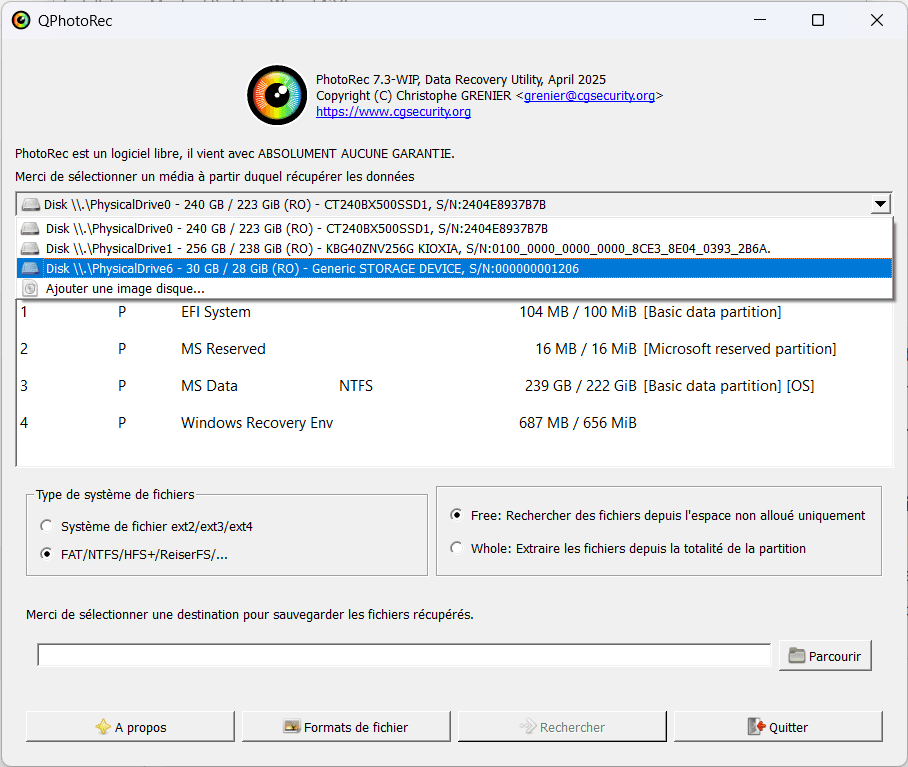
Distributed under the open-source GPL v2 licence, PhotoRec is completely free and cross-platform. It runs on Windows, Linux, macOS and FreeBSD. Unlike commercial software, PhotoRec does not rely on the file system to find data. It analyses the drive’s raw space directly, allowing it to work even on corrupted or formatted partitions.
There are two versions of the program:
- PhotoRec: the original command-line (CLI) version. More technical, it is aimed at users who are comfortable with a terminal.
- QPhotoRec: a version with a Qt-based graphical interface (GUI). Ideal for getting started immediately without using a terminal.
Whichever mode you choose, the recovery engine is the same. It recognises hundreds of formats (JPEG, PNG, RAW and more) and extracts them sector by sector.
File carving: the recovery method used by PhotoRec
PhotoRec uses an advanced recovery method called file carving. Unlike conventional software that relies on file-system tables (such as the MFT in NTFS or the FAT in FAT32), PhotoRec bypasses the file system completely. It can therefore work even when a partition is corrupted or formatted, or when its metadata has been lost.
File carving analyses a drive or storage device’s raw contents, sector by sector, looking for the binary signatures associated with each file type, such as the headers and footers of JPEG, PNG, ZIP or PDF files. As soon as it identifies a pattern matching a known file type, it extracts the associated data block, even if it no longer knows the original file name or location.
This makes PhotoRec effective in critical situations, including:
- a damaged SD card that has become RAW;
- a reformatted hard drive;
- a USB flash drive that no longer opens in File Explorer;
- a file deleted some time ago but still present in unallocated space.
By leaving the drive’s logical structures aside, PhotoRec works directly on the physical reality of the data. This makes it one of the most reliable tools for finding missing files when the operating system detects nothing.
PhotoRec supports a wide range of formats, with particularly good results for photos: JPEG, PNG, GIF, BMP and TIFF, as well as RAW files from cameras (CR2, NEF, ARW, ORF and more). More than 480 extensions can be restored, including documents (PDF, Word, Excel and TXT), videos (MP4, AVI and MOV), archives (ZIP and RAR), web files (HTML, JS and CSS) and databases (SQLite and MDB).
In terms of compatibility, the software works with almost every storage medium: hard drives (HDD/SSD), USB flash drives, SD or microSD cards, external drives and even some CDs/DVDs or image files (.img and .iso). It can analyse a medium even when its file system is corrupted, reformatted or inaccessible from File Explorer. By relying solely on file binary signatures, PhotoRec extracts data directly from the drive’s raw space.
You can download PhotoRec from the official CGSecurity website.
2. R-Studio, advanced recovery for complex cases
R-Studio is one of the most advanced data-recovery programs on the market. Developed by R-Tools Technology Inc., it can restore deleted, lost or damaged files from many types of storage, including SSD drives, memory cards and USB flash drives. Its support for many file systems (NTFS, FAT, exFAT, HFS+, APFS, Ext2/3/4, ReFS, UFS and more) makes it suitable for Windows, macOS and Linux environments.
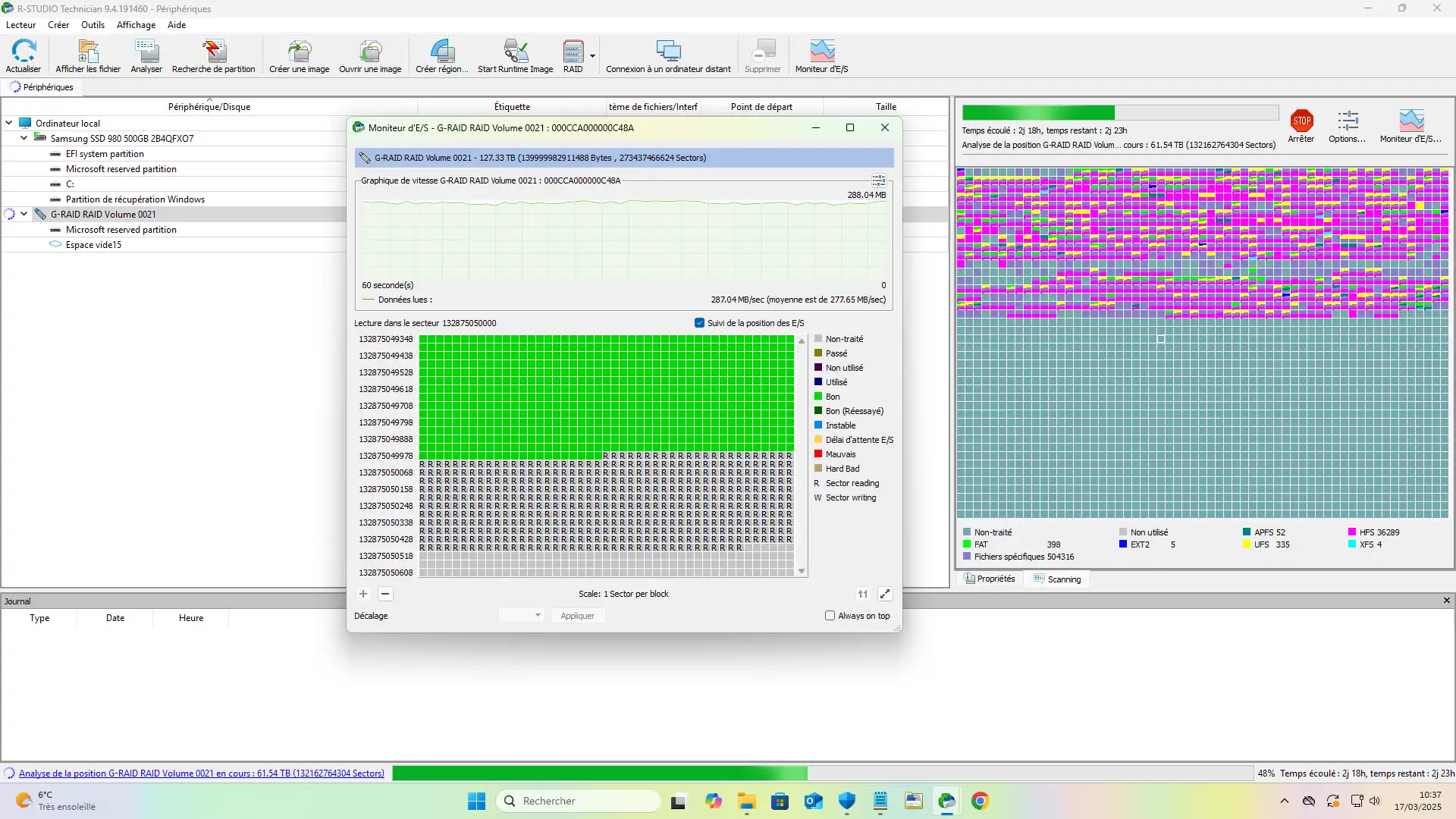
R-Studio combines network recovery, advanced RAID reconstruction and a hexadecimal editor for experienced users. Its signature-based recovery technology can find data even after formatting or severe file-system corruption. It also offers an emergency version that can run from external media to recover files from a system that no longer boots.
Although recovery professionals particularly value it, R-Studio remains accessible to knowledgeable users thanks to its detailed interface and advanced options. Its efficiency and comprehensive features make it one of the strongest choices for recovering files and avoiding permanent loss.
3. EaseUS Data Recovery: a good alternative, despite its 2 GB free limit
EaseUS Data Recovery Wizard is one of the most capable programs for recovering deleted or lost files. Compatible with Windows and macOS, it supports a wide range of devices, from internal and external hard drives to SD cards and USB flash drives. Its quick and deep scan modes can find files that were accidentally deleted, lost after formatting or affected by a system failure.
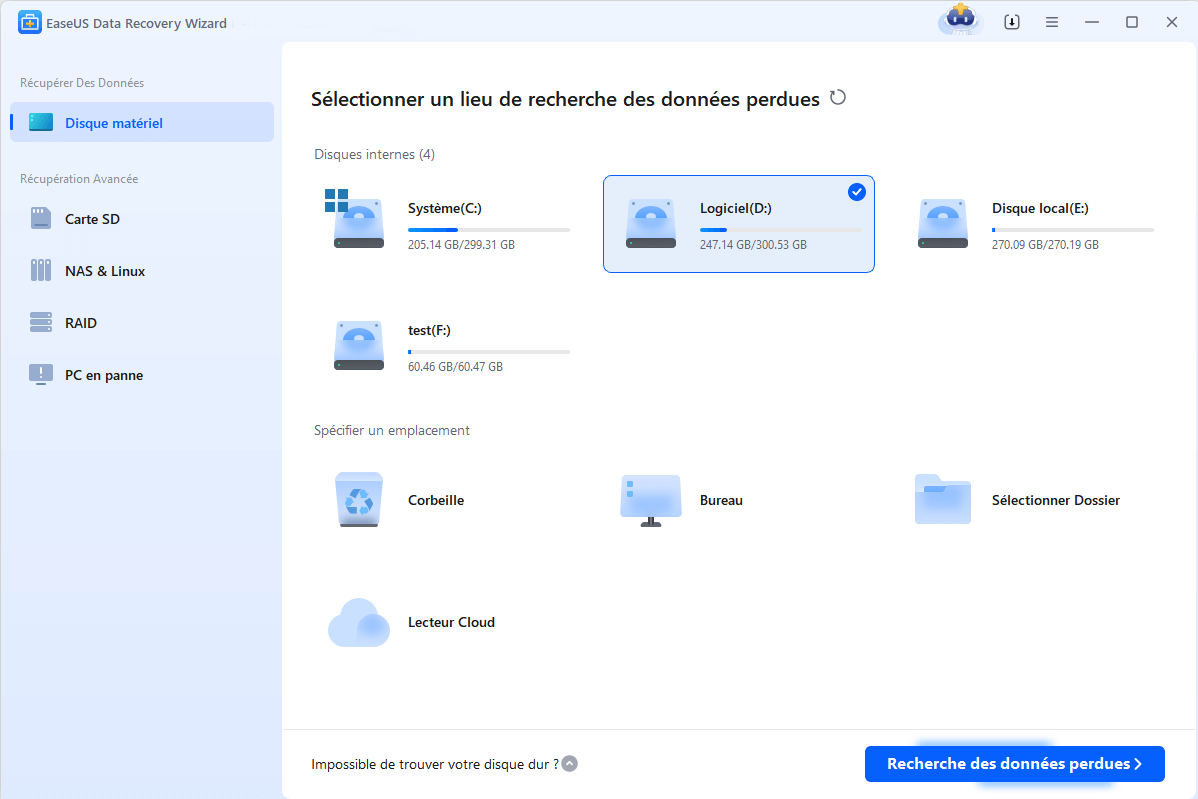
EaseUS’s main strength is its ease of use, which makes it accessible even to beginners. Its intuitive interface lets you preview files before restoring them. It supports more than 1,000 file types, including documents, images, videos and emails. The free version can recover up to 2 GB, while paid versions provide unlimited recovery and advanced tools such as corrupted-file repair.
4. Disk Drill for recovering data on Mac or Windows
Disk Drill is comprehensive recovery software with broad support for storage devices and file systems. Compatible with Windows and macOS, it can find files deleted accidentally, lost after formatting or affected by a system failure. Its advanced algorithms support more than 200 file types and include additional tools such as partition reconstruction and disk-image creation for safer recovery.
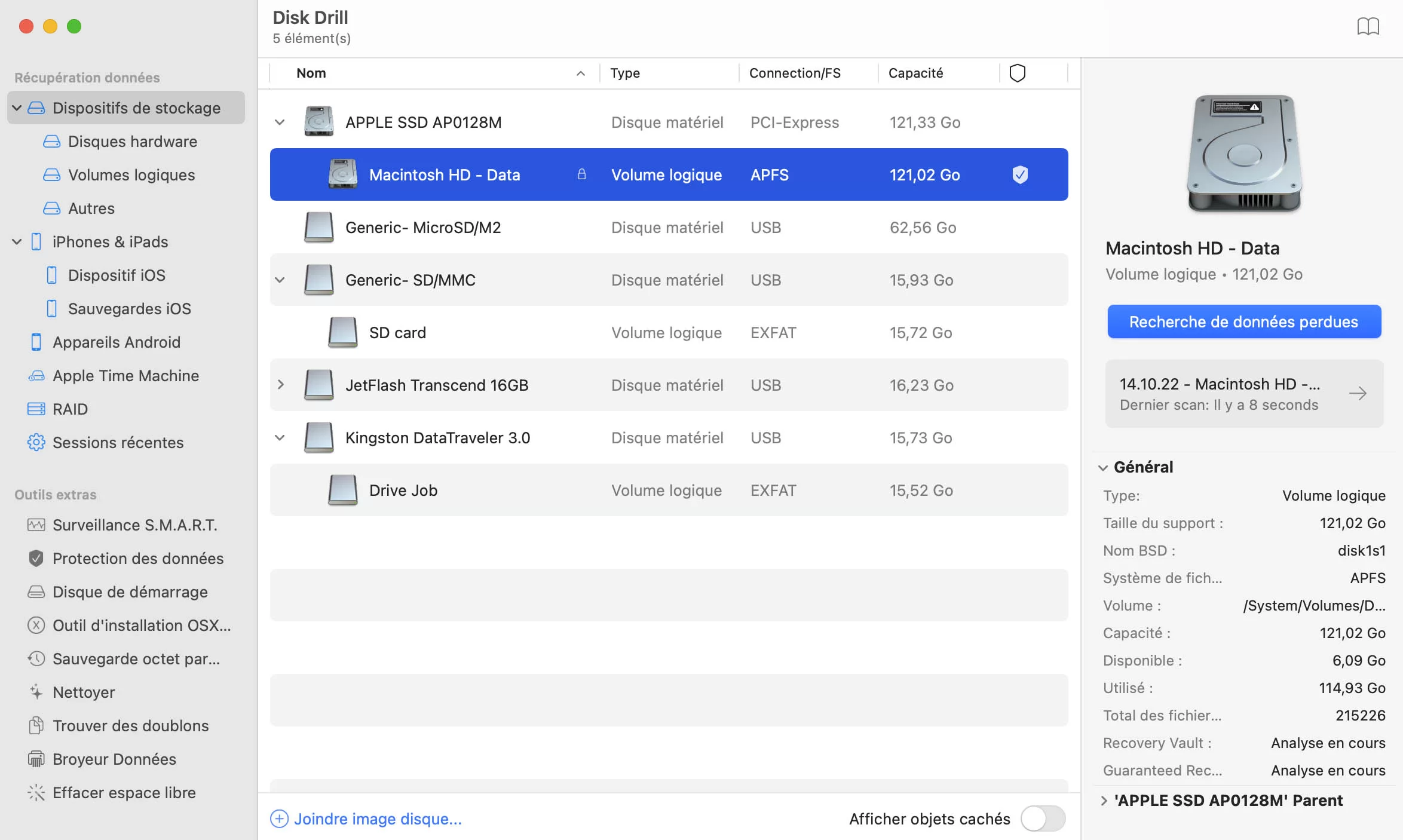
Its intuitive interface guides beginners through a simple recovery process. Alongside quick and deep searches, Disk Drill offers features such as Recovery Vault and Guaranteed Recovery. These preserve metadata to make future restoration possible. The free version recovers up to 500 MB, while the Pro version offers unlimited recovery and advanced options.
Before buying a licence, it is worth testing the free version to see whether it can recover the files you need.
5. Puran File Recovery: a free alternative to paid software
Puran File Recovery is free Windows software for recovering deleted or lost files from internal hard drives, external drives, USB flash drives, SD cards and formatted partitions, and even CDs/DVDs. It offers three scan modes: a quick scan for recent deletions, a deep scan that analyses drive blocks, and a full scan that also searches for lost partitions. This modular approach makes Puran flexible for both a simple deletion mistake and a more serious data loss.
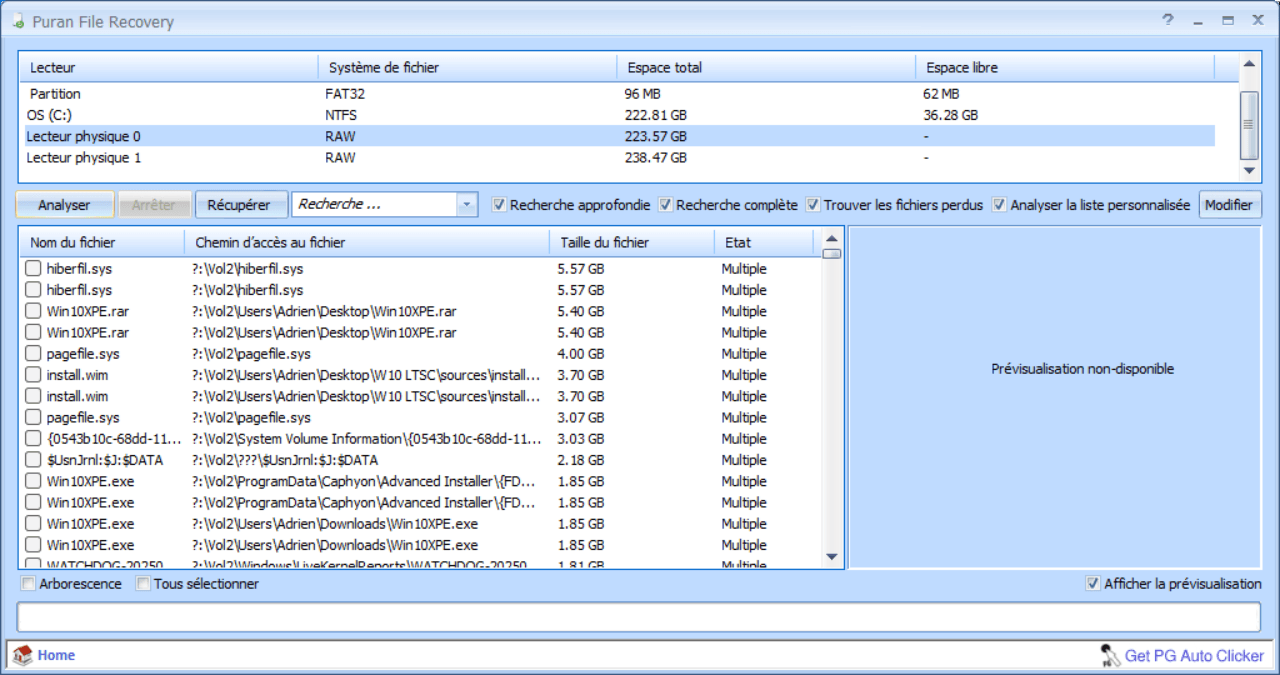
Although dated, its interface remains easy to understand. Results are displayed in a tree view, with previews available for some files, especially images and text. A search filter helps you find what you need quickly. Puran can also try to restore original file names and folder structure when possible. A portable version is available, making it useful for emergency work without prior installation.
Despite the lack of recent updates, Puran File Recovery remains one of the few genuinely free tools, with no reduced version or hidden fees, that can compete with some commercial programs. It is a useful option for anyone looking for a simple tool without restrictions.
6. Recuva: simple software for recovering deleted files
Recuva is data-recovery software from Piriform, known for being simple to use. Available free of charge on Windows, it can restore files deleted accidentally, even after the Recycle Bin has been emptied. It supports many formats, including photos, videos, documents, emails and compressed files, and works with internal hard drives, USB flash drives, SD cards and external drives.
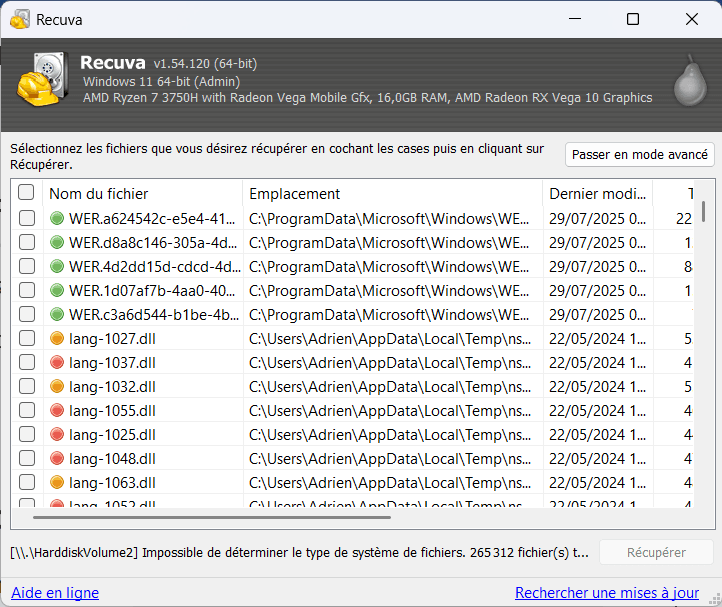
Recuva’s friendly interface is one of its main advantages. A step-by-step wizard lets users quickly target the type of files and the location to scan. Advanced mode provides manual browsing, search filters and a file-health indicator. The deep-scan mode can find more data on formatted or heavily damaged media.
The standard version of Recuva is free and does not limit the volume or number of files recovered, making it an excellent choice for individuals. It can show its limits with complex cases or badly corrupted partitions, but remains a reference for Windows users who need to recover deleted files quickly.
7. iCare Data Recovery Free: limited to 1 GB
iCare Data Recovery Free is Windows recovery software for restoring files deleted or lost after formatting, a system crash or a partition error. It offers three modes for different situations: quick recovery of deleted files, a Deep Scan and recovery from a RAW drive or inaccessible partition. It supports NTFS, FAT32 and exFAT, as well as many document, image, video and audio formats.
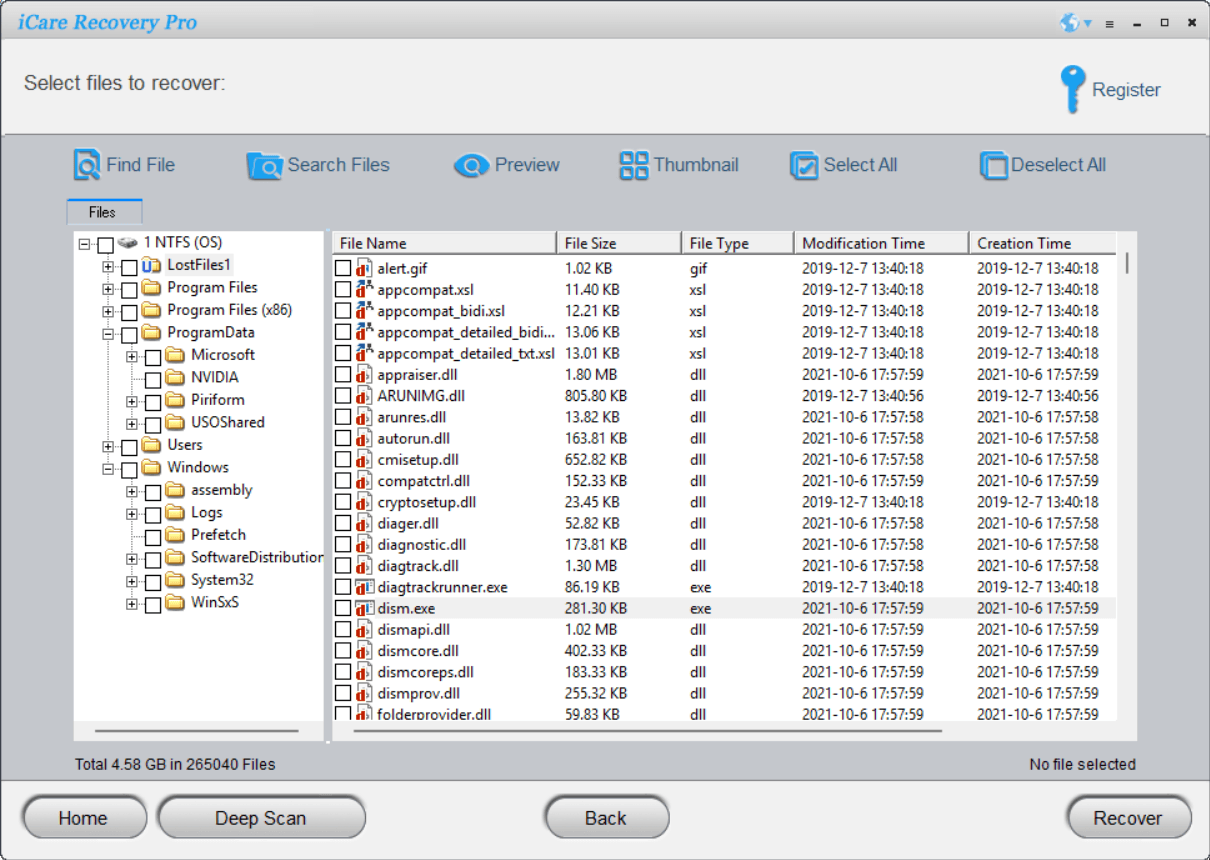
Although dated and available only in English, the interface remains fairly intuitive thanks to its multi-step process. iCare can detect deleted files and preview them before restoration, helping you select exactly what to recover. It can also scan storage media that Windows recognises poorly or not at all.
Despite its name, the free version of iCare Data Recovery is limited. It can recover up to 1 GB of data or 500 files maximum in Deep Scan mode. This may be enough for a recent accidental deletion, but the limit is quickly reached when a large amount of data needs to be restored. A paid version is required to go further.
8. Windows File Recovery: Microsoft’s free tool
Windows File Recovery is Microsoft’s official tool for recovering deleted files on Windows 10 and 11. Available free through the Microsoft Store, it runs from the command line in PowerShell and offers several recovery modes depending on the type of loss: recent deletion, formatting or a drive that has become RAW. It supports NTFS, FAT, exFAT and ReFS, and can recover documents, images, videos, compressed files and more.
Although it is less user-friendly than other tools because it has no graphical interface, Windows File Recovery is reliable, has no volume limit and contains neither advertising nor a paid version. For users comfortable with the command line, it is a powerful utility to keep available for emergencies on a hard drive, USB flash drive or SD card.
Download Windows File Recovery from the Microsoft Store
Windows File Recovery is a command-line utility from Microsoft for recovering deleted files from NTFS, FAT, exFAT or ReFS drives.
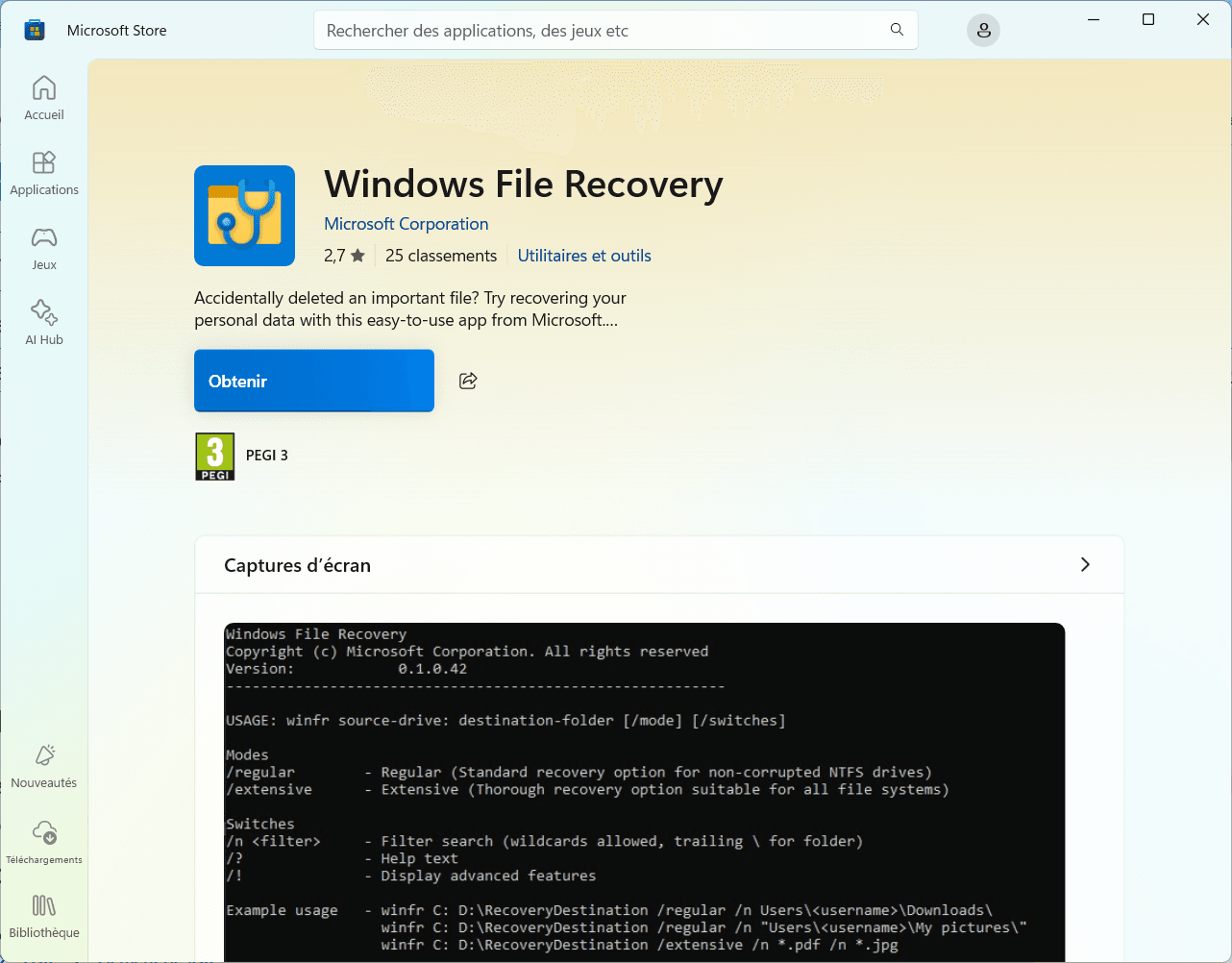
The principle is simple: specify the source, such as C:, the destination, such as D:\Recovery, and the scan mode. Three modes are available:
- Regular, for quick recovery on recent NTFS drives;
- Segment, to target files using metadata such as name, date or size;
- Extensive, for a deep scan of damaged or formatted drives.
Here is a practical example. If you deleted .jpg photos from your main drive, enter:
winfr C: D:\Photos_restored /regular /n *.jpg
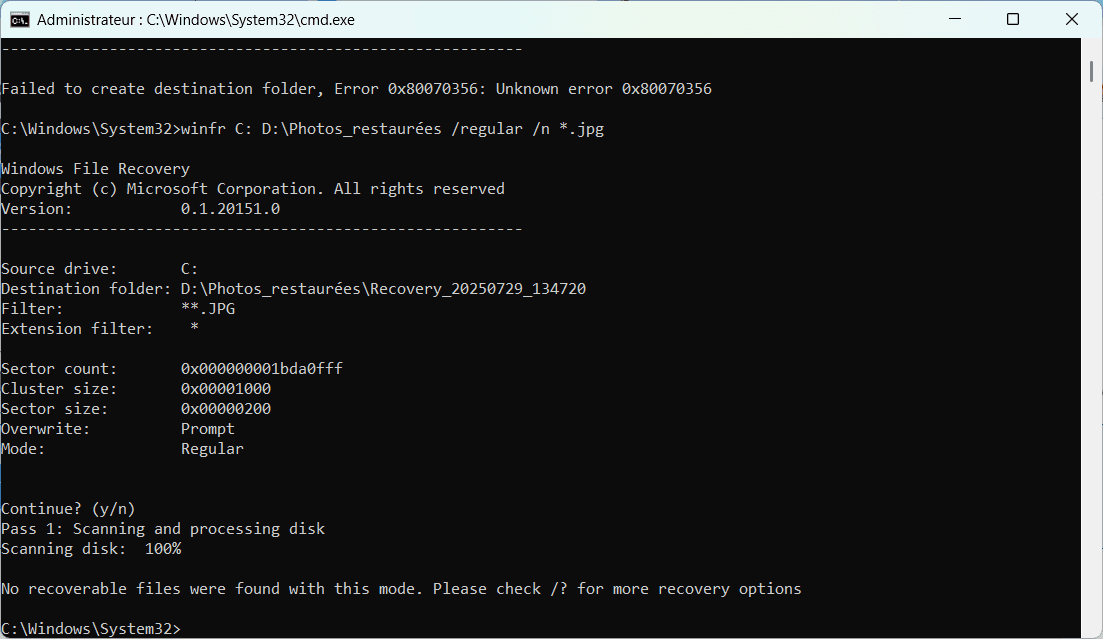
Simple and useful. The tool does not always restore the original names or folders, but it can save a vital file at the last minute. Windows File Recovery is free, available through the Microsoft Store and works from Windows 10 version 2004. If none of these tools can recover your data, our guide to the cost of professional data recovery will give you an idea of the budget involved.
If no software can find the data, or if the storage device shows signs of hardware failure, stop trying: every new write can reduce the chance of recovery. In that situation, it is better to obtain a professional diagnosis before carrying out any further operation.
We allow some readers to view our articles for free with an ad blocker. However, their number is currently too high for us to keep this access available to everyone.
You can disable your ad blocker to continue reading immediately, subscribe to enjoy all our content without ads, or come back a little later when the pressure has eased.
Access will be restored automatically as soon as the situation allows.