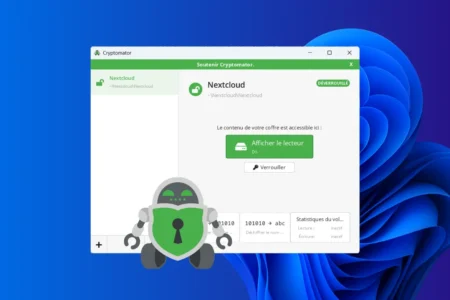
Google Drive and OneDrive have become essential tools for storing and syncing files on Windows. They are convenient, but can create a false sense of privacy. These cloud services are subject to US law, including the CLOUD Act, which raises important questions about confidentiality. As long as a provider controls the encryption keys, you do not have full control over your data. Here is how Cryptomator encrypts files and folders before they are uploaded to the cloud, so you stay in control.
In this article
US law can apply to your files stored in Europe
The CLOUD Act (Clarifying Lawful Overseas Use of Data Act) is a US law passed in 2018. It allows US authorities, as part of a legal investigation, to request data held by US companies wherever that data is stored. The physical location of the servers, whether in the United States, Europe, or elsewhere, is not decisive.
The law directly affects major cloud providers used every day, including Google, Microsoft, and Amazon. Their services, such as Google Drive, OneDrive, and Amazon storage, are therefore subject to US law regardless of where their data centers are located.
Hosting data in Europe does not remove the legal exposure
For a long time, people assumed that storing data in Europe offered stronger legal protection. The CLOUD Act has changed that picture. Data hosted in Europe by a US company may still be subject to US law, because the company’s jurisdiction matters, not just the server’s location.
European hosting alone is therefore not a sufficient privacy safeguard. If the cloud provider retains technical control of your data through the encryption keys, it may be legally required to provide readable information. Client-side encryption, where the provider never holds the key, helps protect your files under the legal framework created by the CLOUD Act.
Cryptomator encrypts files before they reach the cloud
Cryptomator is free, open-source software for encrypting files and folders before they are uploaded to the cloud. Unlike complex security tools designed for professionals, Cryptomator is easy to use while relying on strong, established encryption. Its source code is public, so the community and security experts can inspect how it works and review its technical choices.
Cryptomator was designed specifically for cloud storage. It works with synced folders and popular services such as Google Drive, OneDrive, Dropbox, and Nextcloud, as well as local and external drives. It is not tied to a particular provider, so you can use it with the storage service of your choice. Files are encrypted on your computer before they sync to the cloud. Encryption happens automatically as you work with your documents, with no extra steps.
An open-source tool that works with most cloud services
With this approach, the cloud provider never holds the decryption key. It cannot read the contents of your files or use the information they contain. Even after a breach, data leak, or legal request under the CLOUD Act, only encrypted, unreadable data can be handed over. Cryptomator encrypts file names, folder names, and the folder structure. Their original names and organization are not readable in the synced folder.
Encrypt files and folders with Cryptomator
First, download Cryptomator from its official website. Cryptomator is free to download and does not require an account or subscription. The Windows installer is available directly from the site and is regularly updated. Versions are also available for Linux, Android, macOS, and iOS.
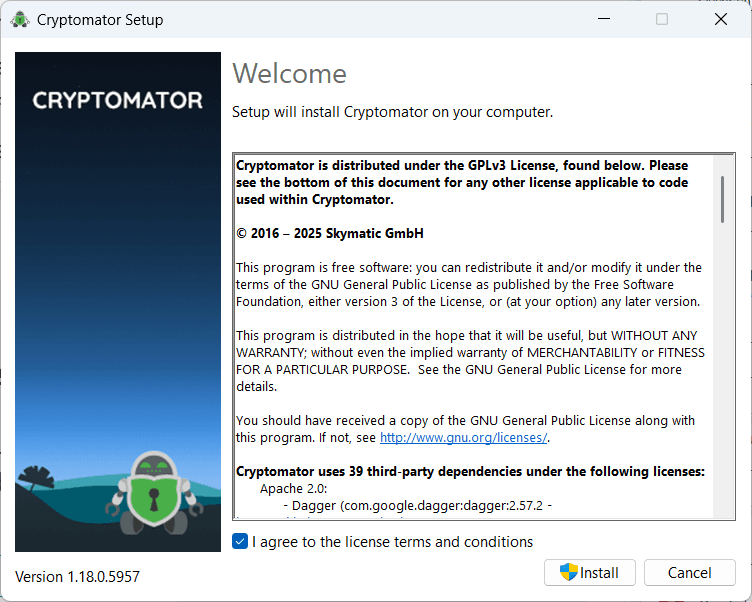
Once the download finishes, run the installer and follow the on-screen steps. The default settings work well for most professional and personal use.
Create your first encrypted vault
After opening Cryptomator, select Add a new vault to create your first secure storage area.
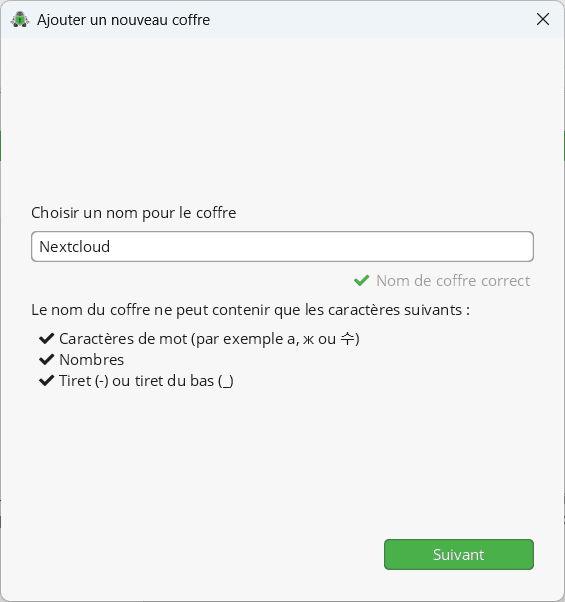
Choose a name for the vault. This name is only used to identify the vault in Cryptomator and is also used for its synced folder. Pick a simple, neutral name. When you are ready, select Next to continue.
Choose where to store the vault, in the cloud or locally
Cryptomator will ask you to choose where the encrypted files will be stored. This step determines where the protected data will be synced and kept.
You can select the folder used by your usual storage service, for example:
- your synced Google Drive folder
- your OneDrive folder
- or any other location, such as Nextcloud, an external drive, a NAS, or a local folder
Only encrypted, unreadable files are stored in this location. The cloud service never receives the unencrypted contents of your files.
After selecting the folder, choose Next to continue setting up the vault.
Set a strong password for your vault
Set a password for the vault. It is the only key that unlocks your data. Cryptomator does not store it and cannot recover it for you.
- Use a long, complex passphrase.
- Check that the strength indicator shows Strong or Very strong.
Cryptomator can also create a recovery key. This is strongly recommended in case you forget your password and want to avoid losing your data permanently. Store it somewhere safe.
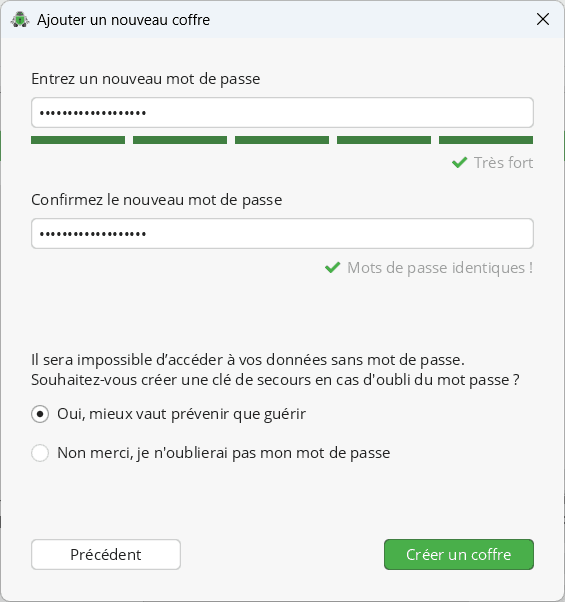
Then select Create vault.
Unlock the vault and open your files
After you create the vault, it appears in Cryptomator. Select Unlock, enter the password you set, then choose Reveal drive.
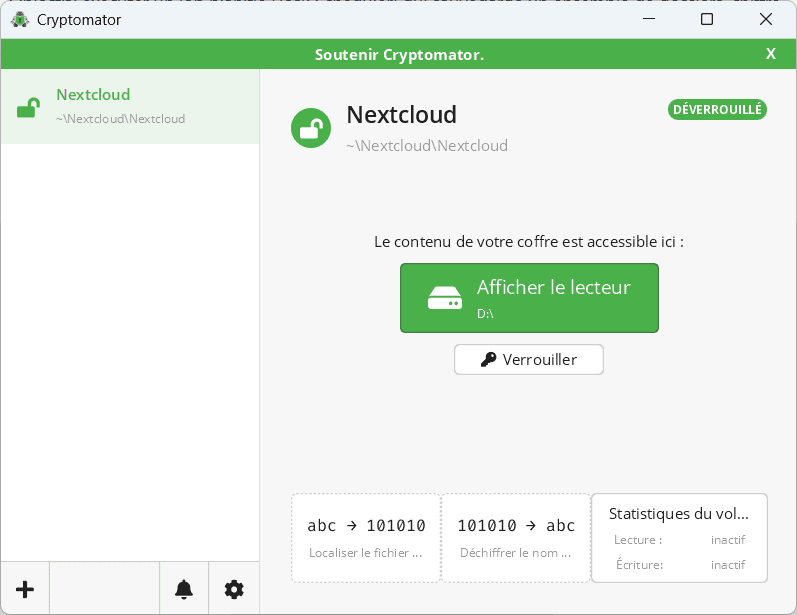
Cryptomator opens the vault as a standard Windows drive, such as D: or E:. This drive gives you access to the decrypted files and is available only while the vault is unlocked.
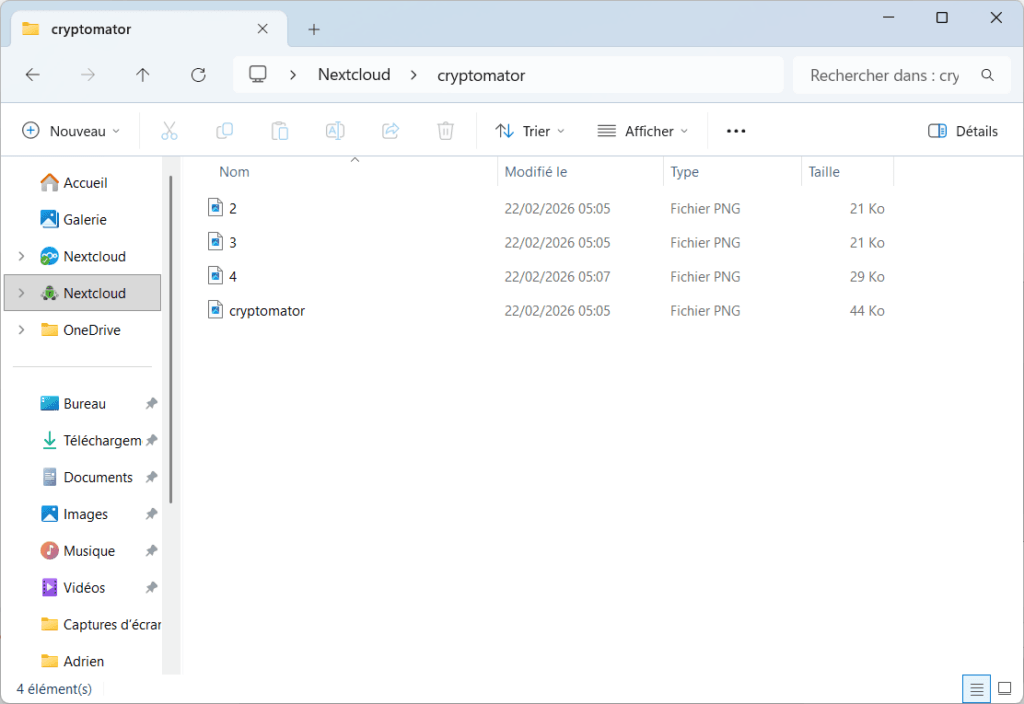
For you, everything works normally. You can create files and folders, open and edit Word or PDF documents, just as you would in any folder on your computer. In the background, Cryptomator encrypts and decrypts the data automatically.
What your cloud provider can see in Google Drive or OneDrive
In the folder synced with your cloud service, such as Google Drive, OneDrive, or Nextcloud, files protected by Cryptomator are unreadable. The storage provider sees only:
- unrecognizable file names
- an encrypted folder structure with no obvious meaning
- fully encrypted file contents
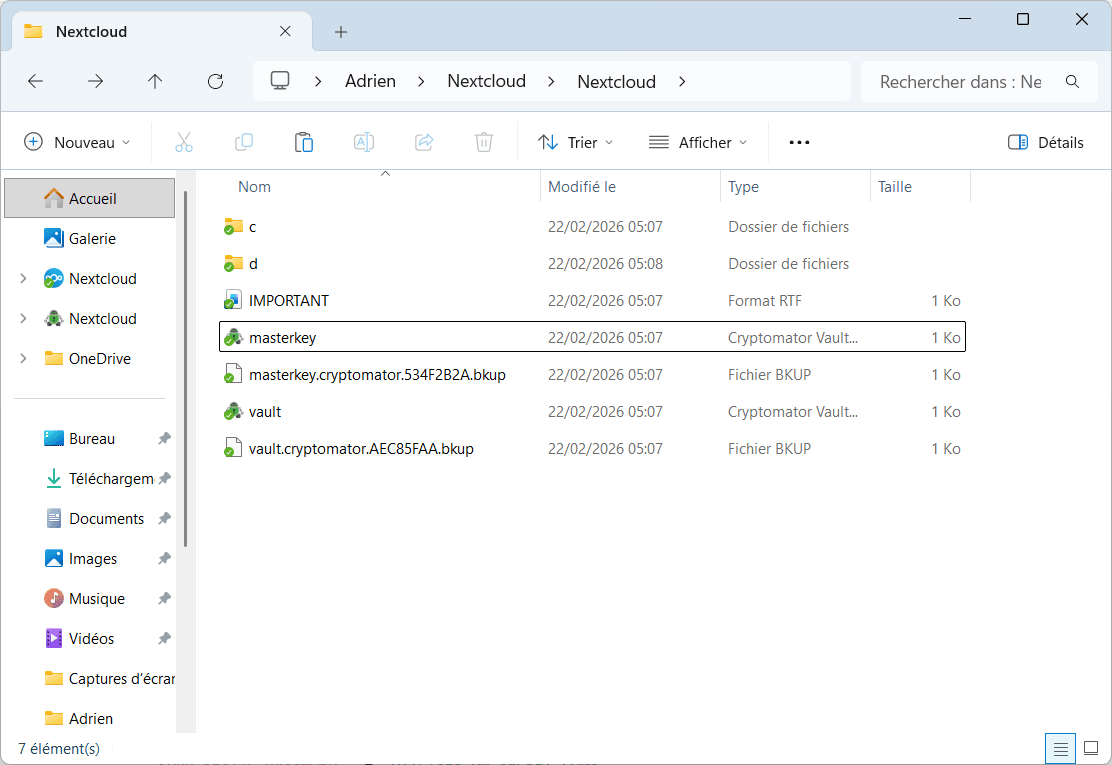
File names, folder names, and the full folder structure are encrypted too. Without unlocking the vault with your password, it is impossible to understand how the data is organized or guess what it contains.
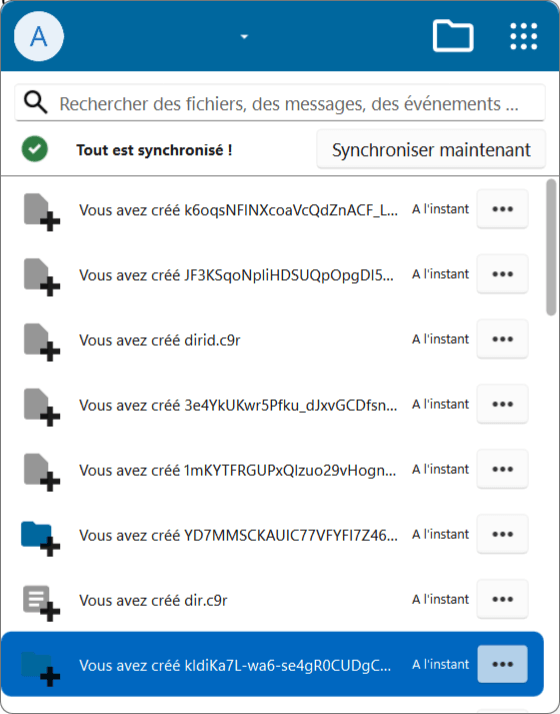
If someone gains access to this folder through a breach, data leak, or legal request to Google Drive or OneDrive, they can obtain only encrypted files that cannot be used without the key. Because only you hold the key, the files reveal no usable information.
Work as usual while your files are encrypted automatically
Once the vault is unlocked, you can keep using your files in Windows File Explorer as usual. Cryptomator encrypts changes automatically before the synced folder uploads them to your cloud provider.
We allow some readers to view our articles for free with an ad blocker. However, their number is currently too high for us to keep this access available to everyone.
You can disable your ad blocker to continue reading immediately, subscribe to enjoy all our content without ads, or come back a little later when the pressure has eased.
Access will be restored automatically as soon as the situation allows.