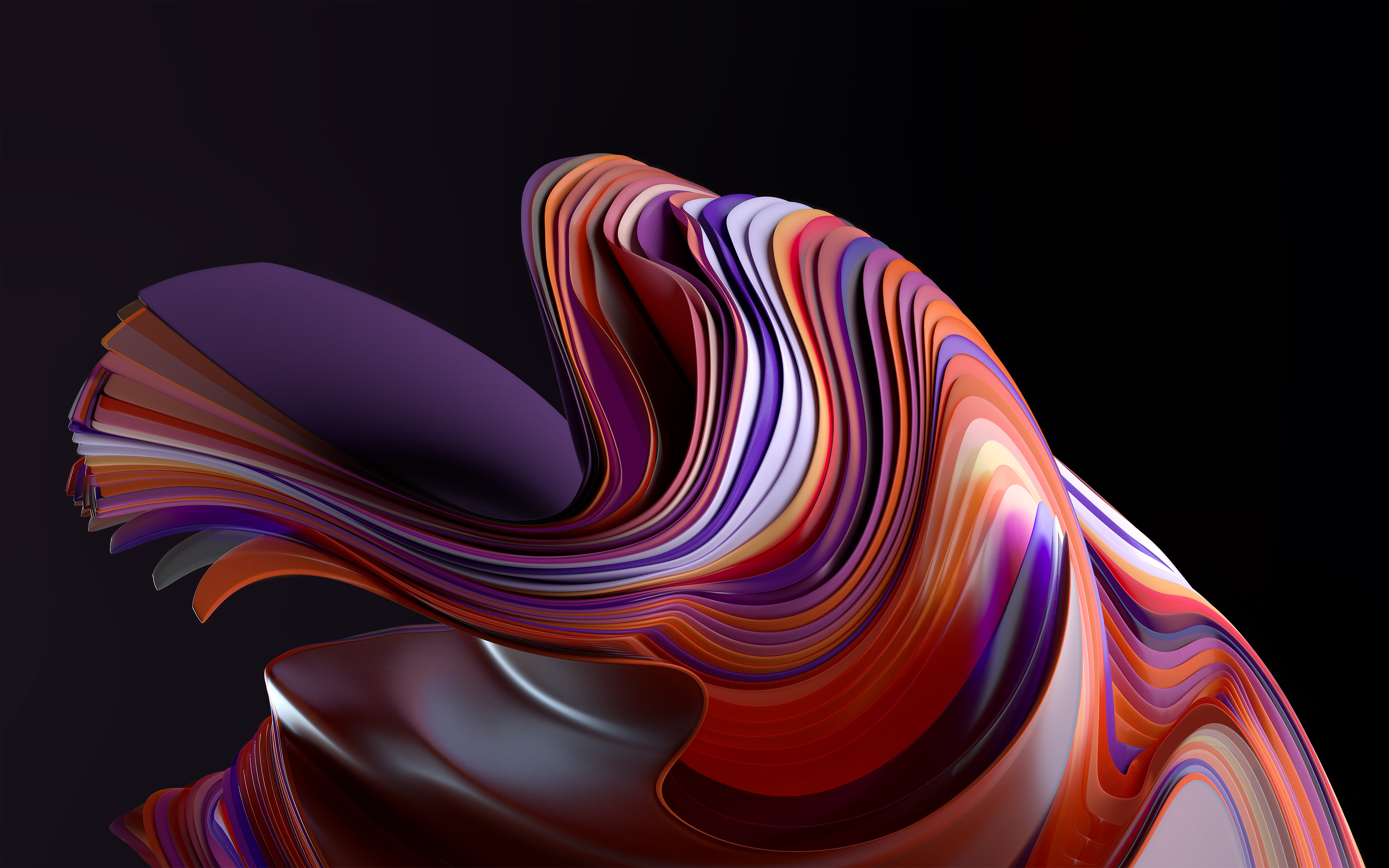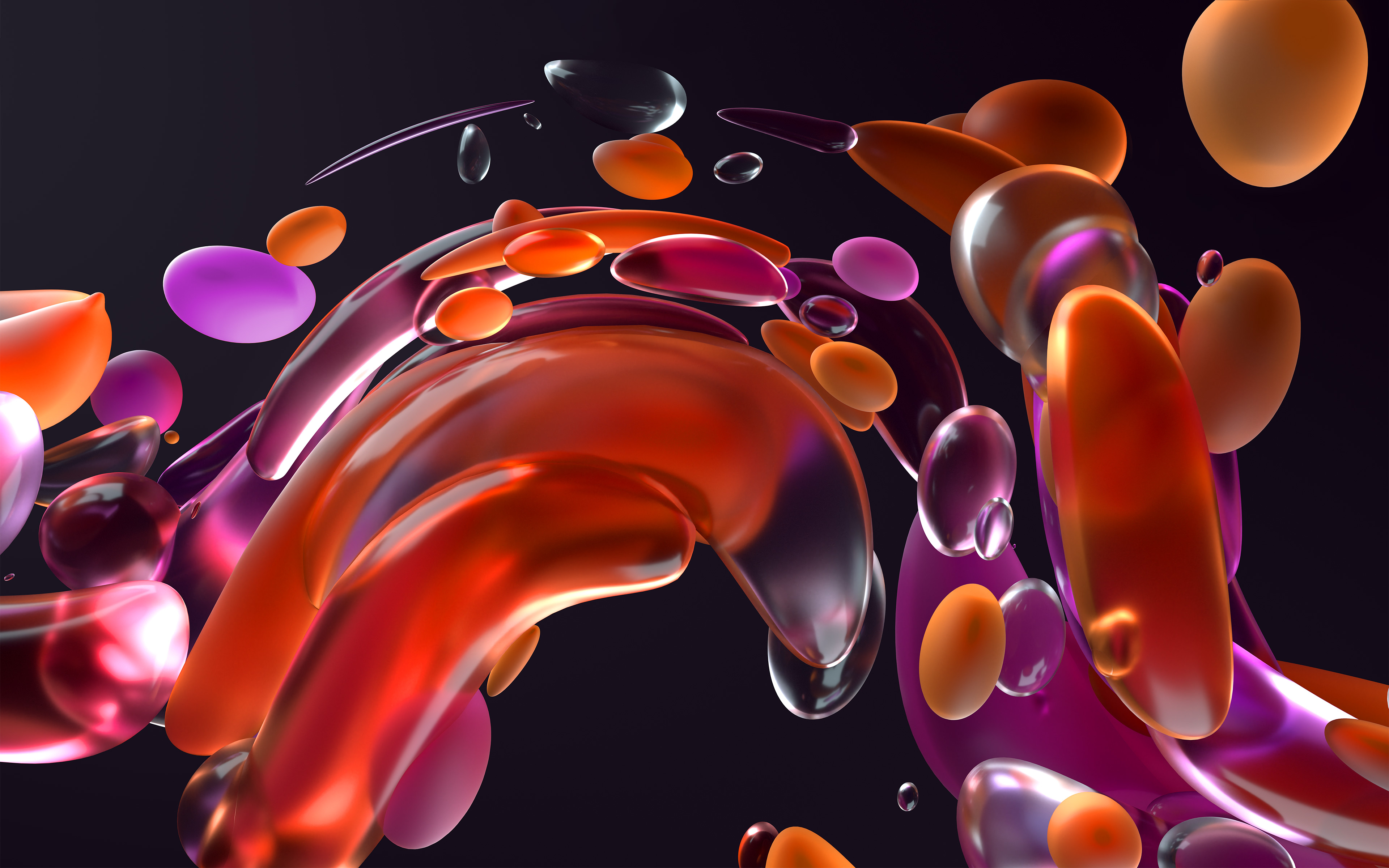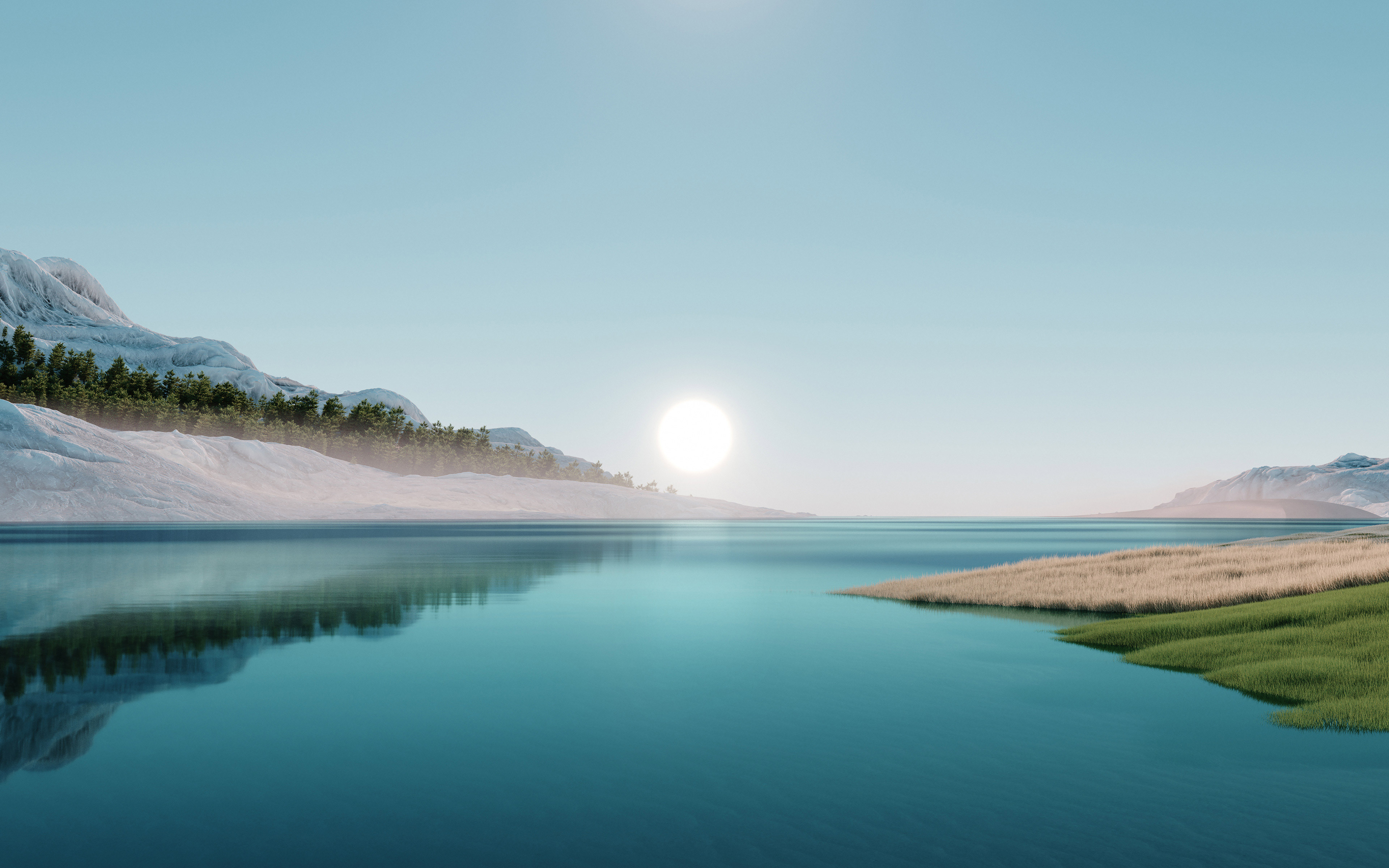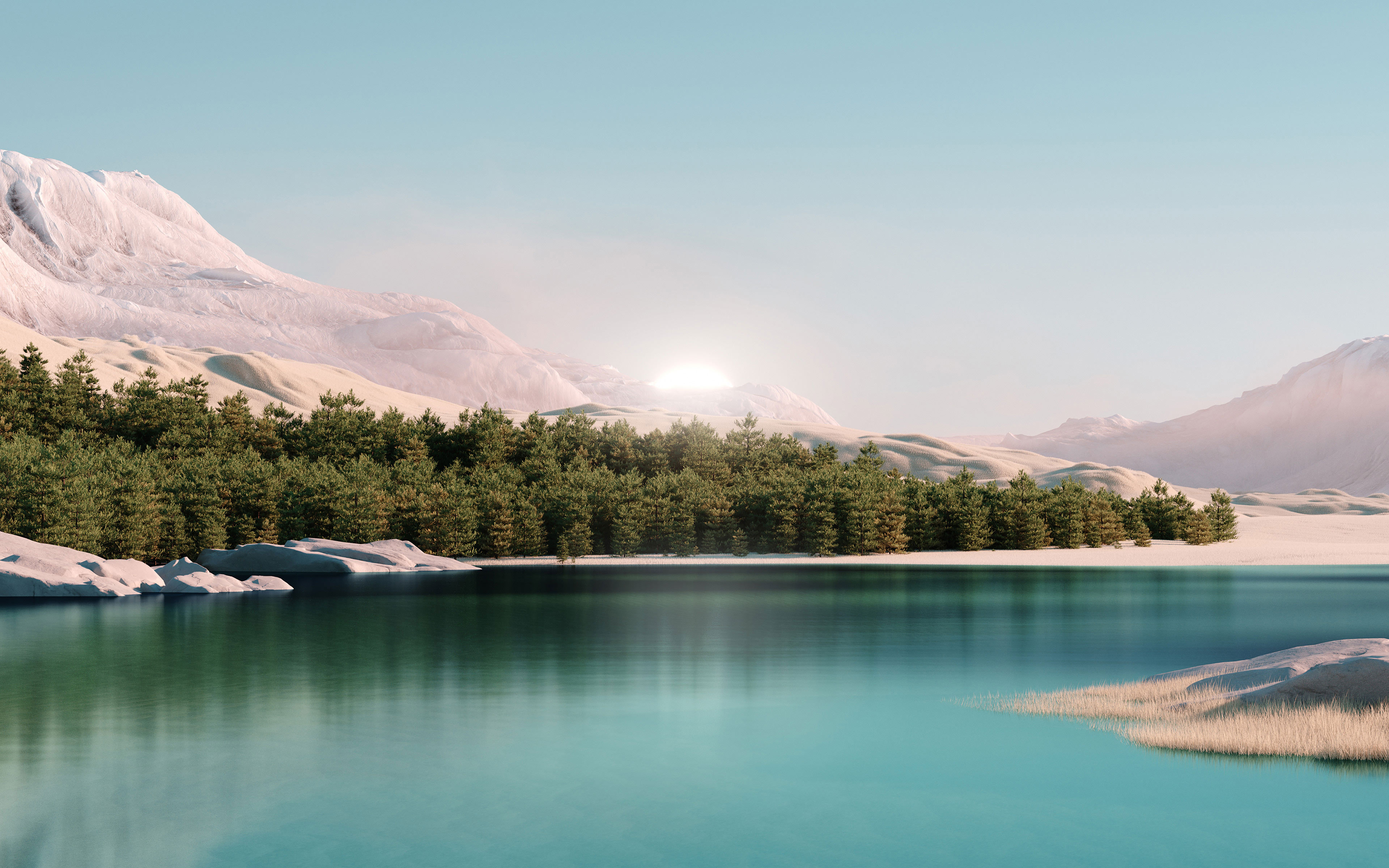
Discover the 18 original Windows 11 wallpapers, including the famous blue Bloom and the Glow, Flow, Captured Motion and Sunrise collections. They are available as high-resolution JPGs measuring 3840 × 2400 pixels (4K).
If you would rather retrieve Windows Spotlight images, also see how to save the current wallpaper in Windows 11 / 10.
In this article
Bloom, the iconic Windows 11 wallpaper
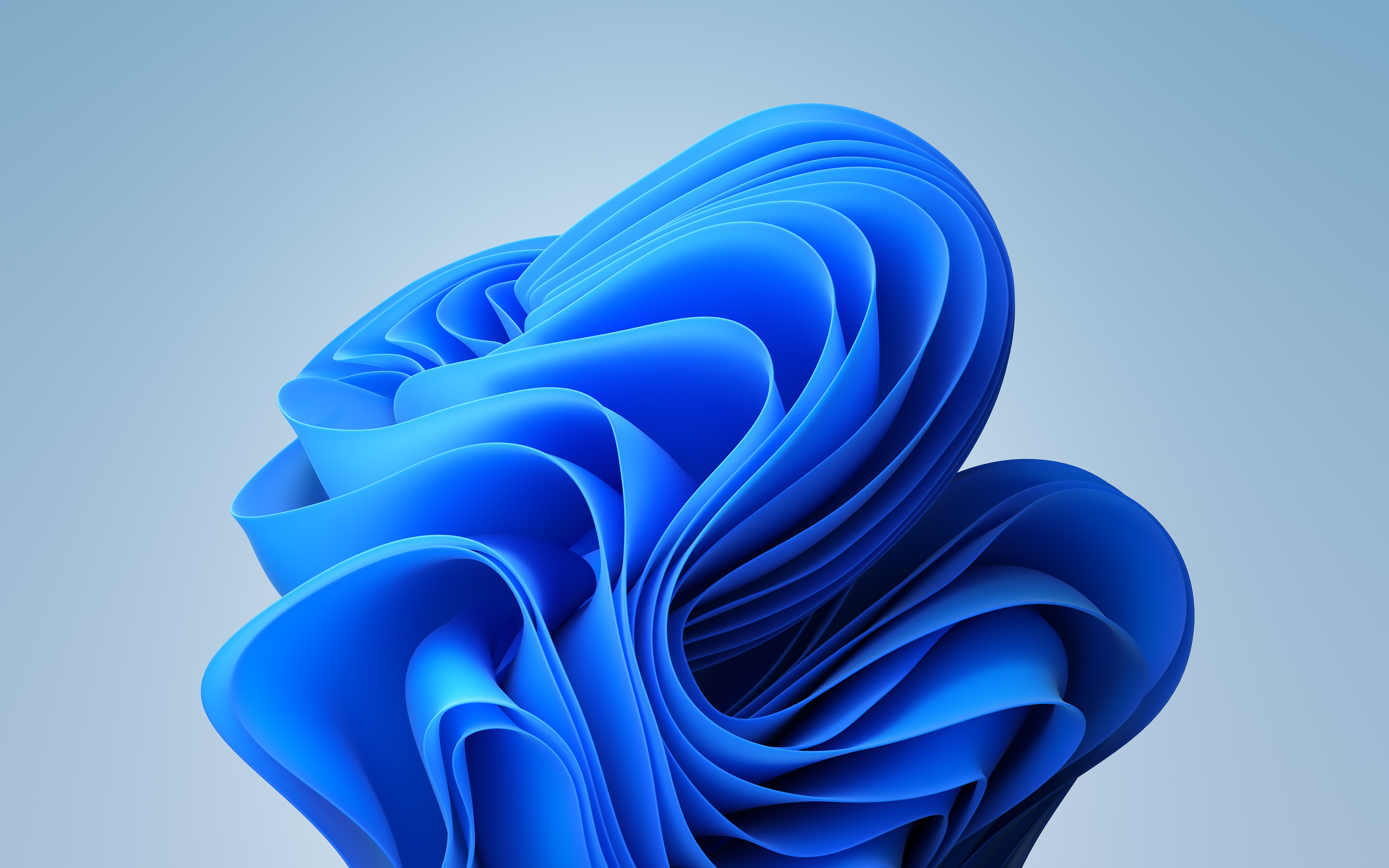
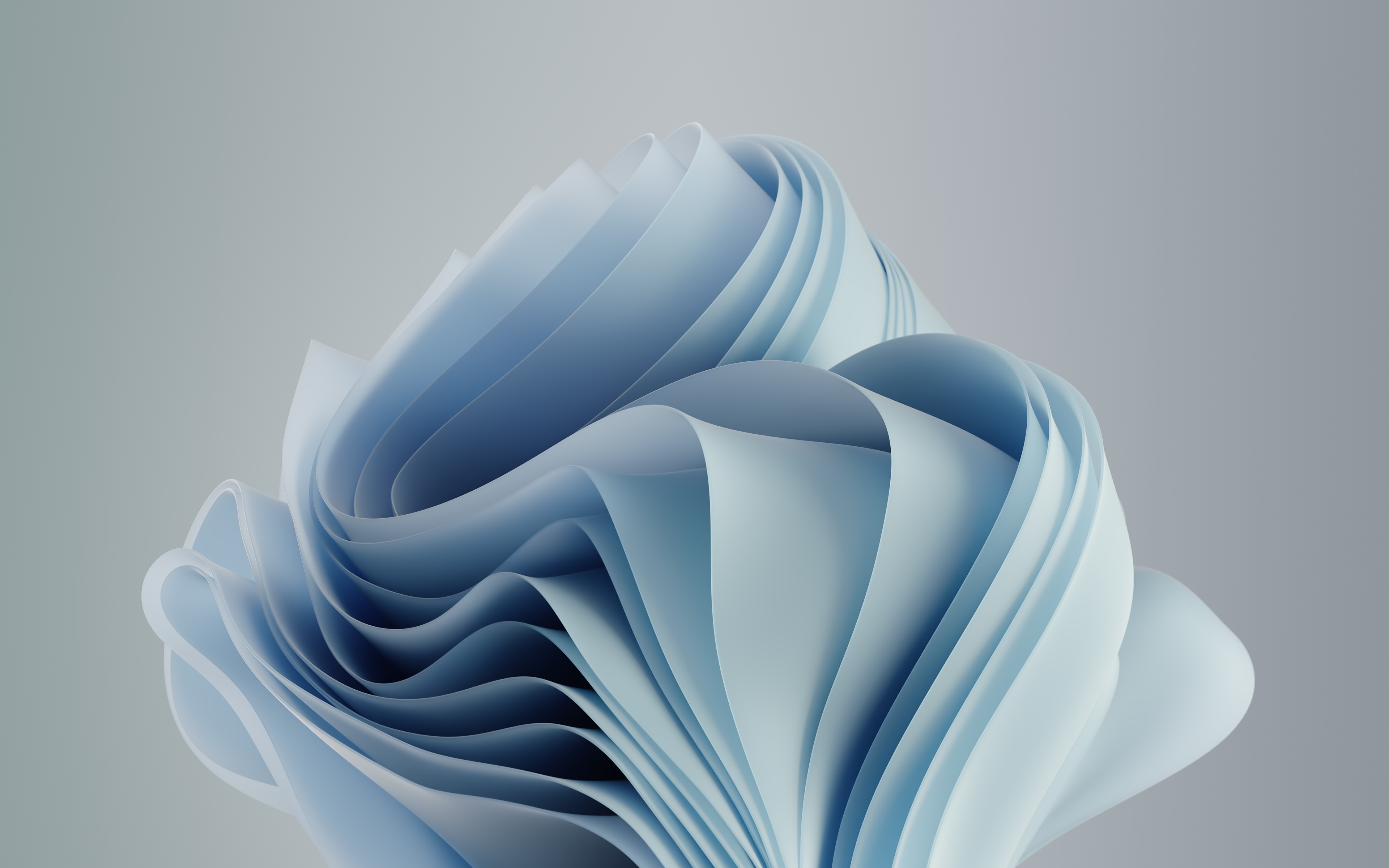
You cannot talk about Windows 11 wallpapers without starting with Bloom. This abstract blue flower became one of the symbols of Windows 11 when it launched on 5 October 2021.
Unlike the Windows 10 wallpaper, which showed a window lit by sunlight, Microsoft chose an organic shape to accompany the new interface of its operating system.
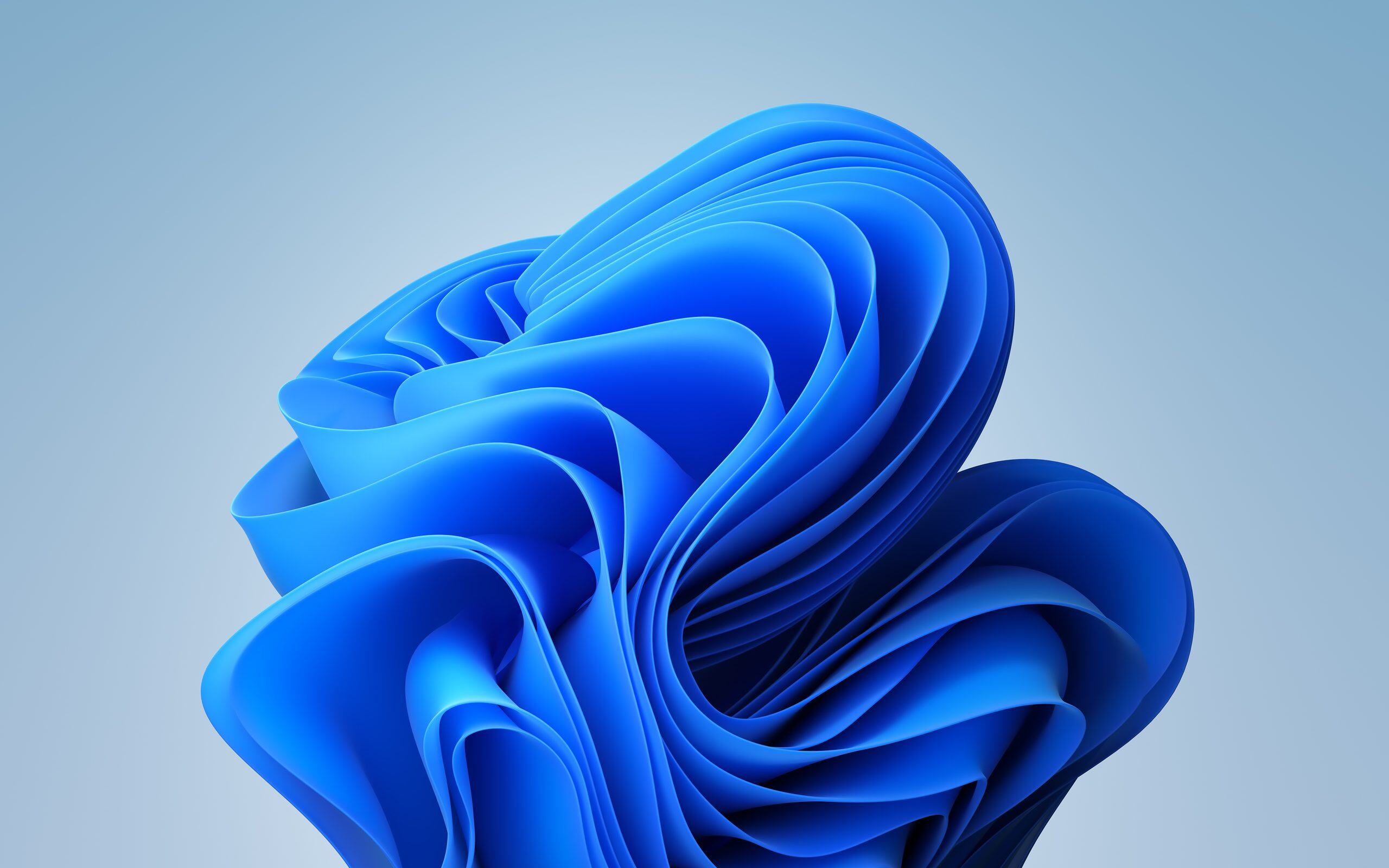
Bloom was created in collaboration with Six N. Five, a digital creative studio based in Barcelona and led by artist Ezequiel Pini. The studio had already been working with Microsoft since 2019, including on wallpapers for Surface devices.
To create Bloom, the artists took inspiration from nature, and roses in particular. They transformed the petals into a blue digital sculpture made up of sweeping curves that seem to unfold.
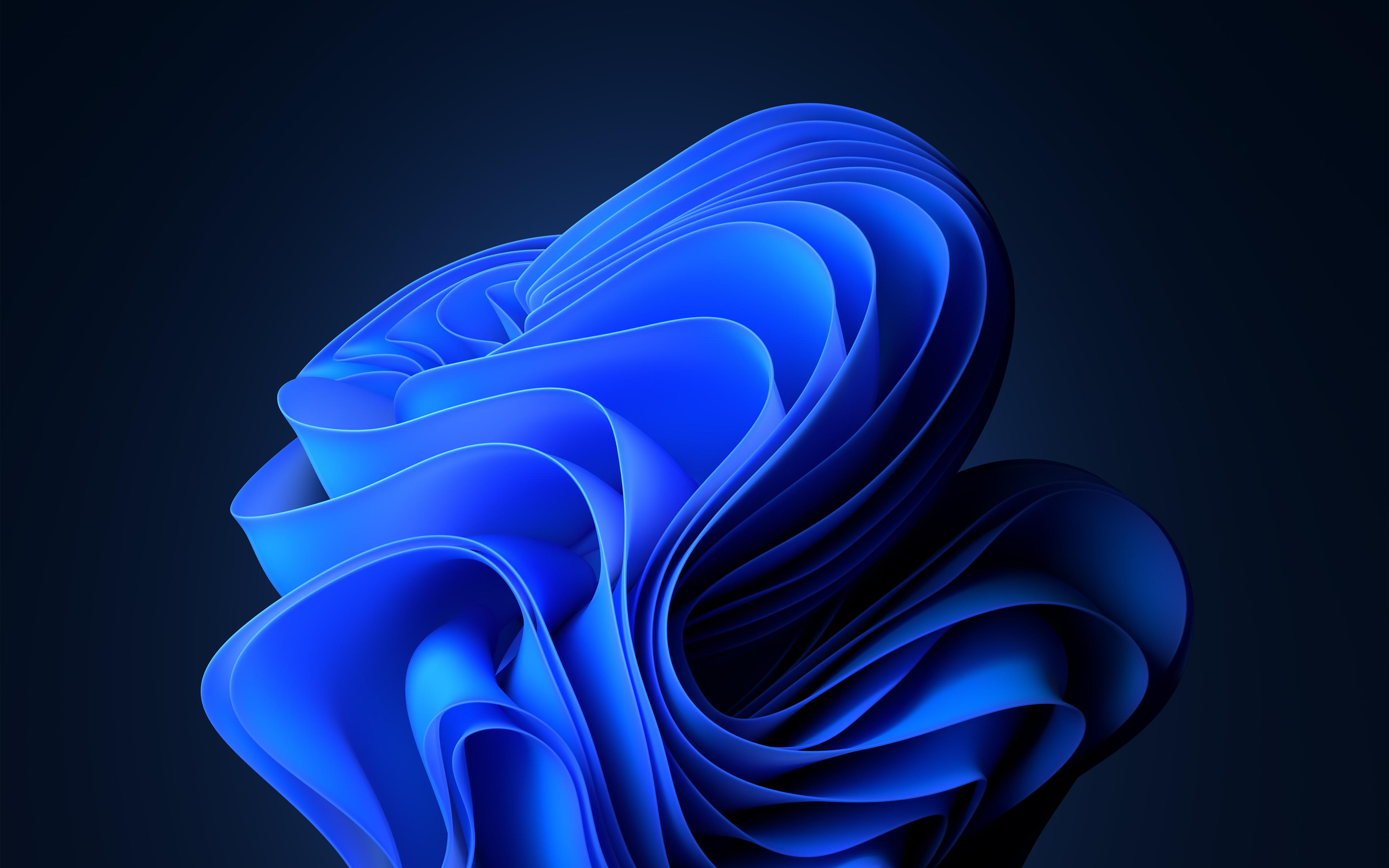
Dark Bloom wallpaper in 4K
The dark version keeps exactly the same sculpture but replaces the light background with an almost-black blue. This makes the luminous petals stand out even more.
This variant works particularly well with the Windows 11 dark theme.
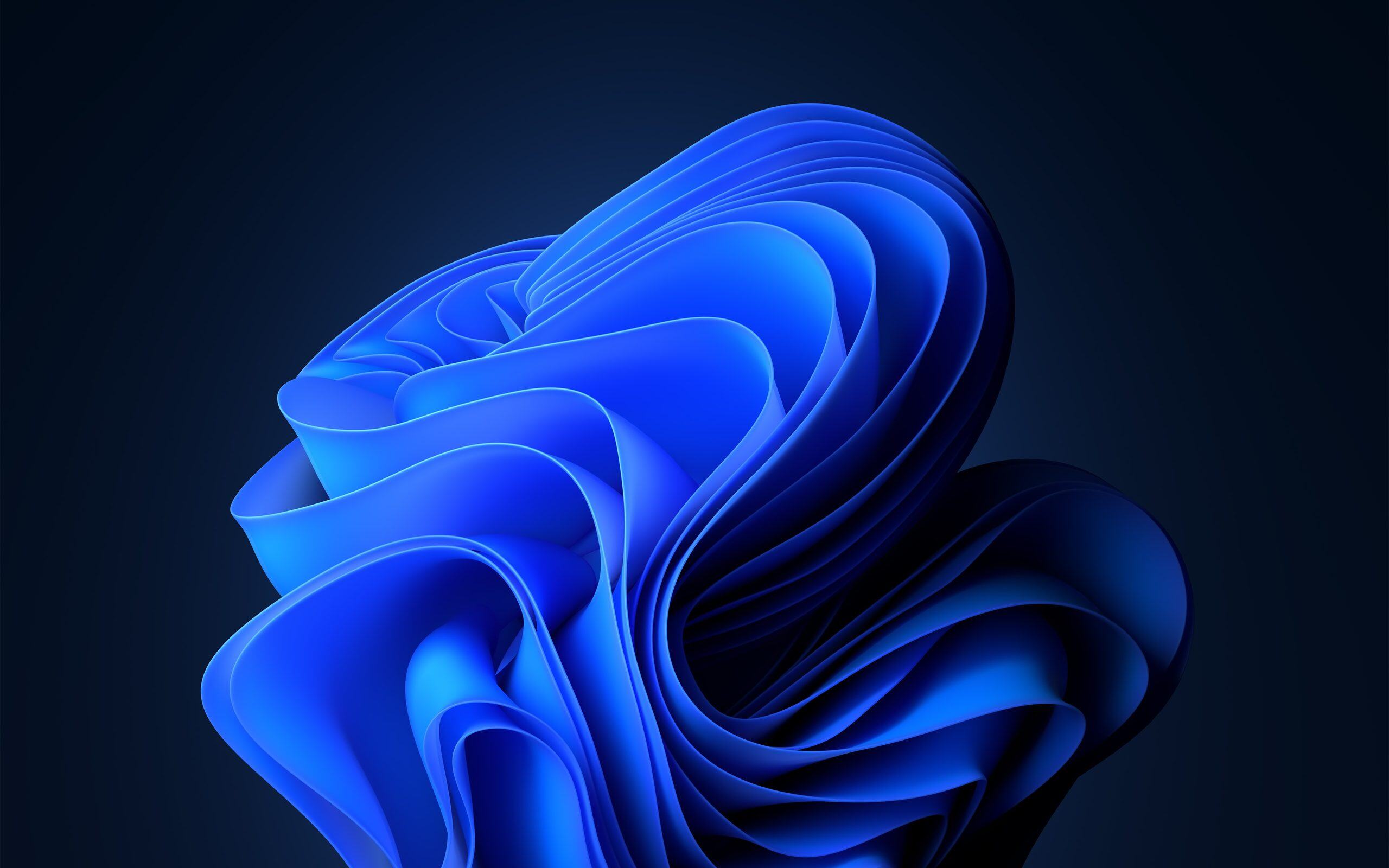
There is symbolism behind this blue flower, too. As Microsoft explains in its behind-the-scenes look at Bloom, the design represents a fresh start for Windows.
Its composition was also designed to work with the centred Start menu in Windows 11. The designers needed to leave enough space around the flower for desktop icons while bringing out the interface’s transparency effects.
Glow: four wallpapers with luminous halos
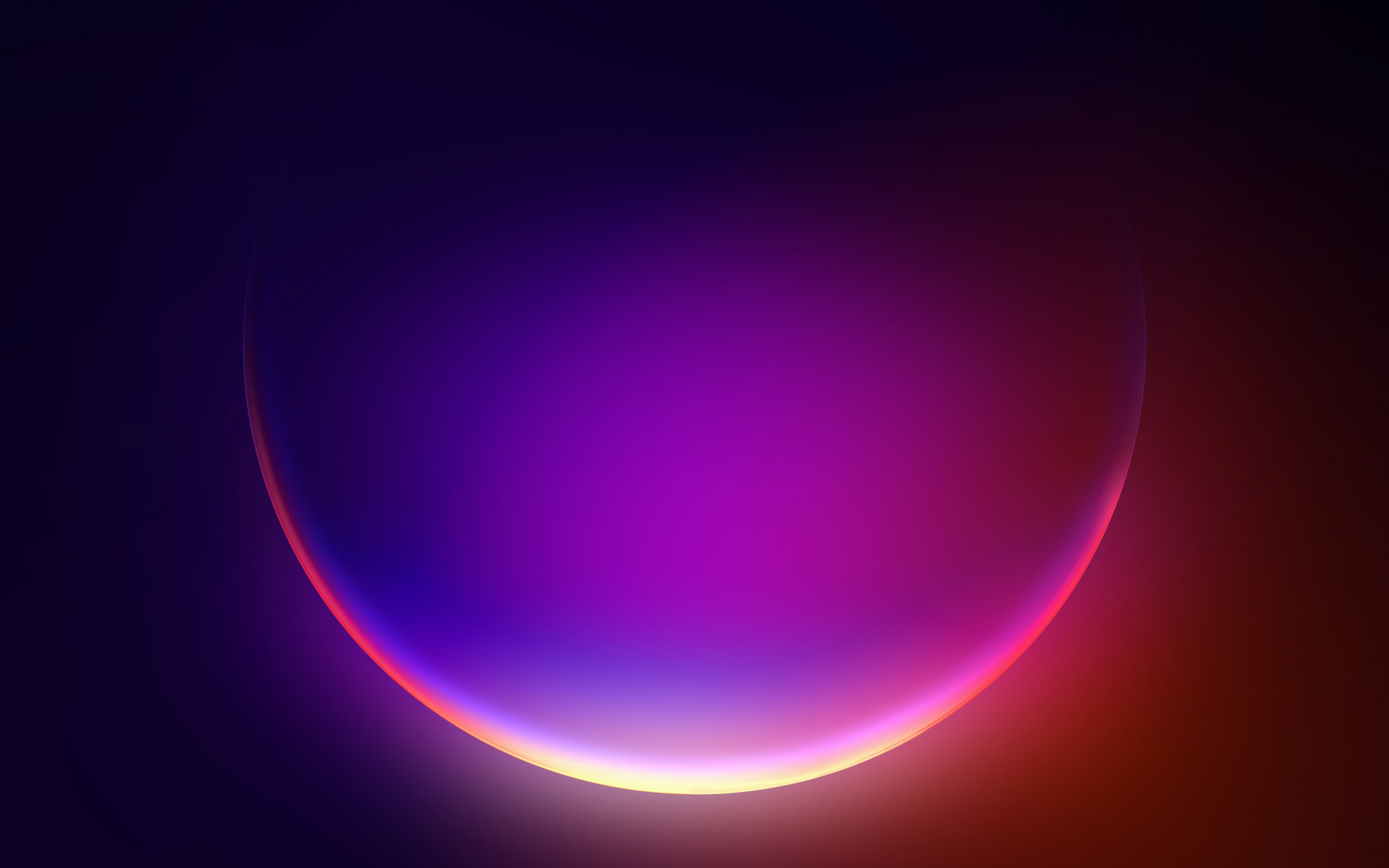
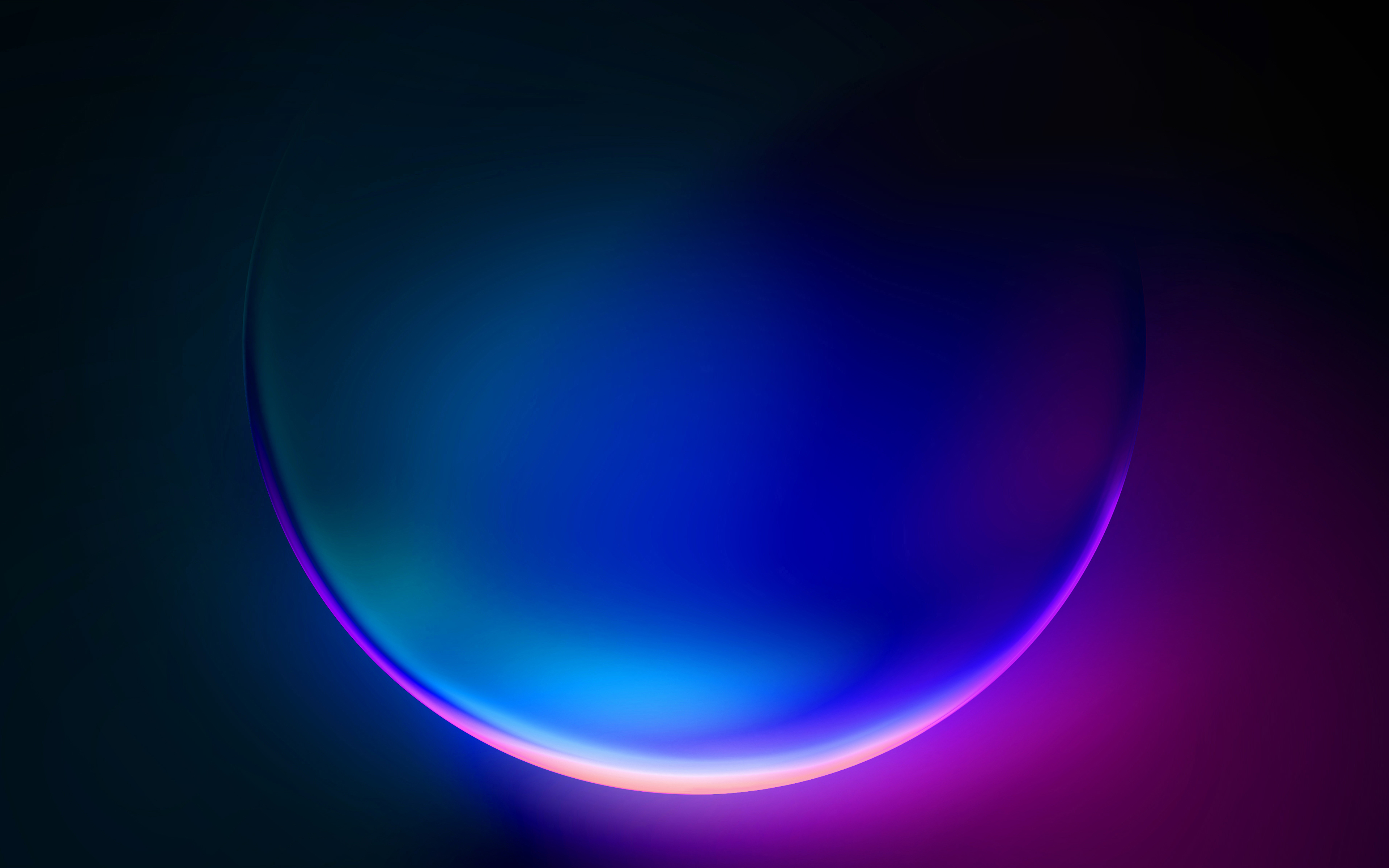
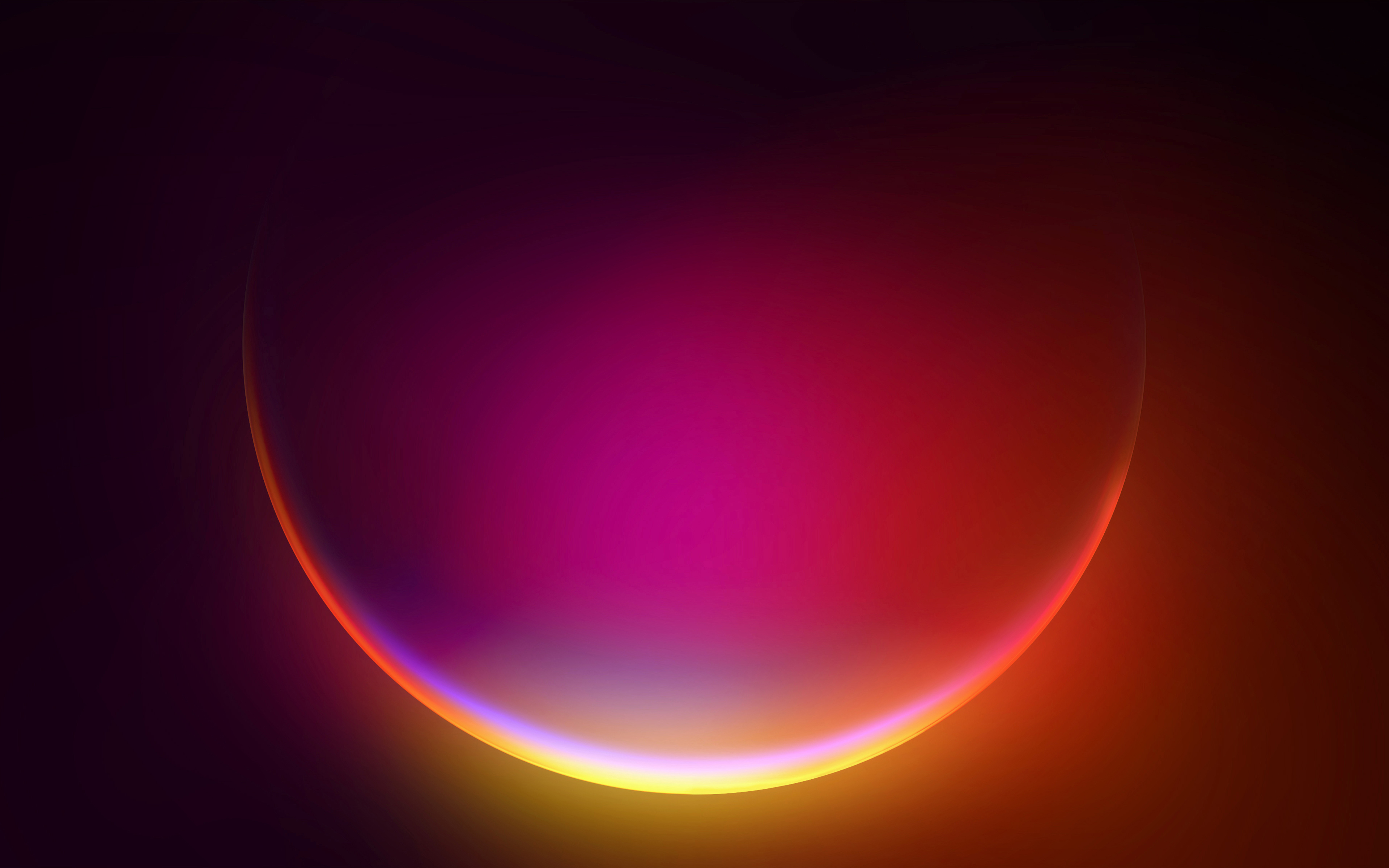
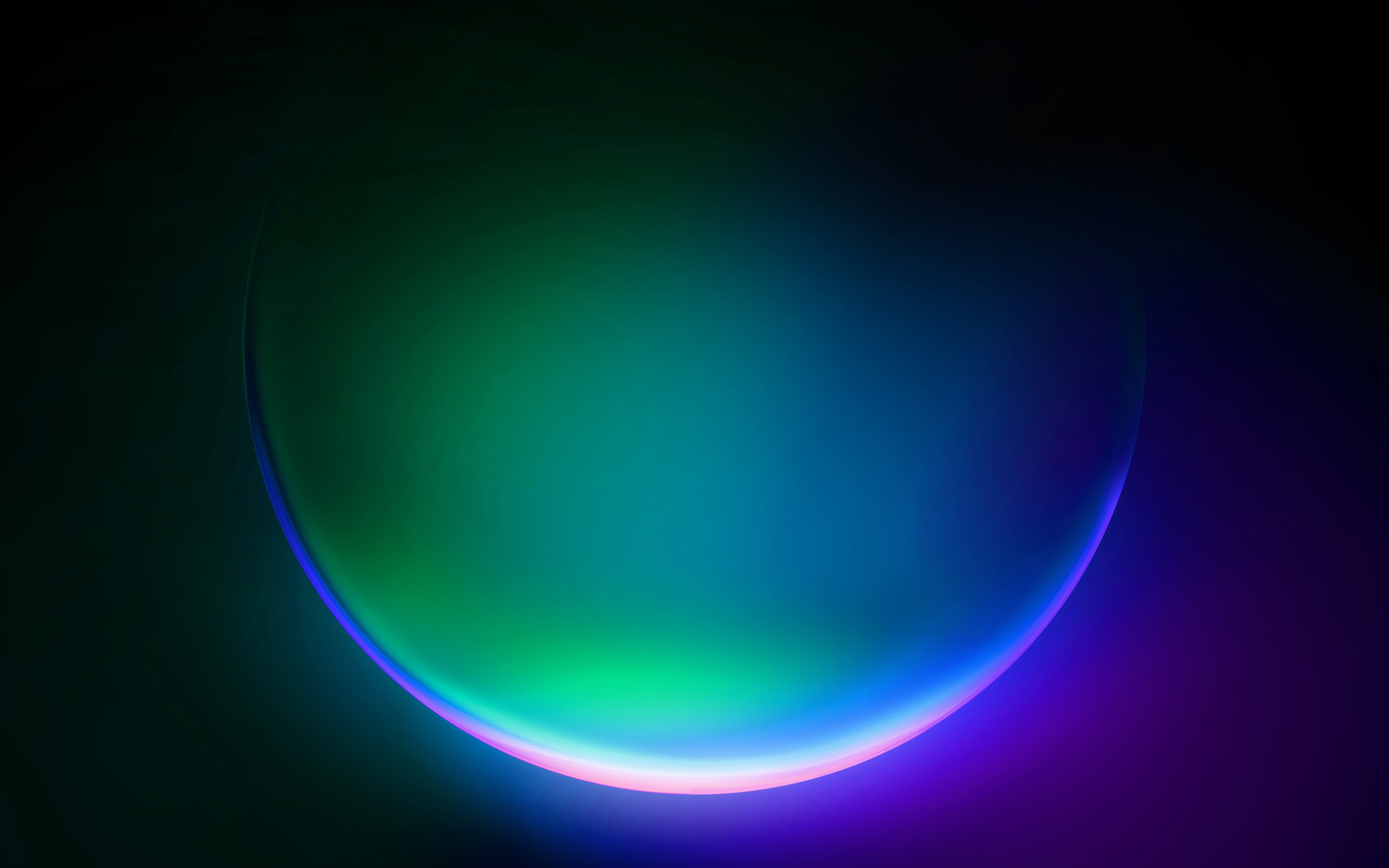
The Glow collection features four wallpapers built around a large luminous sphere.
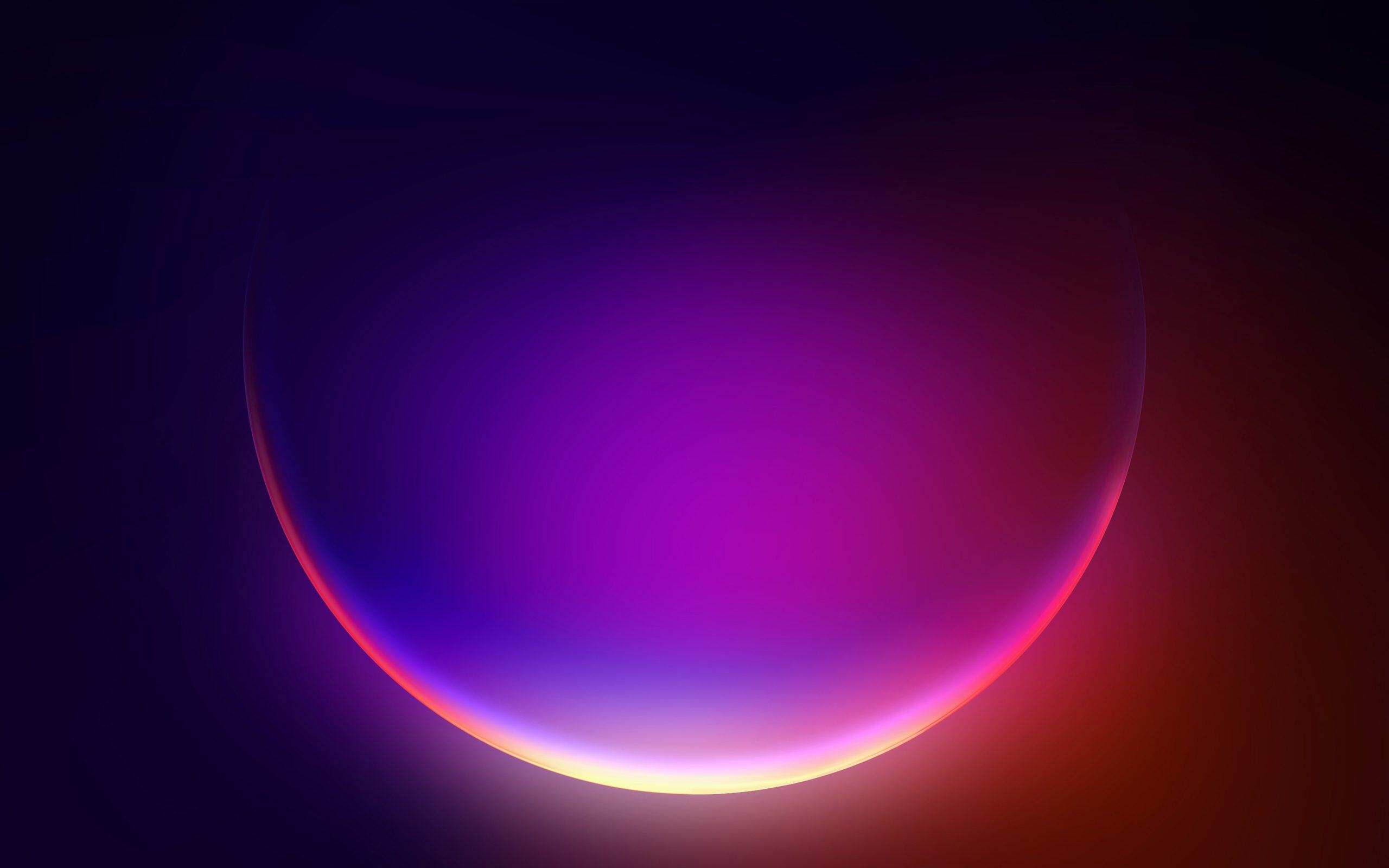
The images share a similar composition, but their colours vary considerably. Some favour pink and orange tones, while others use electric blue, purple or turquoise.
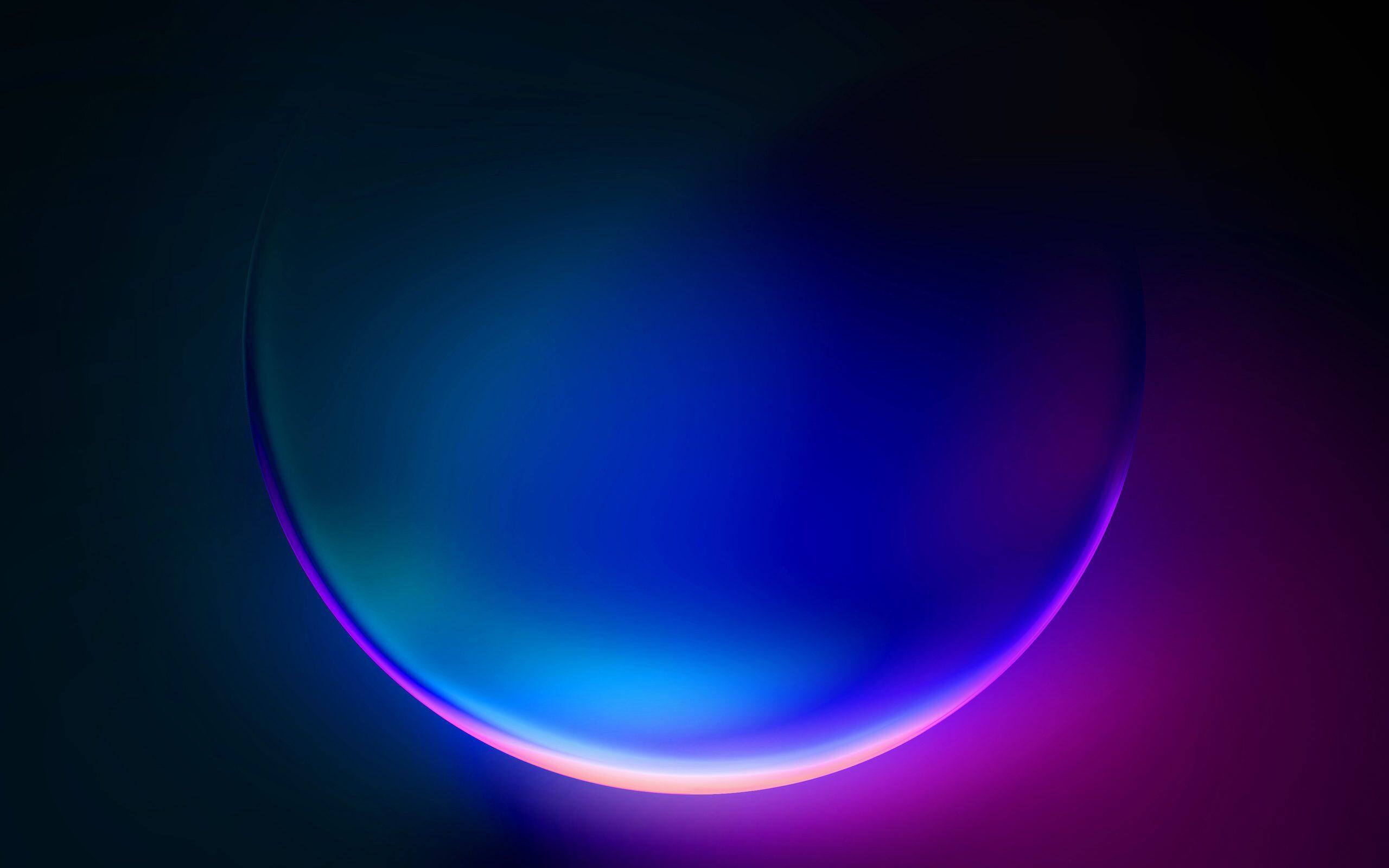
The lighting makes the sphere look as if it is partly submerged in darkness. Coloured reflections add depth and recall the lighting effects in the Windows 11 interface.
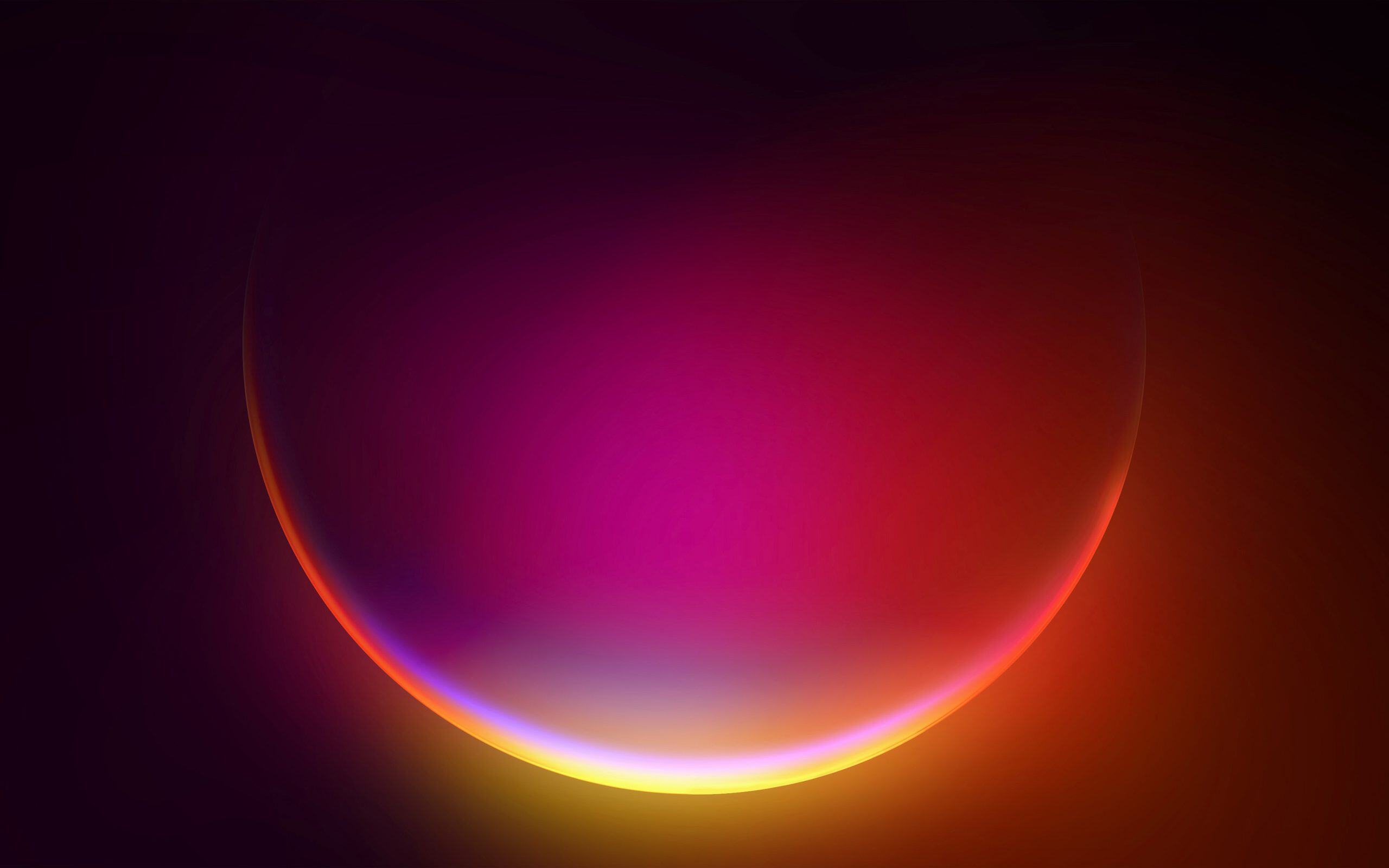
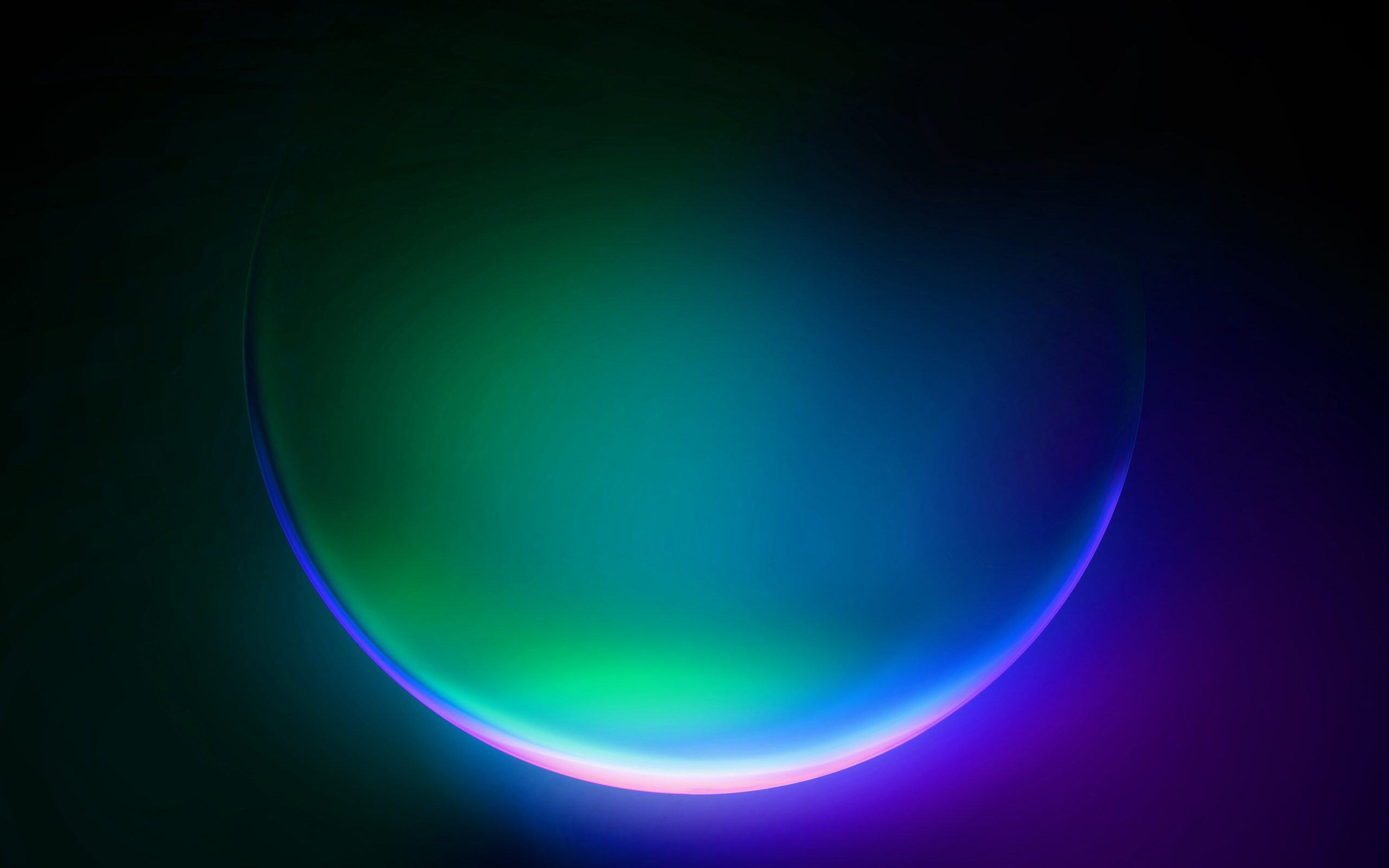
All four wallpapers are available in high resolution.
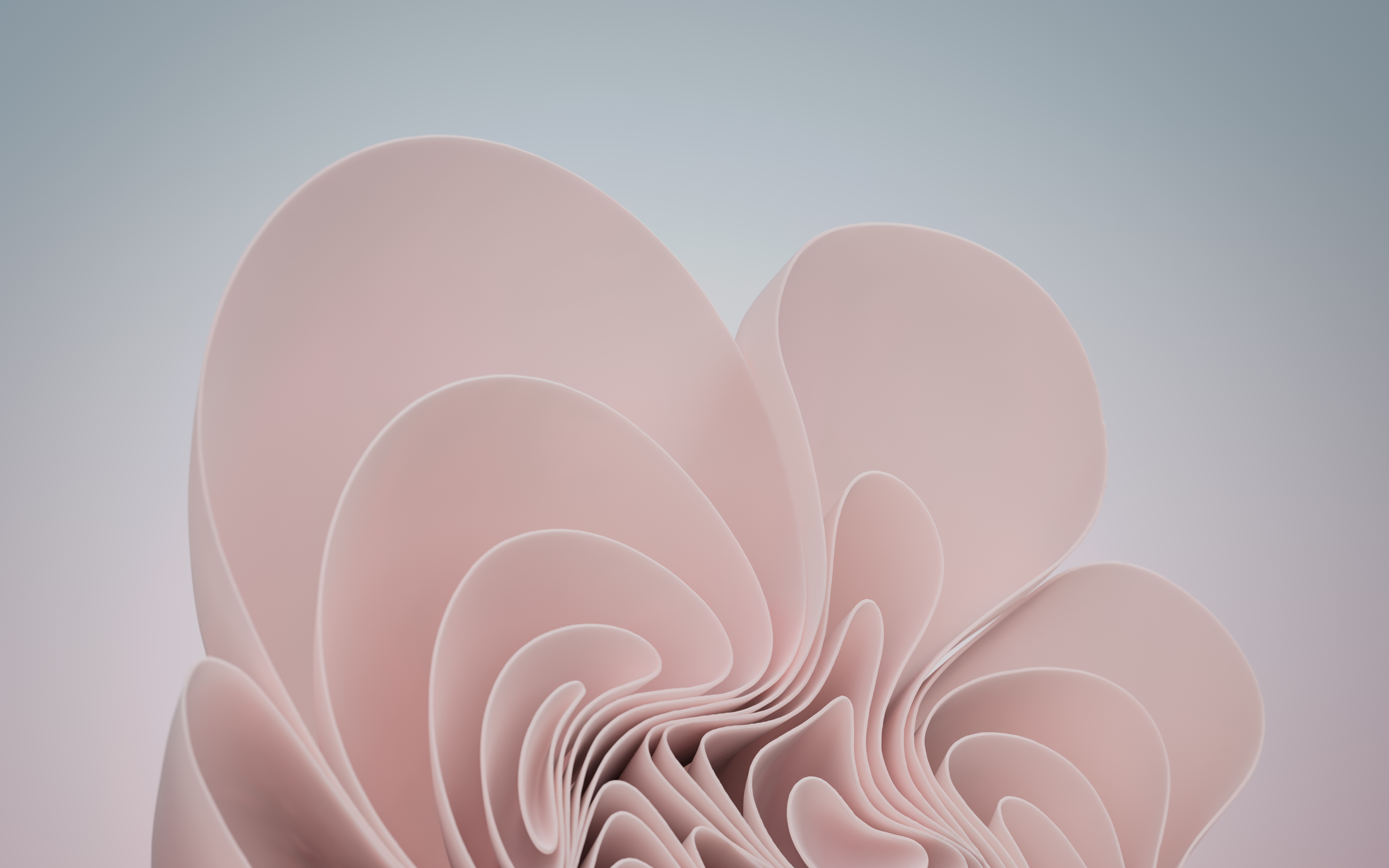
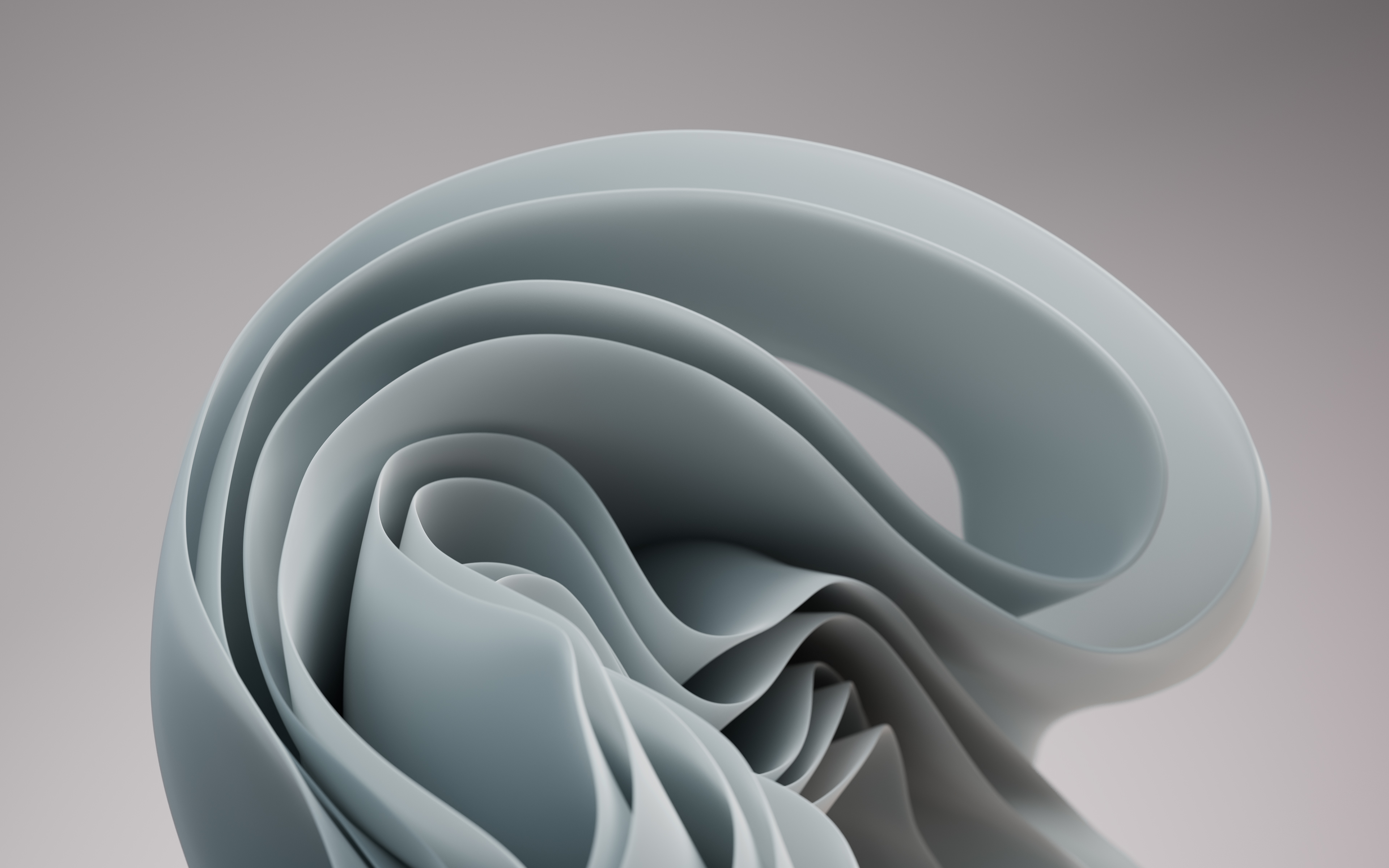
Flow: digital sculptures inspired by petals
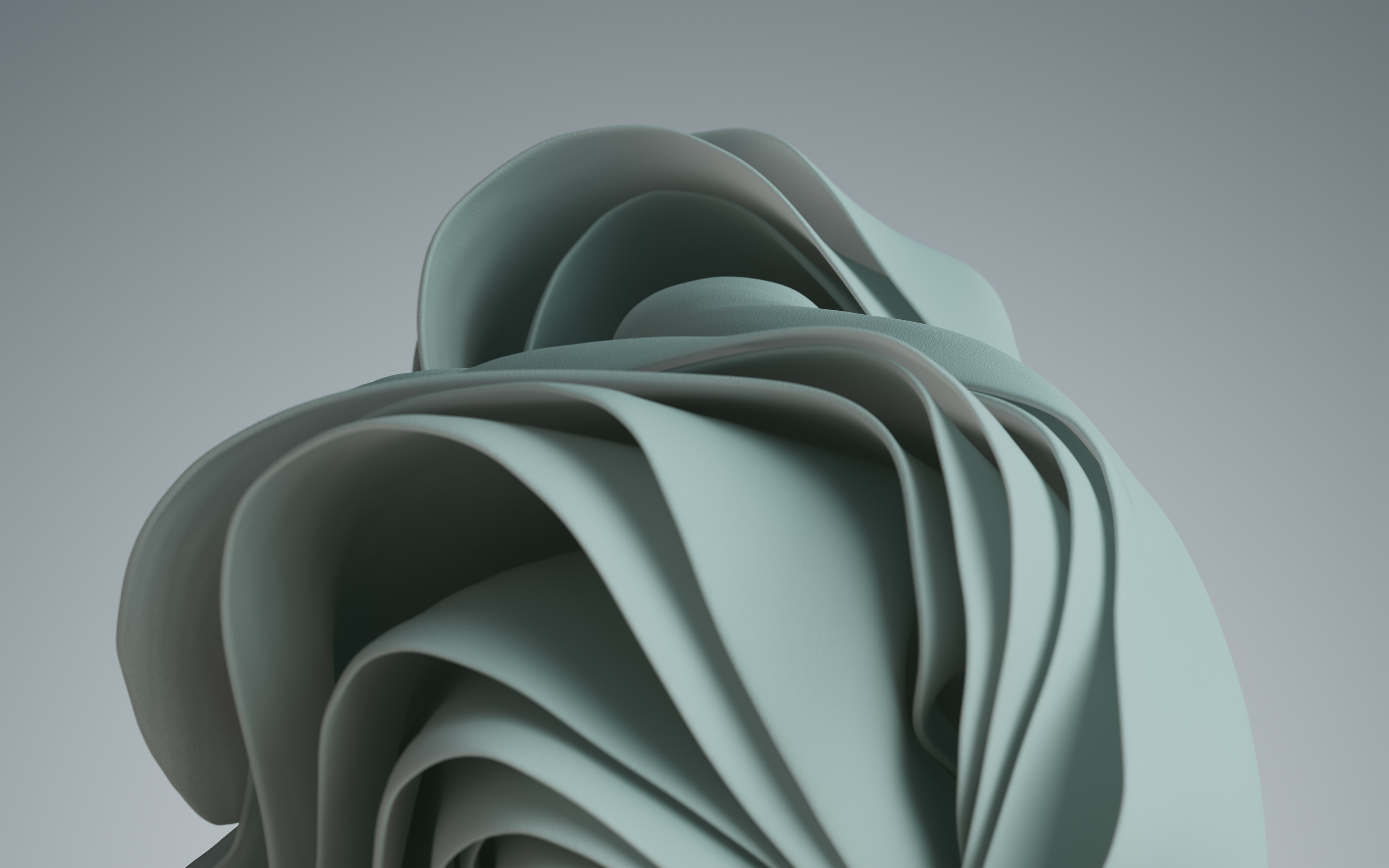
The Flow collection revisits organic shapes that recall some of the elements in Bloom.
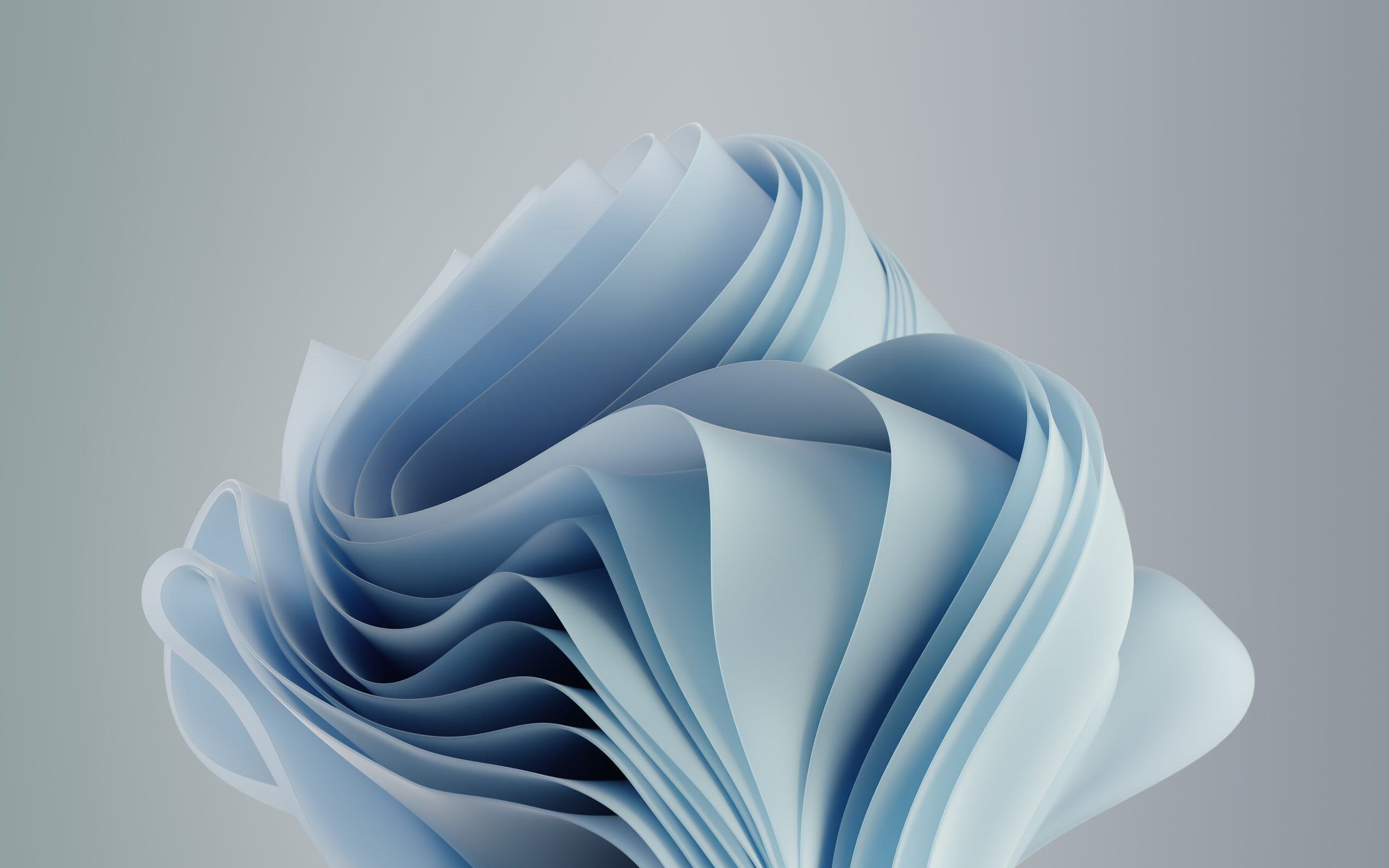
This time, the sculptures fill much of the image. Their surfaces look as though they are made from thin layers of material folded over one another.
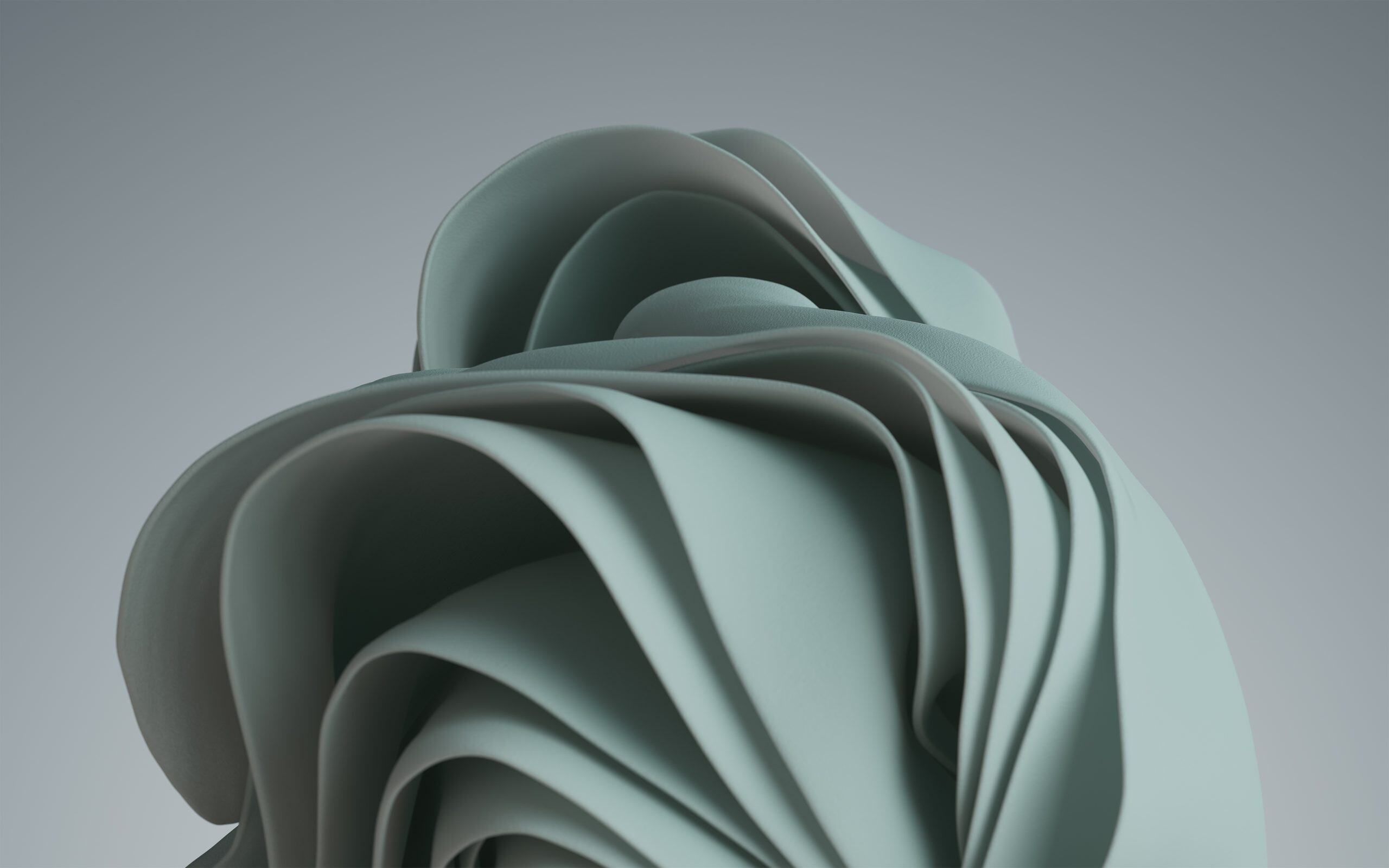
The four compositions use much softer colours than Glow. Light blue, pearl grey, green and dusty pink feature most prominently.
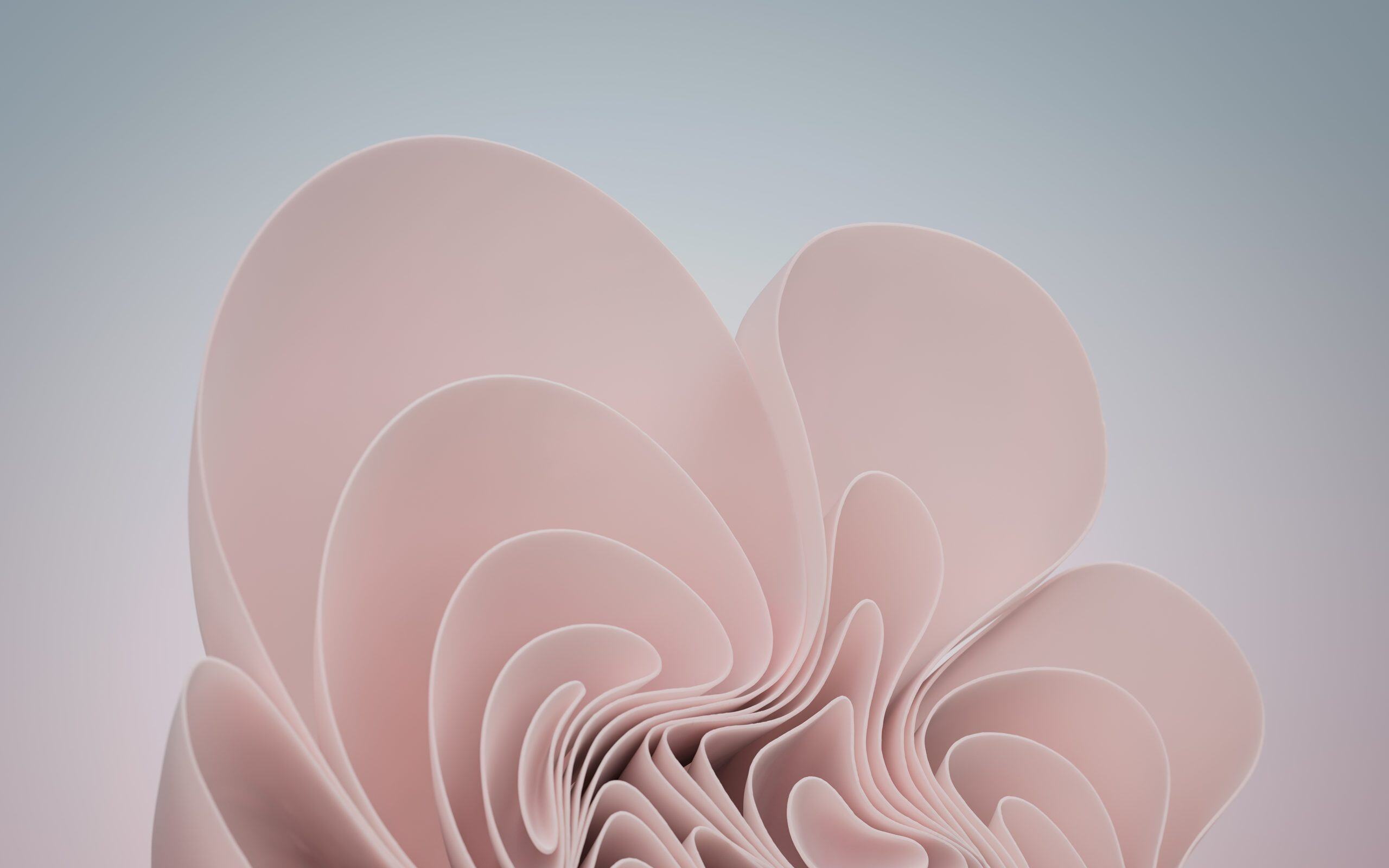
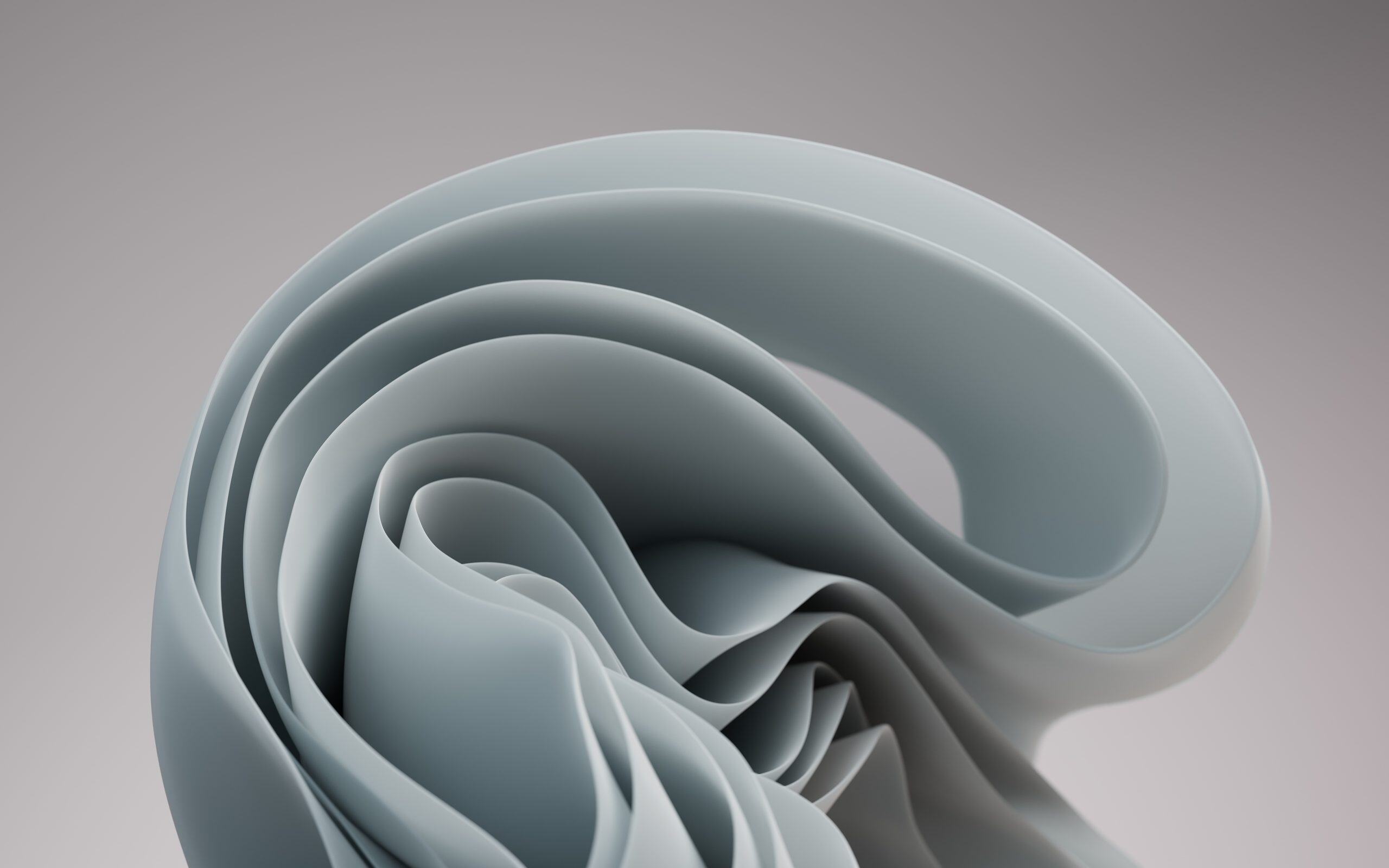
This collection is a good example of the artistic approach behind Windows 11, where digital shapes take inspiration from natural forms.
Captured Motion: colourful shapes frozen in motion
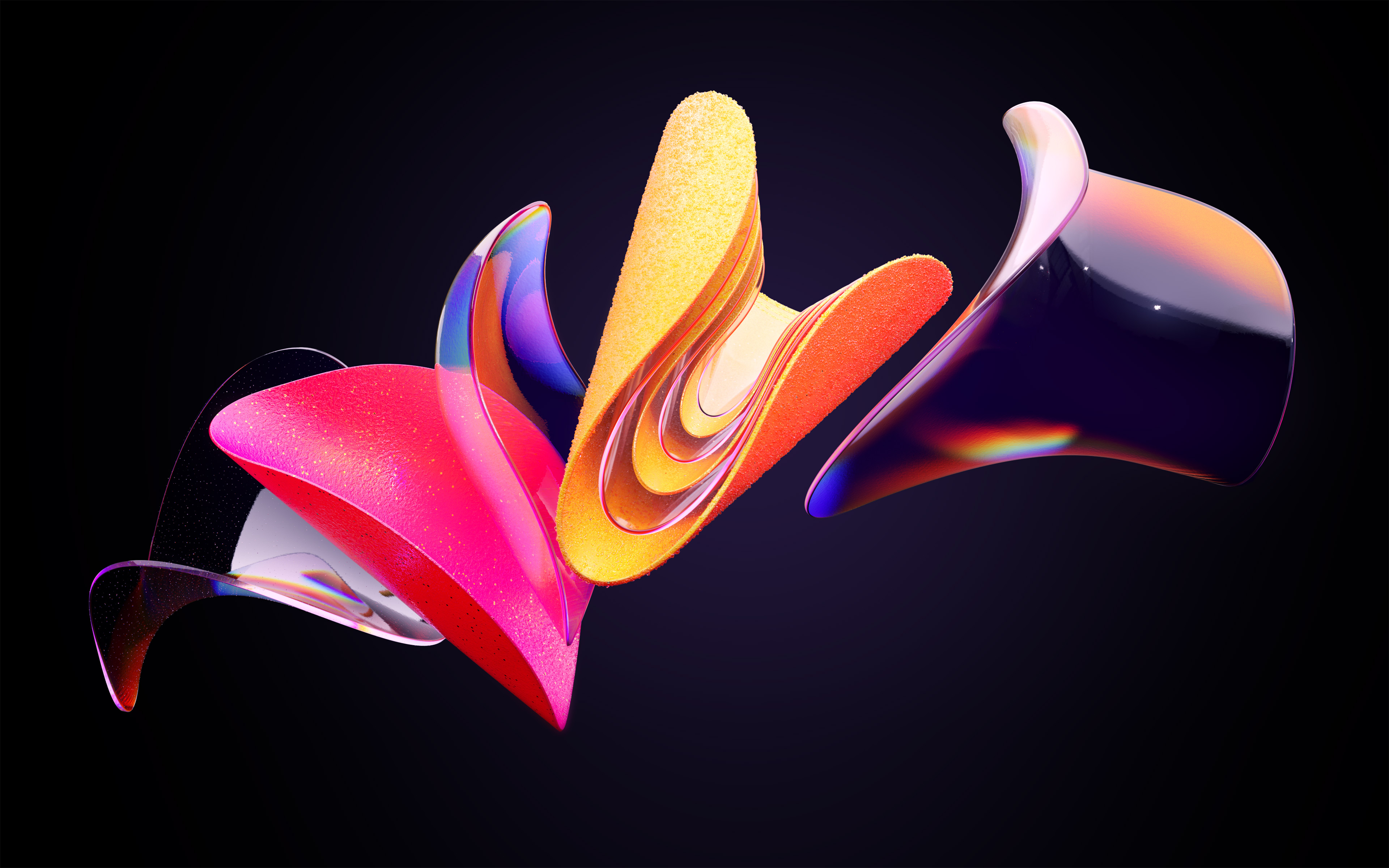
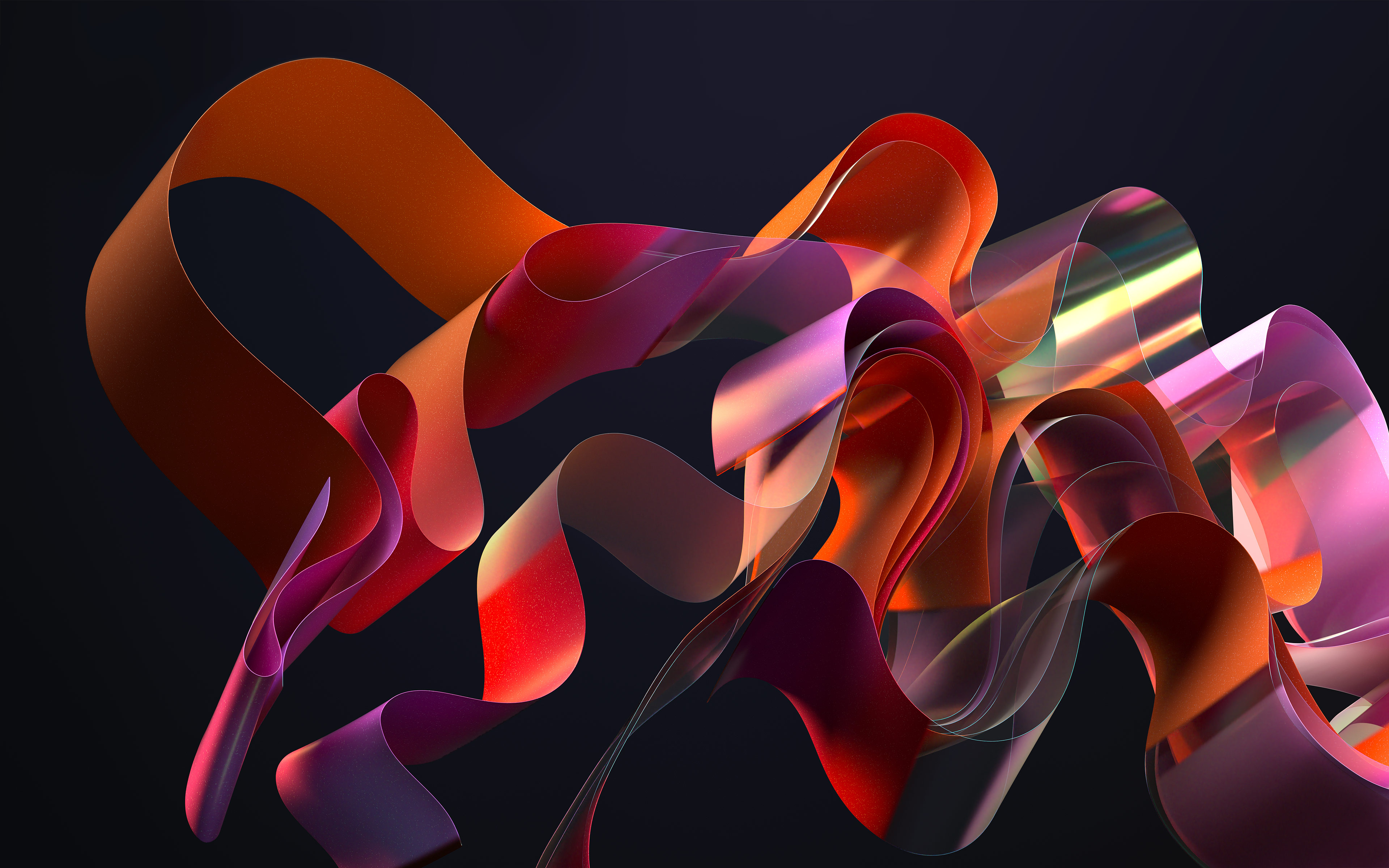
With Captured Motion, Microsoft offers four much more dynamic wallpapers.
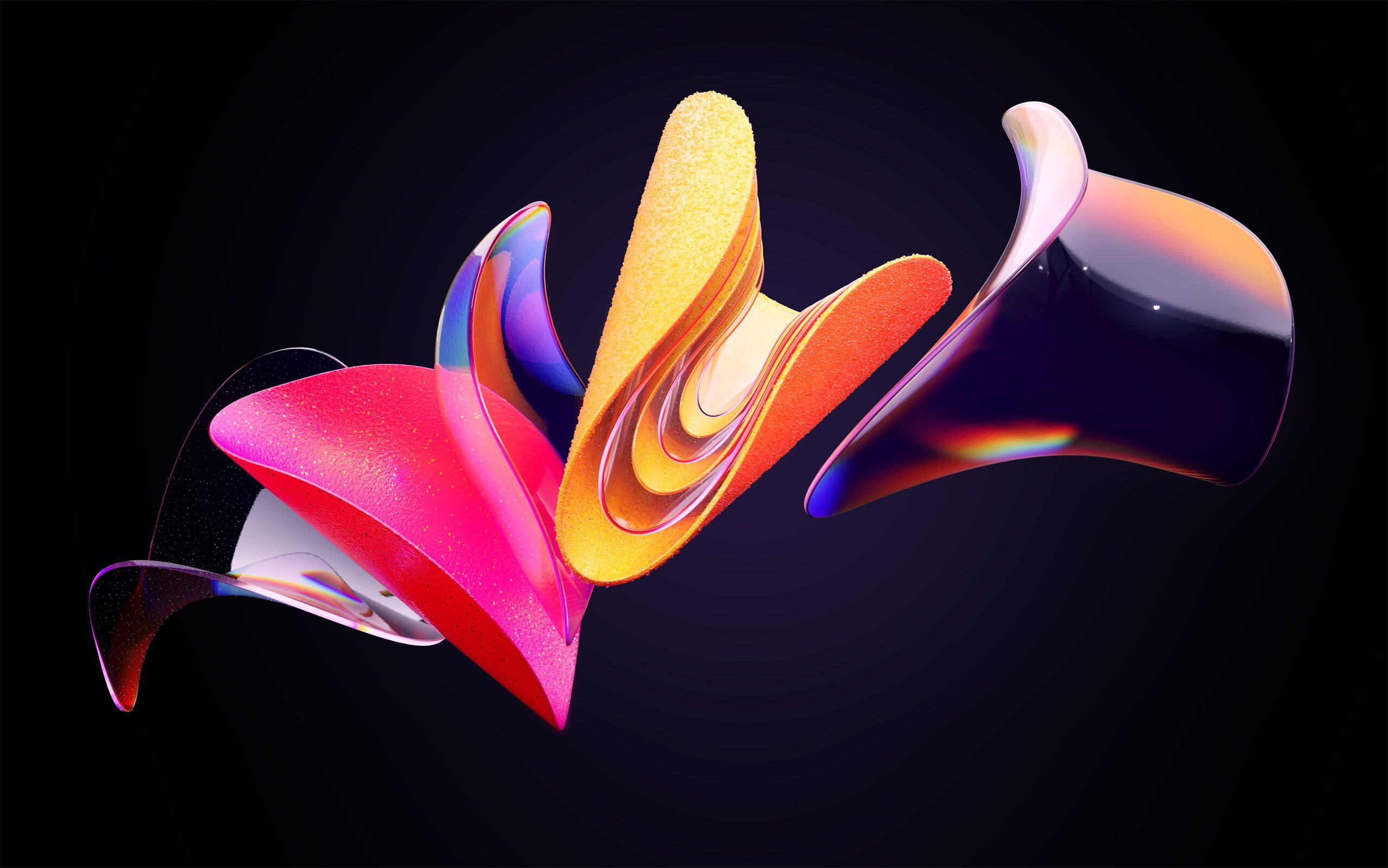
The images show ribbons, glossy surfaces and shapes that seem to warp in space. The colours are varied, with red, pink, orange, purple and touches of gold.
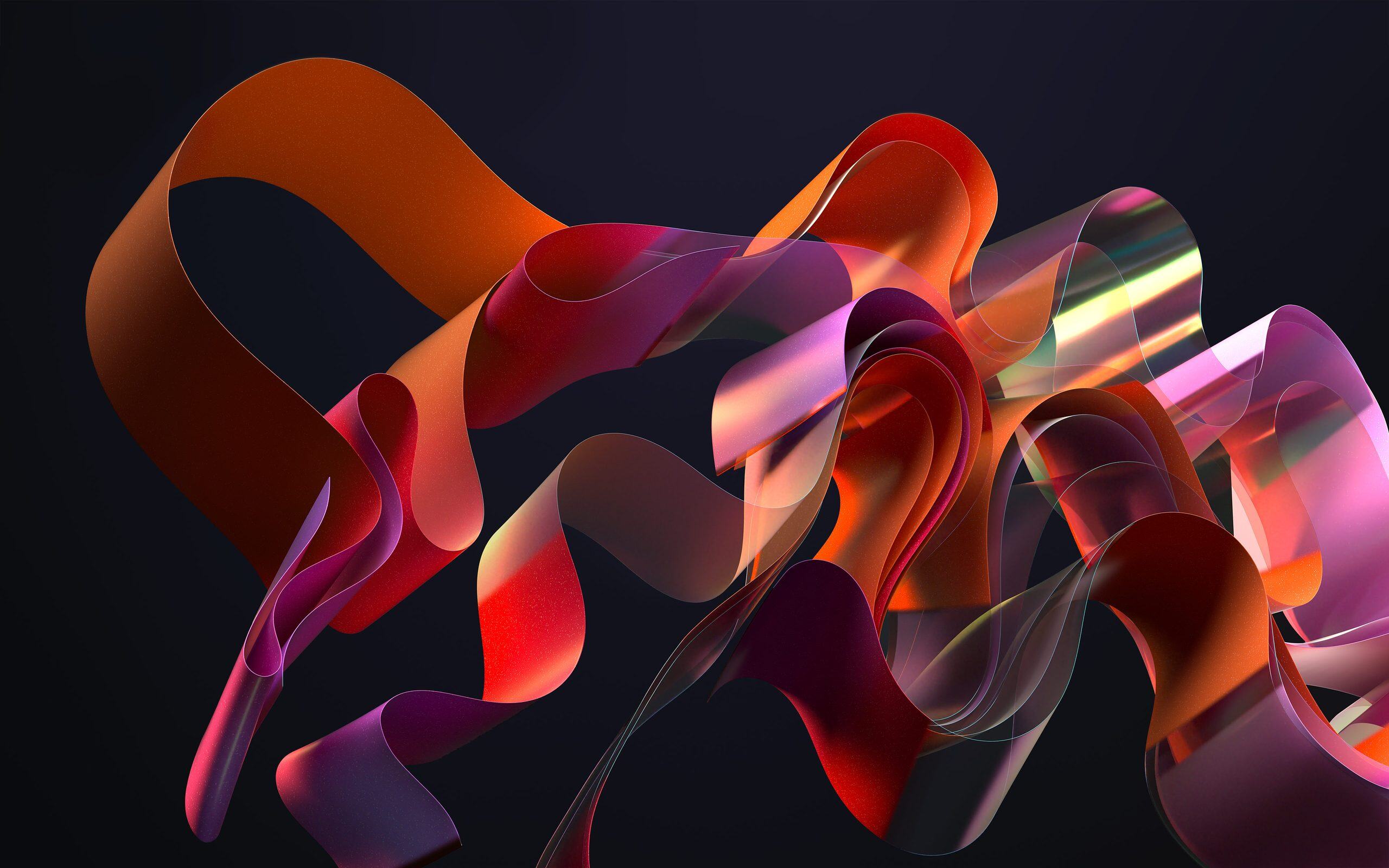
The contrast with the previous collections is striking. The objects look as if they were photographed in motion, but they are actually three-dimensional digital compositions.
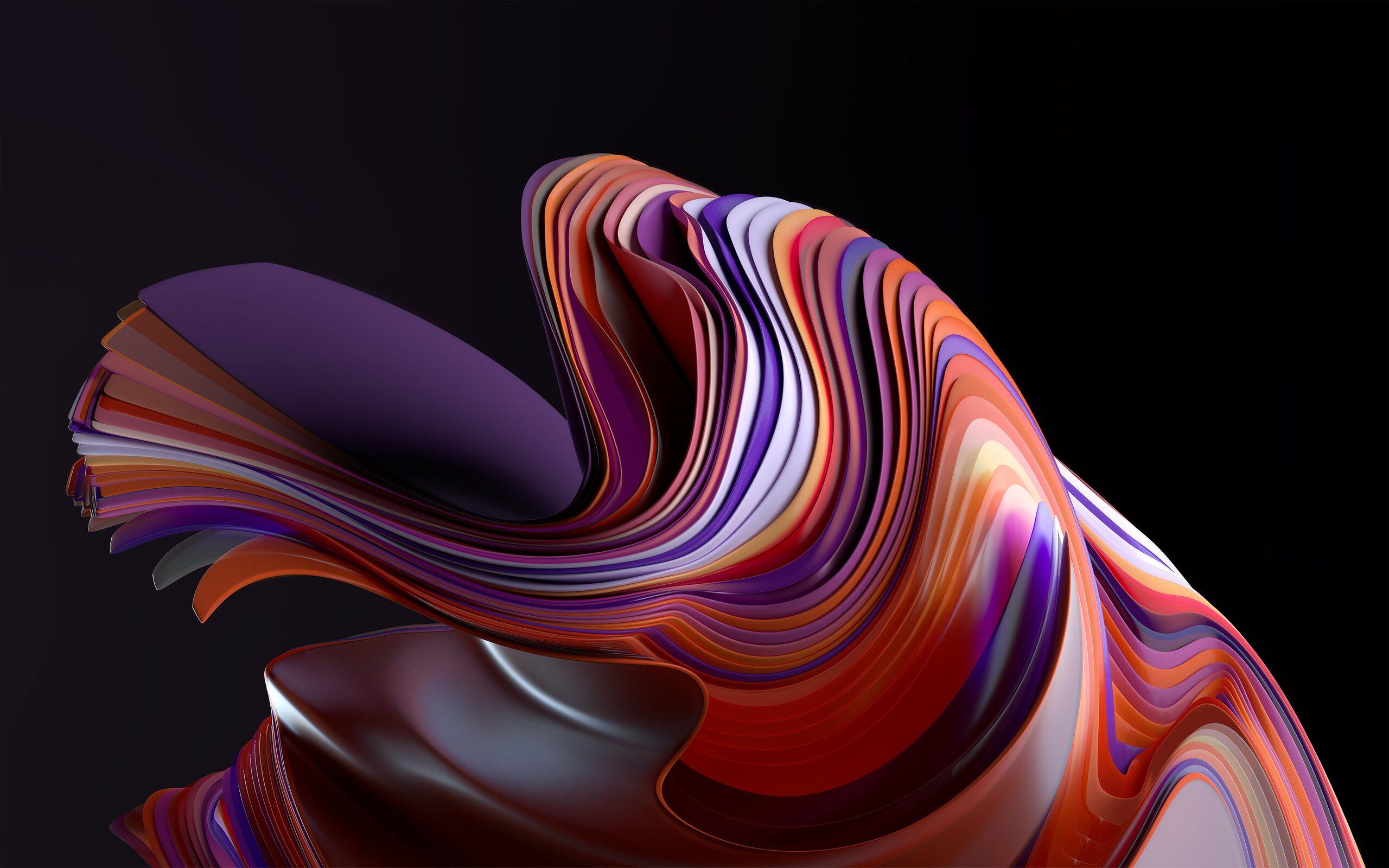
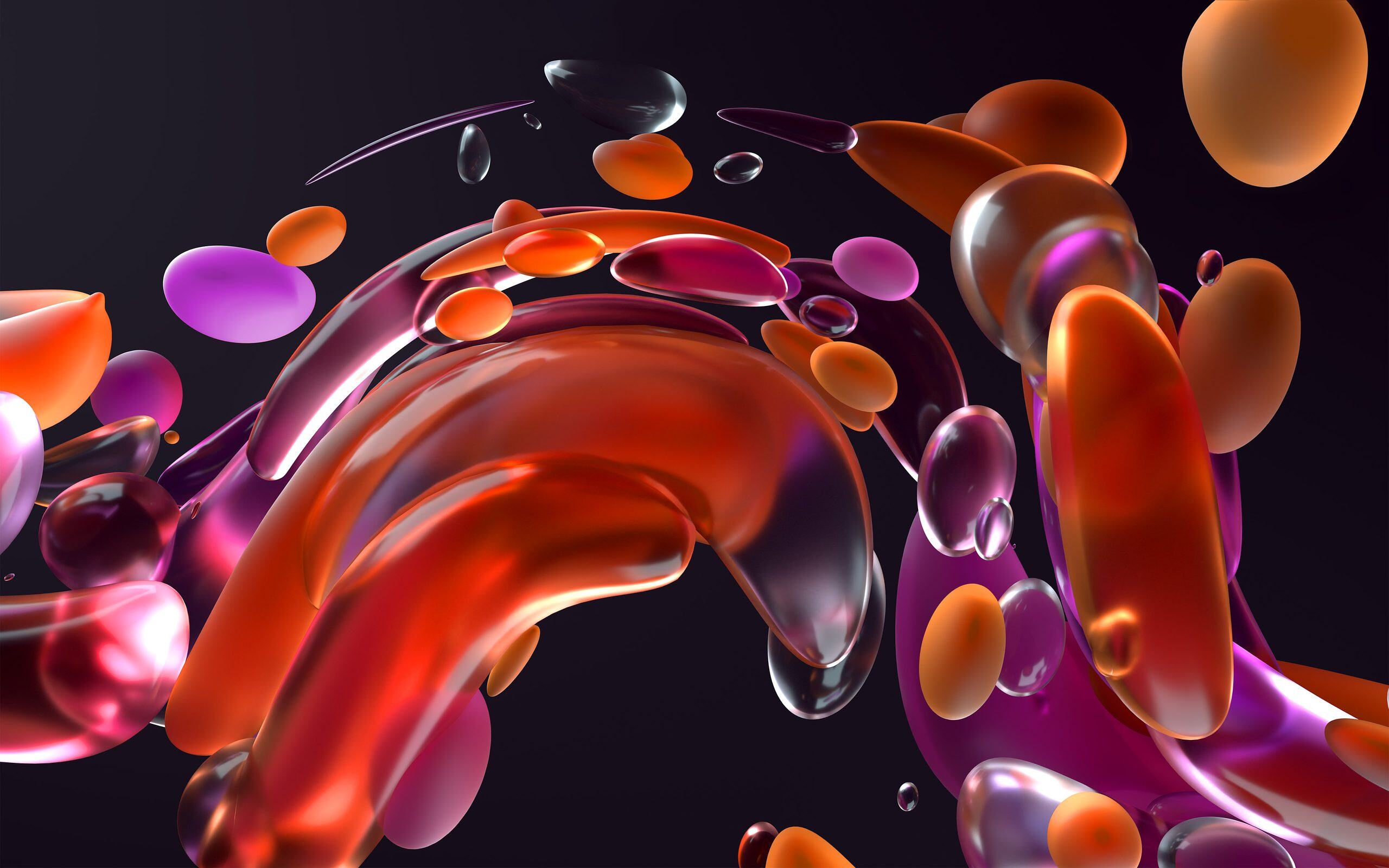
Dark backgrounds help bring out the reflections and colours in these abstract sculptures.
Sunrise: four imagined landscapes at dawn
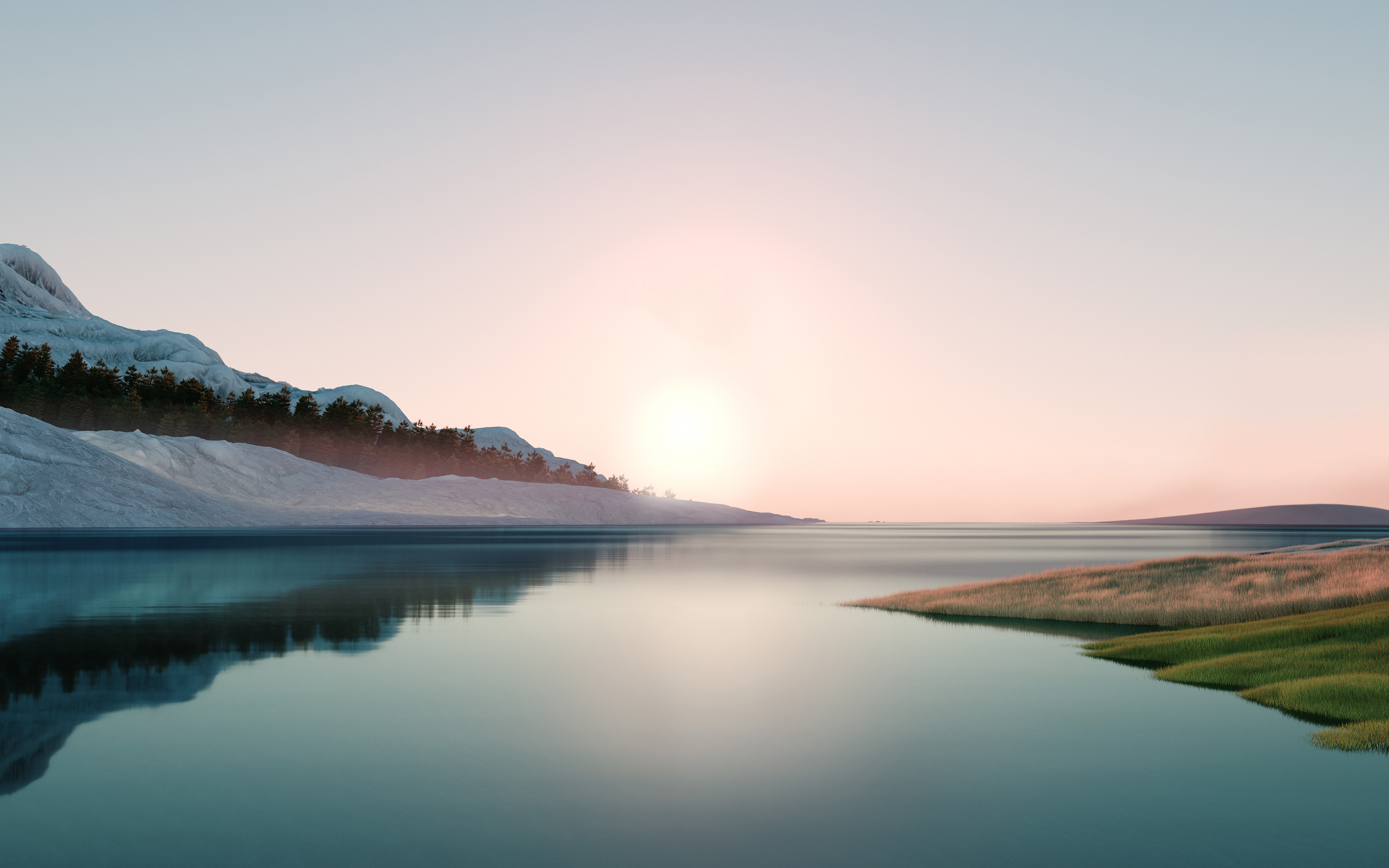
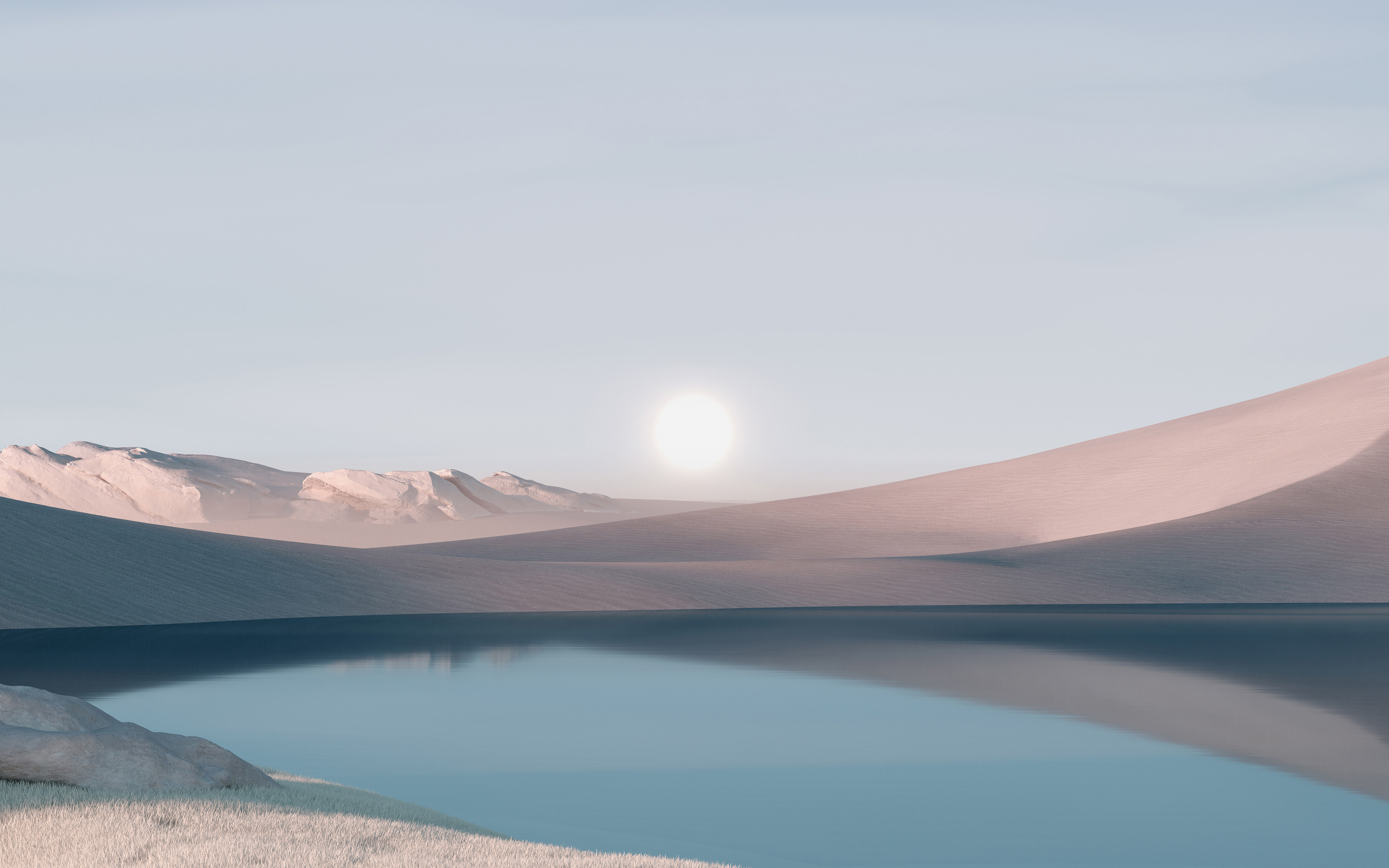
The Sunrise collection stands apart from the other Windows 11 wallpapers, swapping abstract sculptures for landscapes.
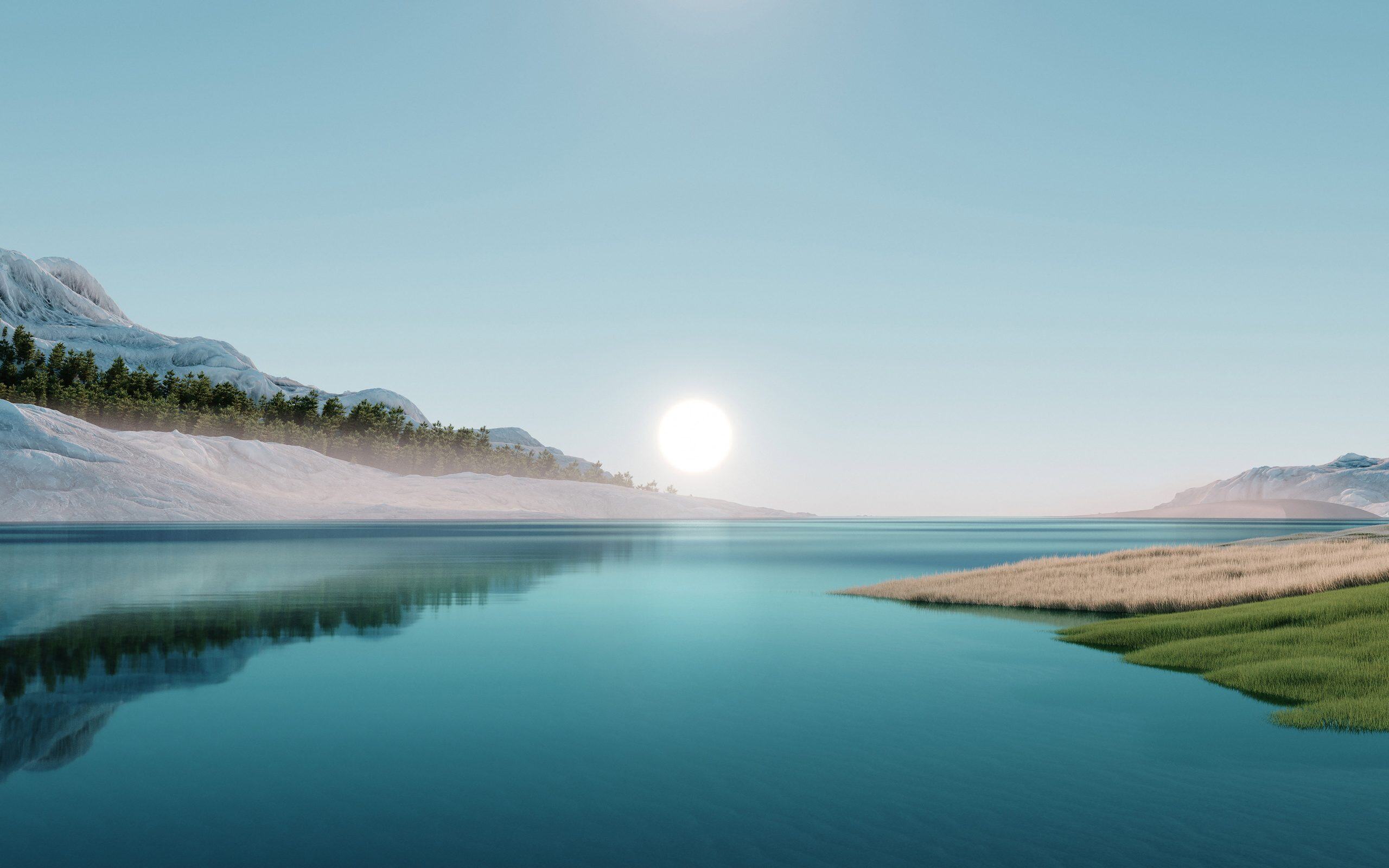
The four images show lakes surrounded by mountains in soft light that evokes the start of the day. The sky, mountain scenery and reflections on the water change from one composition to another.
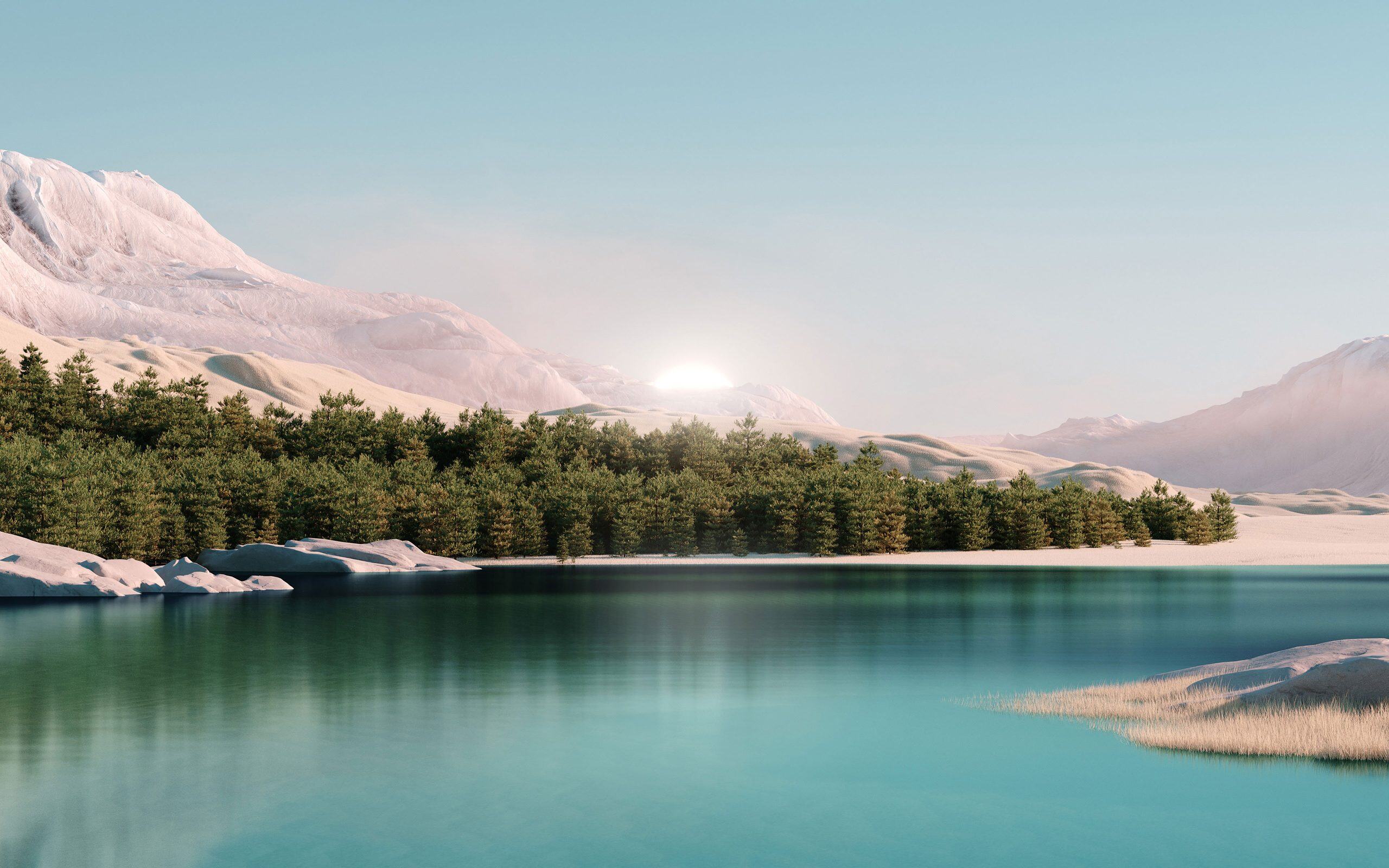
These landscapes look almost photographic, but their style and composition reveal the work of digital artists.
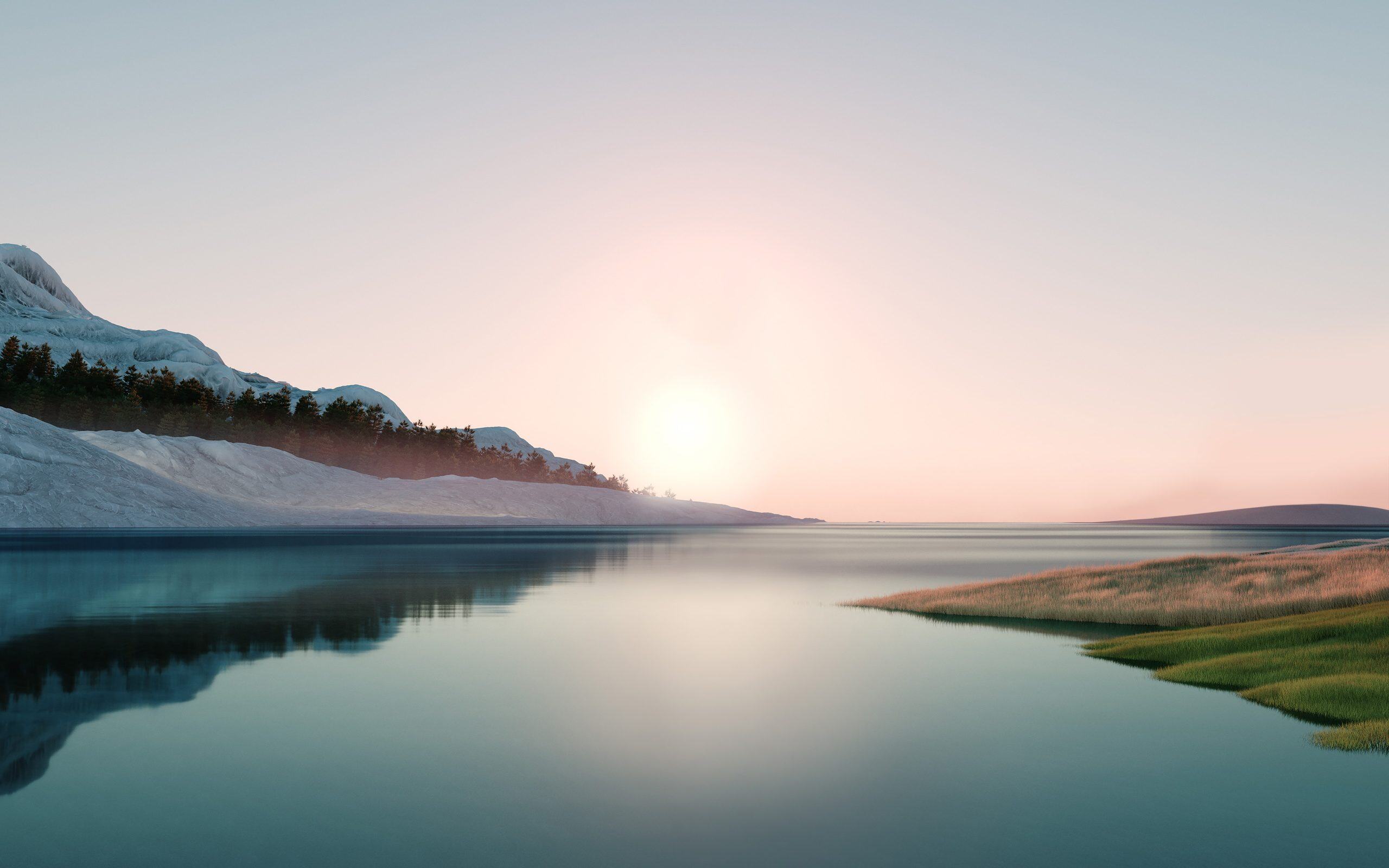
The Six N. Five studio also developed two wallpaper collections for Windows 11, one devoted to imagined landscapes and the other to abstract shapes.
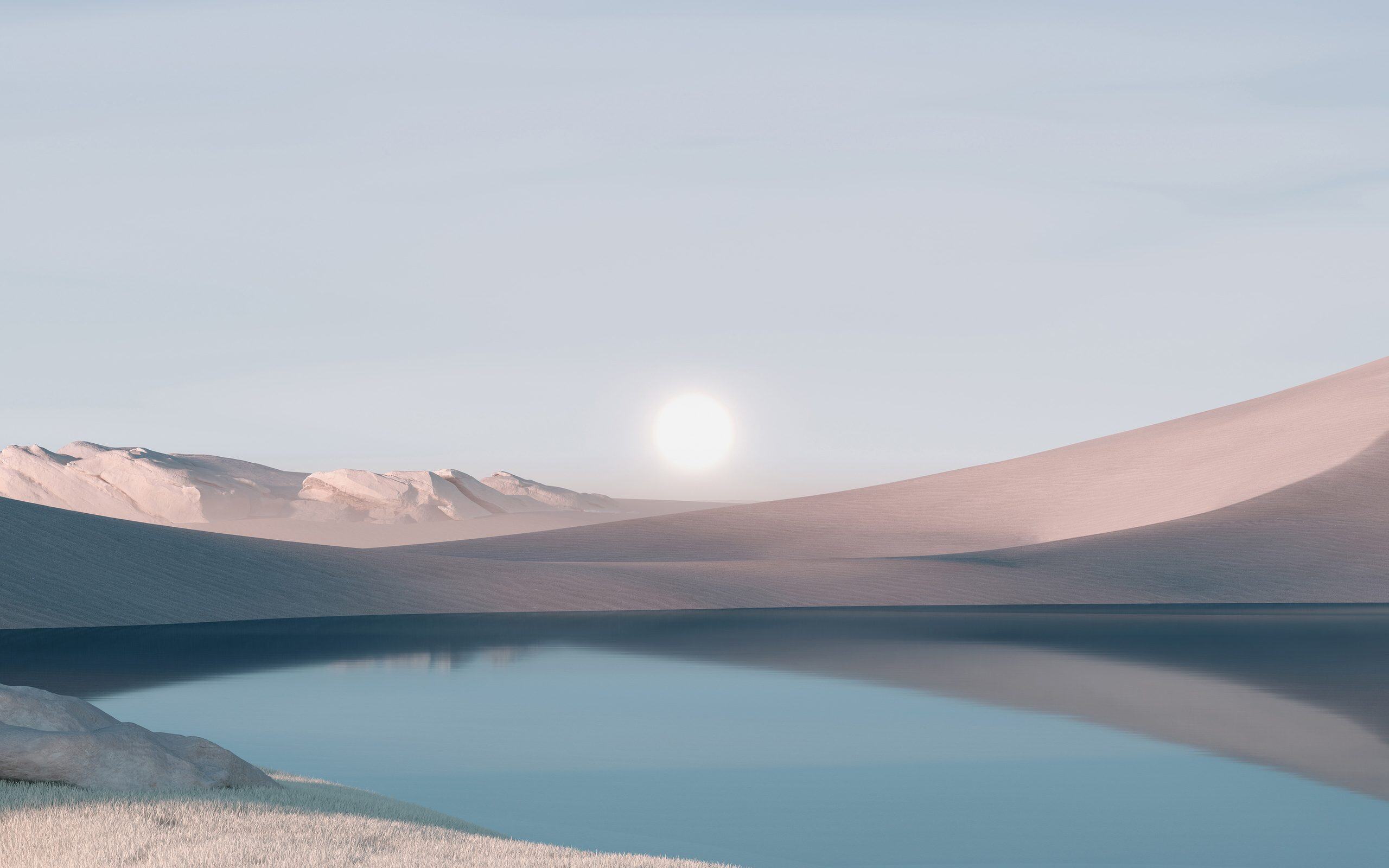
This search for calming images reflects Microsoft’s aim to give Windows 11 a softer, cleaner interface.
Where to find the official wallpapers in Windows 11
If you use Windows 11, some of these wallpapers are already on your computer. You can retrieve them without downloading them.
Open File Explorer and go to this folder:
C:\Windows\Web\WallpaperThis directory contains several subfolders for the wallpaper collections installed with Windows.
You can also find the Bloom variants in this folder:
C:\Windows\Web\4K\Wallpaper\WindowsAlthough the directory is named 4K, the two Bloom files from our selection in this folder measure 1920 × 1200 pixels.
To use one of these images, open Windows 11 Settings, then go to Personalisation > Background. Select an image and choose the JPG file you want to display on your desktop.
We allow some readers to view our articles for free with an ad blocker. However, their number is currently too high for us to keep this access available to everyone.
You can disable your ad blocker to continue reading immediately, subscribe to enjoy all our content without ads, or come back a little later when the pressure has eased.
Access will be restored automatically as soon as the situation allows.