After you connect a Microsoft account to Windows and OneDrive starts its first sync, files can seem to disappear from your Desktop, Documents or Pictures. They may still be on your PC; Windows may simply be using a different folder location.
OneDrive can move these folders automatically to back them up to the cloud. A sync error, Windows issue or interrupted transfer can also make files harder to find. Before assuming your data is lost, check the locations below and protect any files you recover.
In this article
- Why files move after syncing with OneDrive
- Find your files and folders in OneDrive
- Check OneDrive sync status
- Recover files after turning off OneDrive backup
- Check which folder Windows uses for personal files
- OneDriveTemp is not a backup folder
- Search OneDrive and both Recycle Bins
- Windows may load a temporary profile after Microsoft account sign-in
- Try free recovery software if files were deleted
Why files move after syncing with OneDrive
With a local Windows account, your files are usually stored in your user profile. The Desktop is normally at C:UsersNameDesktop, and your documents at C:UsersNameDocuments.
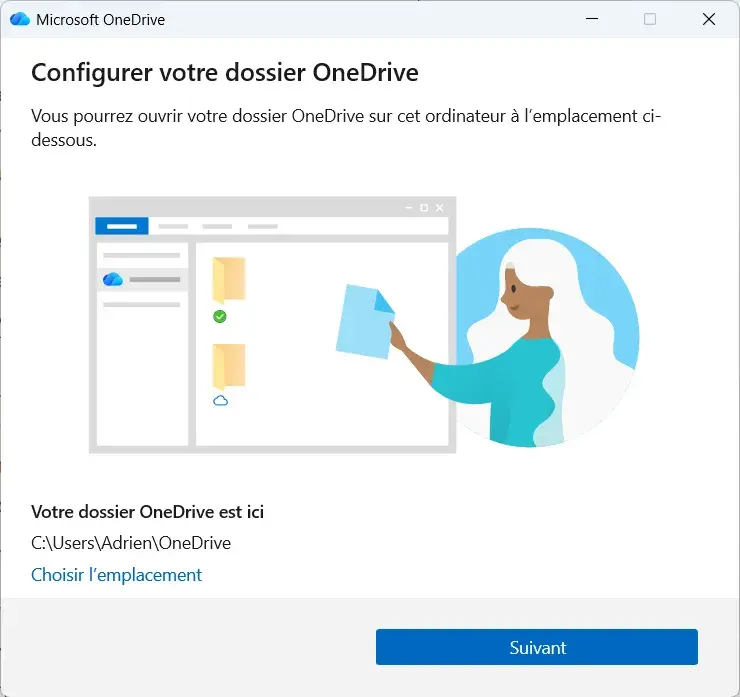
When you switch to a Microsoft account, Windows may ask you to back up your folders with OneDrive. If you enable this option, your Desktop, Documents and Pictures are moved into the OneDrive folder and synced.
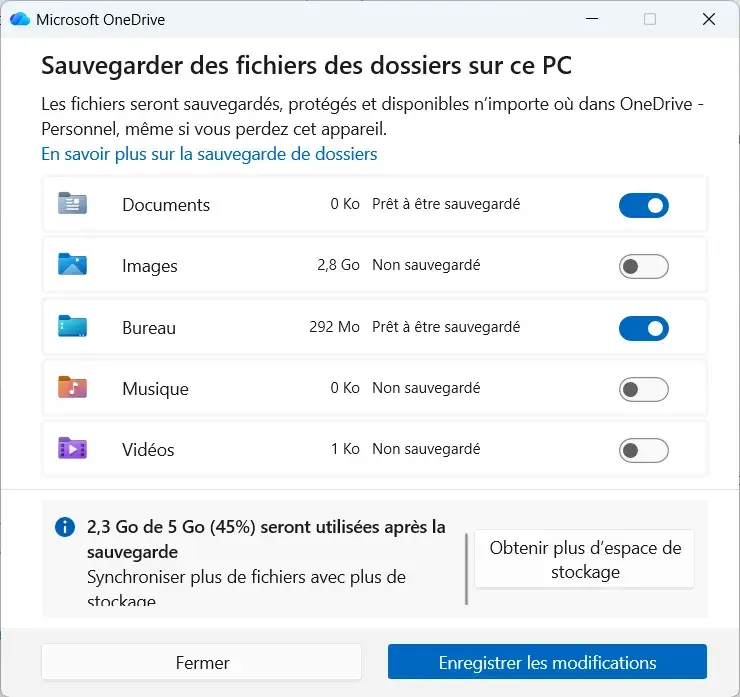
For example, a file that was stored in C:UsersNameDesktop may now be in C:UsersNameOneDriveDesktop. Windows then uses the new location for your Desktop. The old local folder may look empty even though your files are still elsewhere on the drive.
Find your files and folders in OneDrive
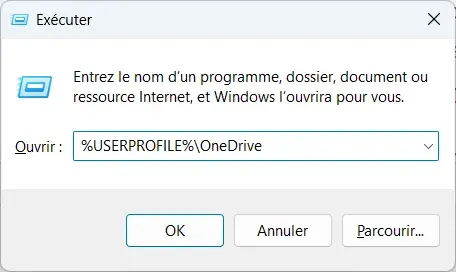
Open File Explorer with Windows + E. Enter %USERPROFILE%OneDrive in the address bar and press Enter to open the OneDrive folder for your Windows account.
Look for a folder named Desktop and open it. It may contain the files and shortcuts that were on your Desktop before the first sync. Check Documents as well, since it may have moved at the same time.
If that path does not work, open C:Users and then the folder for your Windows account. Look for a OneDrive folder and check its contents. Its location may differ if you chose a custom path during setup. A work account may use a name such as OneDrive - CompanyName.
If you find your files, copy them to an external drive or to a folder outside OneDrive first. Do not delete the originals or move them while syncing is still active.
Check OneDrive sync status
During the first sync, OneDrive uploads local files to Microsoft’s servers. This can take a while depending on the number of files and your internet speed. An interrupted sync does not necessarily mean the files have disappeared from your drive.
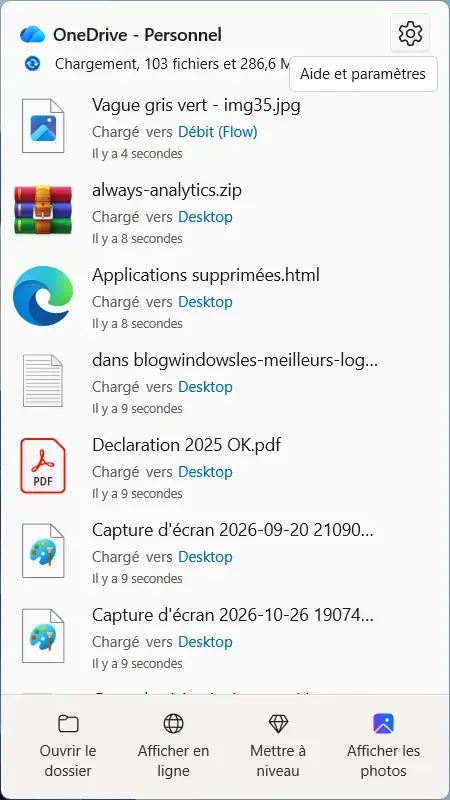
Select the OneDrive cloud icon near the Windows clock. Its window shows whether files are still syncing or an error is preventing the transfer. A full OneDrive, a file open in another app or a connection problem can stop syncing.
In File Explorer, check the availability icons beside your files too. A blue cloud means a file is online-only. A green check means a local copy is available. A solid green circle means the file is set to always stay on this device.
A file created on your PC and then moved to OneDrive may still exist locally even if its upload has not finished. An online-only file cannot be recovered from the drive if its contents were never downloaded to the PC.
Recover files after turning off OneDrive backup
If your files disappeared just after you turned off OneDrive, first check whether you stopped folder backup rather than only pausing sync.
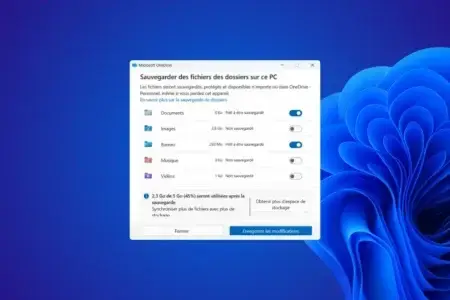
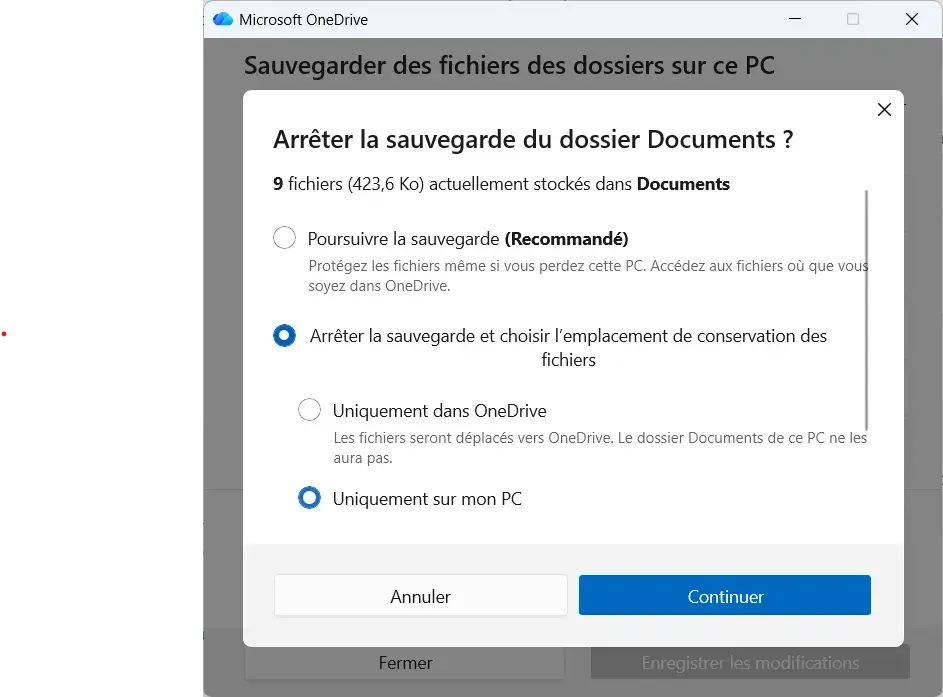
Open OneDrive settings from its cloud icon near the clock. Go to Sync and backup, then Manage backup to see whether Desktop, Documents and Pictures are being backed up.
When you stop backup, recent OneDrive versions let you keep files only in OneDrive or only on your PC. The first option removes local copies; the second keeps files on the computer and removes them from OneDrive. Online-only files must be downloaded before they can be kept locally.
If you already turned backup off, open the OneDrive folder in File Explorer and look for your files there. You can also check OneDrive.com to see whether the documents are still in your Microsoft account.
Before changing the settings again, make a copy of important files. Once they are backed up, you can decide whether to keep them in OneDrive or only on your computer.
Check which folder Windows uses for personal files
After you turn backup off, the Desktop shown by Windows may not be the folder where you are looking for your files. Windows may still point to OneDrive while you check the old local folder.
To check the location, open File Explorer, find the Desktop folder in your user profile, open its properties and select the Location tab if it is available.
You can also open PowerShell and enter:
[Environment]::GetFolderPath('DesktopDirectory')This command shows the Desktop path used by your Windows session. To check Documents, use:
[Environment]::GetFolderPath('MyDocuments')If the path contains OneDrive, Windows is still using a folder inside the OneDrive directory.
Do not change these locations straight away. Changing a path does not recover missing files and may make the situation harder to diagnose before you know where your data is stored.
OneDriveTemp is not a backup folder
OneDrive may use a temporary folder called OneDriveTemp during some sync operations. Depending on your setup, it may be at the root of a drive, such as C:OneDriveTemp, or on the volume used for OneDrive storage.
This folder is used for temporary OneDrive client operations, including some file downloads before they are moved to their final location. It may also contain technical data used by OneDrive.
However, this folder is not a backup of your old Desktop. Its presence does not mean missing documents can be recovered from it, and temporary files are not normally usable documents.
Search OneDrive and both Recycle Bins
If you cannot find the files in local folders, sign in to OneDrive.com with the Microsoft account used for the first sync. Search for a missing file by name, then check the Desktop and Documents folders.
Make sure you are using the right Microsoft account. If you use more than one account on the PC, your files may belong to a different OneDrive space.
Then check the OneDrive Recycle Bin and the Windows Recycle Bin. Deleting a synced file can also delete it from other devices and from the cloud. For a personal OneDrive account, items in the online Recycle Bin are kept for 30 days.
Windows may load a temporary profile after Microsoft account sign-in
When you switch from a local account to a Microsoft account, Windows keeps your user profile and the files stored in it. If Windows cannot load that profile during sign-in, however, it may open a temporary session instead.
You may then see an empty Desktop, missing Documents and reset Windows settings. Open File Explorer and go to C:Users. Find your old Windows account folder and check its Desktop, Documents and Pictures. If you had already set up OneDrive, check those folders too.
Files created or changed during a temporary session may disappear when you sign out. If you saved new documents there, copy them to an external drive before restarting Windows.
Try free recovery software if files were deleted
If you checked Windows folders, old profiles, OneDrive and both Recycle Bins but still cannot find your files, some documents may have been deleted from local storage.
In that case, you can try PhotoRec, a free and open-source data recovery tool. It scans a drive for deleted file data. If you attempt recovery, limit use of the affected drive. Installing software or saving new files to it can overwrite data that may still be recoverable. Save recovered files to a different drive. On an SSD, TRIM can also make deleted files especially difficult to recover.
Recovery software cannot find a file on your drive if it was stored only in OneDrive and was never downloaded to the PC. In that case, recovery depends on what is still in your Microsoft account and the restore options available there.
We allow some readers to view our articles for free with an ad blocker. However, their number is currently too high for us to keep this access available to everyone.
You can disable your ad blocker to continue reading immediately, subscribe to enjoy all our content without ads, or come back a little later when the pressure has eased.
Access will be restored automatically as soon as the situation allows.