
If you are a dedicated PlayStation 5 gamer, you have probably noticed that the console’s built-in storage fills up quickly, especially with modern games that can exceed 100 GB. Sony lets you add an M.2 NVMe SSD. Before buying the first drive you find, there are a few things to check so your new storage works properly with your PS5. This guide covers what you need to know to choose the right SSD.
The best 1 TB NVMe SSDs for the PS5 in 2026
View other compatible models
Also see our guide to the best M.2 NVMe SSDs for PCs.
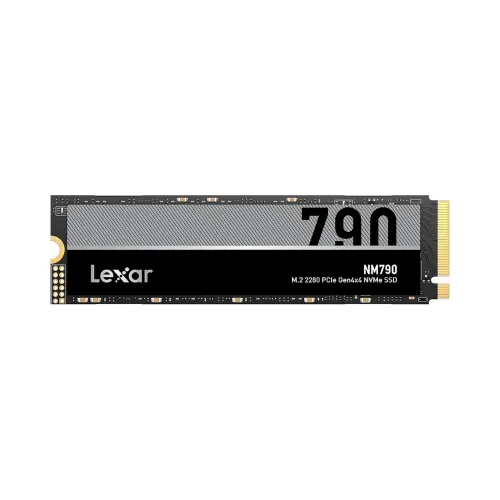
1. Lexar NM790: a well-balanced, affordable M.2 NVMe SSD
The Lexar NM790 is a good way to improve your PC’s performance without overspending. With a PCIe 4.0 x4 interface, it delivers impressive speeds of up to 7,400 MB/s for reads and 6,500 MB/s for writes. This makes it a good fit for gamers, content creators, and demanding users.
It uses 232-layer 3D TLC NAND designed by YMTC. The NM790 combines endurance and efficiency, even under heavy workloads. Its DRAM-less Maxio MAP1602 controller uses Host Memory Buffer (HMB) to help maintain fast transfers without a conventional DRAM cache, including with large files.
Highlights :
Drawbacks :
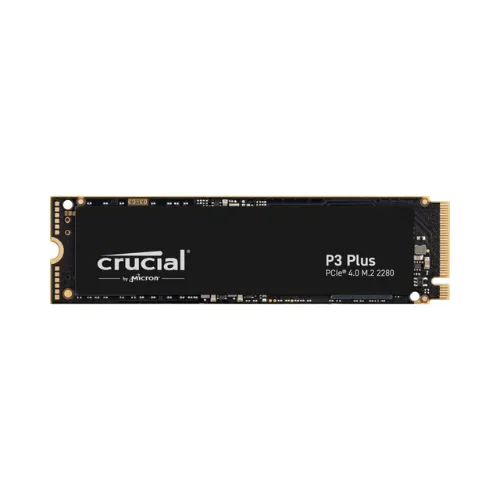
2. Crucial P3 Plus, an affordable M.2 SSD
The Crucial P3 Plus is a next-generation M.2 NVMe SSD that balances performance and affordability. Its PCIe Gen 4 interface delivers read and write speeds of up to 5,000 MB/s, making demanding tasks more responsive. It is a sensible option for anyone looking for solid performance at a reasonable price.
Compatible with many desktop and laptop PCs, the Crucial P3 Plus is designed to handle a wide range of workloads, from gaming and content creation to demanding everyday use. Its balance of price and performance makes it a good fit for users looking for value.
Highlights :
Drawbacks :
On Amazon right now:
3. Seagate FireCuda 530: a high-performance M.2 NVMe SSD for professionals and gamers
The Seagate FireCuda 530 is an ultra-fast M.2 NVMe SSD for demanding users. Whether you are a gamer, content creator, or professional working with large datasets, it is built to meet your needs. Its PCIe Gen 4 interface reaches impressive speeds of up to 7,300 MB/s for reads and 6,900 MB/s for writes, placing it among the fastest models on the market.
With 3D TLC NAND and a Phison PS5018-E18 controller, the FireCuda 530 combines excellent performance with outstanding endurance. Its reliability and speed make it a strong option for intensive workloads and modern storage needs.

Highlights :
Drawbacks :
On Amazon right now:
How do you install an M.2 NVMe SSD in a PS5?
First, remove the detachable stand from the PlayStation 5.
Lay the console horizontally with the side bearing the PlayStation logo facing down toward your work surface.
Remove the white cover
Next, remove the white side panel. Apply gentle upward pressure while pulling it outward. With moderate force, the panel should come away, exposing the chassis, fan, and internal vents.
Install the M.2 NVMe SSD
With the PlayStation 5 still lying flat and the white panel removed, locate the SSD slot. It is covered by a gray metal plate secured with a screw. Use a Phillips screwdriver to remove the plate and expose the slot Sony provided for the SSD.

Insert the SSD by sliding its PCI Express connector into the slot. A notch prevents you from installing it the wrong way around.
Then secure it with the small screw.
Reassemble the PS5
Once the SSD is installed, reverse the steps. First close the SSD bay by replacing the small gray metal cover and its screw, then put the white console panel back in place.
Sony PS5 requirements
Want to install more games without sacrificing PS5 performance? Adding an M.2 SSD is the answer. Read speeds, supported form factors, and cooling requirements can make the choice confusing. Here are the specifications you need to check before choosing a drive:
- Interface: M.2 NVMe PCIe Gen 4 x4
- Capacity: 250 GB to 8 TB
- Sequential read speed: 5,500 MB/s or faster is recommended. This is comparable to the PS5’s SSD speed.
- Supported form factors: 2230 / 2242 / 2260 / 2280 / 22110 (M.2)
- Cooling: The SSD needs a heatsink. We strongly recommend choosing a drive with built-in temperature control or buying a heatsink separately.
- Maximum total dimensions, including the cooling structure: length: 110 mm / width: 25 mm / height: 11.25 mm
Does the PS5 need an update to recognize a new SSD?
A software update is required for the PlayStation 5 to recognize and support M.2 SSDs. Sony released this update on September 15, 2021. It added support for compatible NVMe SSDs to expand the console’s storage.
The SSD should meet Sony’s requirements, including a recommended read speed of around 5,500 MB/s and a heatsink to prevent overheating.