

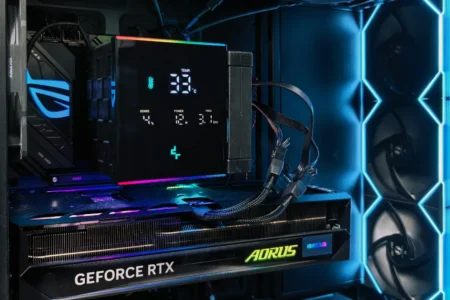
Your graphics card is starting to show its limits in games. Before buying a new one, GPU overclocking is the most direct way to gain FPS without spending anything. There is no hardware modification and no need to access the BIOS. Everything is done from Windows with free software. This guide covers MSI Afterburner, AMD Adrenalin and the official alternatives for each GPU brand.
In this article
- Can your graphics card be overclocked?
- Core Clock and Memory Clock: the two settings that matter
- The risks of GPU overclocking
- How to overclock a graphics card with MSI Afterburner
- Radeon Software Adrenalin: the native alternative for AMD GPUs
- EVGA Precision X1: for EVGA Nvidia cards
- How to test the stability of an overclocked GPU
- Temperatures your GPU can handle
- Is GPU overclocking worth it?
Can your graphics card be overclocked?
Yes, in almost every case. Unlike CPU overclocking, where the K suffix can determine everything, modern GPUs can be overclocked natively from Windows without any physical modification.
| GPU | Overclockable? | Recommended tool |
|---|---|---|
| Nvidia (RTX 40, 30, 20…) | ✅ Yes | MSI Afterburner or EVGA Precision X1 |
| AMD Radeon (RX 7000, 6000…) | ✅ Yes | MSI Afterburner or AMD Adrenalin |
| Intel Arc (A770, A750…) | ✅ Yes | MSI Afterburner (v4.6.5 minimum) |
| Laptop GPU | ✅ Yes, but limited | MSI Afterburner; gains are limited by the thermal design |
Only a few very old entry-level cards have software limitations. For GPUs released after 2016, overclocking is standard.
Core Clock and Memory Clock: the two settings that matter
GPU overclocking relies on two separate settings. Understanding their role before touching the sliders prevents you from adjusting the wrong setting.
Resulting GPU frequency = GPU base frequency + Core Clock offset
Core Clock determines how quickly graphics calculations are performed. It is what increases FPS in most games. Memory Clock increases the bandwidth between the GPU and its video memory (VRAM). The improvement is more noticeable at high resolutions such as 1440p and 4K, and in games with heavy textures.
MSI Afterburner does not apply a fixed frequency. It adds an offset above the GPU boost curve. If the temperature or power consumption exceeds the limits you configured, the driver automatically reduces the frequency. This makes GPU overclocking more flexible than CPU overclocking.
The risks of GPU overclocking
GPU overclocking is less risky than CPU overclocking because the voltage is not increased by default. Afterburner raises the frequency without changing the voltage unless you enable that option manually. If the GPU exceeds its limits, the driver crashes and restarts. In the worst case, you lose your game session. The PC does not break.
| Overclock type | Risk | What happens if you go too far |
|---|---|---|
| Core Clock only | Low | Driver crash, automatic recovery |
| Memory Clock only | Low to moderate | Visual artifacts, game crash |
| Core + Memory + voltage | Moderate to high | Overheating, instability, accelerated degradation |
Manufacturers consider overclocking a modification that is not covered by the warranty. In practice, an overclock without physical modification is difficult for a service department to prove. Graphics cards do not keep a permanent log of the frequencies used.
How to overclock a graphics card with MSI Afterburner
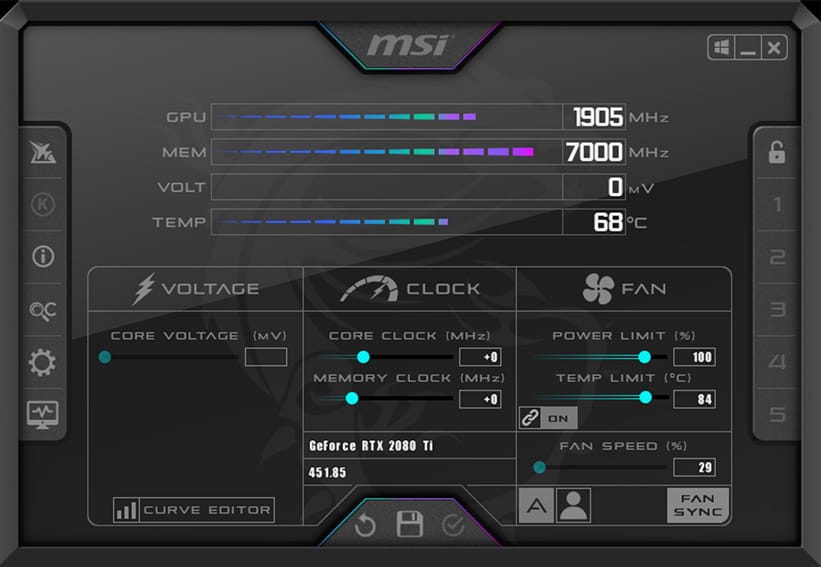
MSI Afterburner is the standard tool for overclocking any graphics card under Windows, whatever its brand. Its in-game overlay, powered by RTSS, displays the GPU temperature, FPS, usage and power consumption in real time directly in the game window.
Here is the right tool for each GPU:
| GPU brand | Recommended tool |
|---|---|
| Nvidia (Asus, MSI, Gigabyte, Zotac…) | MSI Afterburner |
| AMD Radeon | MSI Afterburner or AMD Adrenalin |
| Intel Arc | MSI Afterburner (v4.6.5 minimum) |
| EVGA Nvidia | EVGA Precision X1 |
Follow these steps:
- Download and install MSI Afterburner from MSI’s official website. RTSS is installed automatically; it manages the in-game overlay.
- Open Afterburner. In Settings, represented by the gear icon, enable Unlock voltage control if your card supports it.
- Set the Power Limit and Temp Limit sliders to their maximum values so the GPU has enough power headroom.
- Increase the Core Clock by +20 to +30 MHz. Click the check mark to apply the change.
- Run a game or 3DMark for 10 to 15 minutes. If it is stable, with no crash or artifacts, add another 20 to 30 MHz and try again.
- If the system crashes or visual artifacts appear, go back by 20 to 30 MHz. You have found your Core Clock limit.
- Repeat the same process with the Memory Clock, adding +100 MHz at a time.
- Once both limits are found, save the profile in slots 1 to 5 and enable Apply overclocking at system startup.
OC Scanner: automatic overclocking in one click
Afterburner includes OC Scanner, a tool that automatically detects the highest stable voltage/frequency curve for your GPU. The scan takes 15 to 20 minutes and progressively tests frequencies to find the stable limit. It is the recommended starting point if you do not want to adjust everything manually. The result is often close to what you would obtain after several hours of tuning.
It is compatible with Nvidia only, as it is based on Nvidia’s official scanner. On AMD cards, configure the Core Clock and Memory Clock sliders manually.
Radeon Software Adrenalin: the native alternative for AMD GPUs
For Radeon owners, Adrenalin is the native alternative to Afterburner. There is no need to install third-party software. Overclocking is done in Performance > Tuning. The Automatic Tuning option scans the system and automatically applies a stable overclock. For manual tuning, adjust GPU Frequency and VRAM Frequency in steps, just as you would with Afterburner.
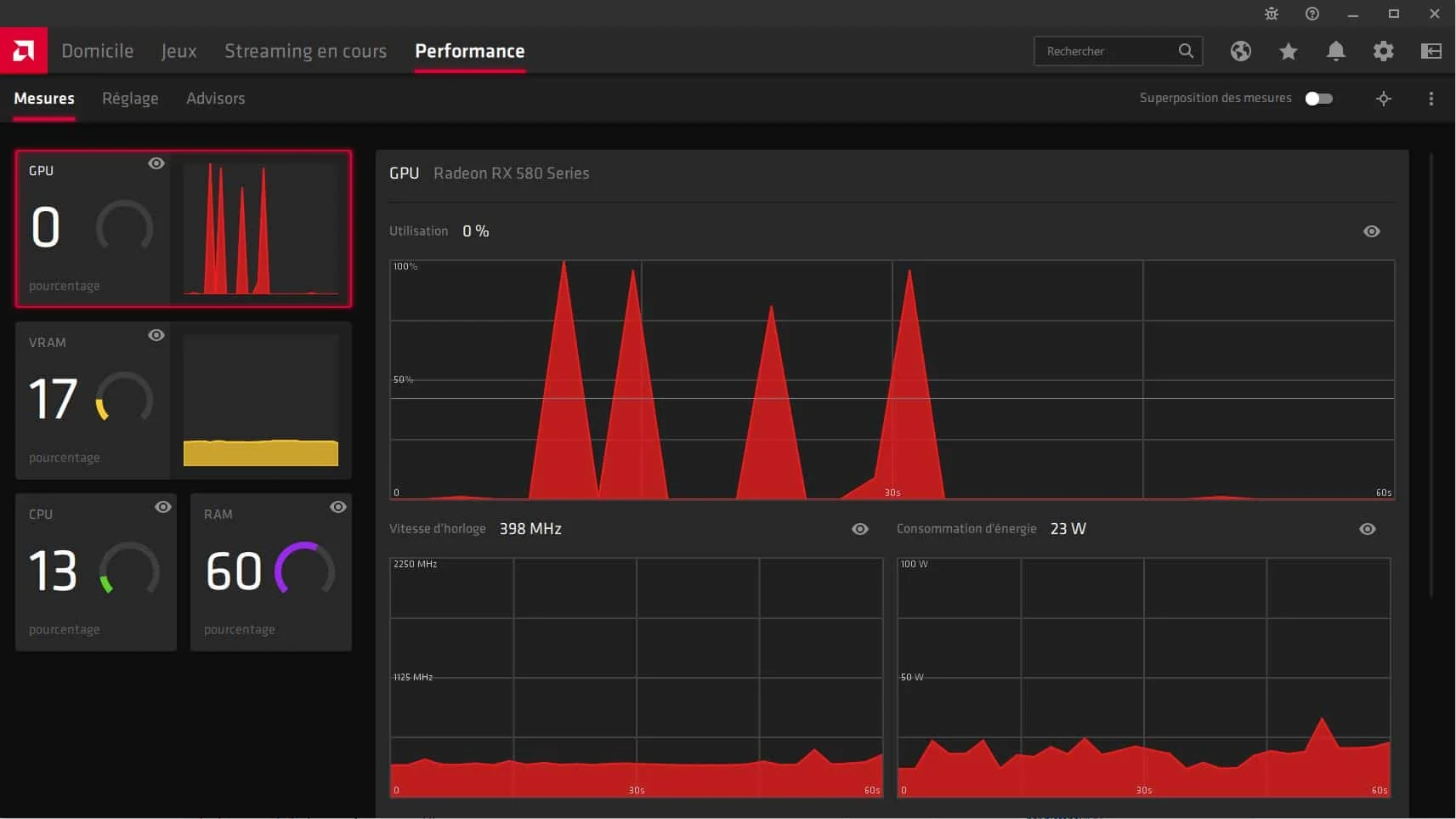
Adrenalin also offers Radeon Boost, which dynamically adjusts the resolution to gain FPS without changing frequencies, and Radeon Anti-Lag, which reduces gaming latency. Both are useful if you would rather not overclock directly.
If you already use MSI Afterburner on an AMD GPU, do not modify Adrenalin’s overclocking settings. Both programs can conflict and cause unpredictable behavior.
EVGA Precision X1: for EVGA Nvidia cards
EVGA Precision X1 was designed exclusively for EVGA Nvidia graphics cards. Its basic settings, including Core Clock, Memory Clock, voltage and fans, are similar to Afterburner’s. It also includes an automatic OC Scanner and advanced fan-curve controls, with support for several saved profiles.
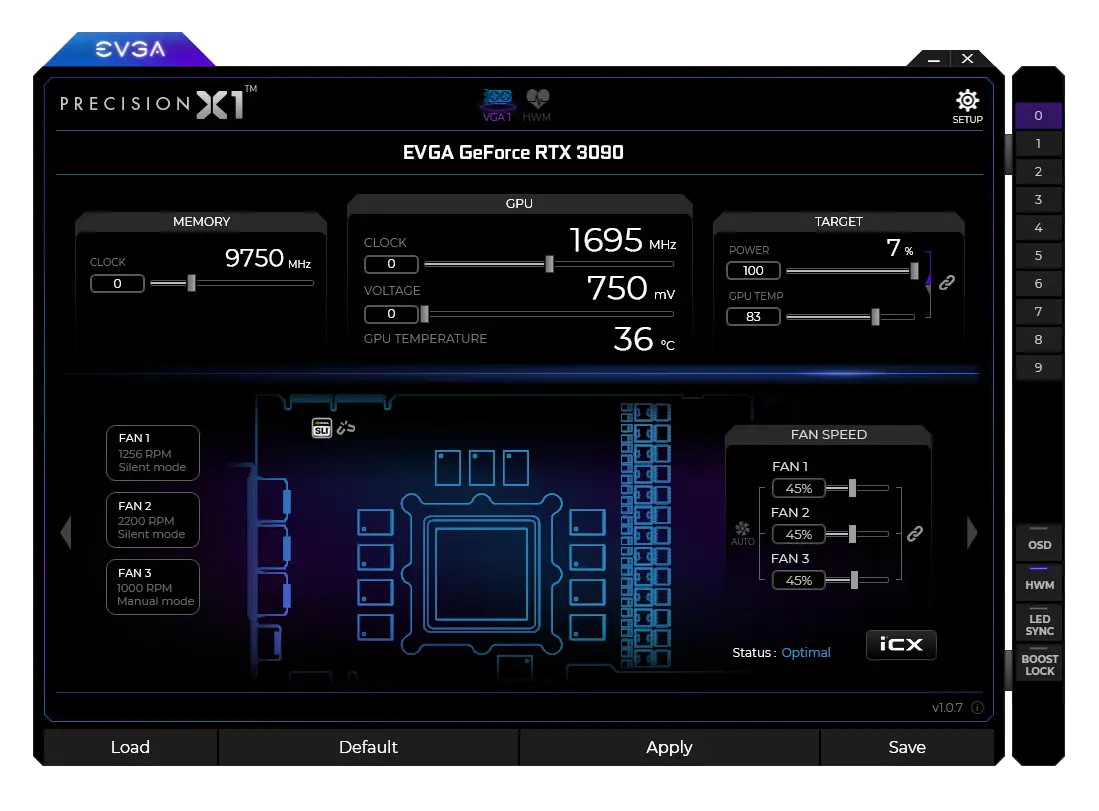
If you have an EVGA RTX card, this is the right tool. For every other brand, Afterburner remains the standard.
Note: EVGA left the graphics card market at the end of 2022. EVGA RTX 30 and 40 cards can still be found second-hand, but Precision X1 will not support future Nvidia generations.
How to test the stability of an overclocked GPU
An unstable GPU overclock appears in two ways: a complete game or graphics-driver crash, often a black screen followed by a “the driver has stopped responding” message, or visual artifacts such as corrupted pixels, colored flashes and horizontal lines on the screen.
A driver crash means the Core Clock is too high.
To check stability before a game crashes, run 3DMark Time Spy or Fire Strike in a loop for 20 minutes. If the benchmark completes several passes without artifacts or crashes, the overclock is stable in 95% of gaming scenarios. To monitor temperatures during testing, see our guide to the best PC temperature monitoring software.
Temperatures your GPU can handle
These figures are general guidelines. A laptop GPU may exceed 85°C without this being abnormal, depending on the manufacturer’s thermal design. What matters is temperature stability under sustained load, not a brief peak.
| Component | Idle | Under overclocked load | Alert threshold |
|---|---|---|---|
| GPU (desktop) | 40 to 60°C | 70 to 90°C | > 95°C |
| VRAM (GPU memory) | 50 to 70°C | 80 to 95°C | > 100°C |
If your GPU exceeds 90°C under load, clean the fans and check the GPU thermal paste before increasing the frequency. An overheated GPU protects itself by automatically reducing its frequencies through thermal throttling. Overclocking will not help until this problem is solved.
Is GPU overclocking worth it?
In GPU-bound games, which includes almost all modern AAA titles, GPU overclocking directly affects the limiting component. For most players, the improvement is more immediate than CPU overclocking. If you play 3D games, overclocking the GPU before the CPU is the right priority.
| Use case | FPS gain | Recommended? |
|---|---|---|
| 1080p GPU-bound games | 3 to 8% | Yes |
| 1440p GPU-bound games | 3 to 8% | Yes |
| 4K games | 3 to 6% | Yes |
| 3D rendering (Blender GPU) | 3 to 8% | Yes |
| CPU-bound games (RTS, simulations) | < 1% | Overclock the CPU first |
If you want to go further with your processor, our guide to overclocking an Intel or AMD processor in the BIOS covers the specific steps with Intel XTU, Ryzen Master and PBO.
Does GPU overclocking void the warranty?
We allow some readers to view our articles for free with an ad blocker. However, their number is currently too high for us to keep this access available to everyone.
You can disable your ad blocker to continue reading immediately, subscribe to enjoy all our content without ads, or come back a little later when the pressure has eased.
Access will be restored automatically as soon as the situation allows.