Your CPU is holding back games or your renders take too long. Before buying anything, overclocking is a practical way to gain performance without spending a cent. This guide covers the processor only, for Intel and AMD, from checking compatibility to stability testing.
In this article
- Can your processor be overclocked?
- The CPU multiplier determines processor speed
- The risks of overclocking
- Overclock your processor through the BIOS
- Intel XTU: overclock without entering the BIOS
- AMD Ryzen Master: AMD’s official overclocking tool
- PBO and Curve Optimizer: AMD’s recommended method
- ThrottleStop: for Intel laptops
- Test stability after an overclock
- Temperatures your processor can handle
- Is CPU overclocking still worthwhile?
Can your processor be overclocked?
Not every CPU can be overclocked. Check your model before changing anything in the BIOS.
For Intel, the K suffix identifies an unlocked multiplier. Without the K, BCLK overclocking is theoretically possible, but the base clock is shared with PCIe, USB and SATA buses. Instability usually appears before any measurable gain.
| CPU | Overclockable? | Recommended method |
|---|---|---|
| Intel K series | ✅ Yes | BIOS multiplier or Intel XTU |
| Intel non-K | ❌ Locked multiplier | BCLK possible but unstable, not recommended |
| All AMD Ryzen models | ✅ Yes | PBO + Curve Optimizer (recommended) or Ryzen Master |
| AMD Ryzen APU | ✅ Yes | Ryzen Master or BIOS; limited iGPU gains |
All modern Ryzen processors are unlocked by default.
The CPU multiplier determines processor speed
Processor speed follows a simple equation:
CPU frequency = multiplier × base clock (BCLK)
On almost all current motherboards, BCLK is fixed at 100 MHz. The multiplier is therefore what changes your system’s speed. A 5.0 GHz processor uses a multiplier of 50; setting it to 52 raises the CPU to 5.2 GHz and adds 200 MHz, but also creates more heat.
The real challenge is balancing frequency, voltage and heat. Raise the multiplier one step, test stability under Windows, adjust Vcore in tiny increments if the PC crashes, and repeat until you find the physical limit of your CPU.
The risks of overclocking
Raising CPU clock speed increases heat output. Without suitable cooling (a capable air cooler or water cooling and good case airflow), temperatures can reach critical levels and trigger thermal throttling, or even emergency shutdowns.
A poorly calibrated overclock can cause crashes, Windows BSODs and data corruption. Higher voltage also accelerates component wear by prematurely degrading transistors. Modern CPUs include safeguards, but prolonged excessive voltage can permanently damage a chip.
Balance performance gains and safety
A moderate adjustment can improve performance without compromising stability or component life. An extreme overclock can cause repeated crashes and permanently damage hardware. Higher frequencies also increase power draw, which can overload an inadequate power supply or overheat the motherboard VRMs.
| Frequency increase | Risk | Recommended measures |
|---|---|---|
| +0.1 GHz | Very low | Standard cooling; no voltage change needed |
| +0.5 GHz | Moderate | Improved cooling, slight Vcore adjustment and active monitoring |
| +1.0 GHz or more | High to extreme | Water cooling, intensive stability tests and continuous monitoring |
Manufacturers generally consider overclocking a modification outside the warranty, except that unlocked models tolerate it; failures caused by overvoltage remain your responsibility.
Overclock your processor through the BIOS
The BIOS is the most stable method and the only one that persists after a reboot. Intel XTU and Ryzen Master are convenient for testing, but their changes can reset. For a permanent overclock, use the BIOS.
- Restart and press Delete, F2 or F10 to enter the BIOS.
- Open the CPU/OC section. ASUS uses AI Tweaker, MSI uses OC, Gigabyte/AORUS uses Tweaker, ASRock uses OC Tweaker, and other boards use similarly named menus.
- Set the CPU multiplier ratio to Manual instead of Auto.
- Increase it by one step (+100 MHz), without touching Vcore yet.
- Save and reboot. If the PC starts normally, continue.
- Run a 20–30 minute OCCT stability test. If stable, increase one more step.
- When the PC crashes or reports errors, raise Vcore by 0.025 V and test again. Stop above 85–90 °C under load on a desktop CPU or 95 °C on a gaming laptop.
- If the PC no longer starts, use the Clear CMOS jumper or remove the CMOS battery for 30 seconds.
Intel XTU: overclock without entering the BIOS
Intel Extreme Tuning Utility (Intel XTU) is Intel’s official software for overclocking, monitoring and testing Core processors. It adjusts frequency, voltage and thermal behaviour from Windows, with real-time monitoring and an integrated stress test.
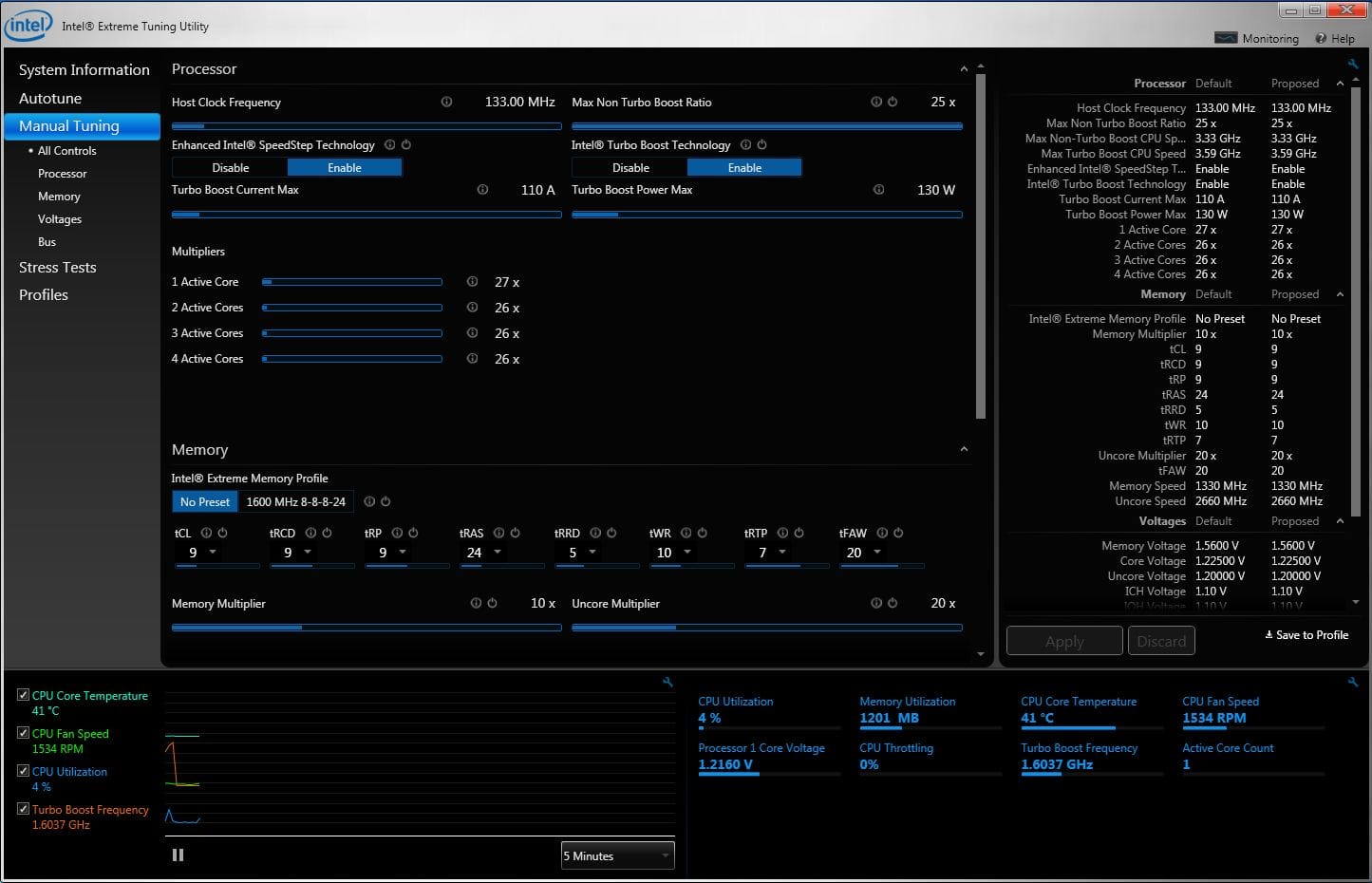
It supports unlocked Intel Core processors (K and X series) with Z-series chipsets (Z690, Z790 and Z890), and can save several profiles. XTU settings are volatile on some systems; if the overclock disappears after reboot, copy the values into the BIOS manually. XTU is particularly useful for testing before applying permanent settings.
AMD Ryzen Master: AMD’s official overclocking tool
AMD Ryzen Master overclocks, monitors and optimises Ryzen processors from Windows. Its interface adjusts core frequency, voltage and DDR4/DDR5 memory timings, displays temperature and boost data per core, and supports up to four profiles for gaming, rendering or office work.
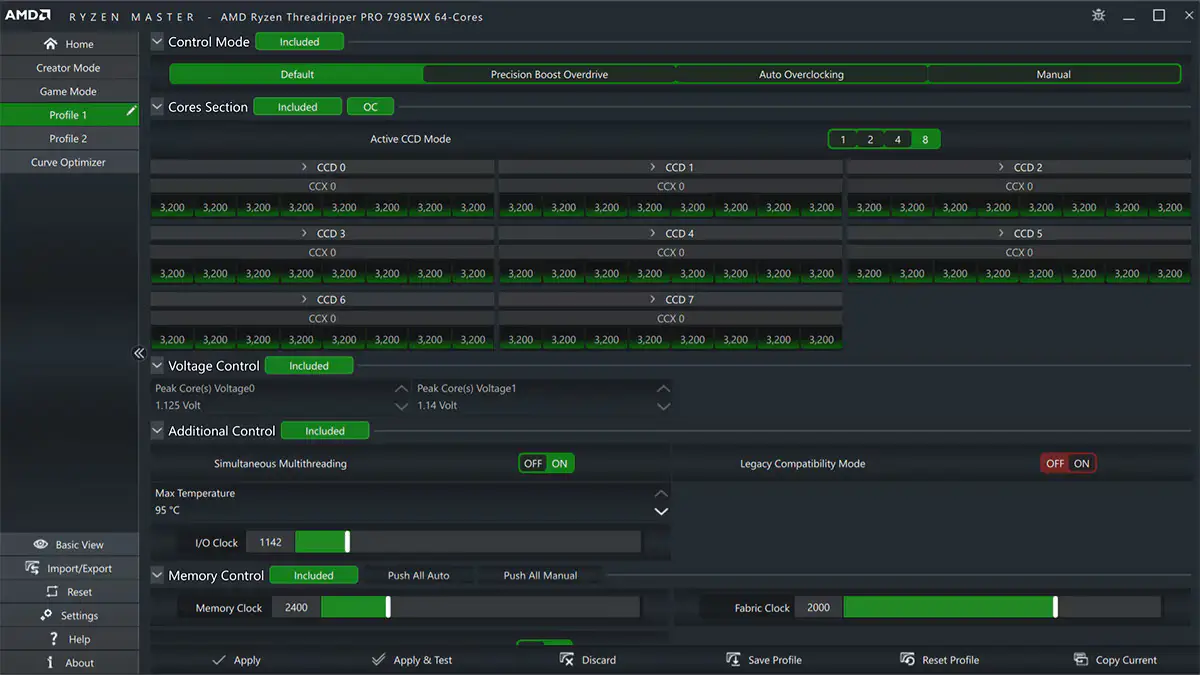
It supports Ryzen and Ryzen Threadripper processors on compatible motherboards. Ryzen Master settings are volatile by default and reset at reboot. For a permanent overclock, transfer the values to the BIOS/UEFI.
PBO and Curve Optimizer: AMD’s recommended method
On Ryzen 5000, 7000 and 9000, fixed-frequency manual overclocking is usually less effective than PBO + Curve Optimizer. The CPU manages boost frequencies per core according to load and available thermal headroom; fixing a frequency limits that adaptive boost.
Precision Boost Overdrive (PBO) lets Ryzen exceed stock boost limits. Curve Optimizer lowers voltage per core, reducing temperatures by 5–15 °C and leaving more room for automatic boost without transistor degradation caused by overvoltage.
Open the setting: In the BIOS, go to Advanced > AMD Overclocking > Precision Boost Overdrive.
Enable PBO: Set the option to Enabled.
Configure the curve: Choose All Core, select Negative and start with 10.
Test stability: Save, boot Windows and run Prime95 for 20 minutes. If there is no crash, return to the BIOS and try -20, then -30.
Every chip is different. A processor identical on paper to your neighbour’s may fail at -20 while theirs reaches -40. Find the stable limit of your own sample.
ThrottleStop: for Intel laptops
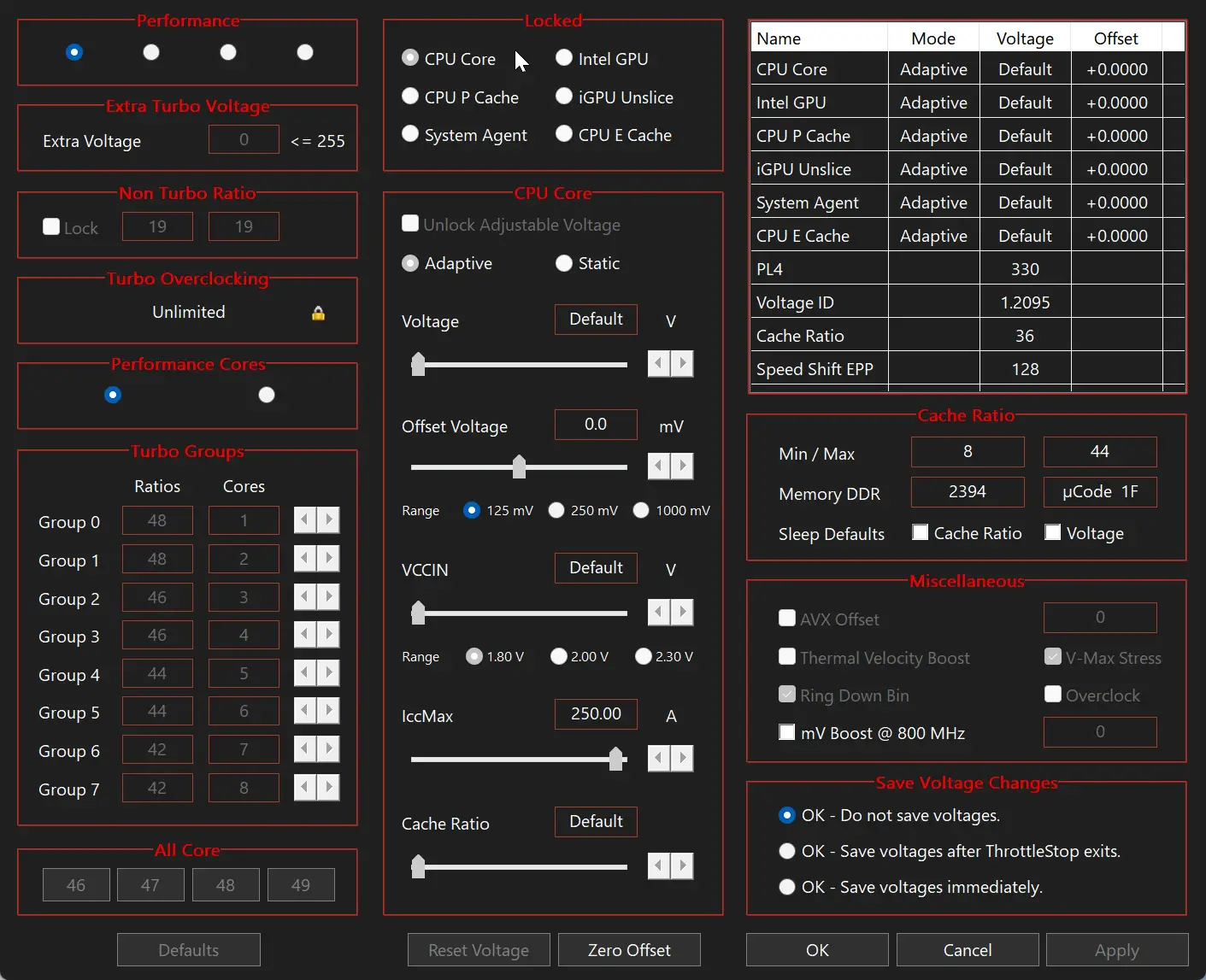
ThrottleStop monitors and adjusts Intel laptop processors by bypassing performance limits imposed by manufacturers. It can modify frequency multipliers, voltage and power-saving parameters, create battery/gaming/office profiles and benchmark the result. It is for Intel processors; Windows has no equivalent for AMD.
Test stability after an overclock
Stability testing is the step most people rush. A five- or ten-minute test detects only obvious instability. Late-stage failures that crash a PC two hours into a gaming session appear under sustained load, and are the main cause of real-world overclock crashes.
Recommended method: run Prime95 Small FFT for 30 minutes. If it crashes or reports errors, lower the multiplier one step or raise Vcore slightly. Then loop Cinebench R24 for 15 minutes to represent gaming and creative workloads. Use our guide to the best temperature-monitoring software to watch heat during tests.
Temperatures your processor can handle
These are general reference values. A gaming laptop can exceed 90 °C under load without being abnormal if its thermal design allows it.
| Component | Idle | Under OC load | Alert threshold |
|---|---|---|---|
| Desktop CPU | 35–50 °C | 70–85 °C | > 90 °C |
| Gaming laptop CPU | 40–55 °C | 80–95 °C | > 100 °C |
If temperatures regularly exceed the alert threshold, check the thermal paste before changing other settings. See our guide on when to change your thermal paste.
Is CPU overclocking still worthwhile?
In most modern games, the GPU is the bottleneck, not the CPU. CPU overclocking adds 1–3% FPS in GPU-bound titles. It is worthwhile for CPU-bound games and production workloads. For everything else, overclocking the GPU with MSI Afterburner usually offers more for less risk.
| Use case | Estimated CPU OC gain | Recommended? |
|---|---|---|
| GPU-bound games (modern AAA) | 1–3% | No, overclock the GPU first |
| CPU-bound games (RTS, city builders, simulations) | 5–12% | Yes |
| 3D rendering (Blender, Cinema 4D) | 5–15% | Yes |
| Video editing (export) | 3–8% | Yes |
| Office work | < 1% | No |
If you mainly play recent AAA games, start by overclocking your graphics card: it is simpler, less risky and the gain is immediately visible.
We allow some readers to view our articles for free with an ad blocker. However, their number is currently too high for us to keep this access available to everyone.
You can disable your ad blocker to continue reading immediately, subscribe to enjoy all our content without ads, or come back a little later when the pressure has eased.
Access will be restored automatically as soon as the situation allows.