Does your wireless mouse stutter, does your keyboard respond slowly, or does your Wi-Fi connection become unstable when you plug in a USB device? Some USB 3.0 equipment can interfere with wireless communications that use the 2.4 GHz band.
This issue has been known for years. Intel published a study showing that electromagnetic interference from some USB 3.0 devices can weaken reception for wireless mice, Bluetooth and Wi-Fi. The effect depends on how close the devices are and how well the cables are shielded.
In this article
USB 3.0 can cause interference in the 2.4 GHz band
USB 3.0 can transfer data at a theoretical maximum of 5 Gbit/s, far faster than USB 2.0 at 480 Mbit/s. To reach that speed, devices use high-frequency electrical signals that can generate electromagnetic noise.
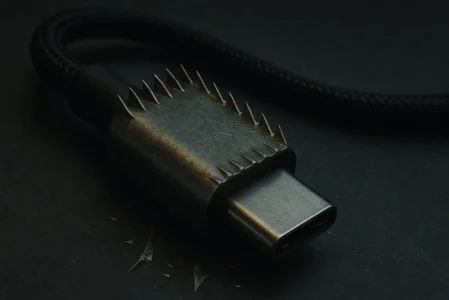
Some of this noise falls in the 2.4–2.5 GHz frequency range. Many wireless devices use the same range, including mice, keyboards, Bluetooth headsets and 2.4 GHz Wi-Fi networks. Radiation can escape from poorly shielded cables, connectors or devices.
When this noise reaches a nearby wireless antenna, it can mask part of the signal the antenna is trying to receive. The device may then have to resend data, causing lag, stuttering or disconnections.
A USB 3.0 drive can disrupt a wireless mouse
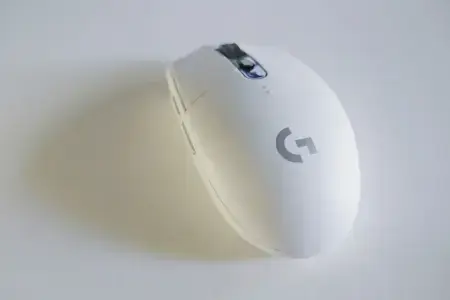
Imagine using a wireless mouse with its small USB receiver plugged into the back of your computer. You then connect a USB 3.0 flash drive or external hard drive to the neighboring port. A moment later, the cursor starts to stutter or the mouse stops responding reliably.
In a study published in April 2012, Intel tested an external USB 3.0 hard drive alongside a wireless mouse receiver. The results showed that placing the drive and its connector close to the receiver could greatly reduce reception. In the configurations tested, moving the receiver away with a USB extension cable restored normal operation.
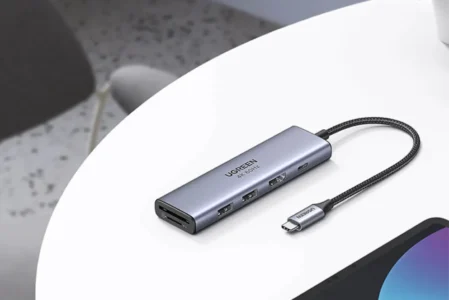
The issue is not limited to USB 3.0 ports built into a computer. Some USB hubs, docking stations and cables can also create interference when a wireless receiver is nearby.
Bluetooth and Wi-Fi can also be affected
Mice are not the only devices affected. Bluetooth also uses the 2.4 GHz band. A headset, speaker or Bluetooth keyboard may experience interference when a USB 3.0 device is too close to the computer’s antenna.
In some setups, an external drive near a Wi-Fi antenna can reduce reception quality or cause speed fluctuations. Wi-Fi on the 5 GHz or 6 GHz bands is not affected in the same way by noise in the 2.4 GHz range. Switching Wi-Fi bands may help if your equipment supports it.
USB 3.0 devices do not always cause interference. Hardware quality, cable shielding and antenna placement all matter.
How to tell whether a USB 3.0 device is the cause
If your wireless mouse behaves erratically, check which devices are connected to your computer. An external drive, flash drive or USB 3.0 hub may be right next to its receiver.
Temporarily unplug the suspected USB 3.0 device and see whether the stuttering stops. Reconnect it to check whether the problem returns; this can confirm the connection. You can also move the mouse receiver to a USB port farther away from USB 3.0 devices. On a desktop PC, a short USB extension cable lets you place the receiver on your desk instead of behind the case.
If Wi-Fi or Bluetooth is affected, move external drives and hubs away from your computer for a while. If the connection becomes more stable, you may have found a source of interference.
We allow some readers to view our articles for free with an ad blocker. However, their number is currently too high for us to keep this access available to everyone.
You can disable your ad blocker to continue reading immediately, subscribe to enjoy all our content without ads, or come back a little later when the pressure has eased.
Access will be restored automatically as soon as the situation allows.