
System administrators and cybersecurity experts often debate whether PowerShell scripts should be blocked. On one hand, PowerShell is praised for automating and securing tasks. On the other, its ability to launch stealthy attacks is a concern. This guide reviews the risks, legitimate uses, and best practices for different types of users.
In this article
- What is the PowerShell execution policy?
- PowerShell: administration tool or attack vector?
- How to check the current PowerShell execution policy
- Best practices for securing Windows computers
- Sign your own PowerShell scripts to protect their integrity
- Enforce security rules with Group Policy (GPO)
- Enable PowerShell logging (event ID 4104, and more)
- Secure PowerShell without blocking it
What is the PowerShell execution policy?
The PowerShell execution policy determines the conditions under which scripts can run on Windows. It is intended to prevent potentially malicious scripts from running accidentally or without authorization. However, it is not a foolproof security measure and can be bypassed.
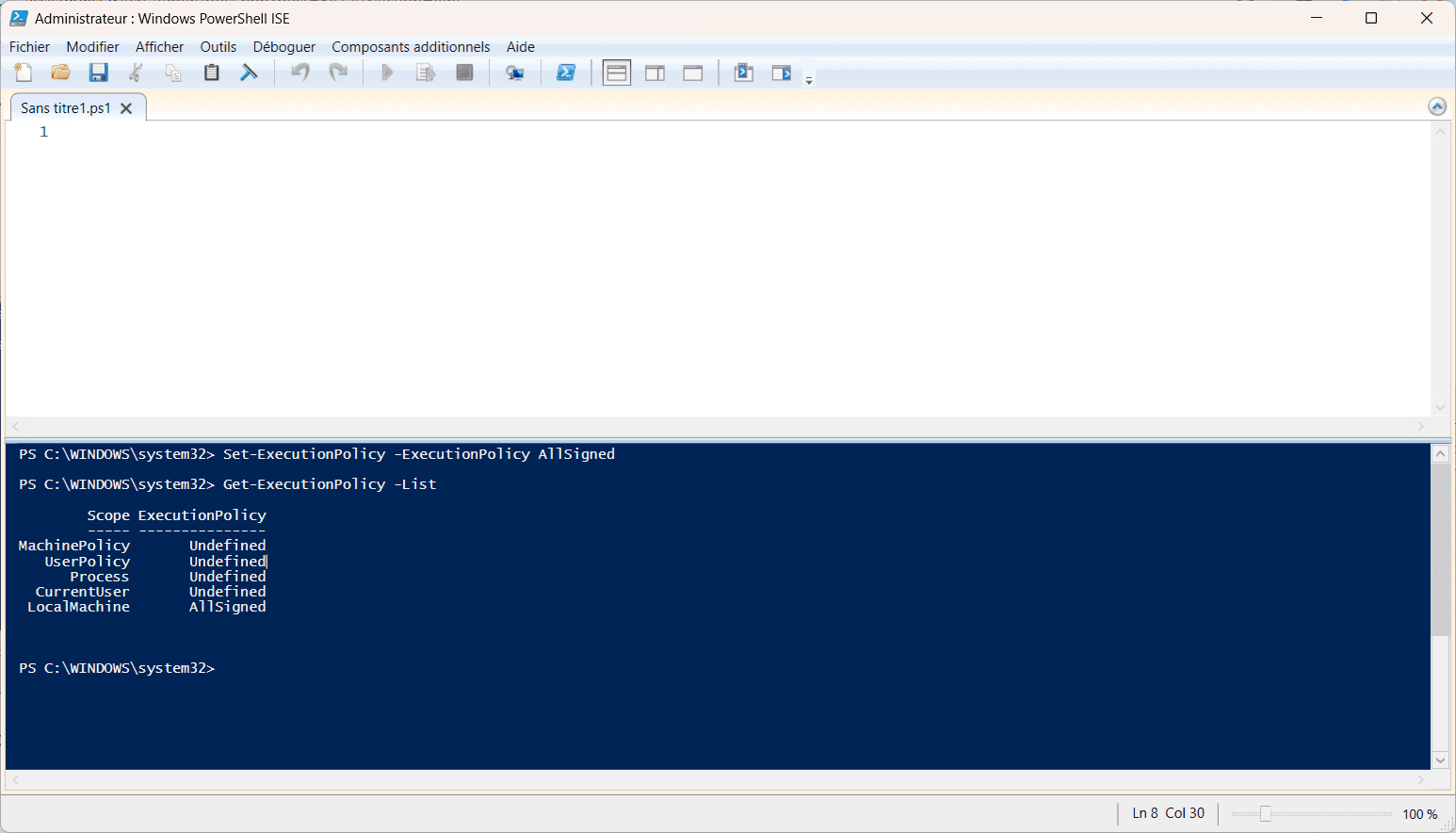
PowerShell offers several execution policy levels:
- Restricted: The default on Windows client systems. It blocks all scripts and allows only interactive commands.
- AllSigned: Every script must be signed by a trusted publisher.
- RemoteSigned: Scripts downloaded from the internet must be signed by a trusted publisher. Unsigned local scripts are allowed.
- Unrestricted: All scripts can run, but a warning appears for those from the internet.
- Bypass: No restrictions or warnings. This is often used in specific environments where security is handled another way.
- Undefined: No policy is set. If every scope is undefined, the effective policy is Restricted on Windows client systems.
PowerShell: administration tool or attack vector?
PowerShell is one of the most powerful tools in the Windows ecosystem. Designed to automate system management, it can access low-level system functions, run scripts remotely, and manage client configuration. These capabilities make it essential for administrators and a powerful tool for attackers. Hackers and penetration testers often use PowerShell to run malicious code in memory without leaving files on disk or triggering traditional antivirus tools. Its integration with Windows and compatibility with .NET make it a particularly difficult attack vector to detect.
Because of this dual role, people often ask whether the execution policy should be tightened. Should PowerShell scripts be restricted or even disabled altogether? This can limit some opportunistic attacks, but in advanced environments the measure is mostly symbolic: many bypasses exist, and current threats often use more sophisticated techniques. The real challenge is not simply to ban PowerShell, but to monitor, filter, and audit it with logging, script signing, and behavioral detection.
How to check the current PowerShell execution policy
Before changing anything, check which execution policy is in effect on your system. PowerShell can show it with one command:
Get-ExecutionPolicy -ListThis command lists the execution policy for each scope, in priority order: MachinePolicy, UserPolicy, Process, CurrentUser, and LocalMachine. The effective policy is the one with the highest priority.
For example:
Scope ExecutionPolicy
----- ----------------
MachinePolicy Undefined
UserPolicy    Undefined
Process       Undefined
CurrentUser   Undefined
LocalMachine  RemoteSigned
In this example, RemoteSigned at the LocalMachine scope takes effect. If every scope is Undefined, Windows uses its default: Restricted on client systems and RemoteSigned on Windows Server.
Best practices for securing Windows computers
Most Windows computers use Restricted by default, which blocks every PowerShell script. Although this may seem secure, users or software can quickly bypass or disable the restriction. A more balanced option is RemoteSigned: it allows unsigned local scripts but requires a digital signature for scripts downloaded from the internet. This significantly reduces risks from malware delivered by email or malicious websites without blocking routine administrative tasks.
Sign your own PowerShell scripts to protect their integrity
For stronger security, it is recommended that you sign all internal scripts. This lets you confirm they came from a trusted source and have not been changed. You can generate a self-signed certificate internally or use your organization’s certificate authority (CA). Script signing helps prevent malicious code injection and makes automated actions easier to audit.
Enforce security rules with Group Policy (GPO)
Group Policy lets you standardize and lock down Windows computers across an organization. You can set the PowerShell execution policy, prevent local changes, and apply other specific restrictions. This limits manual deviations and helps keep computers compliant with your security standards. In business environments, GPOs are the backbone of a consistent security strategy.
Enable PowerShell logging (event ID 4104, and more)
Even with a well-defined policy, actively monitoring PowerShell remains essential. Windows Event Viewer can enable detailed logging through the Script Block Logging option, which records each executed script block as event 4104.
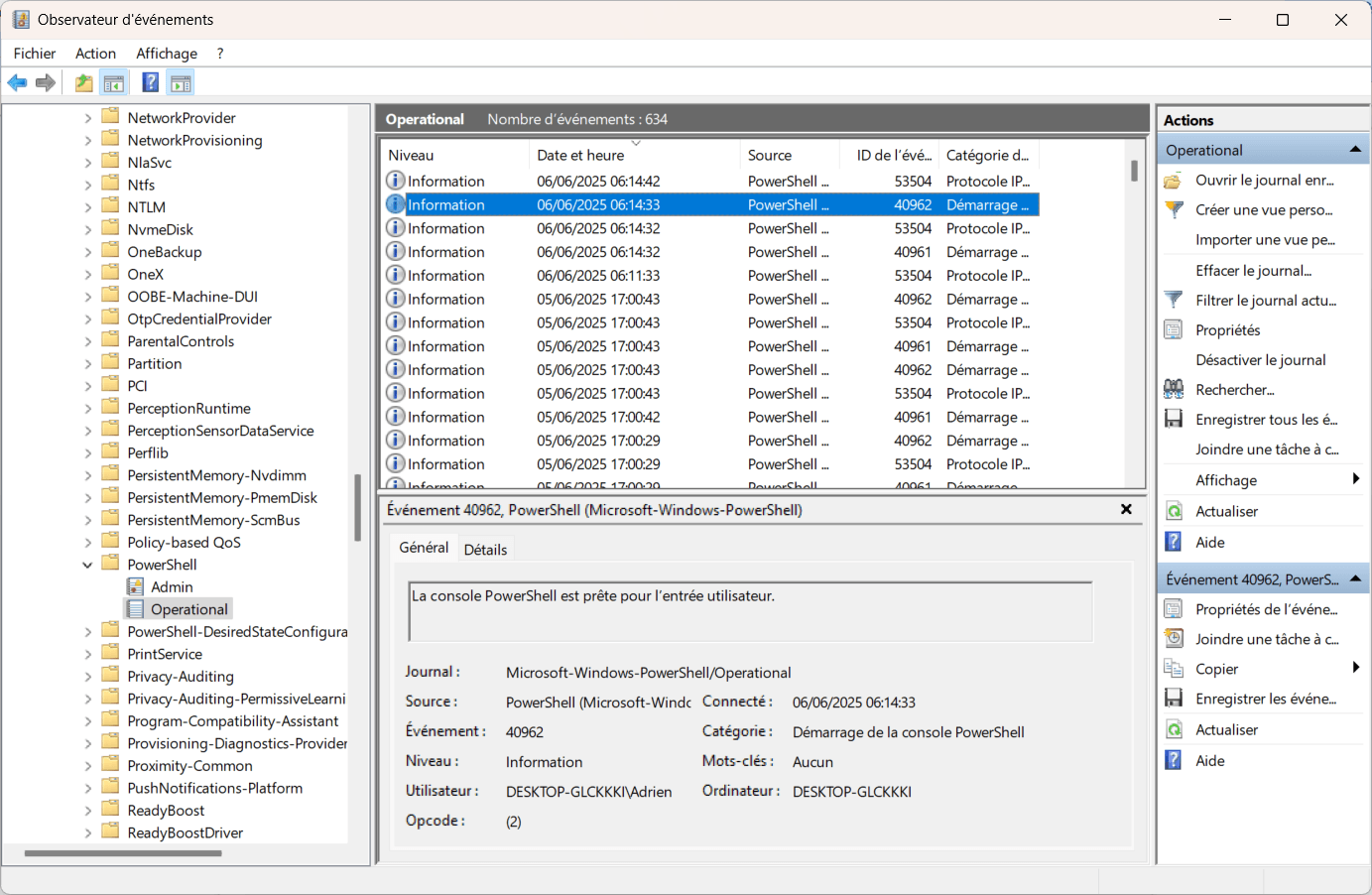
These logs help identify suspicious behavior, detect bypass attempts, and investigate an intrusion. They can be sent to a SIEM for real-time monitoring.
Secure PowerShell without blocking it
Securing PowerShell does not mean simply banning or disabling it. It takes a combination of good practices: an appropriate execution policy, script signing, centralized rules, and ongoing auditing. Instead of disabling a useful tool such as PowerShell, it is more effective to control, monitor, and include it in a defense-in-depth strategy. In the same spirit, enabling Windows Defender’s ransomware protection is a useful addition.
We allow some readers to view our articles for free with an ad blocker. However, their number is currently too high for us to keep this access available to everyone.
You can disable your ad blocker to continue reading immediately, subscribe to enjoy all our content without ads, or come back a little later when the pressure has eased.
Access will be restored automatically as soon as the situation allows.