
Is your main drive running out of space even though your PC has a second SSD? Windows lets you move the Downloads folder to another drive while keeping it easy to access in File Explorer.
You can also find the files and folders taking up the most space on your drive to see whether downloads are causing the problem.
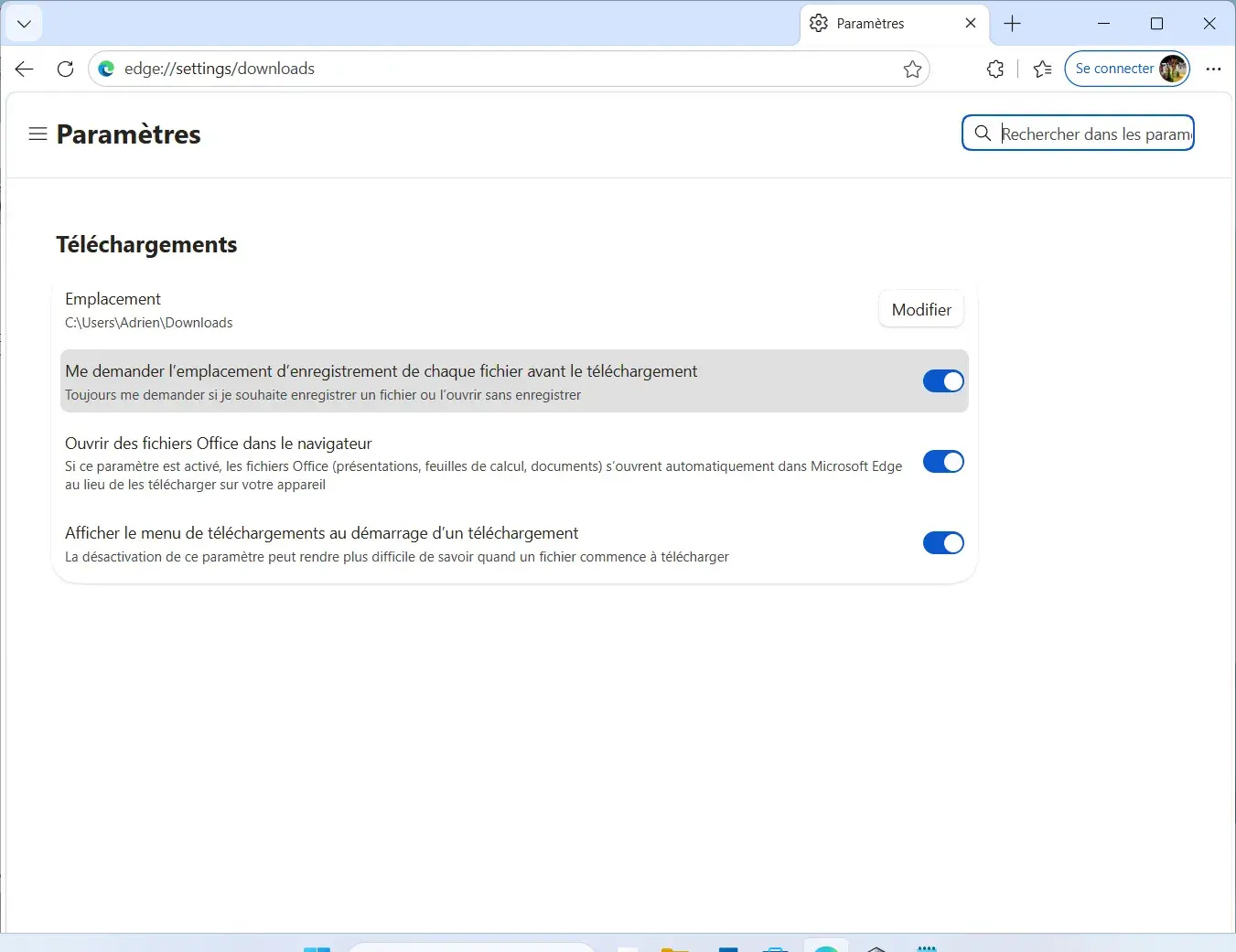
Another option is to change the download location directly in your web browser, so new files no longer take up space on drive C:.
In this article
Move the Downloads folder to another drive
Windows has a Downloads folder linked to your user account. By default, it is located at C:UsersYourNameDownloads. You can change its location in the folder properties while keeping it integrated with File Explorer.
To move this folder to a second drive, follow these steps.
- Open File Explorer with the
Windows + Eshortcut. - In the left pane, right-click Downloads and select Properties.
- Open the Location tab, then click Move.
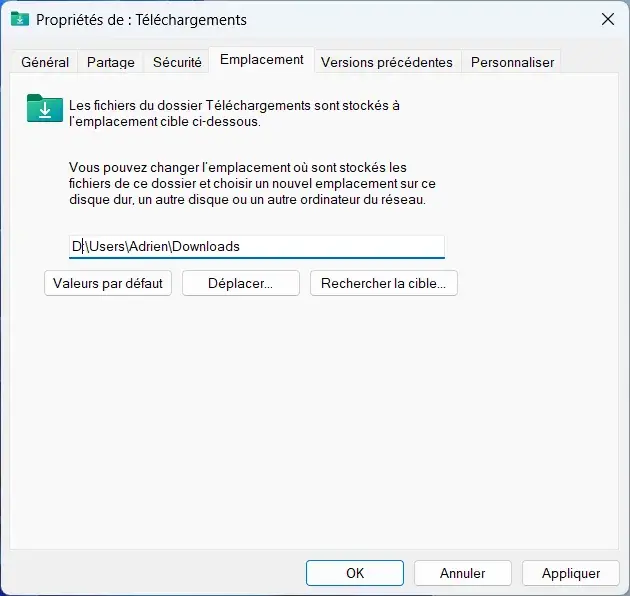
- On your second drive, create a folder named
Downloads, then select it.
- Click Apply and confirm that you want to move the existing files when Windows prompts you.
Moving the files also transfers the downloads already stored on drive C: to the new location. Windows keeps the Downloads folder in File Explorer, but the files are now stored on drive D:.
Choose a different download location in your browser
If you only want files downloaded from the internet to be saved on another drive, you do not need to move the Windows Downloads folder. Browsers have their own settings for choosing where files are saved.
Here are direct links to the download settings in Chrome, Edge and Firefox:
| Browser | Open the settings | Change the location |
|---|---|---|
| Google Chrome | chrome://settings/downloads | Location → Change |
| Microsoft Edge | edge://settings/downloads | Location → Change |
| Mozilla Firefox | Settings → General → Downloads | Save files to → Browse |
In Chrome, open the download settings, click Change next to the current location, then choose a folder on your second drive. The steps are the same in Edge. In Firefox, find the setting under Files and Applications in General settings.
New files downloaded in your browser will be saved to the folder you selected. This does not move earlier downloads or change the location of the Windows system folder.
Choose where to save each file before downloading
Chrome and Edge also let you choose a destination folder before each download. In either browser, turn on Ask where to save each file before downloading in the download settings.
Firefox also has an option called Always ask you where to save files.
Can you move the Downloads folder to an external hard drive?
You can move the Windows Downloads folder to an external hard drive. However, the drive must stay connected, because Windows will use it to access your downloads.
If you disconnect the drive, the folder becomes unavailable and apps trying to save files there may show errors. The same can happen if Windows assigns a different drive letter when you reconnect it. You can then change the drive letter in Disk Management.
If you only use an external drive occasionally, keep the Downloads folder on your internal drive. You can choose the USB drive directly in Chrome, Edge or Firefox whenever you want to save a file there.
Restore the Downloads folder to its original location on drive C:
To undo the move, open the Downloads folder Properties again in File Explorer, then select the Location tab.
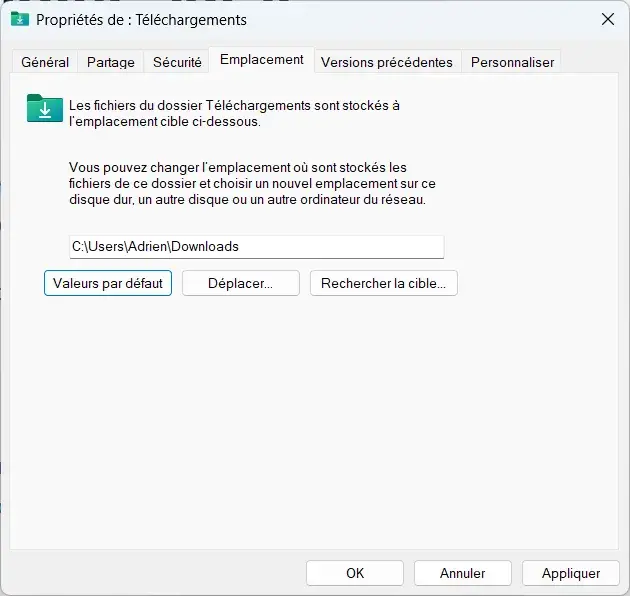
Click Restore Default, then click Apply. Windows will restore the usual path for the Downloads folder.
Windows will ask whether you also want to move the files back to their original location. Confirm if you want to bring your old downloads back to drive C:, and make sure there is enough free space. You can also remove temporary files from Windows to free up space before moving them.
If you moved the folder to an external drive, reconnect it before restoring the original location. The files must remain accessible during the transfer.