
Are you tired of switching between several websites and apps to keep up with your TV programmes? Between official platforms, scattered catch-up services and limited offerings, watching television for free on the web can quickly become a headache. Fortunately, simple tools can bring everything together on one screen, whether you are using a computer, smartphone or smart TV. Here is how to turn your device into a genuine all-in-one TV centre.
In this article
- 1. Download and install Kodi on your device
- 2. Allow unknown sources to install the add-on
- 3. Add the official Catch-Up TV & More repository
- 4. Install the repository in Kodi
- 5. Install the Catch-Up TV & More add-on
- Add your accounts to unlock certain channels
- Enjoy all your channels and catch-up programmes on Kodi
1. Download and install Kodi on your device
Kodi is a universal media player designed for a wide range of platforms (Windows, macOS, Android, iOS, TV boxes and Smart TVs). You can download it from the official Kodi website or from the Google Play, Microsoft Store and App Store application stores. The version distributed by the Kodi Foundation is free and regularly updated.
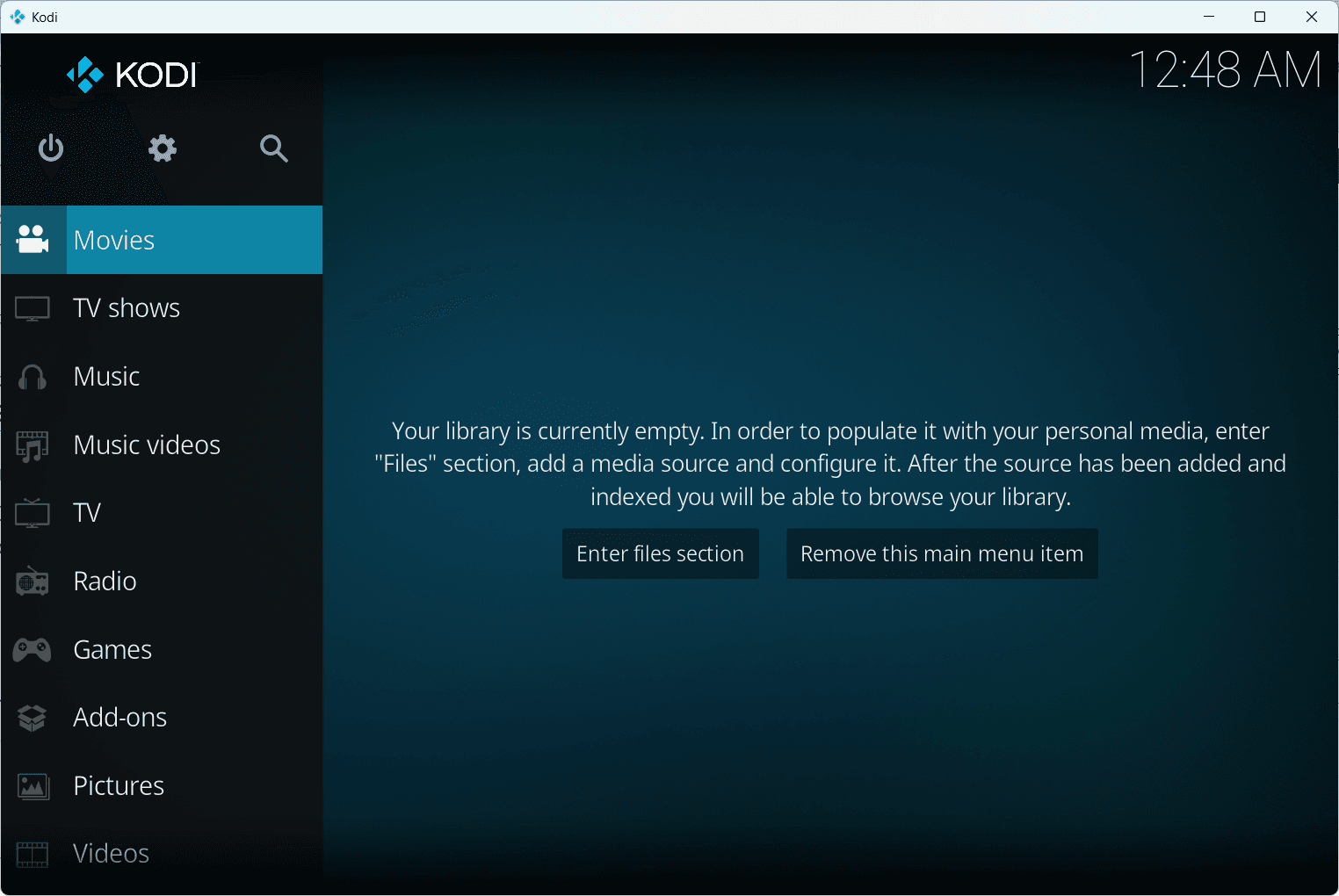
Catch-Up TV & More is one of the most popular add-ons for Kodi. It brings catch-up services, live channels and video content offered by official websites together in one interface. This step-by-step guide shows you how to install it correctly from its official repository, so you can benefit from the latest updates and the best possible compatibility.
2. Allow unknown sources to install the add-on
By default, Kodi applies a strict security policy and only add-ons from its official repositories can be installed. This prevents potentially malicious modules from being added without control, but it also blocks add-ons from third-party developers such as Catch-Up TV & More.
To get around this restriction, you need to allow unknown sources. This option lets Kodi accept and install modules hosted outside its official catalogue.
- Launch Kodi and click the Settings icon at the top of the side menu.
- Go to System → Add-ons.
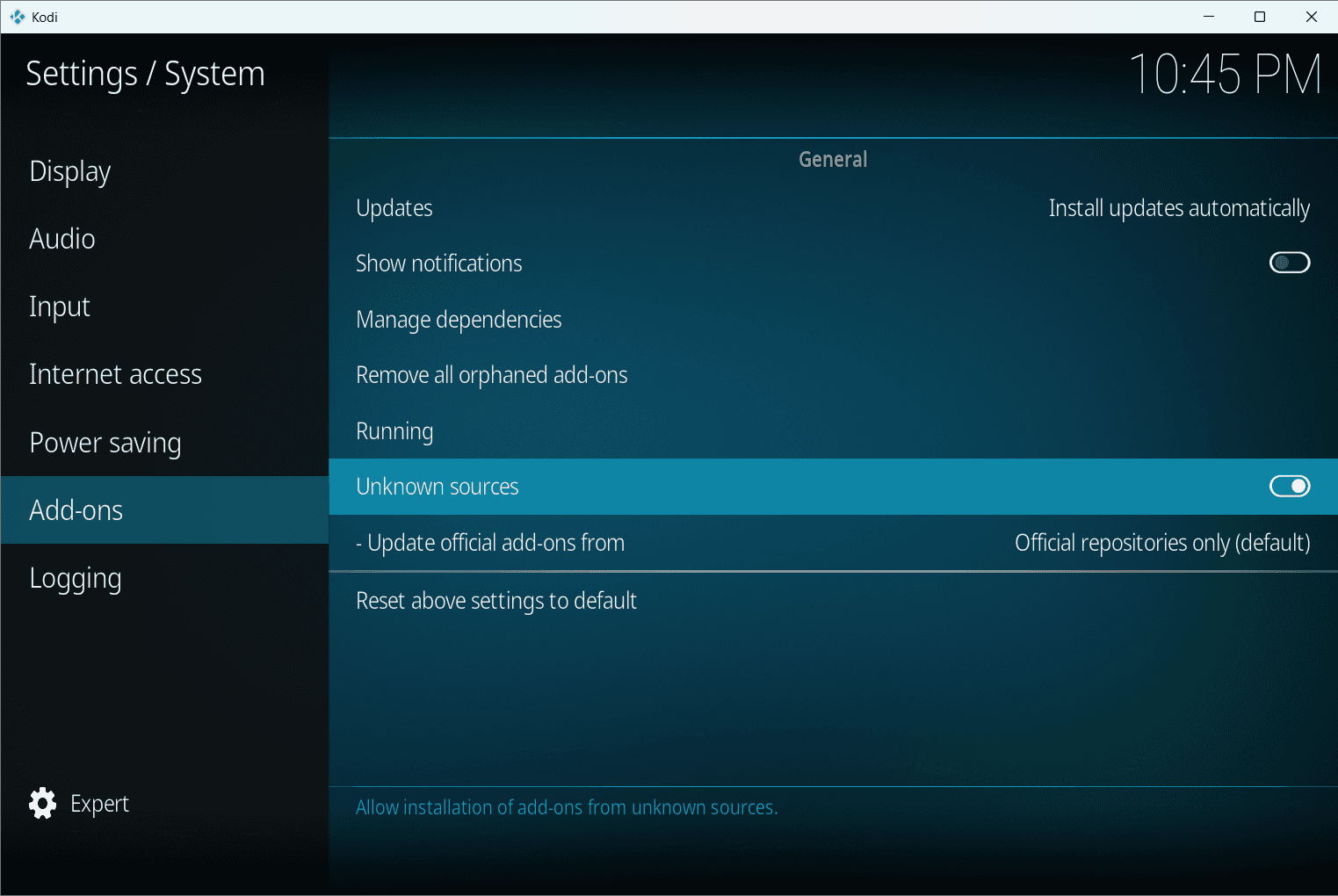
- Enable Unknown sources.
3. Add the official Catch-Up TV & More repository
For Kodi to install Catch-Up TV & More, it needs to know where to find the repository containing the required files. This step consists of adding the project’s official address to Kodi’s file manager.
- Still in Settings, open File Manager.
- Click Add source.
- Enter this address: https://catch-up-tv-and-more.github.io/repo/
- Give the source a clear name, such as Catch-Up TV & More source.
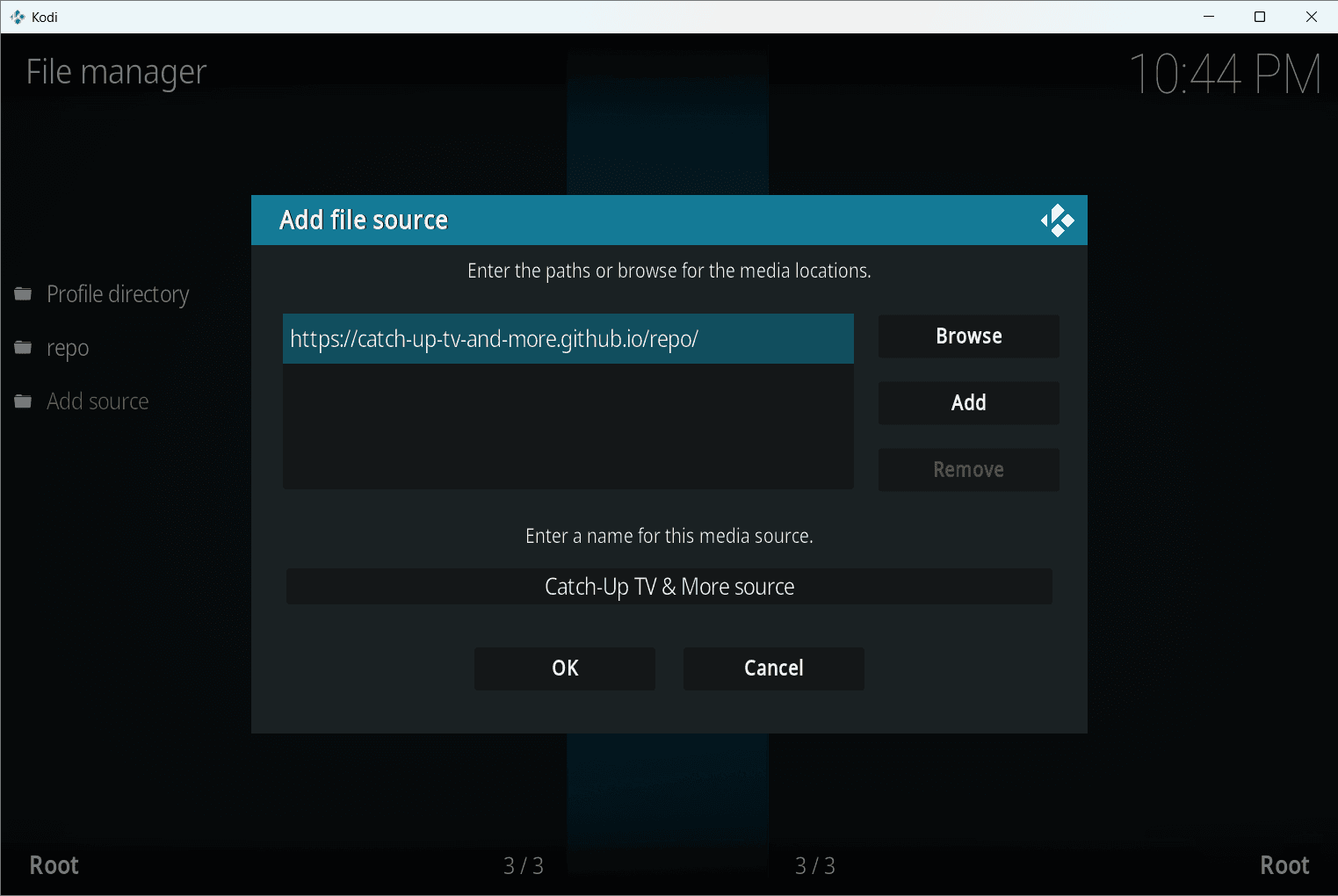
- Confirm with OK.
4. Install the repository in Kodi
- Go back to the main menu and open Add-ons.
- Click the open-box icon in the top-left corner.
- Choose Install from zip file.
- Select the Catch-Up TV & More source you created.
- Install the repository ZIP file.
Kodi will quickly confirm that the Catch-Up TV & More Repository has been installed.
5. Install the Catch-Up TV & More add-on
Now that the repository address is registered, you need to import its contents into Kodi so that you can install the add-on. This is done using the ZIP file provided by the repository.
- In the same add-ons menu, choose Install from repository.
- Open Catch-Up TV & More Repository.
- Go to Video add-ons, select Catch-Up TV & More and click Install.
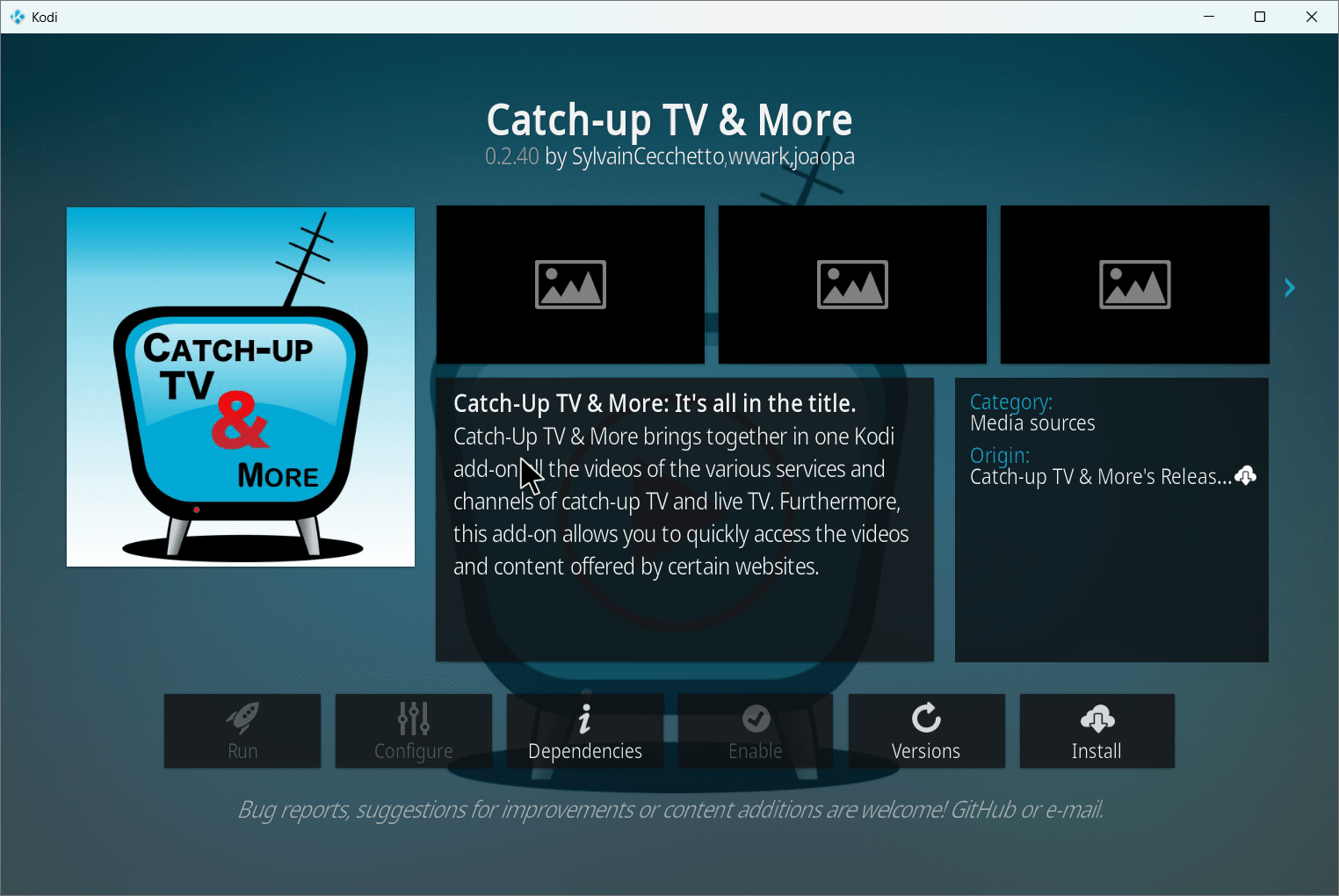
- Kodi will display the list of required dependencies, such as InputStream Helper, youtube-dl Control and the logo pack. Accept by clicking OK.
Dependencies are helper modules required for the add-on to work correctly. For example, InputStream Helper enables the playback of DRM-protected streams.
Add your accounts to unlock certain channels
Some television or catch-up platforms integrated into Catch-Up TV & More require you to sign in to access some or all of their content. This can include free accounts (simple online registration) as well as paid subscriptions that provide access to premium streams or complete catalogues.
To make full use of these channels and services, create an account on their official website and then enter your credentials in Kodi.
| Service / Channel | Account type | Registration URL |
|---|---|---|
| TF1+ (formerly myTF1) | Free | Create a TF1+ account |
| 6play / M6+ | Free | Create an M6+ account |
| RMC BFM Play | Free | Create an RMC BFM Play account |
- In Kodi, open Catch-Up TV & More and go to: Settings → Accounts.
- In the French channels section, enter your email address and your password for each service you use.
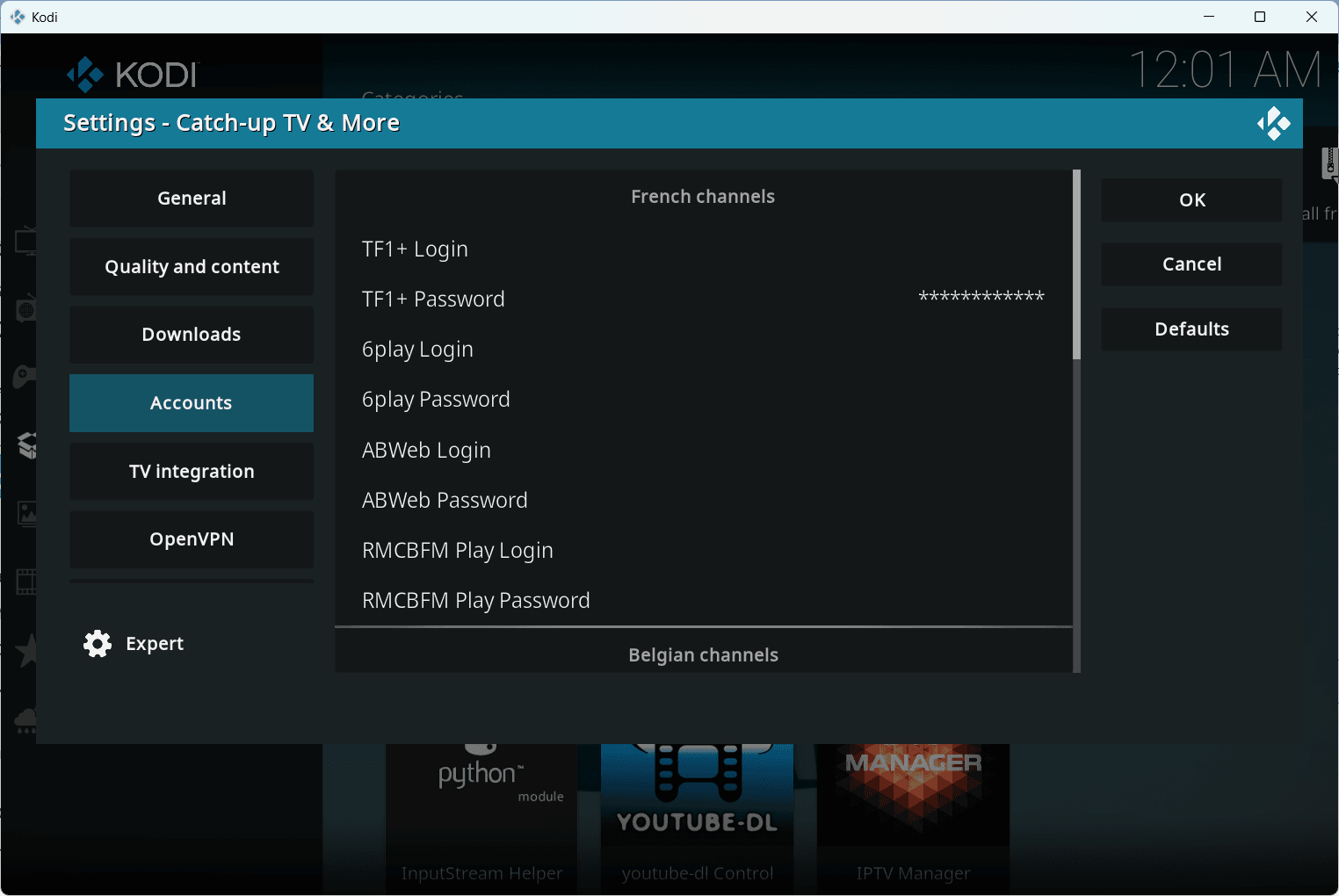
- Confirm with OK to save the configuration.
Enjoy all your channels and catch-up programmes on Kodi
Once properly configured, Catch-Up TV & More becomes your single gateway to live television and catch-up services. There is no need to switch between several websites or apps: everything is together in Kodi, in one place.
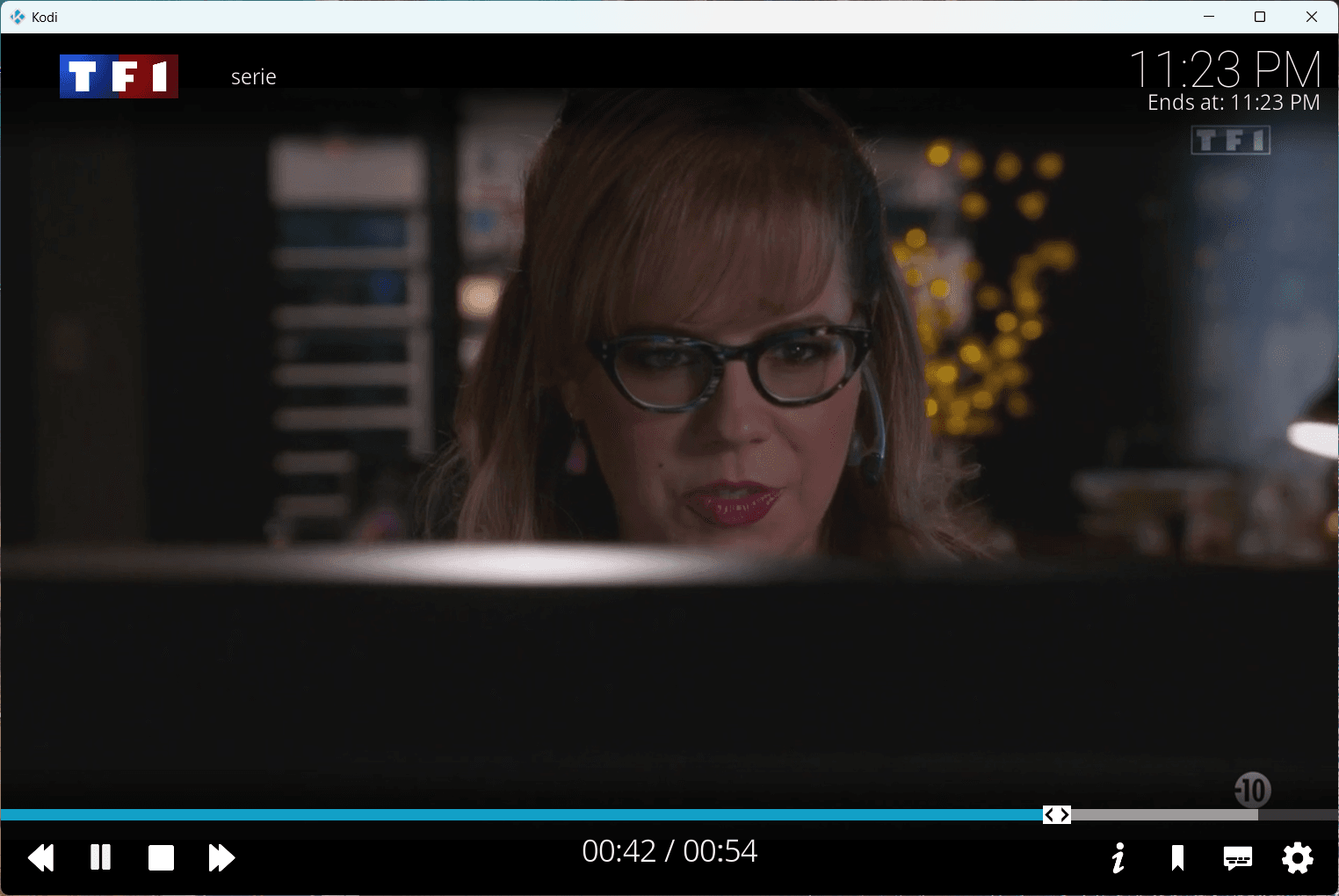
By adding your credentials for certain channels such as TF1+, 6play, ABWeb or RMC BFM Play, you can access all their programmes without interruptions or restrictions. You can switch channels, watch your favourite programmes again and explore new content as if you had a high-end set-top box, but without an additional subscription.
We allow some readers to view our articles for free with an ad blocker. However, their number is currently too high for us to keep this access available to everyone.
You can disable your ad blocker to continue reading immediately, subscribe to enjoy all our content without ads, or come back a little later when the pressure has eased.
Access will be restored automatically as soon as the situation allows.