
How do I merge two partitions in Windows Disk management

How do I merge two partitions in Windows? Disk management

Windows allows you to manage storage via its integrated disk management tool, but it doesn’t offer direct functionality for merging two partitions without loss of data. This operation may be necessary when you wish to merge the unused space of one partition with another, particularly after a system reinstallation or a misallocation of disk space. In this article, we’ll look at the methods available for merging partitions under Windows.

How do I merge two partitions in Windows? Disk management
Happy reading

What is a score?

A partition is a logical division of a hard disk or SSD that allows data to be structured and organized independently. Each partition functions as a separate storage unit with its own file system and sometimes even a dedicated operating system. There are several types of partition in storage organization:

  • Logical partition: Located inside an extended partition, it functions like a conventional partition and can be formatted with a file system.
  • Primary partition: contains a file system and can be used to boot an operating system. A disk can contain up to four primary partitions.
  • Extended partition: This serves as a container for other partitions, called logical partitions, enabling you to bypass the limitation of the four primary partitions.

How do I merge two partitions in Windows?

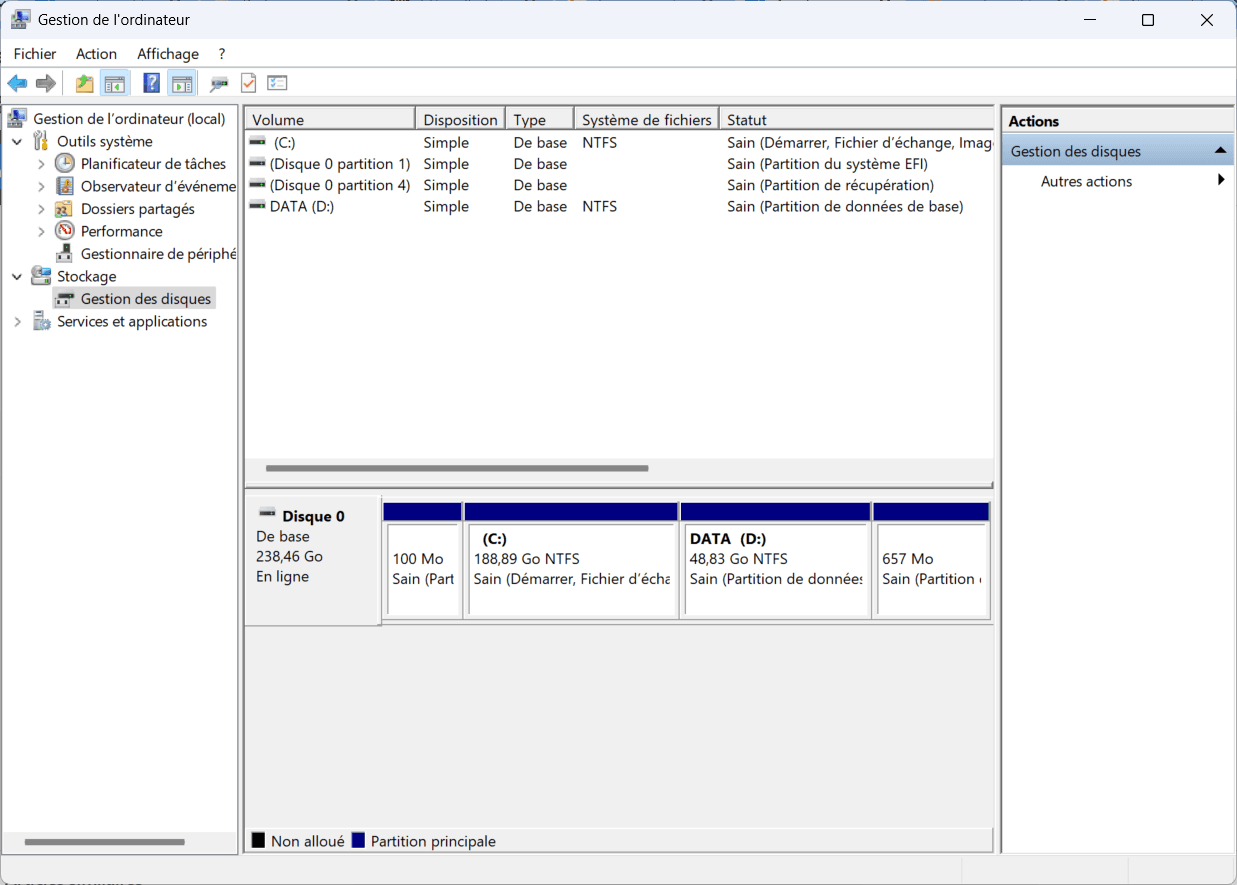
Open the Disk Management tool by right-clicking on the Start menu (Windows logo) and selecting Disk Management. You should see all your partitions and available disk space.
Images are displayed when ads are allowed.
Windows disk management tool
The Windows disk management interface.

In this example, we have two distinct partitions:

  • The main partition C: (System)
  • The DATA partition (D:) we wish to merge with C:

To merge these partitions, you must first delete the D: partition to reclaim its space as unallocated storage.

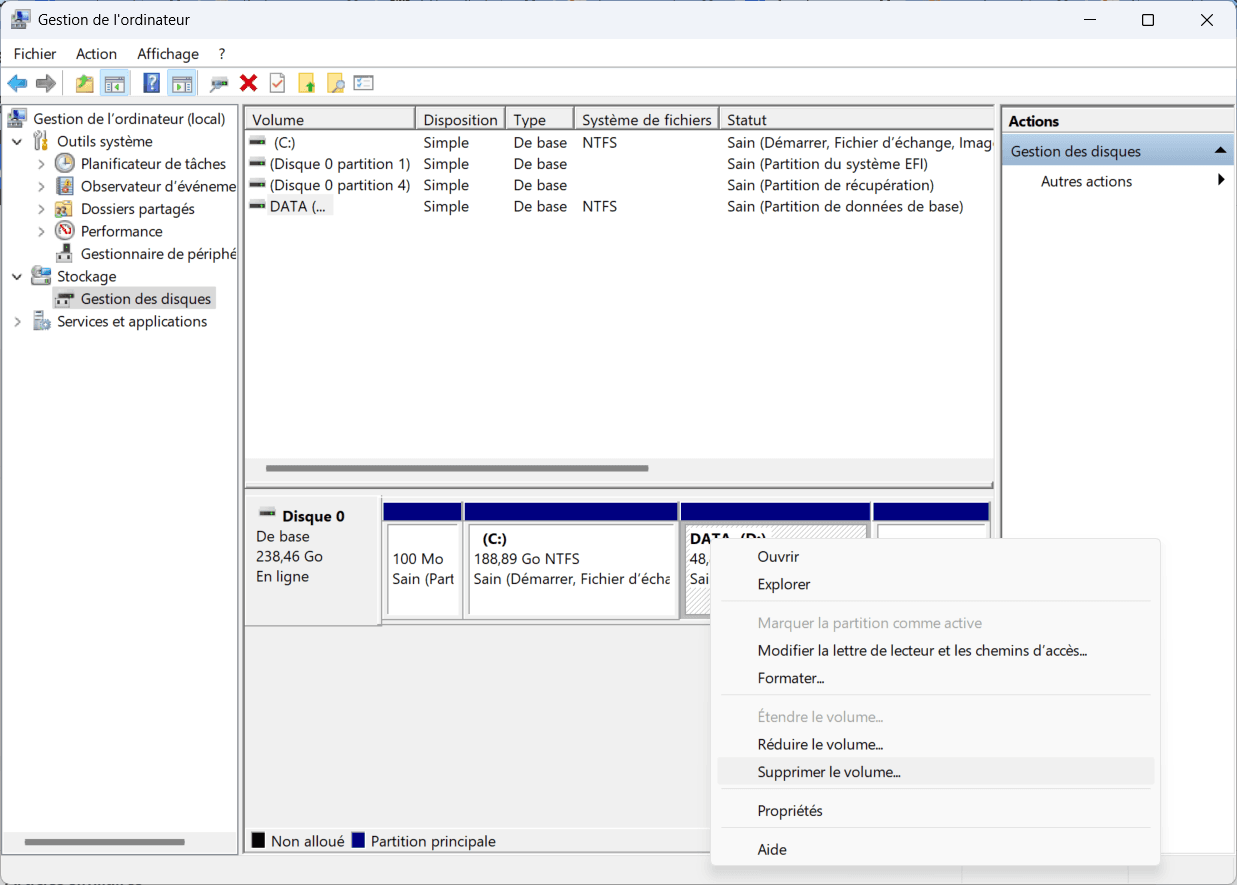
Right-click on the D: partition and select Delete volume.
Images are displayed when ads are allowed.
Select the option to delete the unused partition
Select the option to delete the unused partition.

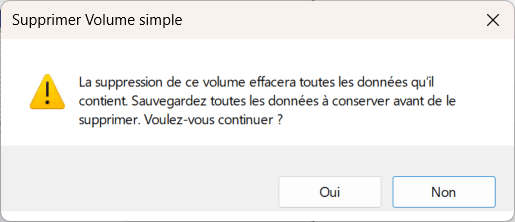
A confirmation dialog box appears, warning that all data will be deleted. Click on Yes.
Images are displayed when ads are allowed.
Warning message about final file deletion.

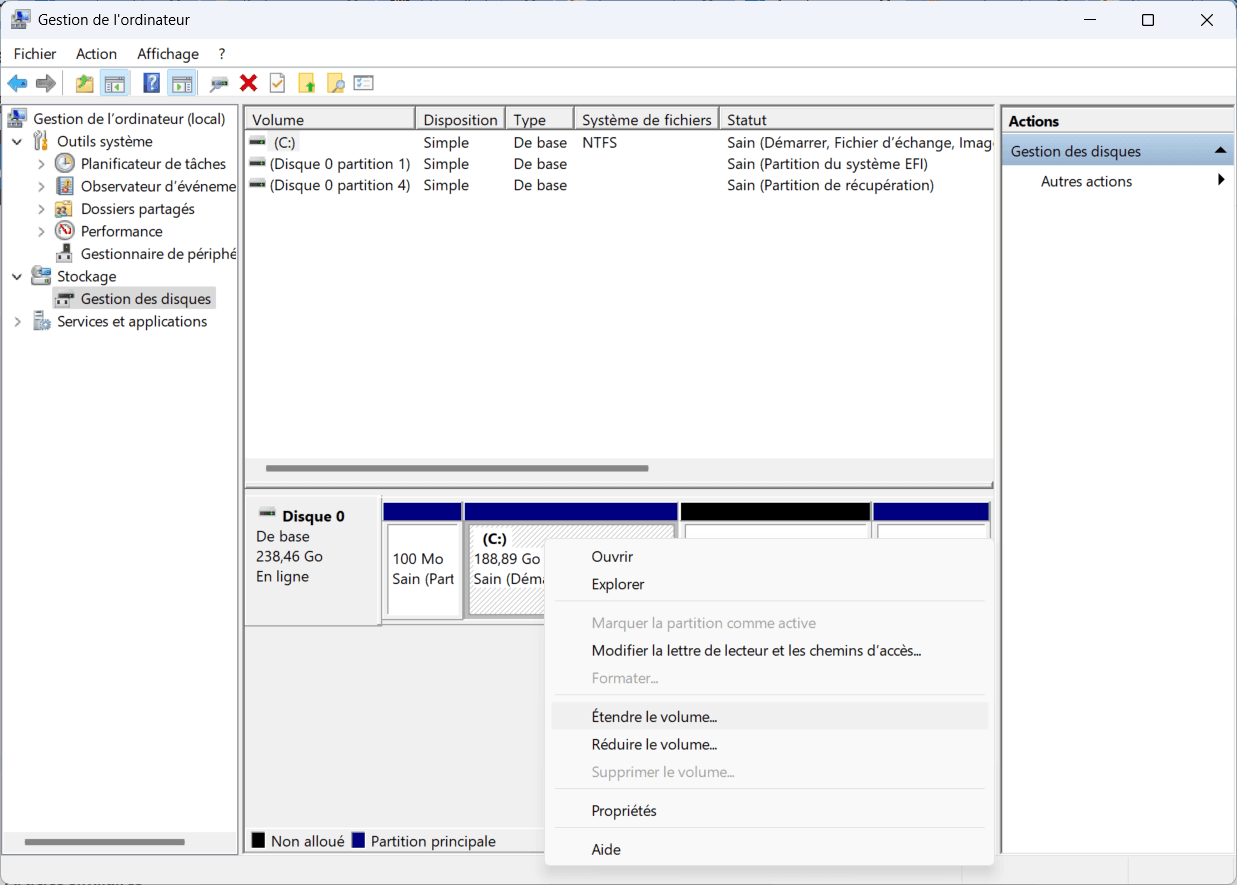
Once the partition has been deleted, the space becomes unallocated.
Images are displayed when ads are allowed.
The main partition can be enlarged with the space freed up
The main partition can be enlarged with the space freed up.

Right-click on the main C: partition and select Extend volume.

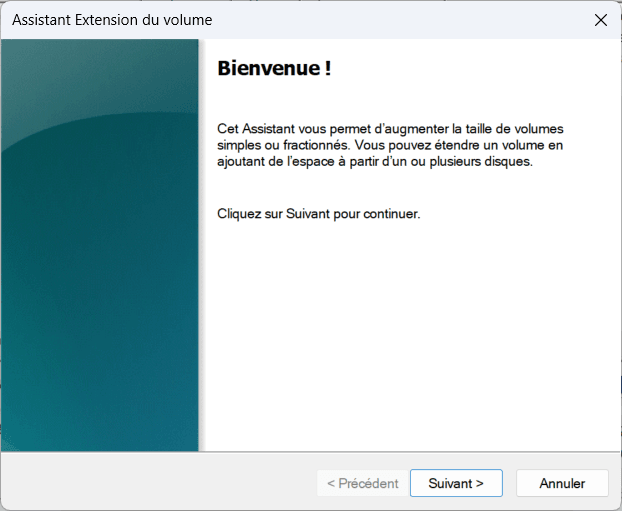
TheVolume Extension Wizard opens. Click on Next.
Images are displayed when ads are allowed.
Guided interface for adding space to a partition
Guided interface for adding space to a partition.

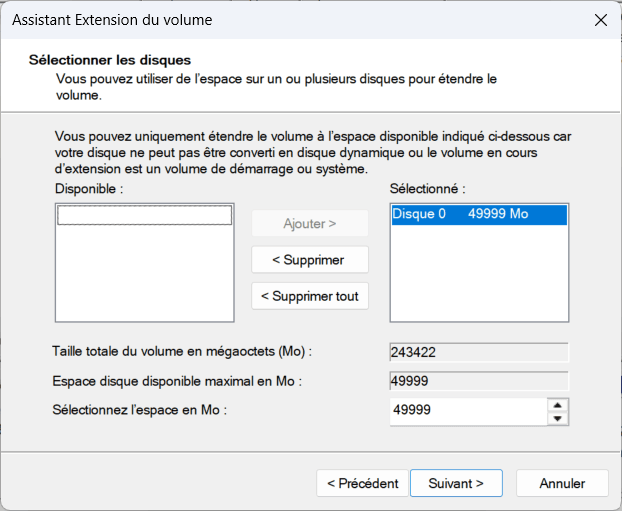
Select the unallocated space (formerly partition D:) and click on Add, then Next.
Images are displayed when ads are allowed.
Add unallocated space to the main partition
Add unallocated space to the main partition.

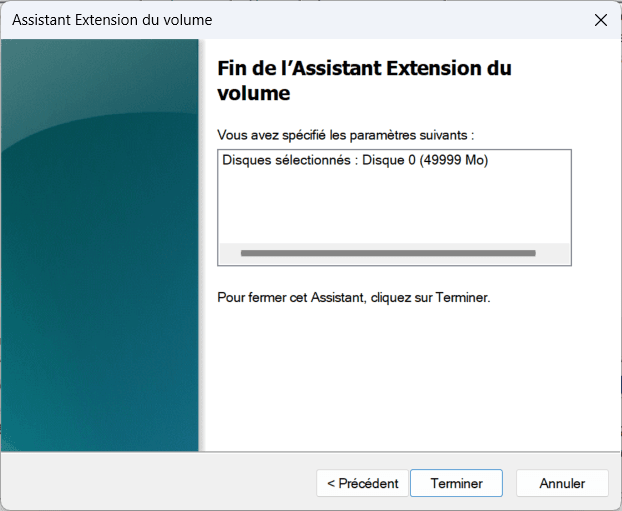
Check the settings and click on Finish to finalize the operation.
Images are displayed when ads are allowed.
Confirmation of volume extension parameters
Confirmation of volume extension parameters.

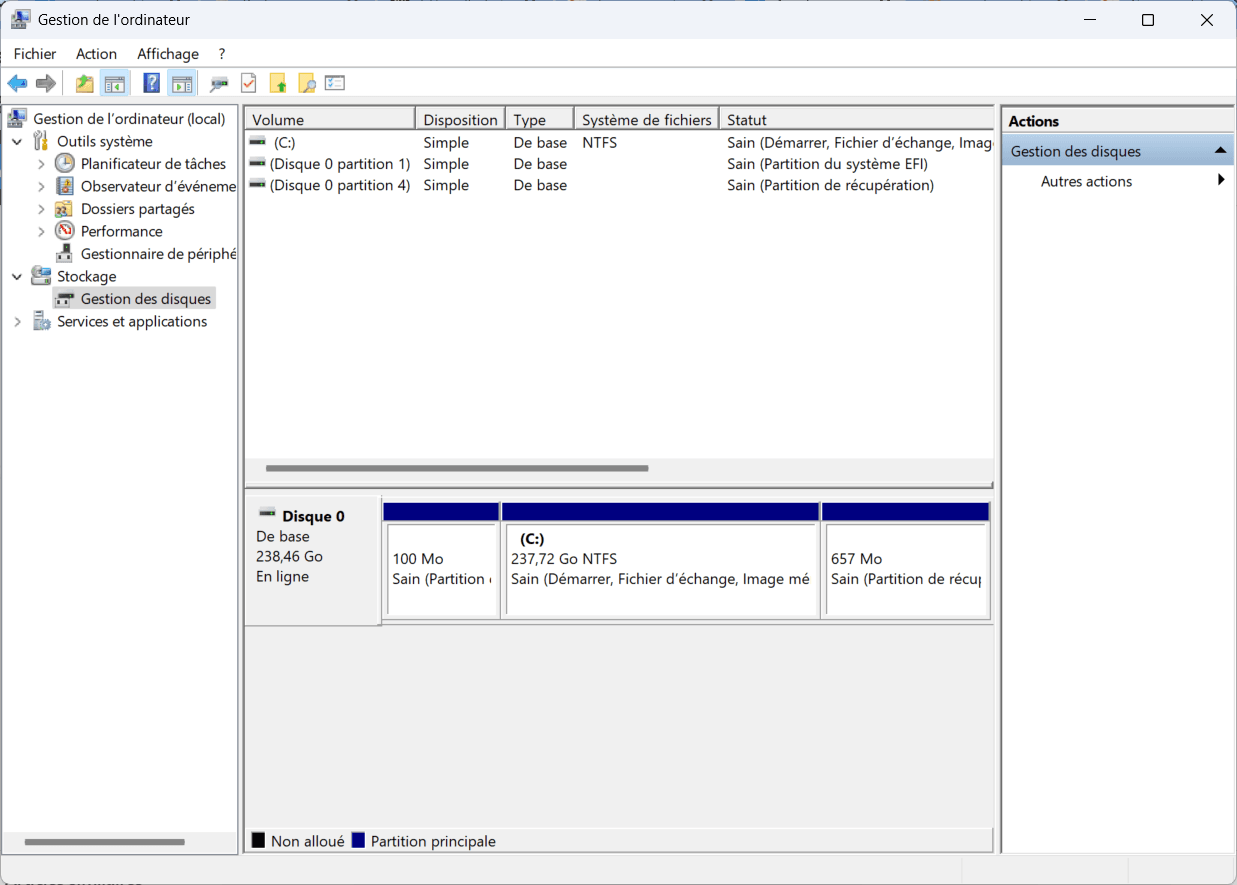
Once the operation has been completed, the C: partition has been extended to include the space of the former D: partition.
Images are displayed when ads are allowed.
Visualization of the merged partition after extension
Visualization of the merged partition after extension.

The articles everyone is reading right now

A developer discovers why Windows 11 is so slow by analyzing how the interface works
Popular

A developer discovers why Windows 11 is so slow by analyzing how the interface works

Behind the sleek design of Windows 11 lies a poorly optimized hybrid architecture. XAML Islands, supposed to modernize the UI, are accused of slowing down the system.

Découvrir
Windows 10: ESU now available to consumers after the end of support in 2025
Popular

Windows 10: ESU now available to consumers after the end of support in 2025

Windows 10: everything you need to know about the ESU program to keep receiving security updates and avoid vulnerability risks.

Découvrir
DISM: Repair Windows 10/11 system files and images
Popular

DISM: Repair Windows 10/11 system files and images

Repair Windows system files and images with DISM GUI. Enjoy a fully operational computer.

Découvrir
Windows 11: Completely uninstall a stubborn program and clean up its tracks
Popular

Windows 11: Completely uninstall a stubborn program and clean up its tracks

Find out how to completely uninstall software from your computer with our step-by-step guide.

Découvrir
How to disable visual effects and animations on Windows 11
Popular

How to disable visual effects and animations on Windows 11

Deactivate visual effects that can slow down your Windows computer and enjoy better performance.

Découvrir
How to disable the webcam on your Windows PC?

How to disable the webcam on your Windows PC?

Prevent unintentional activation of your webcam! Follow our practical guide to easily disable the built-in webcam on your Windows laptop.

Windows 11 challenges WinRAR: does native support for RAR files measure up ?

Windows 11 challenges WinRAR: does native support for RAR files measure up ?

Windows 11 takes on WinRAR with its native support for RAR files. Full analysis of whether the integrated solution meets your compression and decompression needs

Scroll to Top