
You need a tool on your work computer, but you’re held back by a company policy, and your IT department takes three weeks to reply. This guide outlines methods that do not alter the system and remain within the bounds of legitimate use.
In this article
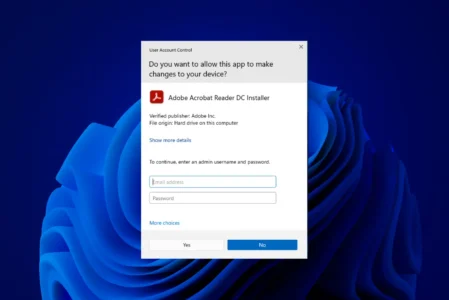
- In which cases can you install it without admin rights?
- Why do companies block the installation of software?
- How can I run software without installing it or needing admin rights?
- How do you install (without installing) a portable application?
- The best portable apps for working without admin rights
- What if even mobile apps are blocked?
In which cases can you install it without admin rights?
You are freeto use your own devices: your personal PC, a family PC, or a laptop you own. Portable applications do not alter the system and are generally permitted even on work computers, provided that your IT policy does not explicitly prohibit them.
Why do companies block the installation of software?
The main reason: security. Unverified software can introduce malware, ransomware or spyware into the internal network. Organisations subject to the GDPR or NIS2 cannot afford to have an employee install a tool whose code has not been reviewed by anyone.
Some programmes also conflict with existing business tools. Poorly optimised software ties up resources, slows down workstations and, in the worst-case scenario, affects the entire network. Limiting installations to approved software ensures a stable and consistent environment across all workstations.
Every workstation must be configured in the same way to simplify support, updates and cybersecurity. A network where everyone installs whatever they like is impossible to maintain.
How can I run software without installing it or needing admin rights?
Windows relies on a privilege management mechanism known as UAC (User Account Control). Its role is to prevent accounts without elevated privileges from modifying system files or installing programmes in protected directories. But portable applications bypass this mechanism. They do not touch the Windows registry or system folders. They run from a user directory or a USB stick, which makes them invisible to UAC.
This is a fundamental flaw in Windows: blocking the installation of software is not enough to prevent it from running. A simple portable executable file provides access to a web browser, a code editor or a communication tool without leaving any trace in the list of installed programmes.
How do you install (without installing) a portable application?
Portable applications do not modify the Windows registry. They run independently from a folder or a USB stick, without requiring administrator rights.
Simulate a secure environment if you are not in a corporate setting
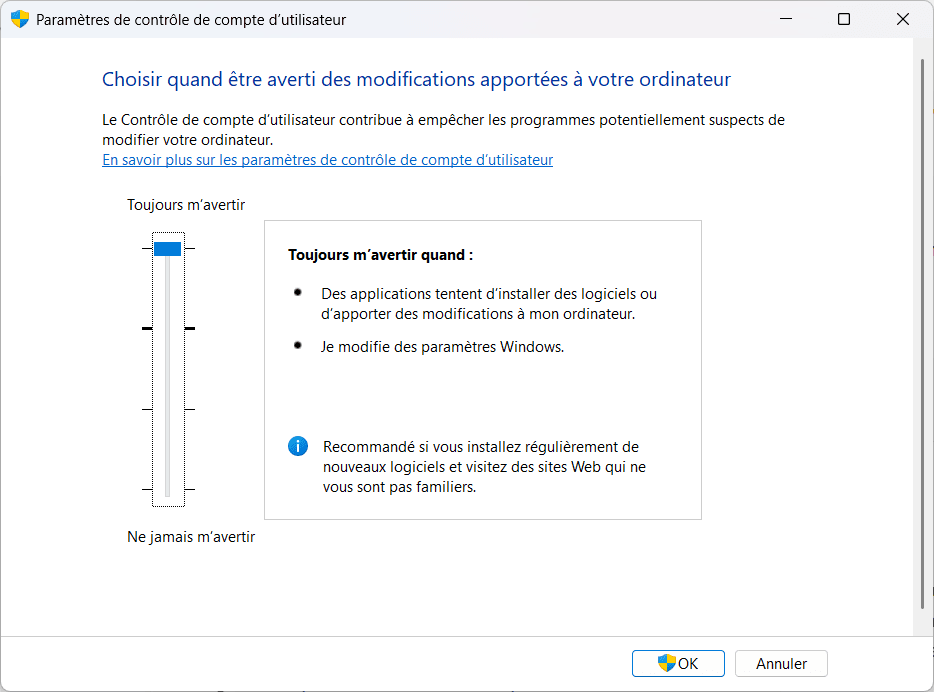
To test how a portable application runs in an environment that simulates corporate restrictions, increase theUAC (User Account Control) level. Any installation attempt requiring admin rights will then be flagged immediately. Don’t worry: portable applications don’t need them.
Downloading and extracting
Portable applications can be downloaded from the publisher’s official website or from PortableApps.com, a catalogue of over 400 free portable applications. In the case of LibreOffice Portable, download the file from either of these two sources.
Once the file has been downloaded, it is not a standard installation but an extraction. When you run the executable file, a window will ask you to select a destination folder. No administrator rights are required. You can extract the files to the Documents folder, the desktop or an external drive.
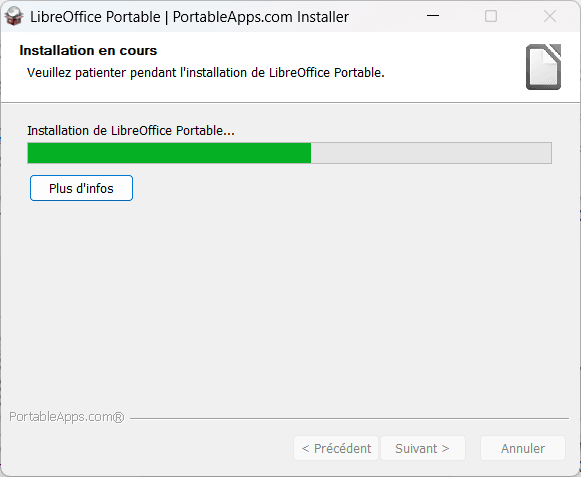
Extraction takes a few minutes. No system files are affected. All the files needed to run the software are copied to your destination folder – that’s all.
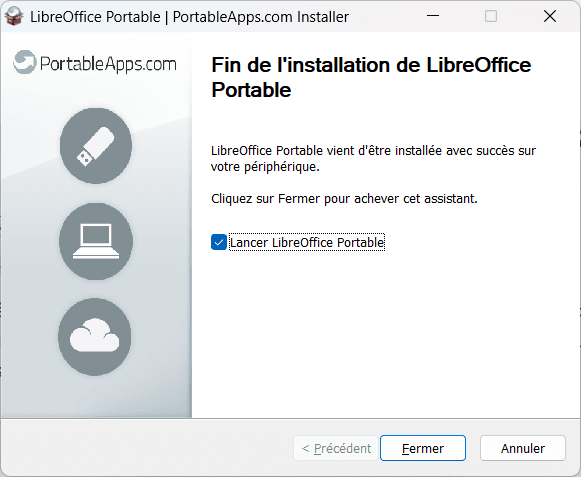
Once the extraction is complete, the software is ready to use. Unlike traditional applications, which require administrator rights to install and sometimes to run, a portable programme can be opened by any user account, regardless of their permission level.
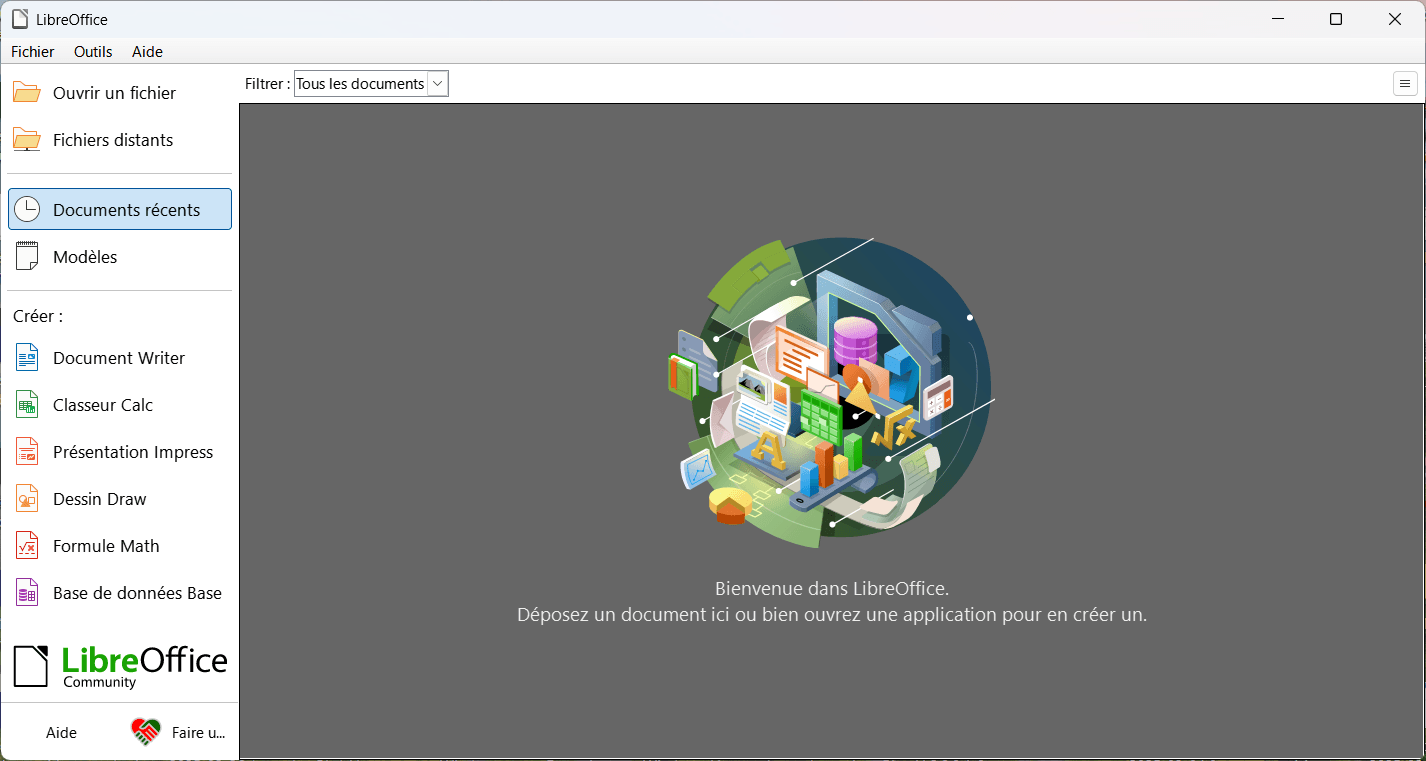
In our example, LibreOffice Portable is ready to use immediately after extraction. Tick the option to launch the programme at the end of the process, or manually open LibreOfficePortable.exe in the destination folder. The programme will open as normal, with all its features, without the system detecting any installation.
There are two limitations to be aware of with portable versions. They take longer to start up than an installed version, particularly when run from a USB stick where read speeds are slow. And updates must be carried out manually: you have to download the new version yourself, as there is no automatic update manager. They also do not integrate into the Start menu and are not associated by default with the file types they open. On a locked-down computer or in an urgent business context, these trade-offs are acceptable.
The best portable apps for working without admin rights
PortableApps.com lists over 400 free portable applications. Here are the most useful ones for professional use.
| Application | Usage | Size |
|---|---|---|
| Notepad++ Portable | Text and code editor | ~10 MB |
| LibreOffice Portable | Complete office suite | ~400 MB |
| VLC Portable | Audio and video player | ~40 MB |
| 7-Zip Portable | Archiving and compression | ~2 MB |
| KeePassXC Portable | Password manager | ~15 MB |
| Firefox Portable | Web browser | ~80 MB |
What if even mobile apps are blocked?
An IT administrator who has configured AppLocker correctly can block execution from %APPDATA% and %LOCALAPPDATA%. In this case, even a portable app copied to your Documents folder will fail with the message ‘This app has been blocked for your protection’. This is not a bug; it is an AppLocker path rule.
Ask your IT department for an exception. Explain exactly what you need it for and the name of the application. Most IT departments have a fast-track approval process for clearly justified, low-risk requests. A specific request (“I need Notepad++ to edit configuration files until Friday”) is more likely to receive a quick response than a vague one.
The Microsoft Store. VLC, Notepad++, 7-Zip and other popular tools are available via the Store. If your organisation allows the Store, these apps can be installed without admin rights and without having to bypass any restrictions.
Windows Sandbox. If your IT department has enabled it, this feature allows you to run a programme in an isolated environment that leaves no trace on the host system. Ideal for testing a one-off tool without needing approval.
<!– wp:assistouest/callout {“calloutType”:”note”,”title”:”Do you manage the fleet?”,”content”:”If you’re an IT administrator looking to block the execution of portable applications on your workstations, the answer is AppLocker. See our guide on how to prevent users from running unauthorised software with AppLocker on Windows 11.”} /–>
We allow some readers to view our articles for free with an ad blocker. However, their number is currently too high for us to keep this access available to everyone.
You can disable your ad blocker to continue reading immediately, subscribe to enjoy all our content without ads, or come back a little later when the pressure has eased.
Access will be restored automatically as soon as the situation allows.