

Until now, a PC that froze on startup often meant an emergency call to your computer troubleshooter. Microsoft is changing all that with Rapid Machine Recovery, a tool integrated into Windows 11 that can download and apply the necessary patches directly from the recovery environment.
In this article
What is Quick Machine Recovery?
Quick Machine Recovery is a new feature in Windows 11 designed to enable your PC to repair itself when it fails to start up properly. Clearly, if Windows detects several consecutive failures on startup, it automatically switches to a special mode (the WinRE recovery environment) to search for and apply the necessary patch online, directly via Windows Update.
It’s not a question of going back to a backup point already present on your disk, but of downloading the most recent solution from the cloud. This makes it possible to correct problems caused by faulty updates or software bugs, even if the machine has never been configured with a restore point.
Microsoft developed Quick Machine Recovery in response to large-scale incidents such as the CrowdStrike outage in July 2024, which knocked out millions of computers worldwide. With this new feature, the idea is to limit the impact of this type of disaster and reduce dependence on human intervention or a computer troubleshooter.
This feature has been available since the August 2025 update to Windows 11 KB5063878.
Quick Machine Recovery: how Windows 11 automatically repairs your PC
The principle of Quick Machine Recovery is based on automatic detection: if Windows fails to start up correctly several times in succession, it understands that a serious problem is preventing the system from launching normally. Rather than getting stuck on an error screen, the computer automatically switches to WinRE (Windows Recovery Environment), an advanced recovery mode built into the system.
From this environment, Quick Machine Recovery attempts to establish an Internet connection (Ethernet or Wi-Fi if credentials are known) in order to access the Windows Update servers. Once online, it searches for the most appropriate patch for the detected failure, whether it’s a faulty update, a problematic driver or a missing security patch.
If a patch is found, it is downloaded and applied directly in WinRE. The computer then reboots to check whether the repair has restored normal operation. In the event of failure, the process can be repeated automatically at a user-configured frequency.
Quick Machine Recovery: all settings available on Windows 11
Microsoft has made several adjustments to adapt its behavior to your needs.
From the Windows 11 settings, you can activate or deactivate the function at any time. For users who want to maximize the chances of a repair, an additional option allows you to continue searching for a solution even if no fix has been found on the first attempt.
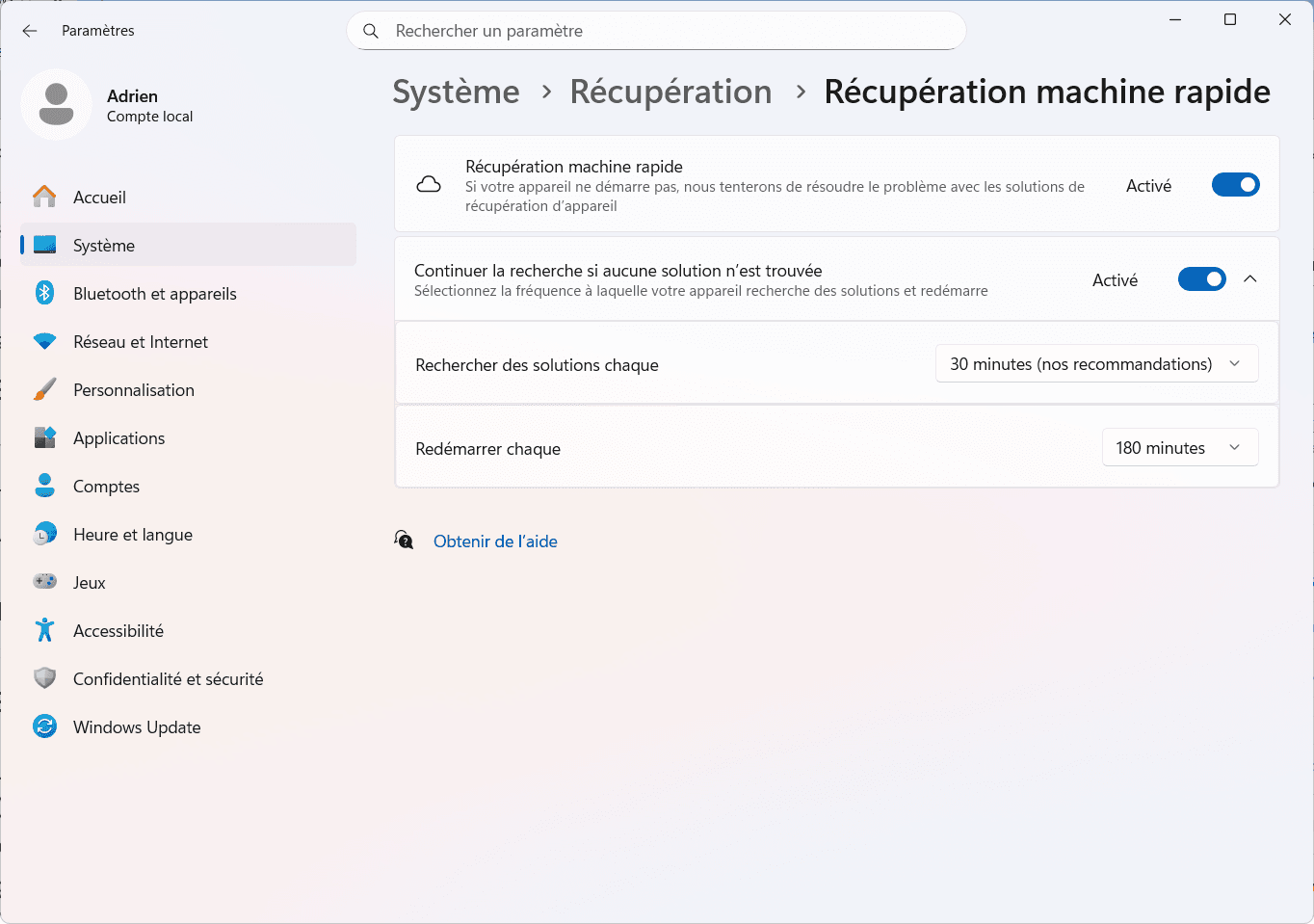
It’s also possible to set the search interval: by default every 30 minutes, but you can make it longer or shorter to suit your preferences. This setting determines how often Windows 11 will check online for available patches.
The restart frequency can also be adjusted (e.g. every 3 hours) to regularly test whether the repair has been effective, while avoiding too frequent restarts that could inconvenience the user. This flexibility balances rapid intervention with user comfort.
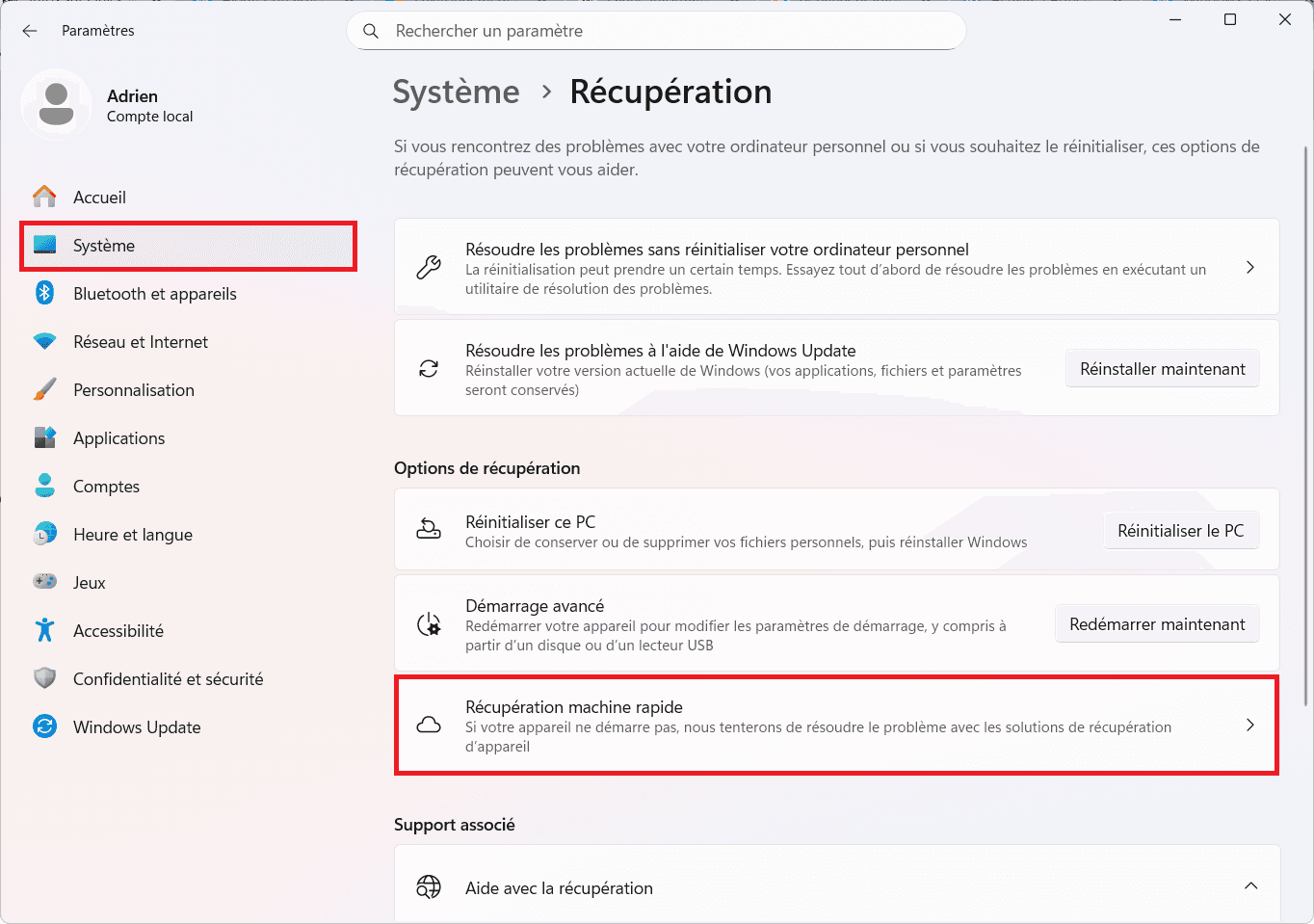
To activate Quick Machine Recovery, open Settings > System > Recovery, then activate the Quick Machine Recovery option. You can then adjust the search and restart frequency to suit your needs.
A Windows-integrated safety net to troubleshoot your PC
With Quick Machine Recovery, Microsoft offers Windows 11 users an integrated safety net that works even when all seems lost. In the event of a startup failure, the tool automatically takes control, analyzes the situation and fetches the appropriate patches online. This automation avoids most of the time-consuming technical manipulations, and offers real peace of mind for people who are not very comfortable with computer maintenance.
We allow some readers to view our articles for free with an ad blocker. However, their number is currently too high for us to keep this access available to everyone.
You can disable your ad blocker to continue reading immediately, subscribe to enjoy all our content without ads, or come back a little later when the pressure has eased.
Access will be restored automatically as soon as the situation allows.