For a long time, Linux was seen as a system reserved for computer experts and tinkerers. Playing your favourite games was an obstacle course: limited compatibility, obscure settings and unpredictable performance. That era is over. With Steam, the Proton compatibility layer and the success of the Steam Deck, Linux has become a credible gaming platform. In 2025, demanding titles such as Cyberpunk 2077, Elden Ring and Baldur’s Gate 3 can now run smoothly on a Linux PC. So, can Linux really replace Windows for gaming?
In this article
Can you really play AAA games on Linux?
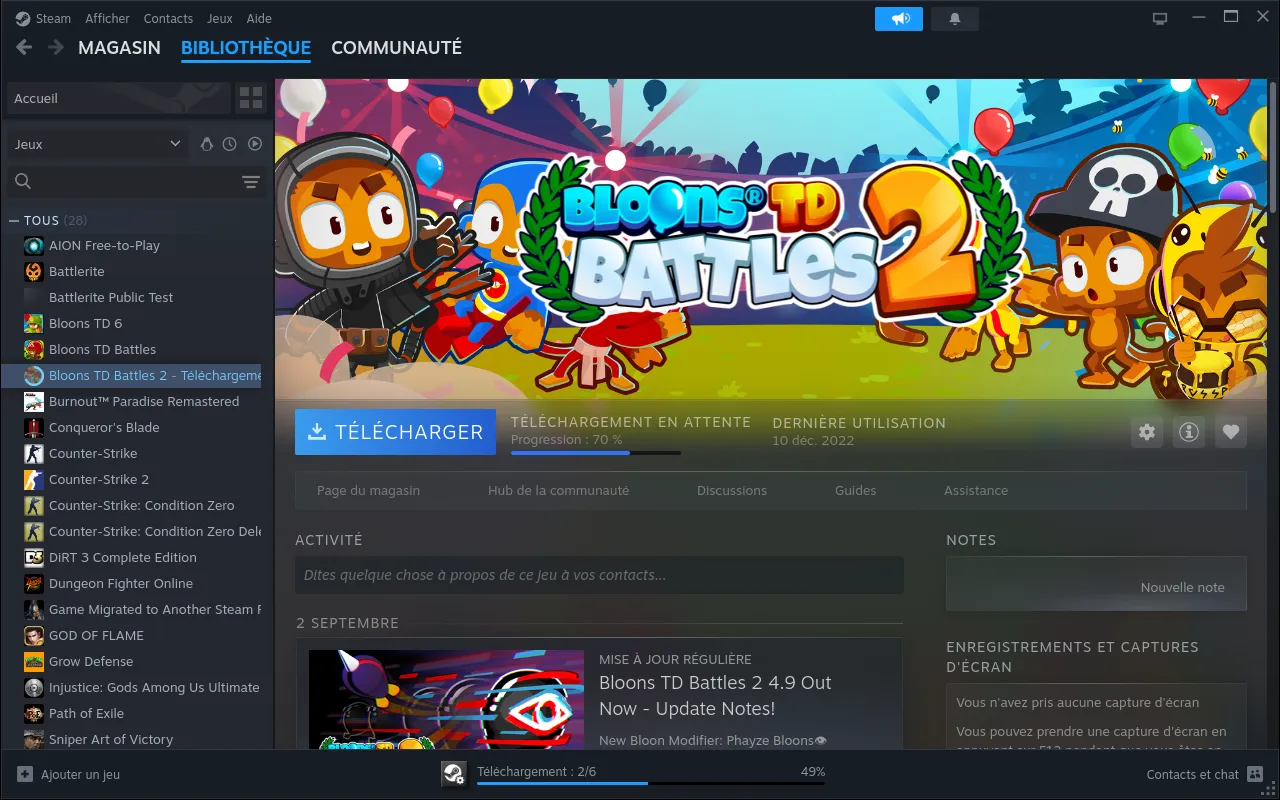
In 2026, gaming on Linux is no longer a niche hobby. The rise of the Steam Deck, with several million units sold since 2022, has shown that a Linux-based system can deliver a smooth and accessible gaming experience. Many players who had never considered Linux have discovered that most Windows titles now work with little effort thanks to Proton, Valve’s compatibility layer.
Statistics confirm this trend: according to the community ProtonDB database, more than 70% of Windows games tested by users are considered playable, many with a quality comparable to Windows. On Steam, the Deck Verified programme makes things even easier by showing whether a title is Verified, Playable or Unsupported on SteamOS. This is also useful for users of conventional Linux distributions.
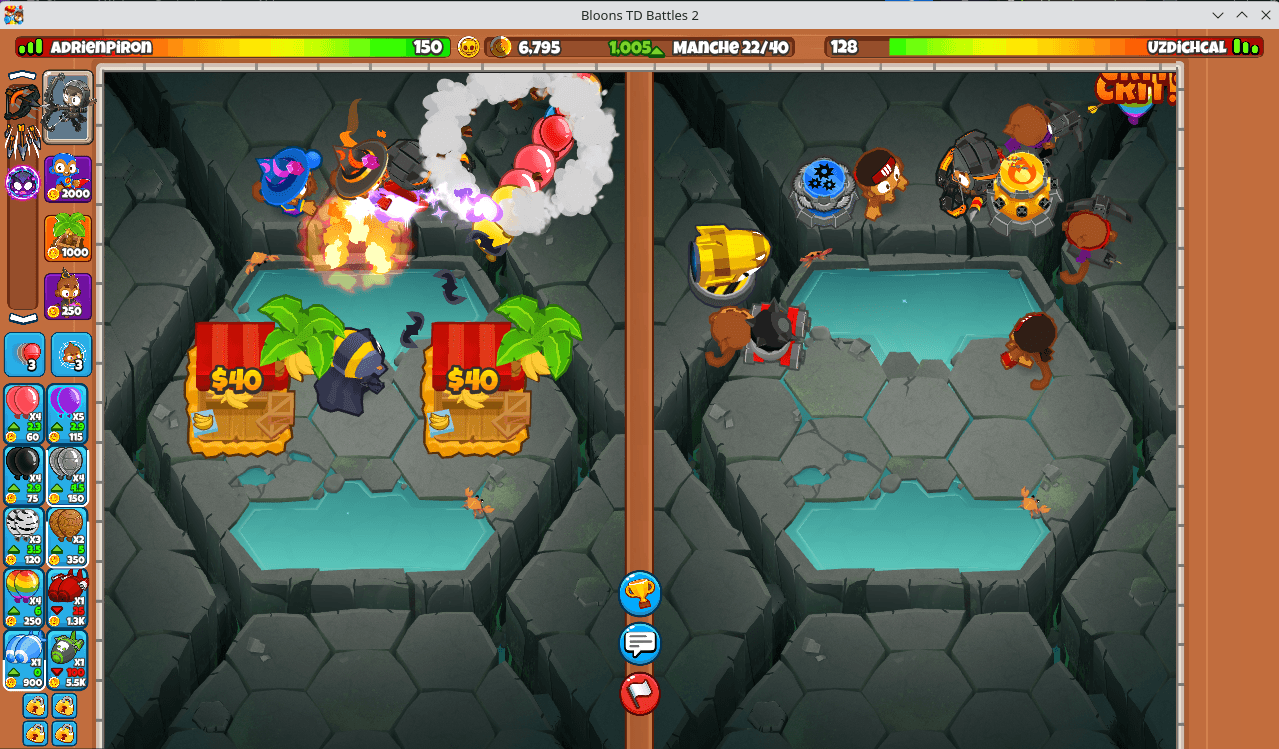
These are not only independent or older games. Demanding productions such as Cyberpunk 2077, Elden Ring, Baldur’s Gate 3 and Hogwarts Legacy now run on Linux with performance comparable to Windows. For many players, the question is no longer whether Linux can run a game, but simply whether their favourite title has already been validated.
The essential tools for gaming on Linux
Gaming on Linux is much simpler than it used to be, but it remains a rich ecosystem in which a few tools are needed. They let you run Windows games, bring different libraries together and optimise performance. Here is an overview of the solutions you should know to turn your Linux gaming distribution into a real gaming machine.
Steam and Proton: the key to playing your Windows games on Linux
At the heart of gaming on Linux are Steam and its Proton technology. Proton is a compatibility layer that translates Windows graphics and system calls for Linux. It relies on two major components: DXVK, which converts DirectX 9/10/11 to Vulkan, and VKD3D-Proton, which bridges DirectX 12 and Vulkan. Most Windows games now work on Linux without modification.
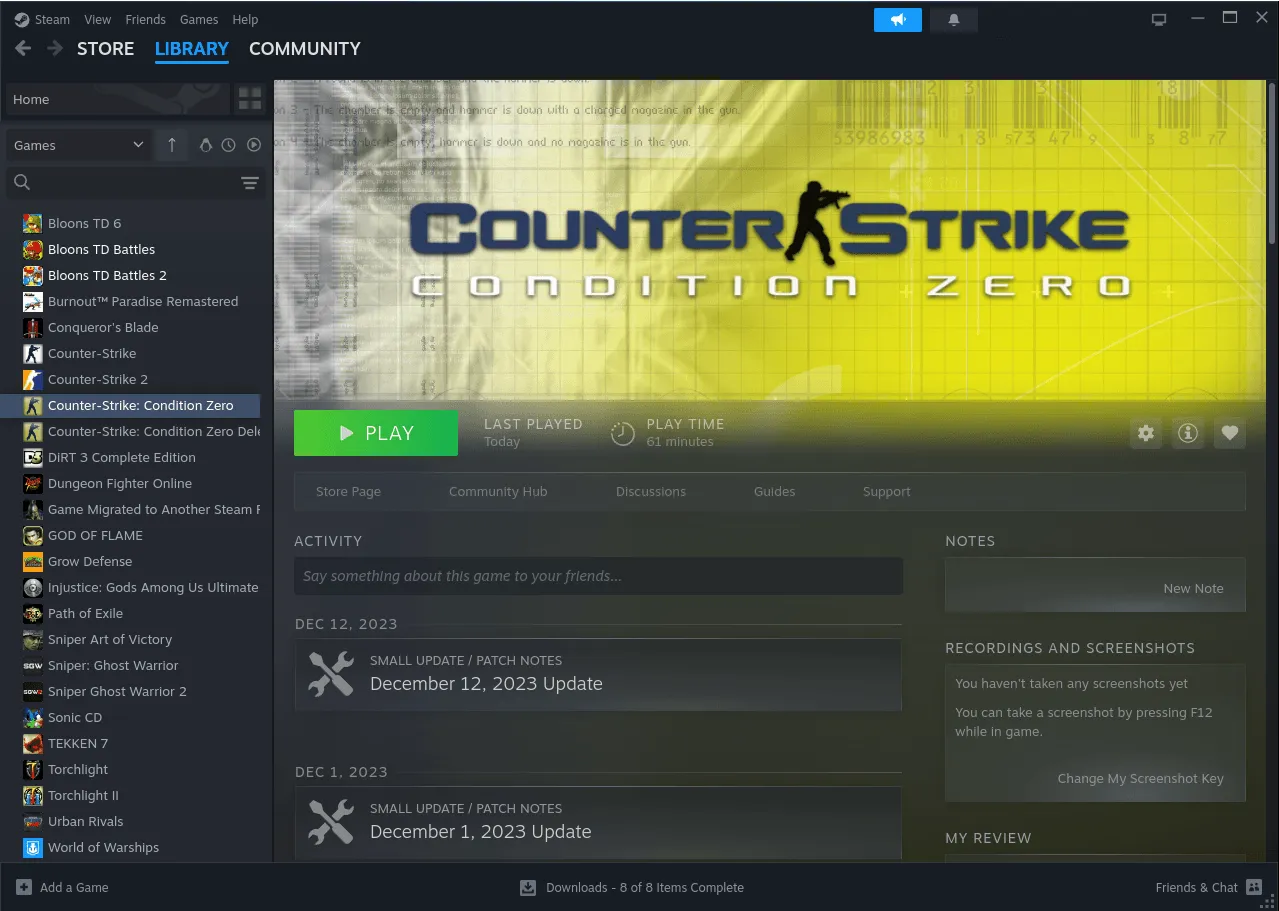
Valve offers several Proton versions. The stable version is enabled by default for proven compatibility. Players who want recent fixes can also use Proton Experimental, a branch updated very regularly. Finally, the community maintains variants such as GE-Proton (GloriousEggroll), which include fixes not yet present in official releases and can unlock some difficult titles.
Installing Steam on Ubuntu and its variants for Linux gaming
To get the most from Steam and Proton on Linux, a few steps are required. Many games still use 32-bit libraries, so you must enable multi-architecture support, install Steam and add the graphics dependencies it needs. Here is the procedure for Ubuntu, Kubuntu and other variants.
Enable 32-bit support (multi-arch)
Proton and some Windows games still rely on 32-bit libraries. Since Ubuntu is 64-bit by default, add this architecture to avoid launch errors:
sudo dpkg --add-architecture i386
sudo apt update
sudo apt upgrade
This only needs to be done once. The system will then handle both 64-bit and 32-bit packages.
Install Steam on Ubuntu
The simplest method is to download Valve’s official package and install it with apt:
wget https://cdn.akamai.steamstatic.com/client/installer/steam.deb
sudo apt install ./steam.deb
This command installs the Steam client and automatically resolves its basic dependencies.
Install the graphics dependencies required by Proton
For Proton, DXVK and VKD3D to translate DirectX to Vulkan correctly, install the Mesa and Vulkan drivers in both 64-bit and 32-bit versions:
sudo apt install libgl1-mesa-dri:amd64 libgl1-mesa-dri:i386
libglx-mesa0:amd64 libglx-mesa0:i386
mesa-vulkan-drivers:amd64 mesa-vulkan-drivers:i386
libx11-6:amd64 libx11-6:i386
These packages provide graphics compatibility and prevent common crashes when games run through Proton.
Install or update your graphics drivers
Finally, make sure your drivers are up to date if you use an NVIDIA card. Ubuntu includes a tool that detects the recommended driver:
sudo ubuntu-drivers autoinstall
- For NVIDIA cards, this command installs the recommended proprietary driver and its 32-bit libraries.
After these steps, Steam is ready on Ubuntu or Kubuntu, and you can enjoy most Windows games through Proton with good performance.
Playing Epic Games on Linux with Heroic Games Launcher
Steam is essential, but it does not provide access to your Epic Games Store or GOG libraries. For that, Heroic Games Launcher has become the reference solution. This modern, easy-to-use open-source client connects directly to your accounts and lets you download, install and update games without using the official Windows launcher.

Heroic also integrates Proton-GE and Wine-GE, improved versions of Proton and Wine that provide excellent compatibility with many titles. Everything is managed through a friendly interface: account login, runner selection (Wine or Proton-GE), updates and even graphics optimisation. For Epic and GOG players, it is the simplest and most stable alternative to Steam.
Install Heroic Games Launcher on Ubuntu
Heroic provides an official .deb package, making installation on Ubuntu and its variants (Kubuntu, Xubuntu and others) straightforward. Follow these steps:
- Download the latest .deb package from the official GitHub repository and install it:
wget https://github.com/Heroic-Games-Launcher/HeroicGamesLauncher/releases/download/v2.18.1/Heroic-2.18.1-linux-amd64.deb
sudo apt install ./Heroic-2.18.1-linux-amd64.deb
Once installed, you will find Heroic Games Launcher in your application menu. Sign in to your accounts to start downloading and launching your games.
Playing GOG, Ubisoft Connect and Battle.net games on Linux
For more flexibility, you can also use Lutris and Bottles, two complementary solutions.
- Lutris is one of the pioneers of gaming on Linux. It offers community scripts that automate the installation of games from many platforms: GOG, Ubisoft Connect, Battle.net, Origin and some independent games. The advantage is that you do not have to configure Wine or Proton by hand; the community already provides suitable configurations.
- Bottles takes a different approach: it creates isolated environments, each with its own settings. This is ideal for installing a Windows game or application with a dedicated configuration without risking an existing installation.
These tools require a little more configuration than Heroic, but they offer considerable flexibility and further expand the catalogue of games available on Linux.
GameMode: optimise performance on Linux
Beyond compatibility, Linux also offers tools designed to improve the gaming experience. One of them is GameMode, developed by Feral Interactive, the studio known for ports such as Tomb Raider and XCOM.
GameMode is available directly from the official Ubuntu repositories and its variants. Install it with:
sudo apt update
sudo apt install gamemode libgamemode0 libgamemodeauto0
These three packages install the GameMode core and the libraries applications need to call it. Once installed, the tool is ready to use.
Depending on the distribution, the gamemoderun command may be placed in /usr/games, which is not always included in the PATH environment variable. If you see a “command not found” error, add this path with:
export PATH=$PATH:/usr/games
You can put this line in ~/.bashrc or ~/.zshrc to make it permanent.
To enable GameMode, prefix the game launch command with gamemoderun:
gamemoderun steam
gamemoderun heroic
gamemoderun lutris
In Steam, automate this by right-clicking a game → Properties → Launch options and entering:
gamemoderun %command%
GameMode will then be enabled automatically every time that game starts.
Linux compatibility: some games still do not work
Although gaming on Linux is much more accessible, it is not perfect yet. The main difficulty comes from games that use anti-cheat systems such as Easy Anti-Cheat (EAC) or BattlEye.
In theory, these technologies have been compatible with Proton since Valve and publishers worked on their integration. In practice, many studios do not enable this option in their games, blocking launch or access to multiplayer servers. Some popular titles are partly or completely unplayable on Linux.
Proprietary launchers such as Rockstar Games Launcher, demanding DRM and very recent games can also take time to be supported by Proton.
Can Linux replace Windows for gaming?
Gaming on Linux is no longer a dream reserved for enthusiasts; it is now accessible to most players. Proton’s progress, the Steam Deck’s popularity, mature graphics drivers and tools such as Heroic, Lutris and GameMode have transformed the experience.
Of course, not everything is perfect. Some titles are blocked by anti-cheat systems or proprietary launchers. Linux can now replace Windows for gaming, but you should check your games’ compatibility on ProtonDB.
We allow some readers to view our articles for free with an ad blocker. However, their number is currently too high for us to keep this access available to everyone.
You can disable your ad blocker to continue reading immediately, subscribe to enjoy all our content without ads, or come back a little later when the pressure has eased.
Access will be restored automatically as soon as the situation allows.