Installing NVIDIA proprietary drivers on Linux is often seen as a complex operation, especially when the kernel is updated. For users who need high graphics performance, run deep-learning experiments, or use specialized software, choosing the right driver is critical. This guide explains how to install, manage, and update NVIDIA drivers on Ubuntu while keeping the graphics server stable.
In this article
1. Remove old NVIDIA drivers to avoid conflicts
Before a new installation, clean the system to prevent conflicts between libraries from old and new drivers. This step also prevents dependency errors during installation.
- Purge every existing NVIDIA package with:
sudo apt-get purge nvidia*
This command removes every component whose name starts with nvidia. The purge option also removes global configuration files so obsolete leftovers are not kept on the system.
- After this complete removal, restart the computer.
Restarting allows the Linux kernel to fully unload graphics modules that are still in memory. Otherwise, the system may try to use pieces of the old driver even though they no longer exist on disk, causing the new NVIDIA driver installation to fail.
2. Install NVIDIA drivers automatically with Ubuntu
Once the system is clean, move on to the installation. Ubuntu provides an automatic detection utility that removes the risk of choosing a version incompatible with your graphics card. Although native to Ubuntu, it can also be used on distributions such as Debian to simplify hardware management.
If the utility is not installed yet, add it manually:
sudo apt install ubuntu-drivers-common
You can then list available drivers and identify the one matching your GPU:
sudo ubuntu-drivers devices
Rather than entering a version number, let the utility install the recommended packages automatically:
sudo ubuntu-drivers install
Restart the machine so the changes take effect:
sudo reboot
This final restart makes the kernel initialize the graphics card with the new proprietary settings.
Maintaining Linux graphics drivers
Keeping NVIDIA drivers up to date requires some attention because drivers interact directly with the kernel. Refresh the package list and run the general upgrade to receive the latest fixes from the official repository:
sudo apt update && sudo apt upgrade
Pin a stable NVIDIA driver version on Ubuntu
sudo apt-mark hold nvidia-driver-XXX
Replace the three X characters with the exact number of your current version. This protects specialized software or a graphics server from unexpected updates.
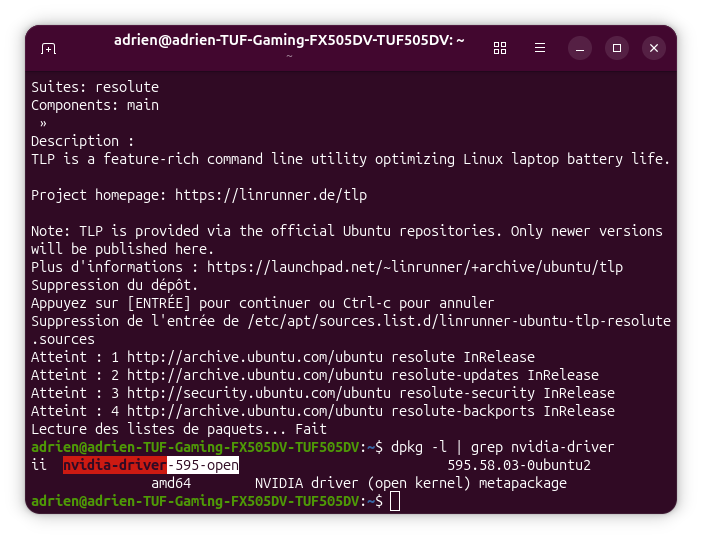
Identify the installed NVIDIA driver
dpkg -l | grep nvidia-driver
Unpin the NVIDIA driver to install newer versions
sudo apt-mark unhold nvidia-driver-XXX
This allows the package manager to update the driver again. With current NVIDIA drivers, your system is ready for Linux gaming. Continue with our guide to playing Steam and Epic games on Linux.
We allow some readers to view our articles for free with an ad blocker. However, their number is currently too high for us to keep this access available to everyone.
You can disable your ad blocker to continue reading immediately, subscribe to enjoy all our content without ads, or come back a little later when the pressure has eased.
Access will be restored automatically as soon as the situation allows.