Your system reports 1 GB of free RAM, yet your browser is slowing down. You probably ran free -h and felt reassured by the number, while your PC’s behavior contradicts the kernel statistics.
The core issue is not necessarily a lack of memory, but the way Linux manages the disk cache. Manually trying to free RAM is a false good idea that can slow your system down instead of speeding it up. Here is how to understand what is happening and take back control of your environment.
In this article
1. Check how Linux uses RAM
When users check memory usage in Linux, they often focus on the amount of RAM shown as used. That reading is misleading unless it is put into context. Memory genuinely used by applications contains the active data they need immediately, such as running code, stacks, and working areas. Alongside this active memory, the system keeps data from storage in RAM, known as the disk cache or page cache. It contains recently read files, shared libraries, and even executables to avoid repeated disk access.
Free memory is the portion of RAM currently used by neither processes nor the cache. Linux deliberately keeps this figure low because completely unused memory provides no performance benefit. That is why the available column is the only one that really matters. It shows how much memory the system can immediately provide to new applications without creating memory pressure or excessive swap activity. It accounts for the fact that the disk cache can be released on demand, which the simple free-memory figure does not show.
To check the different amounts of RAM used by Linux, run:
free -h
Here is what to look at:
- available: the memory an application can actually use immediately.
- buff/cache: automatically reclaimable disk cache. Linux uses this memory to speed up the system, but releases it as soon as an application needs it.
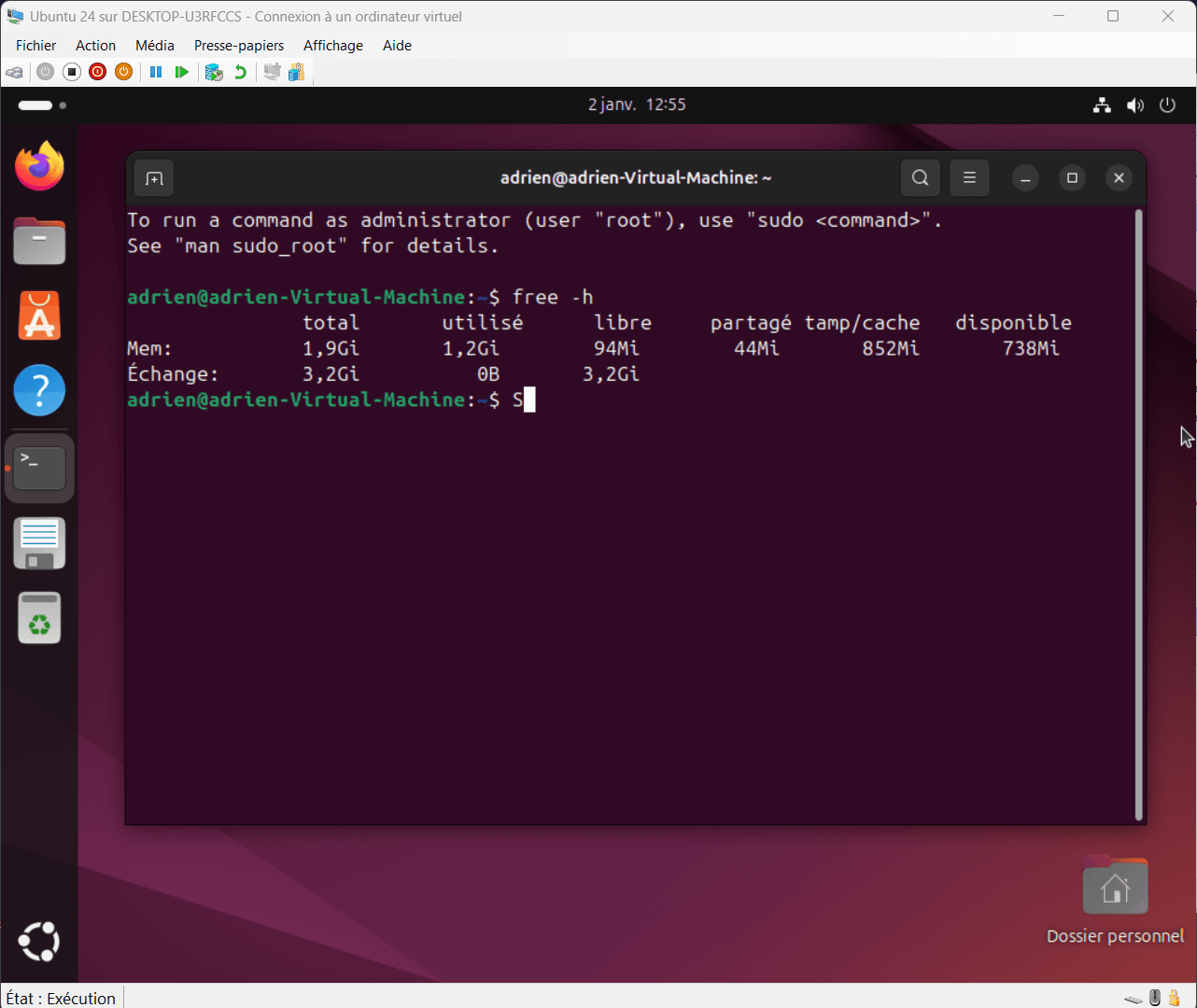
In this example, the system has about 2 GB of RAM, of which 1.2 GB is shown as used.
The free column, here showing 94 MB, represents memory that is completely unused at that exact moment. Under Linux, this value is often low and that is not a problem. Completely free RAM provides no performance gain; Linux prefers to use it to avoid slow and repeated hard-drive access.
For example, when a program writes data to a hard drive under Linux, the data is not necessarily written to storage immediately. The kernel first places it in the write cache in RAM. The write call can return quickly to the application, improving responsiveness. The physical write is performed later, by default after roughly 5 to 30 seconds, in grouped and optimized batches.
The buff/cache column, which shows 852 MB here, mainly corresponds to the page cache. These are files, libraries, or recently used executables kept in memory to speed up disk access. This memory is not lost and can be released immediately if an application needs it.
2. Disk swap appears and the system slows down
A few moments later, after opening every application I could find, the situation changes significantly. Used memory increases, the page cache drops sharply, and available memory falls to about 440 MB. At the same time, swap starts to be used in earnest, with 1 GB moved to disk. This is a clear sign that the system is entering a memory-pressure zone.
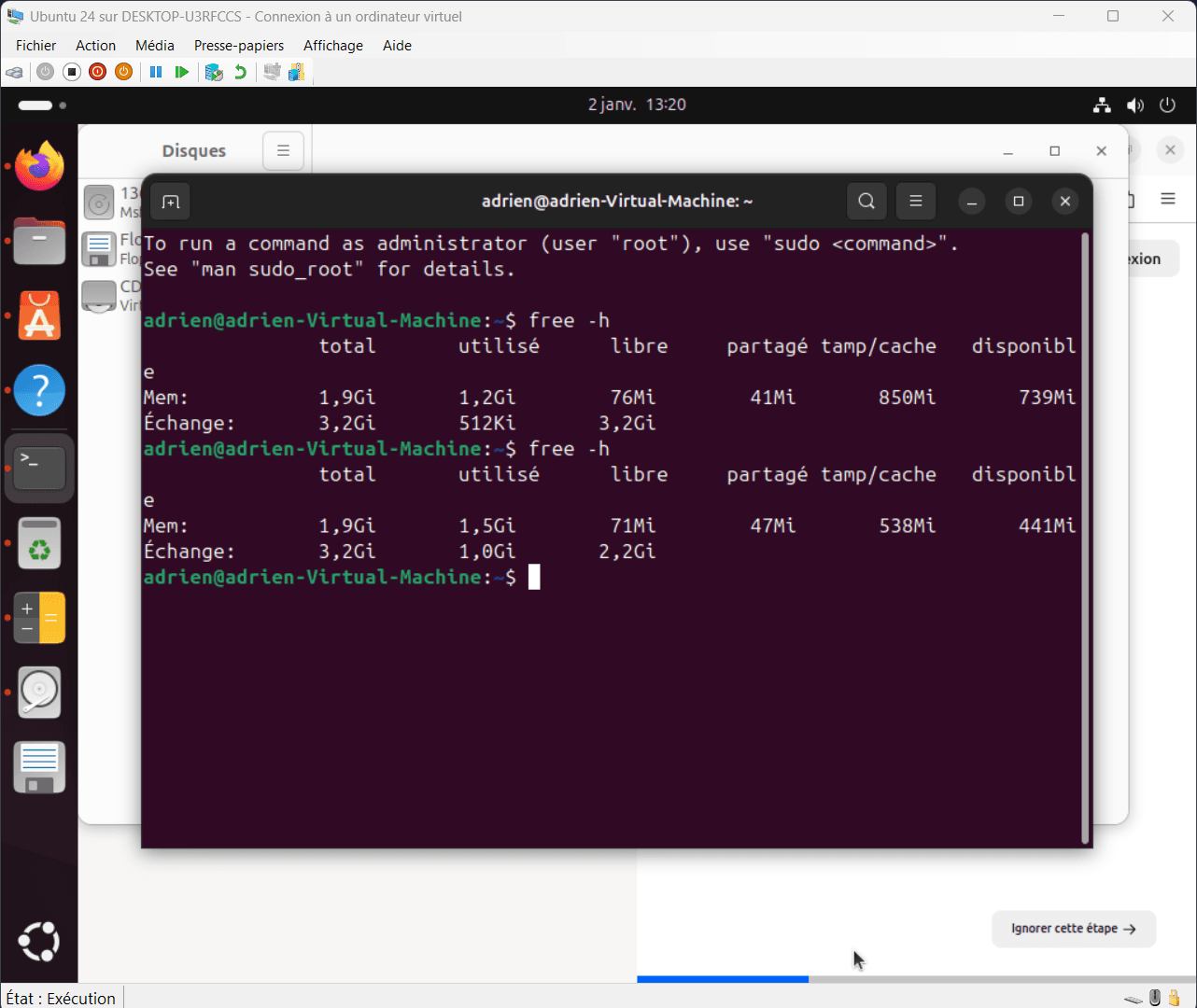
This behavior perfectly illustrates how the Linux kernel works. Before using swap, the system tries to make the most of RAM. When that headroom is no longer enough, it moves less active pages to swap to preserve overall stability and responsiveness.
The system shows no sign of critical saturation, but it is already noticeably slower.
3. Memory pressure and what the system is trying to avoid
When RAM genuinely starts to run short, the kernel constantly measures what is called memory pressure: the increasing difficulty of providing RAM to applications without degrading system operation. As long as pressure remains low, the kernel simply releases disk cache automatically to satisfy new requests.
As pressure increases, the system activates compensation mechanisms. The first is moving less-used memory pages to swap, an exchange space located on the hard drive. This frees RAM, but has a significant performance cost because disk access is much slower than RAM access. Swap is therefore not an optimization, but a fallback designed to prevent the system from freezing.
If memory pressure becomes too high and neither cache reclamation nor swap is enough, the kernel may trigger the OOM killer (Out Of Memory Killer). This last-resort mechanism abruptly stops one or more processes to preserve overall system stability. Its purpose is not optimization, but preventing a complete machine lock-up.
This is precisely the situation we want to avoid by understanding RAM usage correctly. Forcing cache reclamation when memory is not genuinely full forces the hard drive to work. After useful data is removed, the system has to read it from disk again.
zRAM: compress memory instead of swapping to the hard drive
When RAM is genuinely limited, zRAM creates a swap device inside RAM itself and compresses the memory pages stored there on the fly. This means it can hold more data than the amount of physical RAM it occupies. A compression ratio of around 2:1 (2 GB of logical memory stored in 1 GB of physical RAM) to 3:1 is common, and can be higher in some cases.
sudo apt install zram-tools -y
If you have a capable CPU but little RAM, this is an ideal trade-off.
Compression and decompression consume CPU time, but the cost is far lower than disk access on systems with slow or heavily loaded storage. zRAM does not replace RAM, but it effectively extends its apparent capacity when memory pressure becomes real.

 assistouest.fr
zRAM is especially well suited to constrained environments such as old computers, lightweight virtual machines, and embedded systems. It is not a miracle optimization, but a mechanism that delays disk swap, limits slowdowns, and helps avoid critical situations when RAM genuinely runs out.
Not recommended: debugging the kernel’s memory cache
Commands that manually clear the memory cache are sometimes presented as optimization solutions. In reality, they should only be used for testing or diagnostics. They do not free memory genuinely used by applications; they only remove caches that the kernel built to speed up the system.
These commands are not recommended, do not improve performance, and do not free application memory. They destroy caches the kernel calculated to speed up the system, increasing disk access and CPU load.
sync && echo 1 | sudo tee /proc/sys/vm/drop_caches
This command removes only the cache of recently used files.
sync && echo 2 | sudo tee /proc/sys/vm/drop_caches
This variant targets file-system metadata such as dentries and inodes. It can slightly reduce responsiveness during subsequent disk accesses.
sync && echo 3 | sudo tee /proc/sys/vm/drop_caches
This last command combines both approaches and removes all reclaimable caches. It is the most intrusive method and has the most immediate impact on performance.
Official Linux kernel documentation advises against using them outside a testing or debugging environment. In normal use, the kernel automatically releases these caches when memory is genuinely needed.
In this example, manually clearing the cache does produce a measurable increase in immediately available memory. After running the command, about 90 MB of RAM becomes usable again. The gain is real, but limited, and must be considered in context.
This freed memory does not come from lower consumption by running applications. It comes from removing caches that the Linux kernel had built to speed up the system. These caches contained files, libraries, and already calculated information intended to reduce disk access and improve overall responsiveness.
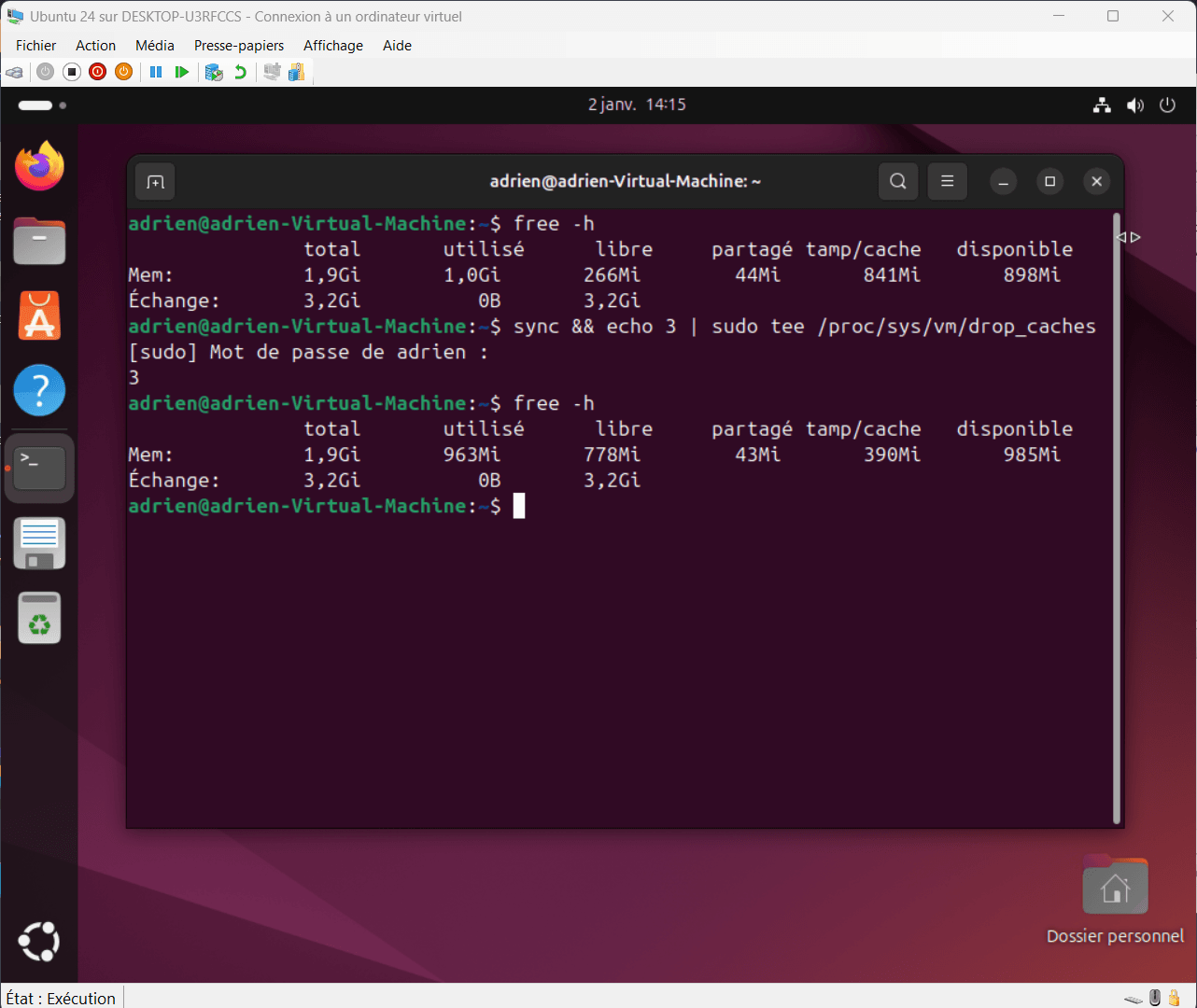
As a result, software temporarily opens more slowly. Data that was available in memory must be read from disk again, adding latency. Once the files have loaded, the kernel gradually rebuilds the caches needed to restore optimal operation.
RAM is then used again to store this information, and the optimizations removed during the manual cleanup are recreated as software is opened and files are accessed. If this operation is repeated regularly, RAM is used inefficiently. It is no longer serving as a performance resource, but as a temporary reserve that is constantly emptied and refilled.
We allow some readers to view our articles for free with an ad blocker. However, their number is currently too high for us to keep this access available to everyone.
You can disable your ad blocker to continue reading immediately, subscribe to enjoy all our content without ads, or come back a little later when the pressure has eased.
Access will be restored automatically as soon as the situation allows.