You unplug your fully charged laptop. Three Firefox tabs and a terminal later, the fan is running at full speed. In less than two hours, a critical warning appears. Although Linux is known for being lightweight, default power management is often not ideal on laptops.
TLP is a command-line tool that automatically adjusts component power usage depending on whether your laptop is plugged in or running on battery. With the right configuration, it can significantly extend battery life without sacrificing processor performance.
Install and configure TLP for power management
TLP runs as an invisible background service that monitors your hardware and applies power-saving profiles at boot. Its lack of a graphical interface keeps resource usage extremely low. The daemon optimizes the CPU and Wi-Fi while managing USB ports and fan speed.
As a complement, monitor your CPU temperature to prevent overheating.
Start by adding the developer’s official repository and refreshing your local package list:
sudo add-apt-repository ppa:linrunner/tlp && sudo apt-get update
Install TLP and its additional module for wireless devices:
sudo apt-get install tlp tlp-rdw -y
Enable the service at boot and start it immediately:
sudo systemctl enable tlp && sudo systemctl start tlp
Confirm that the installation works:
tlp-stat -s
TLP adapts its behavior to the power source. When the charger is connected, it is normal for the report to show a performance profile rather than aggressive power saving.
Fine-tune power usage and battery life
After installing TLP, use diagnostic tools to identify the processes that consume the most power. PowerTOP, developed by Intel, shows real-time consumption for each device.
Use PowerTOP to optimize your Linux battery
Install PowerTOP and launch it with administrator privileges:
sudo apt update && sudo apt install powertop -y
sudo powertop
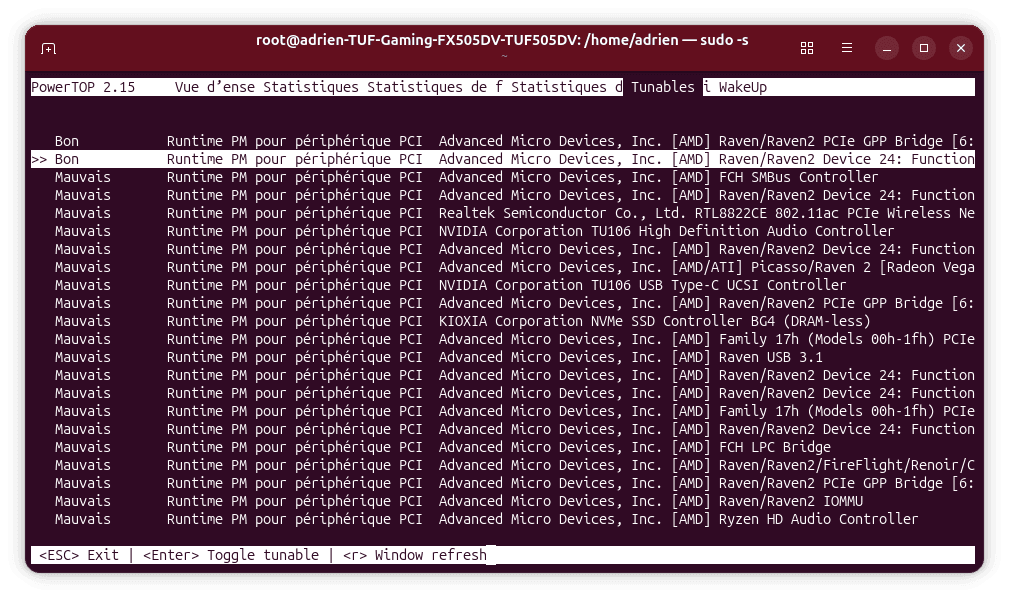
The Tunables tab contains experimental suggestions. For each line marked Bad, press Enter to switch it to Good.
Extend battery life by regulating the CPU
auto-cpufreq automatically regulates processor frequency to reduce unnecessary load and extend battery life.
sudo apt update && sudo apt install -y git python3-pip && cd ~ && git clone https://github.com/AdnanHodzic/auto-cpufreq.git && cd auto-cpufreq && sudo ./auto-cpufreq-installer
sudo python3 -m auto_cpufreq.power_helper --gnome_power_disable
sudo auto-cpufreq --install
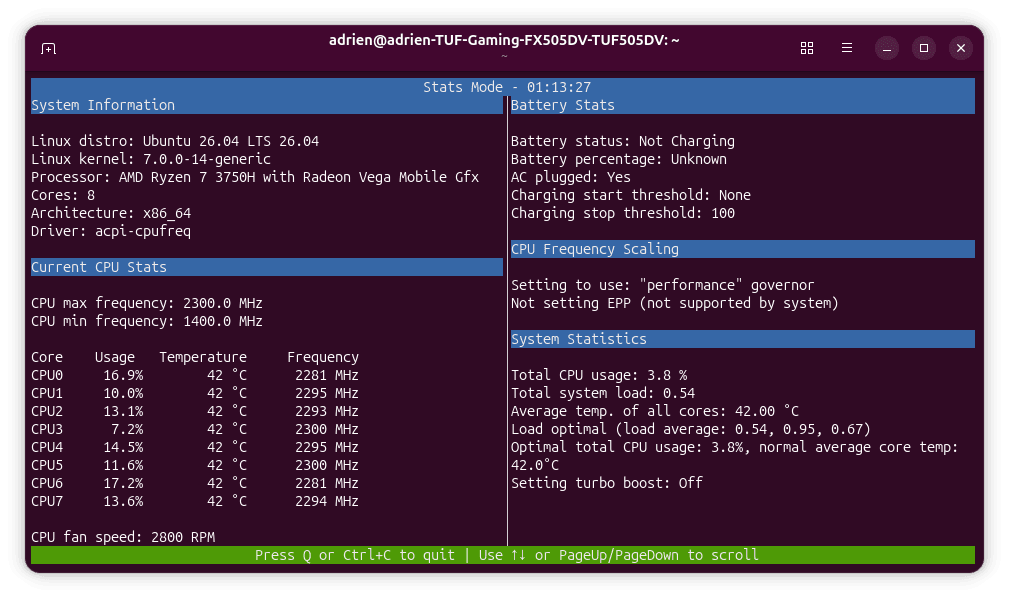
auto-cpufreq --stats
If CPU frequencies change in real time with system activity, the installation is working correctly.
Use zRAM to limit disk writes
zRAM creates a swap device inside RAM and compresses temporary data, reducing storage wear.

 assistouest.fr
By reducing physical reads and writes, zRAM can improve power management. For other settings, see how to speed up Ubuntu on a slow PC.
Check battery health on Linux
The acpi tool provides a quick battery report:
sudo apt install acpi
sudo acpi -V
Compare charge_full, the current capacity, with charge_full_design, the original capacity. If less than 50% remains, the cells are heavily worn and no software optimization can fully restore battery life.
To extend battery life, avoid complete discharges and try to keep the charge between 20% and 80%.
FAQ: if TLP conflicts with another power manager, disable services such as power-profiles-daemon or laptop-mode-tools before testing it again.
We allow some readers to view our articles for free with an ad blocker. However, their number is currently too high for us to keep this access available to everyone.
You can disable your ad blocker to continue reading immediately, subscribe to enjoy all our content without ads, or come back a little later when the pressure has eased.
Access will be restored automatically as soon as the situation allows.