You did not open this guide by accident. If Arch Linux appeals to you, you are looking for more than a simple operating system. You want to understand what runs on your PC, choose every component, control the structure, avoid unnecessary software and focus on the essentials: building rather than merely using. This guide lays the foundations for a solid, minimal and fast system. You will install Arch Linux in UEFI mode and then add a lightweight, elegant KDE Plasma desktop. Line by line, you will build a maintainable and durable system.
In this article
Arch Linux: a minimalist foundation for a custom system
Arch Linux is a lightweight and fast GNU/Linux distribution designed to provide a simple, flexible and minimalist system. Its rolling release model delivers current software versions continuously without requiring a full reinstallation. Arch is aimed mainly at experienced users because installation is manual, without a graphical wizard or extensive automation.
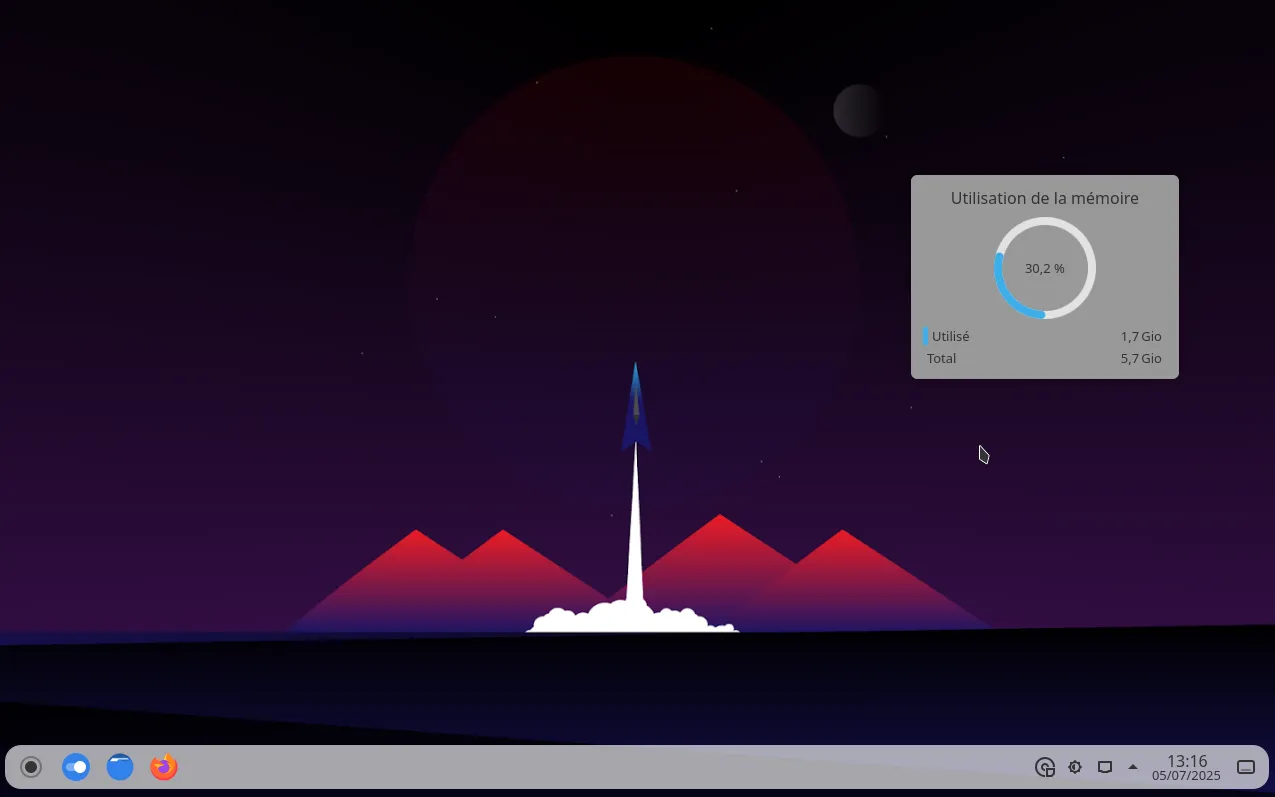
The Arch philosophy follows the KISS principle: the system does only what the user asks, without an unnecessary software layer. Its pacman package manager and the extensive AUR community repository provide complete control over installed software and exceptional customization.
Requirements for installing Arch Linux on your PC
- UEFI mode enabled
- Ethernet connection recommended because Wi-Fi may require manual configuration and firmware
- Secure Boot disabled in the BIOS
- A USB drive containing the official Arch Linux ISO
- At least 20 GB of free storage for a usable graphical system
Download the official Arch Linux ISO image
Go to the official Arch Linux website and download the latest ISO image.
Write the ISO image to a USB drive larger than 2 GB using Rufus or balenaEtcher.
Boot from the Arch Linux USB drive
Restart the PC and select the USB drive from the UEFI boot menu, usually opened with F12, F2 or Delete.
Install Arch Linux with the automatic archinstall installer
Since 2021, Arch Linux has included the archinstall guided installer in its ISO. It can create a complete system through an assisted command-line interface.
Run this command in the Arch live terminal:
archinstall
Then follow the steps:
- Choose the language, disk and file system
- Create a user, select KDE and choose the kernel
- Let the installer configure GRUB and the network automatically
Recommended for beginners: archinstall reduces critical mistakes and speeds up the setup.
Install Arch Linux with KDE Plasma: UEFI and a minimal system
Installing Arch Linux can look intimidating. With a rigorous method and a properly prepared system, however, you can obtain a stable, fast and uncluttered environment for everyday use. The following steps take you from the live ISO to a minimal KDE Plasma desktop in UEFI mode.
Boot the ISO and initialize the system
After booting the Arch ISO, select the US keyboard layout and synchronize the system clock:
loadkeys us && timedatectl set-ntp true
Partition the disk in UEFI mode with a GPT table
⚠️ Warning: this step completely erases /dev/sda.
Create two partitions:
- A 512 MB EFI partition for UEFI booting
- A main partition for the Arch system
wipefs -a /dev/sda &&
sgdisk -Z /dev/sda &&
sgdisk -n1:0:+512M -t1:ef00 -c1:EFI /dev/sda &&
sgdisk -n2:0:0     -t2:8300 -c2:ROOT /dev/sda
Format the partitions for Arch Linux
Use FAT32 for the EFI partition and EXT4 for the system partition:
mkfs.fat -F32 /dev/sda1 && mkfs.ext4 /dev/sda2
Mount the partitions before installing Arch Linux
Prepare the installation mount points:
mount /dev/sda2 /mnt && mkdir -p /mnt/boot/efi && mount /dev/sda1 /mnt/boot/efi
Install the base system and GRUB UEFI packages
Install the kernel, firmware, nano editor, sudo, networking tools and GRUB for UEFI:
pacstrap -K /mnt base linux linux-firmware nano sudo networkmanager grub grub-efi-x86_64 efibootmgr
Generate fstab and enter the installed system
Add the mount points to /etc/fstab, then enter the installed Arch environment:
genfstab -U /mnt >> /mnt/etc/fstab && arch-chroot /mnt
Configure the locale and language
Enable US English and the US keyboard layout for the installed system:
echo -e "en_US.UTF-8 UTF-8" >> /etc/locale.gen && locale-gen && echo "LANG=en_US.UTF-8" > /etc/locale.conf && echo "KEYMAP=us" > /etc/vconsole.conf
Configure the hostname and hosts file
Name the computer archpc and configure its hosts file:
echo "archpc" > /etc/hostname && echo -e "127.0.0.1tlocalhostn::1tlocalhostn127.0.1.1tarchpc.localdomain archpc" > /etc/hosts
Create a user with sudo access
Set a root password, then create the adrien user with administrator privileges:
passwd && useradd -mG wheel adrien && passwd adrien && EDITOR=nano visudo
In visudo, uncomment the line that allows the wheel group to run all commands:
%wheel ALL=(ALL:ALL) ALL
Install GRUB in UEFI mode for Arch Linux
Install GRUB on the EFI partition and generate the bootloader configuration:
grub-install --target=x86_64-efi --efi-directory=/boot/efi --bootloader-id=Arch
grub-mkconfig -o /boot/grub/grub.cfg
Install a minimal KDE Plasma desktop
Install the display server, Plasma environment, file manager, terminal and browser:
sudo pacman -S plasma kde-applications-meta sddm
Then enable the graphical login at startup:
systemctl enable sddm
Enable networking
Enable NetworkManager so it manages connections after the next boot:
systemctl enable NetworkManager
Restart and start using Arch Linux
Leave the chroot, unmount the system cleanly and restart:
exit && umount -R /mnt && reboot
Installation is complete. You now have a clean and fast Arch Linux system with KDE Plasma and no unnecessary software.
We allow some readers to view our articles for free with an ad blocker. However, their number is currently too high for us to keep this access available to everyone.
You can disable your ad blocker to continue reading immediately, subscribe to enjoy all our content without ads, or come back a little later when the pressure has eased.
Access will be restored automatically as soon as the situation allows.