WAMP has been around since 2005, and it shows. PHP version conflicts between projects, HTTPS missing by default and declining performance as the database grows. If you want to install WordPress locally on Windows in 2026, DDEV with WSL2 and Docker CE provides a development environment closer to real production, with Nginx, PHP-FPM, MariaDB, native HTTPS and WP-CLI built in.
In this article
Why switch to DDEV?
Before running any commands, here is what changes compared with the alternatives.
| WAMP | Local by Flywheel | DDEV + WSL2 | |
|---|---|---|---|
| Native HTTPS | No | Yes | Yes (automatic) |
| Project isolation | Limited | Good | Complete (Docker) |
| Performance | Fair | Good | Very good (WSL2) |
| Built-in WP-CLI | No | Yes | Yes |
| Mailpit (email interception) | No | No | Yes |
| Open source | Yes | No | Yes |
| Subdomain multisite | Complex | Yes | Yes |
DDEV encapsulates every service (PHP, MariaDB and Nginx) in isolated Docker containers. Moving from a PHP 7.4 project to a PHP 8.3 project takes one command. No conflicts and no reinstallation.
Requirements for installing DDEV on WSL
There are two requirements before you begin. WSL2 must be enabled on your PC. If it is not enabled yet, first follow the guide to installing WSL2 on Windows, then come back here.
Docker Desktop is not required. DDEV installs Docker CE directly inside WSL2, avoiding a permanent Windows service and improving file-access performance when the project stays in the Linux file system.
Install DDEV in a dedicated WSL2 instance
Instead of installing DDEV in your main Linux distribution, create a dedicated WSL2 instance. This keeps your development tools separate and prevents your usual Linux environment from becoming cluttered.
In an administrator PowerShell terminal, install Ubuntu 24.04 under the name DDEV:
wsl --install Ubuntu-24.04 --name DDEV
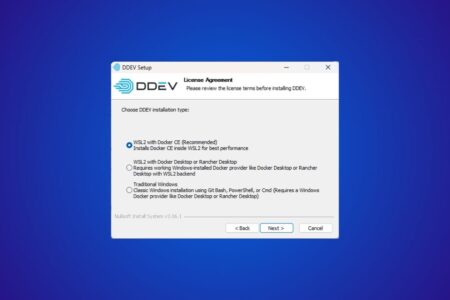
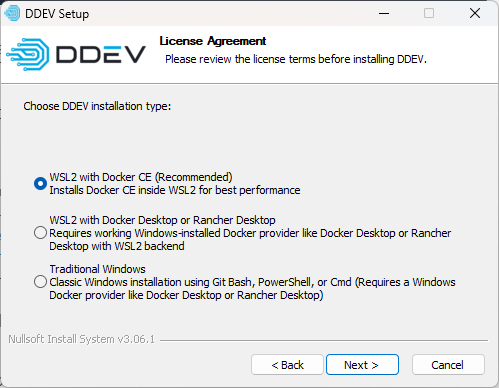
Then download the official DDEV installer (the AMD64 version for Intel and AMD processors). During setup, choose Docker CE in WSL instead of Docker Desktop.
Create and start the WordPress project
Run all the following commands from a Windows terminal (PowerShell or CMD). They use wsl -d DDEV to target the dedicated instance.
Create the project directory:
wsl -d DDEV -- mkdir -p ~/my-wordpress-site
Configure DDEV for WordPress:
wsl -d DDEV -- bash -c "cd ~/my-wordpress-site && ddev config --project-type=wordpress --docroot=wordpress --create-docroot"
Start the containers:
wsl -d DDEV -- bash -c "cd ~/my-wordpress-site && ddev start"
On the first start, DDEV downloads the required Docker images. Allow 2 to 5 minutes depending on your connection. Subsequent starts take less than 10 seconds.
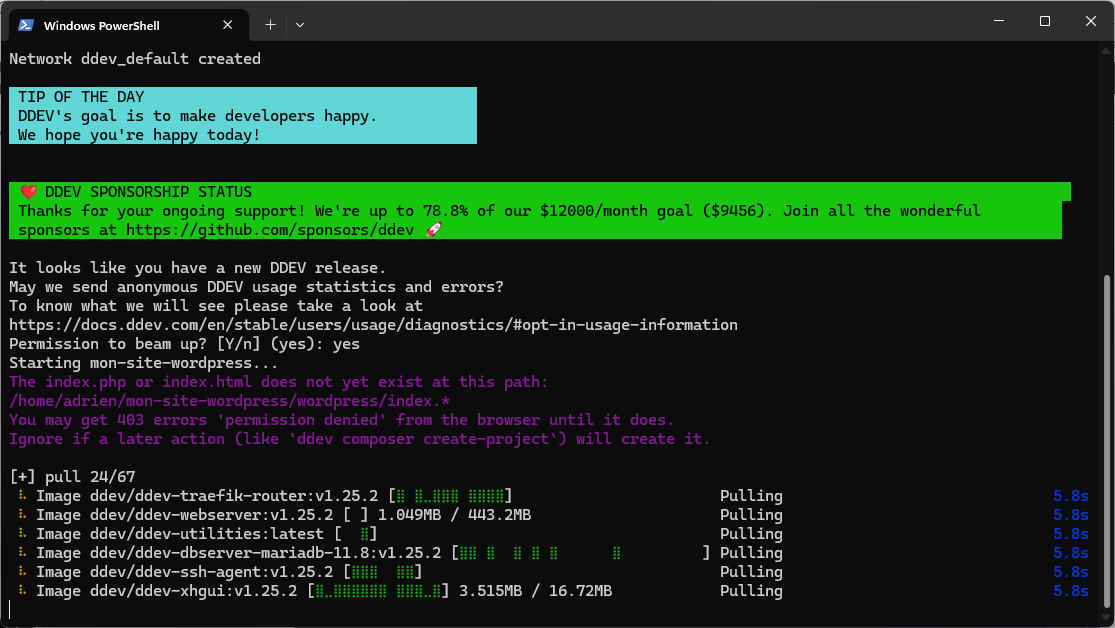
Then run ddev describe to retrieve the generated URLs: the HTTPS site, phpMyAdmin, Mailpit and the database connection details.
wsl -d DDEV -- bash -c "cd ~/my-wordpress-site && ddev describe"
Install WordPress with WP-CLI
WP-CLI is built into DDEV. There is no need to download WordPress manually or use the web interface.
Download WordPress in French:
wsl -d DDEV -- bash -c "cd ~/my-wordpress-site && ddev wp core download --locale=fr_FR"
Create the configuration file with DDEV’s default credentials:
wsl -d DDEV -- bash -c "cd ~/my-wordpress-site && rm wordpress/wp-config.php && ddev wp config create --dbname=db --dbuser=db --dbpass=db --dbhost=db --locale=fr_FR"
Install WordPress with one command:
wsl -d DDEV -- bash -c "cd ~/my-wordpress-site && ddev wp core install --url=https://assistouest.fr --title='My WordPress Site' --admin_user=admin --admin_password=admin --admin_email=admin@example.com"
DDEV generates the SSL certificate automatically; no hosts-file edit is required.
Two WP-CLI commands quickly become essential on a project:
wsl -d DDEV -- bash -c "cd ~/my-wordpress-site && ddev import-db --file=~/backup.sql.gz"
wsl -d DDEV -- bash -c "cd ~/my-wordpress-site && ddev wp search-replace 'https://old-site.example' 'https://assistouest.fr' --skip-columns=guid"
Change a DDEV project’s PHP version
DDEV’s real advantage appears when two WordPress projects have different PHP requirements. The PHP version is stored in the project’s .ddev/config.yaml file, so it does not affect your other local sites.
To move a project to PHP 8.1, run:
wsl -d DDEV -- bash -c "cd ~/my-wordpress-site && ddev config --php-version=8.1 && ddev restart"
Then check the version used by WordPress:
wsl -d DDEV -- bash -c "cd ~/my-wordpress-site && ddev exec php -v"
For an old client site, you can keep PHP 7.4 on this project and PHP 8.3 or 8.4 on another. That is exactly what WAMP handles poorly: the global environment changes, while DDEV isolates the configuration per project.
Mailpit: intercept WordPress emails
Mailpit captures emails sent from the local environment. It is useful for testing WooCommerce, forms, password resets and notifications without risking sending 200 test emails to a client.
wsl -d DDEV -- bash -c "cd ~/my-wordpress-site && ddev mailpit"
You can also open the Mailpit URL shown by ddev describe. Emails remain in the local interface with their HTML, headers and attachments.
DDEV commands for everyday use
Once the environment is ready, these are the commands you will use every day.
| Command | What it does |
|---|---|
ddev start | Starts the project’s containers |
ddev stop | Stops the containers and frees RAM |
ddev restart | Restarts after a configuration change |
ddev describe | Displays the URL, database access and Mailpit |
ddev ssh | Opens a shell in the web container |
ddev wp plugin list | Lists plugins through WP-CLI |
ddev wp user list | Lists WordPress users |
ddev import-db --file=backup.sql.gz | Imports a database |
ddev mailpit | Opens the Mailpit interface |
ddev poweroff | Stops every running DDEV project |
To access phpMyAdmin or Mailpit (outgoing email interception), use the URLs displayed by ddev describe.
Can I use DDEV with Docker Desktop instead of Docker CE?
How do I remove a DDEV project cleanly?
ddev delete --omit-snapshot, then delete the directory if you no longer need it. The containers and DDEV configuration are removed. Your source code remains until you delete the directory. We allow some readers to view our articles for free with an ad blocker. However, their number is currently too high for us to keep this access available to everyone.
You can disable your ad blocker to continue reading immediately, subscribe to enjoy all our content without ads, or come back a little later when the pressure has eased.
Access will be restored automatically as soon as the situation allows.