
Since Windows 11 arrived, many computers have become slower even with relatively recent hardware. Microsoft has clearly moved its system towards a modern design inspired by Apple’s approach, but at the cost of a heavy software layer. This strategy causes problems on machines that have neither the hardware optimization nor the closed ecosystem of its competitor. In this context, AtlasOS offers a way to make Windows responsive again.
In this article
AtlasOS is more stable than a modified Windows ISO
AtlasOS is an optimization script for Windows 11 that improves system responsiveness without relying on a modified version of the operating system. It runs on an official Windows installation and aims to reduce the load from services, tasks and features that are of little everyday use, making the system smoother while keeping a sound, upgradeable foundation.
Unlike unofficial lightweight ISOs, AtlasOS does not alter Windows’ fundamental components before installation. Adjustments are applied afterwards in a controlled way, which helps limit software compatibility issues and keeps the overall system stable.
AtlasOS is mainly aimed at PCs that have become slow with Windows 11 on older hardware, or at anyone who wants a more responsive computer. The optimization does not require advanced skills. It is a suitable way to extend a computer’s life and make everyday use more pleasant again.
A lighter and better-performing Windows 11
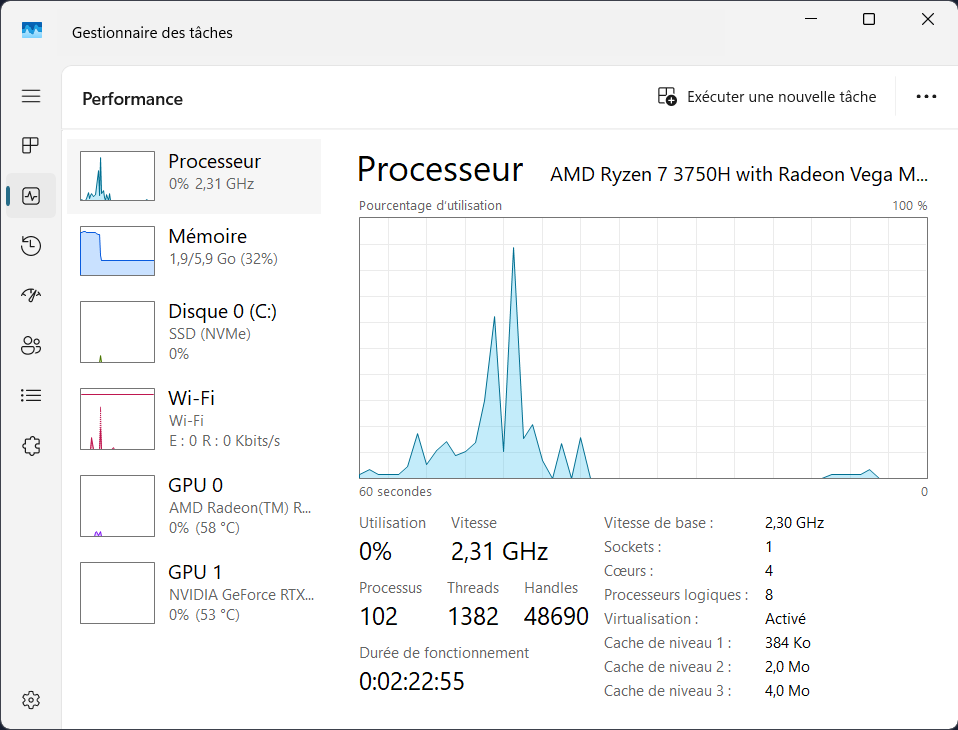
After AtlasOS is applied, the system’s behavior changes noticeably. As Task Manager shows, the processor remains almost idle, with usage close to zero (automatic power saving) and a stable frequency, without unnecessary spikes in load.
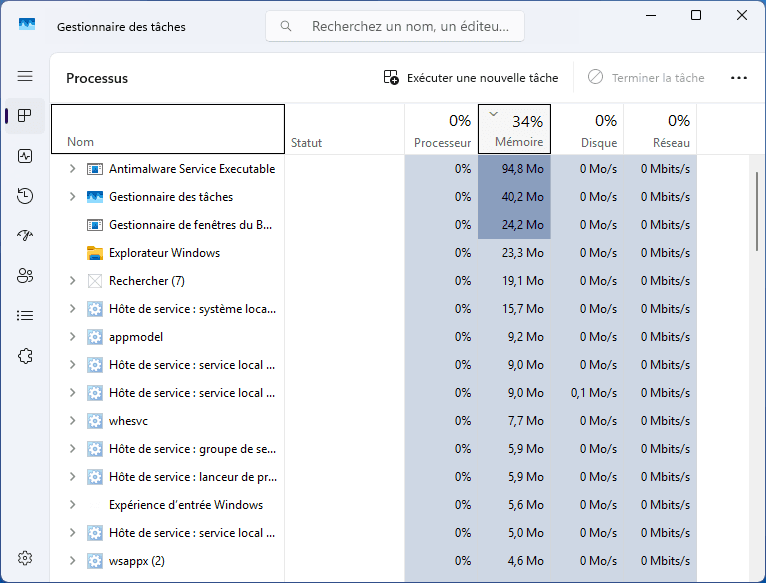
RAM is also used more efficiently. With around 2 GB used out of almost 6 GB available, Windows 11 keeps comfortable headroom for applications without excessive activity from the system itself. This more balanced management limits the gradual slowdowns seen on standard installations.
Download and use AtlasOS on your Windows installation
- Start by downloading the required files directly from the official AtlasOS website provided by the developers, and avoid unreliable sources.
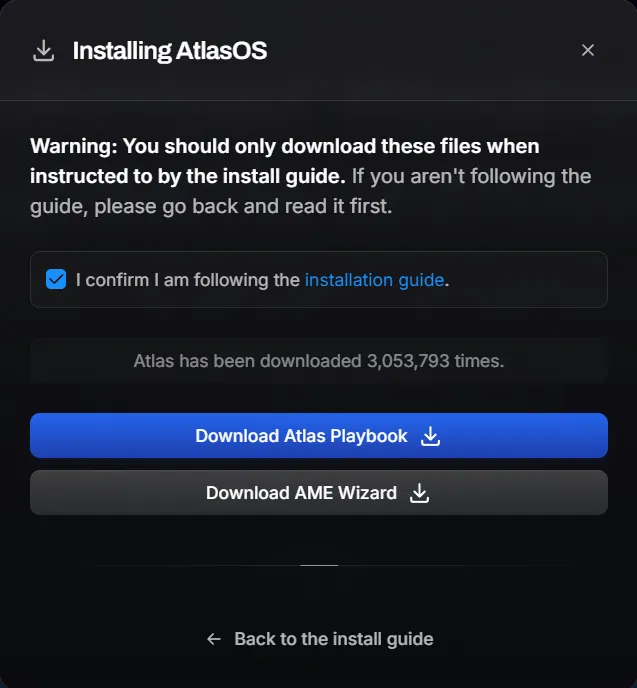
After confirming that you are following the installation guide correctly, the download links become available. You can then obtain two separate items.
- Le AtlasOS playbook is the optimization file. It contains all the settings that will be applied to Windows 11 to make the system lighter and more responsive.
- The AME Wizard is the tool used to apply these settings.
- After opening AME Wizard, the interface offers several ways to load a playbook. For AtlasOS, simply use the Use Existing option and select the playbook you downloaded earlier.
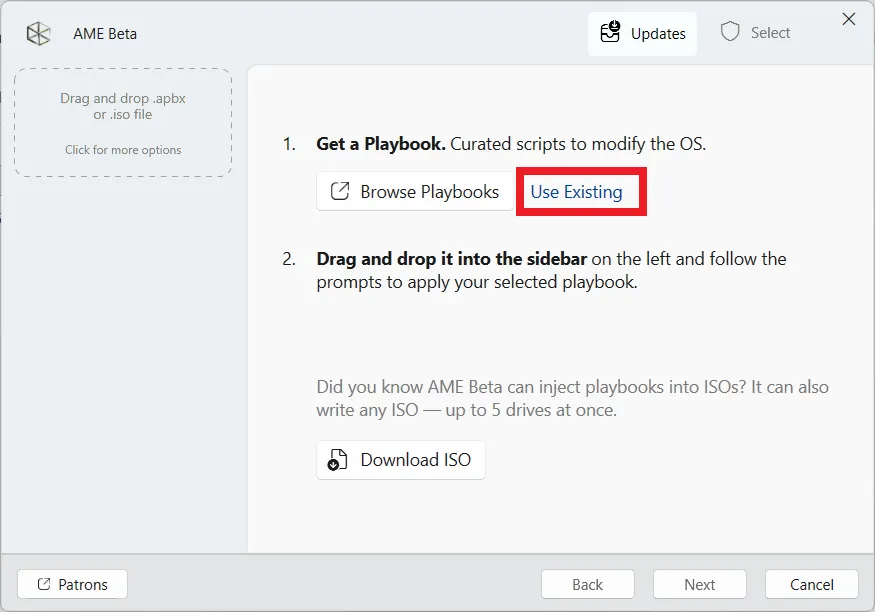
- When the message saying that all requirements are met appears, the system is ready. Simply click the Next button to continue.
- Before it can apply the changes, AME Wizard requests specific permission to access the file system. This step is essential for the playbook to work on services, scheduled tasks and certain Windows components.
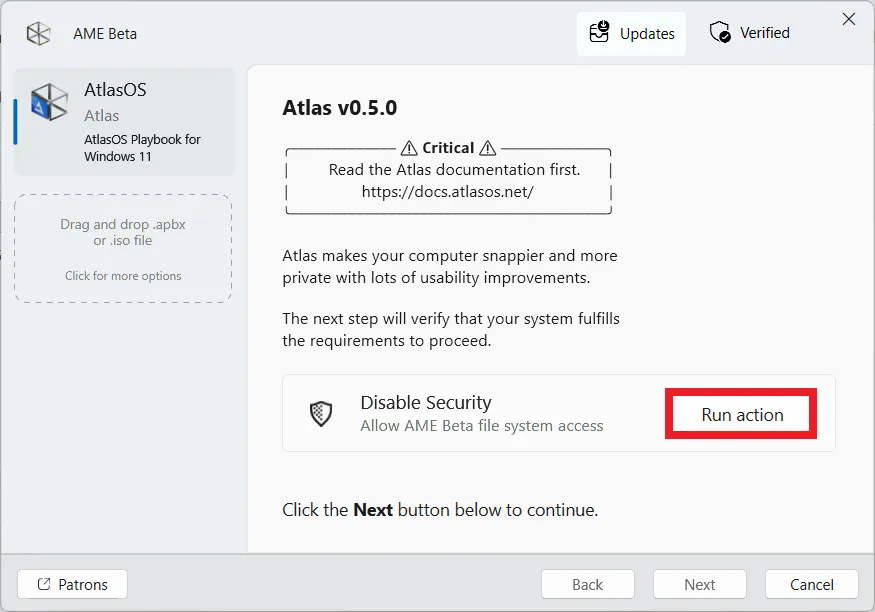
- Simply click Run action to continue the setup.
- Pour éviter toute interférence pendant l’optimisation, Windows Security must be temporarily disabled. AME Wizard guides you to the relevant settings.
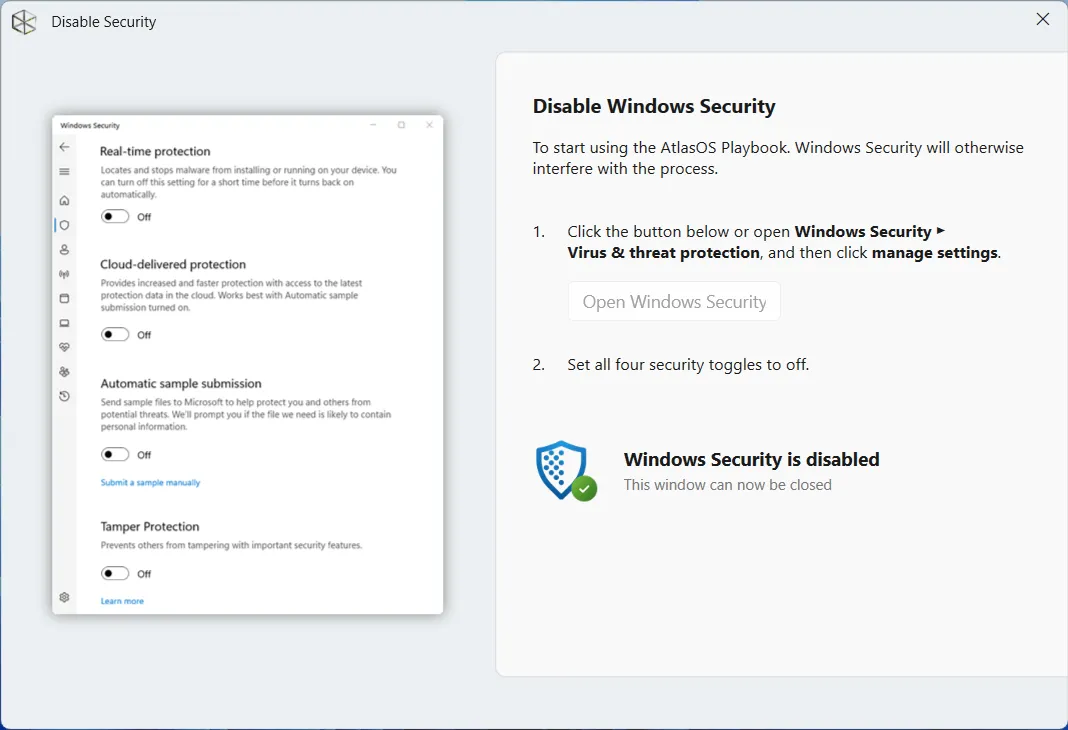
- In Windows Security, you need to disable real-time protection, cloud-delivered protection, automatic sample submission and tamper protection. Once these options are disabled, a confirmation message indicates that Windows Security is off. This only applies for the duration of the installation.
- AME Wizard then automatically checks your system. The Windows version and activation are checked to make sure all conditions are met.

- When the message confirming that the requirements are met appears, click Next to continue.
- Before starting the optimization, some options must be defined. This step lets you adapt AtlasOS to your usage.
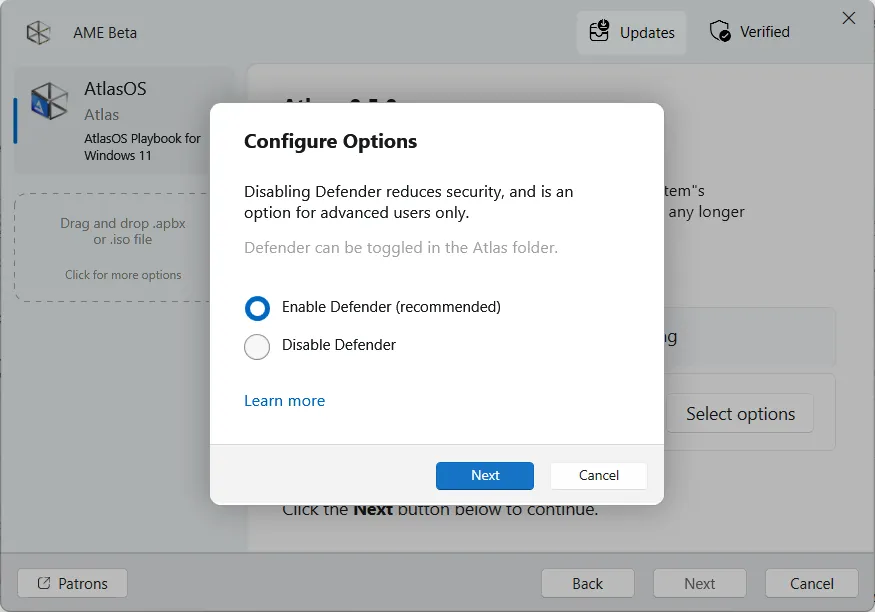
- The first choice concerns Windows Defender. By default, it is recommended that you keep it enabled to maintain a suitable level of security. Disabling it is possible, but this option is intended for experienced users.
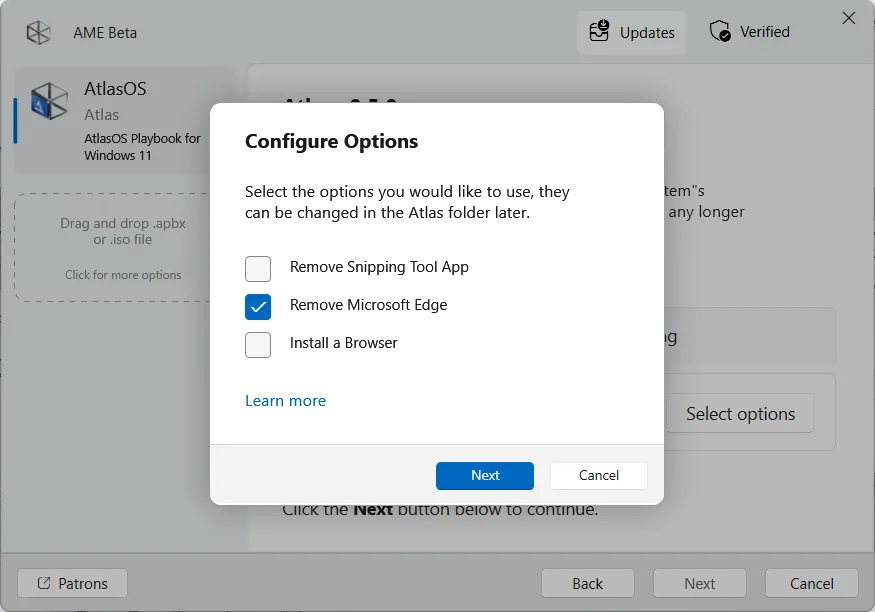
- You can then choose whether to remove optional components such as Microsoft Edge or the Snipping Tool, or automatically install an alternative browser. These choices are not permanent and can be changed later.
- Finally, AtlasOS offers to install the AtlasOS Toolbox along with other customization options. This additional tool lets you fine-tune certain settings after installation. Installing it is recommended to keep some flexibility.
- Once all options have been confirmed, you only need to run the playbook. AME Wizard will apply all optimizations planned by AtlasOS.
- Once it is complete, restarting the system is recommended.
AtlasOS Toolbox: the tool for adjusting Windows behavior
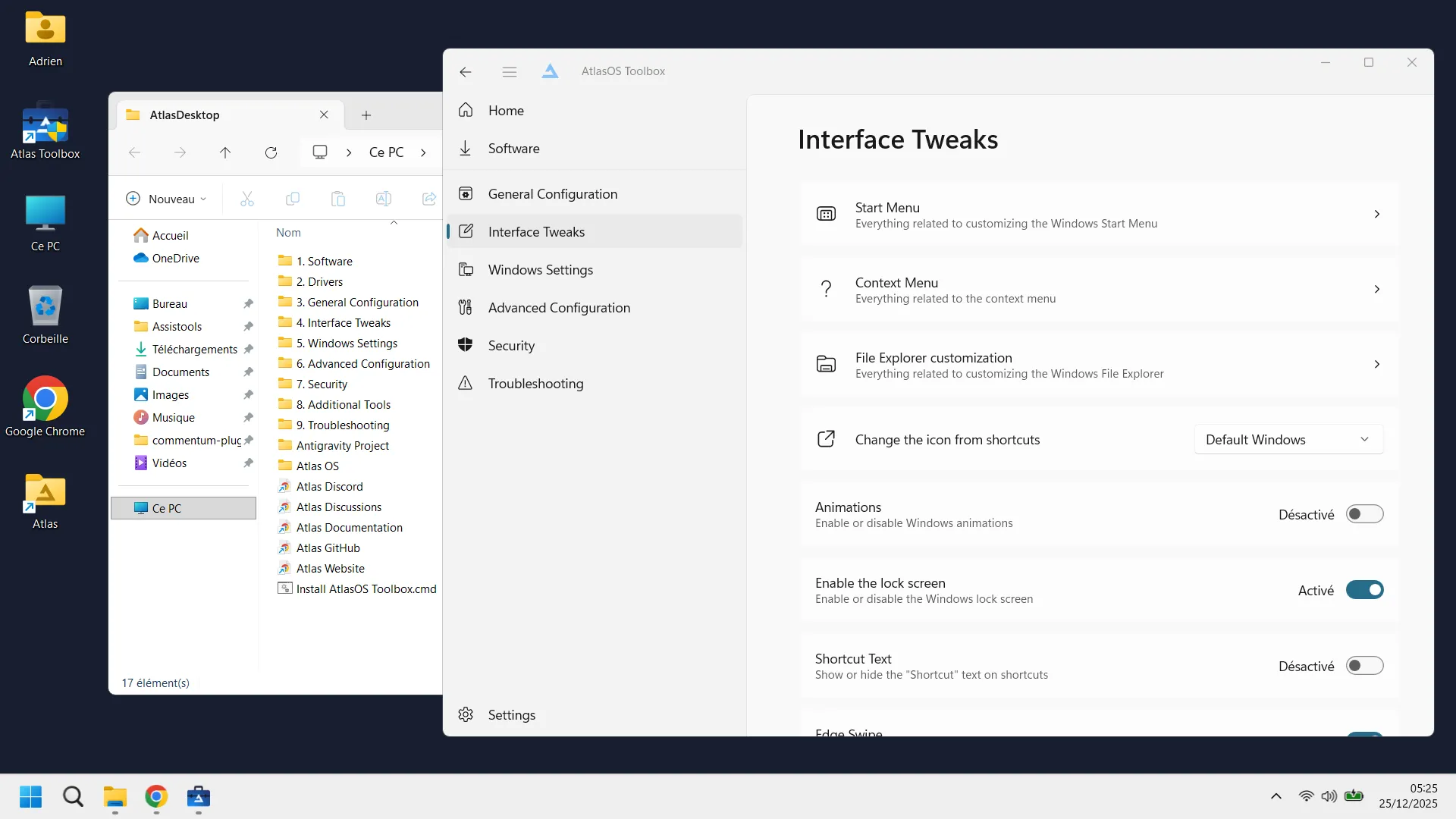
The AtlasOS Toolbox is designed to manage AtlasOS after installation without directly changing Windows’ internal settings. It provides a clear, organized interface for quickly accessing the most useful options in the optimized system. Its goal is to make adjustments accessible even to users who do not want to modify Windows manually.

From the Toolbox, you can enable or disable key features and adjust settings related to performance, the interface and Windows Update. The available options cover everyday needs and let you adapt Windows 11 to your usage while preserving AtlasOS’s optimization approach.
In most cases, the AtlasOS Toolbox is all you need to manage the system day to day. It offers a good balance between simplicity and control, and is the safest way to adjust AtlasOS without risking Windows stability.
Don’t let the algorithm decide for you
Add Assistouest to your preferred sources on Google so you can find our guides faster when you search for an IT solution.
Lighten Windows 11 for a more responsive experience
Over time, AtlasOS shows its value by giving Windows 11 greater responsiveness. The system feels faster and more immediate, freed from some of the weight that slows standard installations. Loading times are shorter, transitions are smoother and the overall experience feels easier to control again.
 assistouest.fr
This lighter behavior comes from a marked reduction in telemetry and background processes. By limiting unnecessary exchanges and services that are constantly active, AtlasOS lets Windows focus on what matters. The system becomes quieter and less intrusive while remaining stable.
The optimization also results in a smaller storage footprint, a direct consequence of removing unnecessary components and secondary applications. Without changing Windows beyond recognition, AtlasOS refines its architecture and removes its excesses.
Plutôt que de bidouiller un système modifié, vous pouvez confier l’accélération de votre PC à notre atelier, ou passer par un dépannage en ligne pour un premier diagnostic.
An error occurred. Please try again in a moment.