
Google’s Manifest V3 rollout severely restricts the capabilities of ad-blocking extensions, which can automatically disable uBlock Origin or even make it disappear from the Chrome Web Store. If you use the stable version of Chrome in 2026, you have probably noticed that your usual blocker no longer works or has been disabled by the browser. This guide explains how to work around those restrictions, whether you need to reactivate a disabled instance or install it manually through Developer mode. Once you have completed these steps, you can browse again with invasive ads filtered out.
In this article
1. Force Manifest V2 support with a Chrome shortcut
On very recent releases such as Chrome 148, the browser ignores registry policies. Launch switches are the only way to make Chromium honour the older protocols.
- First, close every open Google Chrome window.
- Find your Chrome shortcut, or create one on your desktop.
- Right-click it and choose Properties.
- On the Shortcut tab, find the Target field.
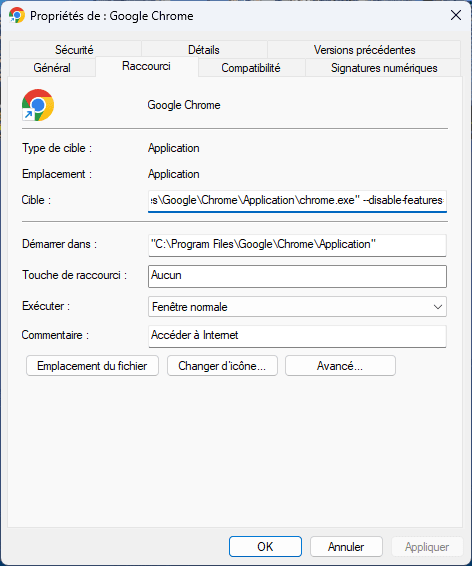
- At the very end of the existing text, add a space, then paste this exactly:
--disable-features=ExtensionManifestV2Unsupported,ExtensionManifestV2Disabled
- The final result should look like this:
C:Program FilesGoogleChromeApplicationchrome.exe" --disable-features=ExtensionManifestV2Unsupported,ExtensionManifestV2Disabled
- Click Apply, then OK.
You must launch Chrome only through this shortcut for legacy extensions to keep working correctly.
Don’t let the algorithm decide for you
Add Assistouest to your preferred sources on Google so you can find our guides faster when you search for an IT solution.
2. Install uBlock Origin manually through Developer mode
If the extension has disappeared completely or is blocked, installing it manually from the source code is the most durable solution. The procedure loads the extension unpacked, bypassing Chrome Web Store restrictions.
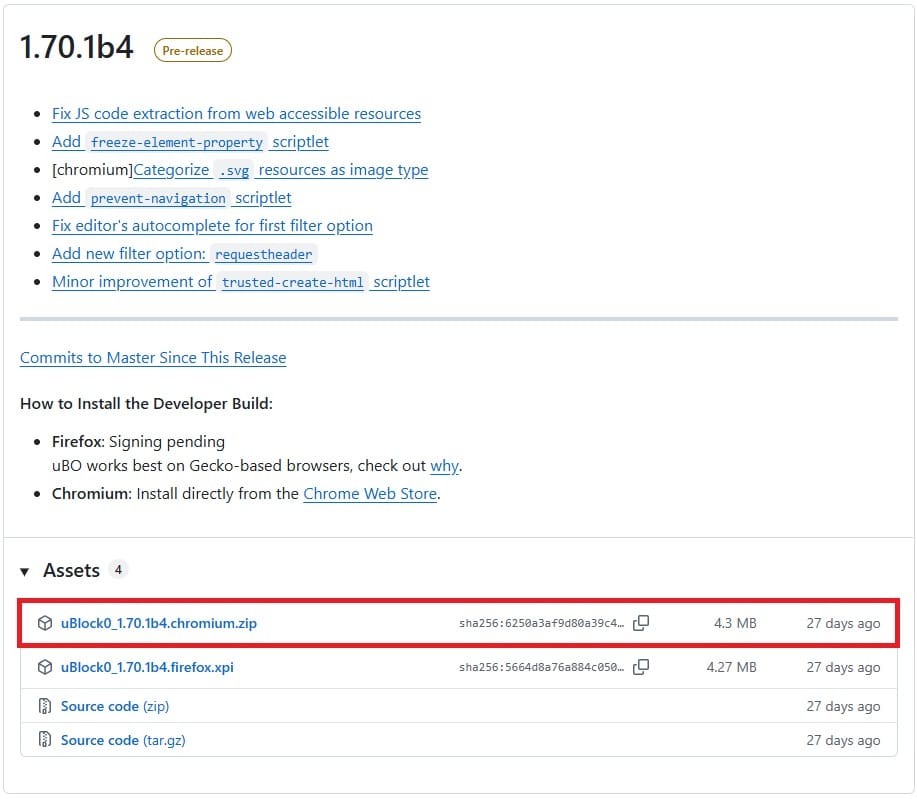
- Go to the official uBlock Origin GitHub repository and download the latest Chromium
.zippackage (look for the.chromium.zipsuffix in Assets).
- Extract the downloaded archive into a dedicated folder on your computer.
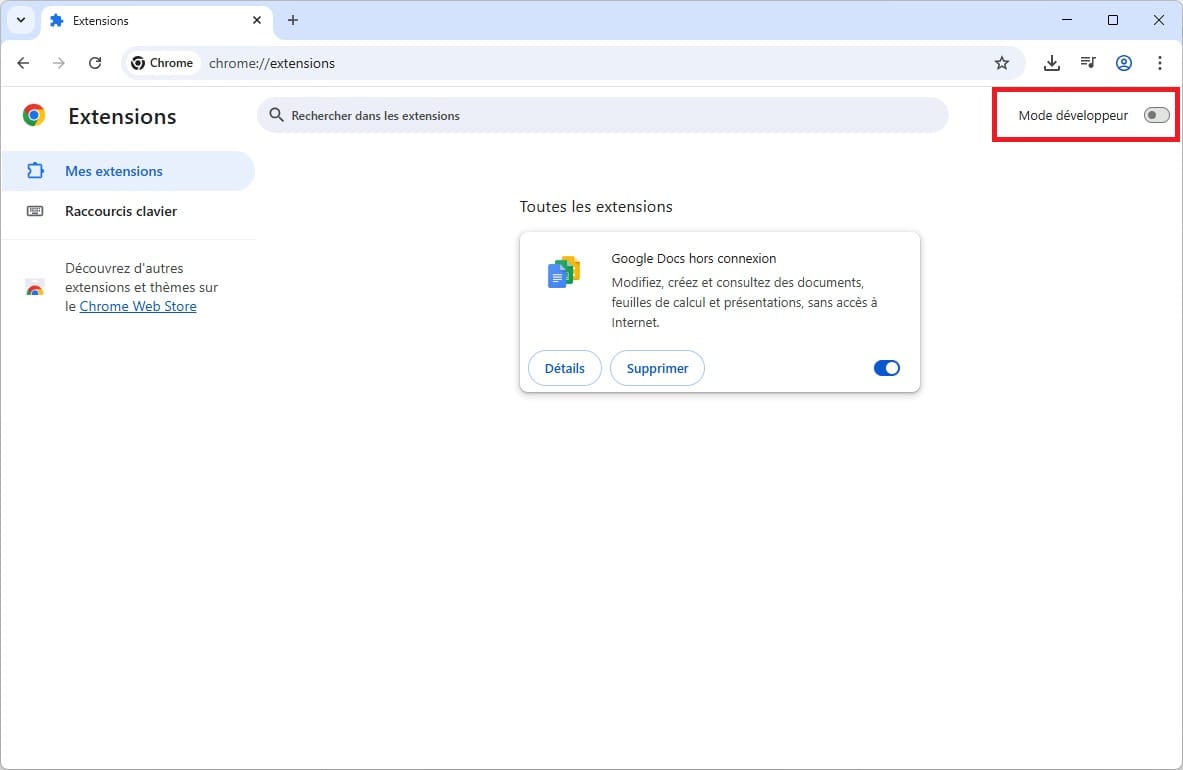
- Open
chrome://extensions/in Google Chrome. - Enable Developer mode using the switch in the top-right corner.
- Click Load unpacked, which has appeared in the toolbar at the top.
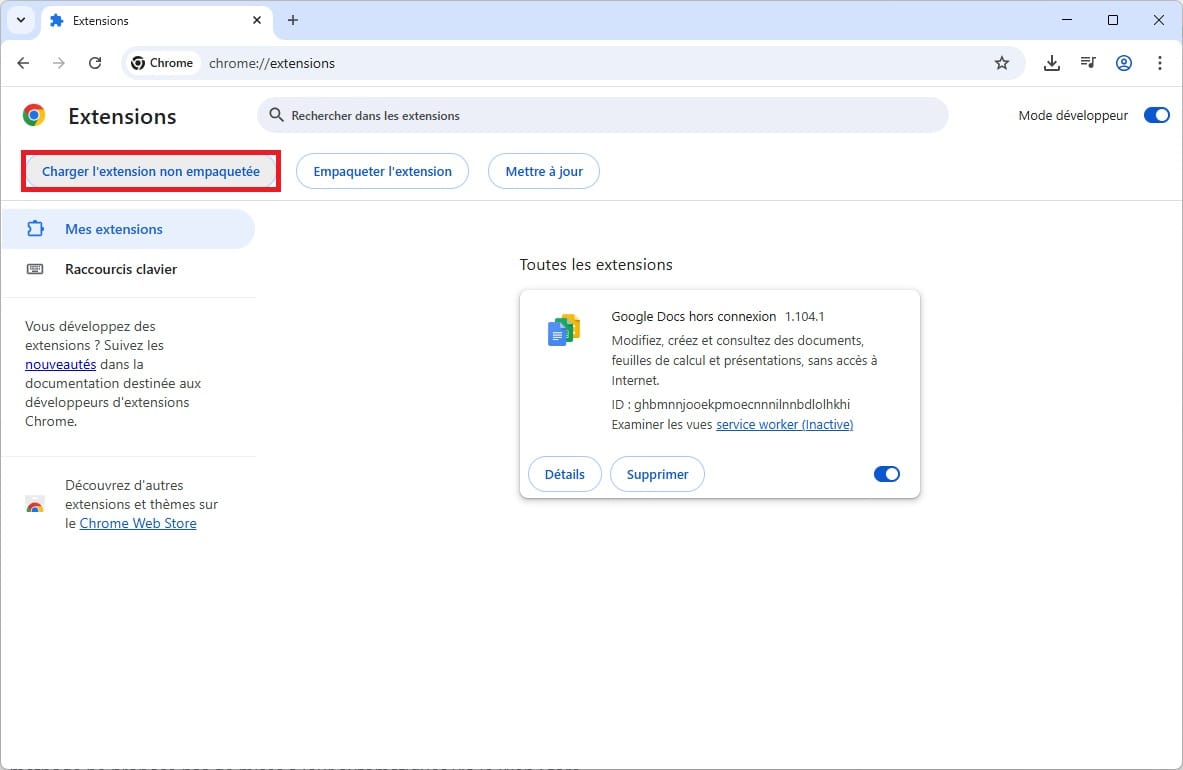
- Select the folder extracted in step 2 (make sure you choose the directory that contains
manifest.json).
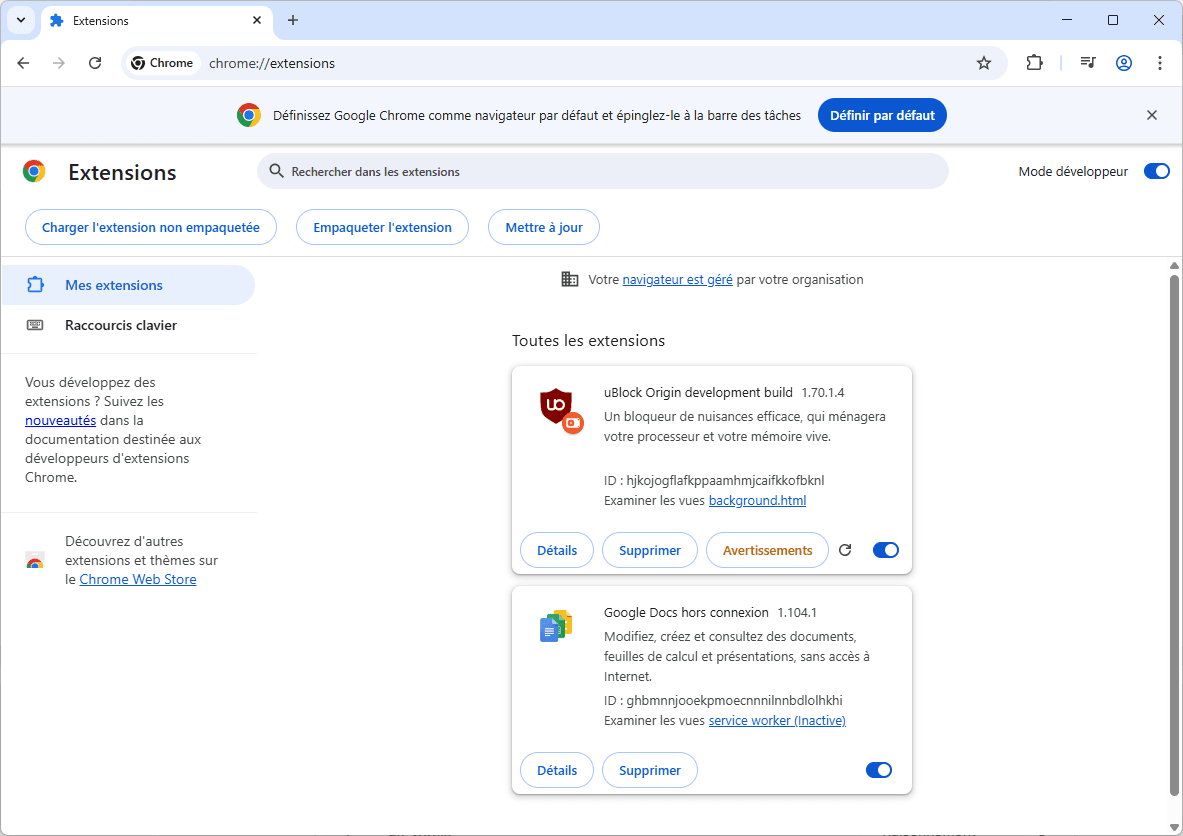
uBlock Origin will now appear in your extension list. You can disable Developer mode again. Unlike a standard installation, however, this method does not receive automatic updates from the Web Store.
The content will unlock automatically after verification.