


Opening a news page now often means weaving between several pop-ups, an autoplaying video and banners hiding half of the text. A ten-minute YouTube video can contain several ad breaks that cannot be skipped. Browsing has become tiring, heavy and aggressive.
To clean up your screen without spending a cent, an ad-blocking extension is the quickest option. But the available tools are not all equal: some quietly allow advertising scripts through, while others slow down your browser. After testing Chrome, Firefox and Safari, here is a selection of free tools that remove ads.
In this article
1. Brave: the browser that blocks ads by default
Brave is designed to block ads and trackers from the first launch. No extension is needed: Brave Shields is built in. It automatically cuts advertising, prevents advertising scripts from loading, blocks third-party cookies and removes disguised redirects. Pages load faster, use less data and remain much smoother on ad-heavy sites.
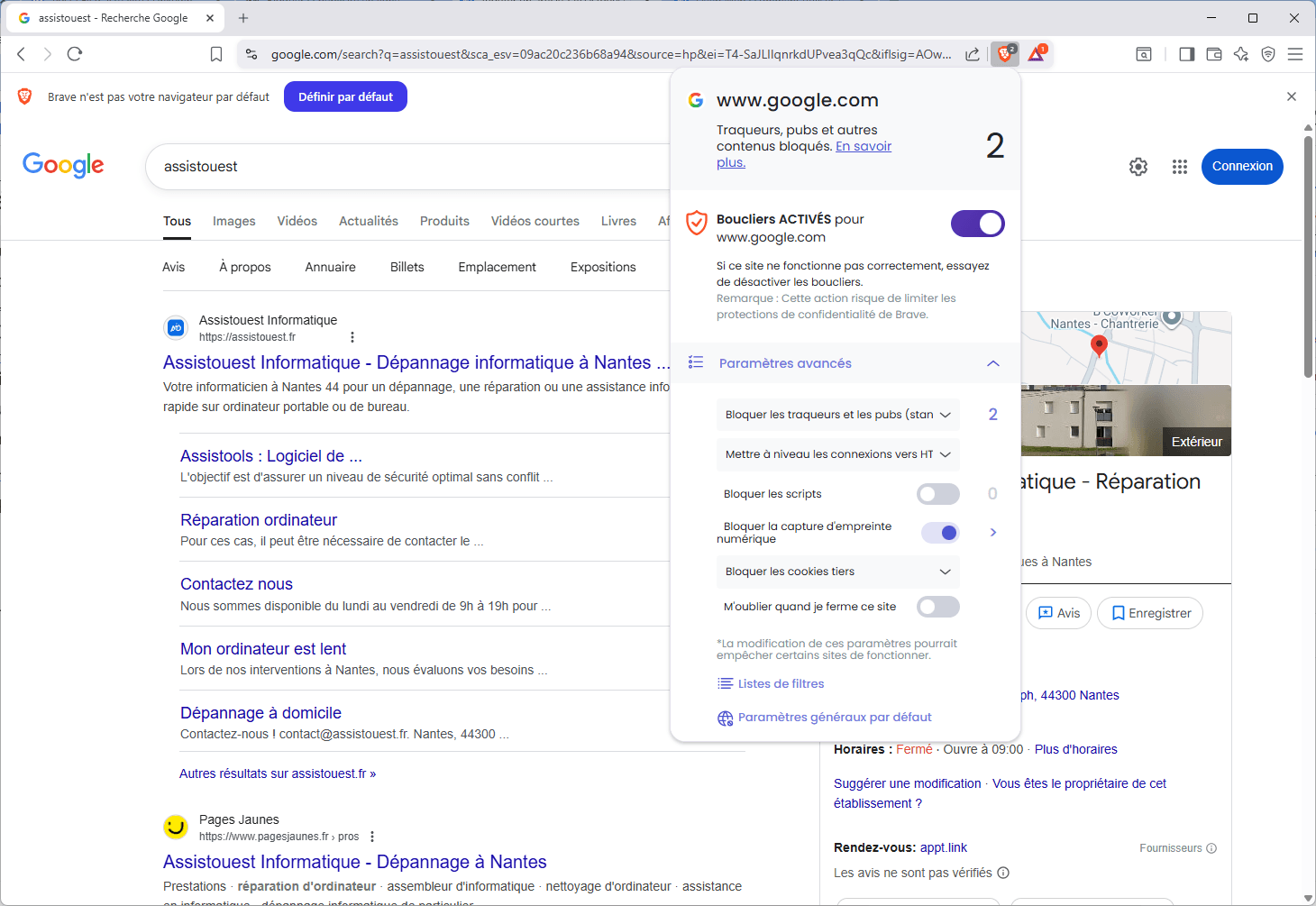
For privacy, Brave limits some tracking techniques but does not eliminate them altogether. It makes browser fingerprinting less reliable by standardising some browser data, yet profiling scripts can still run and the protection is only partial.
For visible ads and ordinary trackers, however, Brave does the job. It does not display “acceptable ads”; it blocks them outright. Its interface is simple and suits every use case. If you want to get rid of ads without configuration, Brave is an excellent gateway to a cleaner, faster web.
2. Block ads with a browser extension
Installing an extension is the fastest way to block online advertising on Chrome, Firefox, Edge or Opera. These tools remove banners, sponsored videos, aggressive pop-ups and trackers in a few clicks. Some merely hide ads; others disrupt ad networks or provide precise controls. Here are four reliable extensions with different approaches.
2.1 uBlock Origin: lightweight, powerful and configurable
uBlock Origin is one of today’s most effective and respected blockers. It filters ads, trackers, malicious scripts, dangerous domains and some fingerprinting elements. It is deliberately lightweight, uses little memory, has minimal CPU impact and makes pages load faster.
 assistouest.fr
It offers straightforward filter levels for beginners and an advanced mode with custom rules, dynamic filtering and web-traffic visualisation. uBlock Origin is open source and has no commercial model behind it. It works on Firefox, but has limitations on Chrome because of the enforced move to Manifest V3.
2.2 AdNauseam: disrupt advertising data while blocking ads
AdNauseam is an activist extension. Rather than simply blocking ads, it clicks them automatically in the background to send false data to advertisers. Its aim is to make behavioural profiling ineffective by polluting targeting statistics, while keeping visible advertising out of your browsing experience.
Built on uBlock Origin’s engine, AdNauseam inherits excellent filtering. It shows blocked ads in a dashboard and offers per-site settings. It is not available on Chrome without complex configuration because of Google’s Manifest V3 restrictions, but it works on Firefox and some alternative Chromium browsers.

2.3 AdBlock Plus: popular, but permissive by default
AdBlock Plus is among the world’s most widely used blockers. It blocks common advertising—banners, videos and pop-ups—and is easy to start using. Its interface is intuitive, with filter lists enabled by default and the option to add custom rules.
However, AdBlock Plus allows certain “acceptable ads” that are considered non-intrusive. This system, enabled through partnerships with some advertisers, is criticised by people seeking total blocking. It can still be enough if you prefer a simple solution and adjust its options carefully.
2.4 AdGuard: a comprehensive, scalable blocker
AdGuard’s browser extension can block banners, video ads, tracking scripts, third-party widgets and even some anti-adblock mechanisms. Its visual assistant lets you block any element on a page manually, while actively maintained lists keep filtering fast and dependable.
AdGuard is also a complete ecosystem. Alongside the extension, its computer and mobile apps can block ads in all your software, and AdGuard Home can filter an entire internet connection. It is a solid choice if you want a solution that starts in the browser and can extend to your network.
uBlock Origin is the best free ad blocker. It is lightweight, highly effective and entirely open source. Its impact was significant enough for Google’s Manifest V3 changes in Chrome to restrict some advanced filtering capabilities.
3. Block ads with a local filtering DNS server
To block advertising on every device on your network—TVs, internet boxes, consoles and phones—DNS filtering is the most effective method. Unlike a browser extension, which affects one device and one user, a filtering DNS server works upstream while domain names are resolved. It blocks advertising before browsers or apps can request it.
3.1 Pi-hole: the network ad blocker favoured by enthusiasts
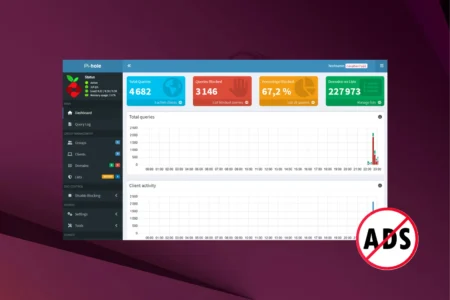
Pi-hole is an open-source local DNS server that can run on a Raspberry Pi, PC or virtual machine. It becomes a DNS filter for every device on your local network, intercepting and blocking requests to advertising domains before the ads reach their destination. Its web interface shows blocked domains, request volume and active devices in real time. It needs some technical setup, but gives you full control over your home DNS traffic without extensions or data collection.
3.2 AdGuard Home: a modular network ad blocker
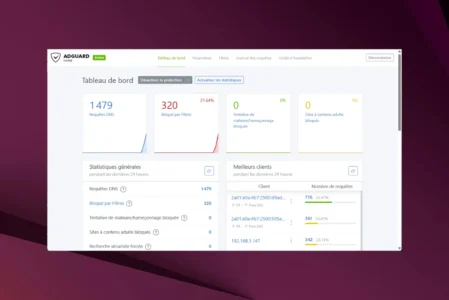
AdGuard Home is a modern alternative to Pi-hole: easier to install, with an intuitive interface and ready-to-use features. It blocks ad domains, trackers and malware for the whole network, and installs in minutes on Windows, Linux, Raspberry Pi or Docker. It includes per-device filtering, parental controls, an intuitive allow list, detailed statistics and secure remote access; it can also filter some HTTPS requests through DNS-over-HTTPS.
4. Block ads with a public filtering DNS service
You can reduce ads and trackers without installing additional software. Filtering DNS services replace your ISP’s DNS servers and intercept unwanted domains from the first request. Once you change the DNS address in a device or router, the protection works across the network, regardless of the browser in use.
| DNS service | Strengths | Limitations |
|---|---|---|
| NextDNS | Extensive ad, tracker and malware list filtering | Free tier limited to 300,000 requests per month |
| AdGuard DNS | Works immediately without an account | Less customisation than NextDNS |
| DNS4EU | European, GDPR-compliant initiative with sovereign servers | Limited customisation |
Filtering happens before content is displayed, avoiding extra extensions and limiting online advertising tracking. It is useful both for people looking for a lightweight setup and for those who want to protect a home network without configuring every device.
5. Block ads with a paid VPN
Some premium VPN providers include an ad filter that works as soon as you connect, with nothing extra to configure. Unlike browser extensions, VPN filtering applies to all network traffic on your device: mobile apps, games, browsers and sometimes video services as well.
NordVPN Threat Protection
NordVPN’s Threat Protection blocks ads, trackers, malicious sites and some infected files by examining outgoing connections. It is designed for everyday users who want fewer ads alongside a fast, secure VPN and a large server network.

Proton VPN NetShield
NetShield is Proton VPN’s DNS filtering system. It blocks ads, trackers and malware before they reach your device on Windows, macOS, Android and iOS. It is enabled in one click, requires no technical configuration and is included with paid plans from Plus onward.
Mullvad VPN
Mullvad offers privacy without a conventional user account: you receive a random account number, without an email address or password. Its native DNS filtering blocks ads, trackers and malicious domains whenever the VPN is connected—an excellent fit for people who prioritise data protection.
Windscribe VPN and R.O.B.E.R.T.
Windscribe’s R.O.B.E.R.T. DNS system can filter trackers, social networks, clickbait sites, NSFW content and malicious scripts, in addition to ordinary ads. Categories can be enabled or disabled and custom domains can be added. Its web dashboard provides intuitive profile management and statistics for blocked requests; the public DNS service can also work without an active VPN connection.
We allow some readers to view our articles for free with an ad blocker. However, their number is currently too high for us to keep this access available to everyone.
You can disable your ad blocker to continue reading immediately, subscribe to enjoy all our content without ads, or come back a little later when the pressure has eased.
Access will be restored automatically as soon as the situation allows.